
Hello again
i show you in the previous blog the Feature of vCenter Server Linked Mode
but that is an old feature available in Version 5.5 now to introduce the new features we need to go above a version
v 6.0
i will start the wizard to upgrade my vCenter first before upgrading the ESXi
i will choose > vCenter Server for Windows > Install

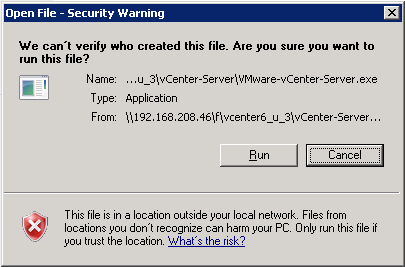
Click Run
Click Next
Accept the User License Agreement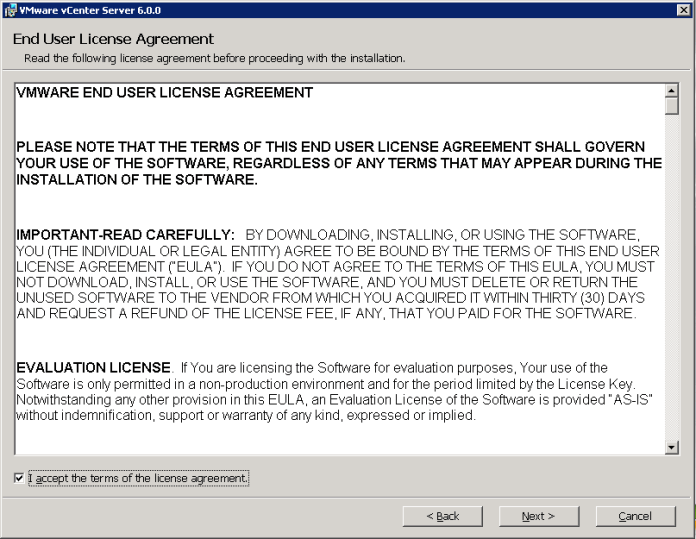
Enter the Administrator Password and click Next
Here you accept the configured port and click Next
Accept the Destination Directory and click Next

Click Next
Check the box and start the Upgrade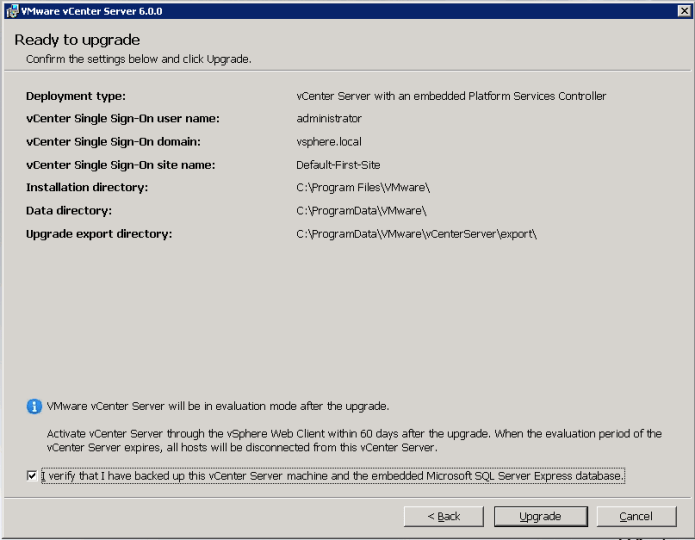 Upgrade will take it time so no rush
once it complete press Finish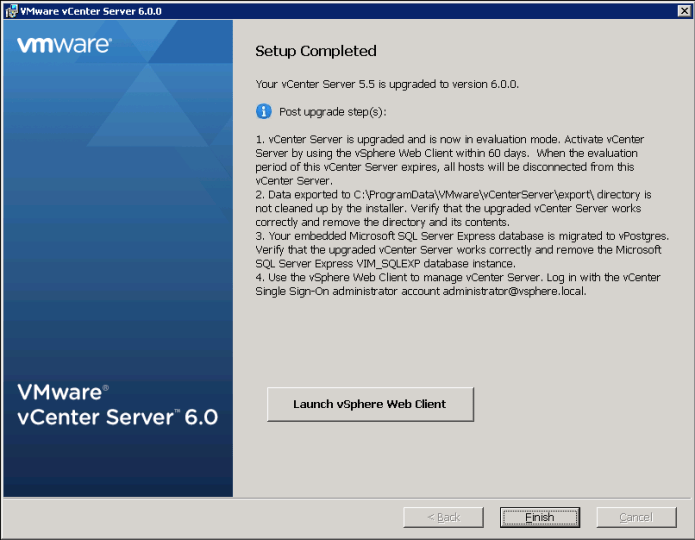
Browse to the vCenter webpage and accept the Security Certificate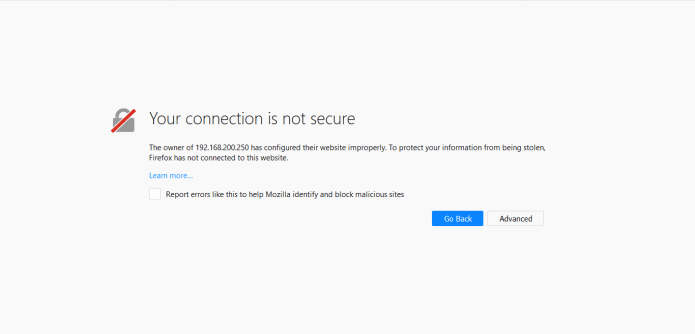
Confirm it

now login using the username and password from my LDAP
and that Simple
welcome to the vCenter version 6.0
 Root
Root 
Pingback: Install VMware ESXi 5.5 | Root
Pingback: Upgrade ESXi 5.5 to 6.0 using Update Manager | Root