
Last blog was upgrading the vCenter
now i will upgrade the ESXi using Sevres Update Manager
So First i will install the Server Update Manager
i will run the software from my CD (Windows vCenter) run it
Click on vCenter Update Manager > Server > Install
the process will start
First thing is the SQL will be upgraded to match compatibility matrix
then it will install the SQL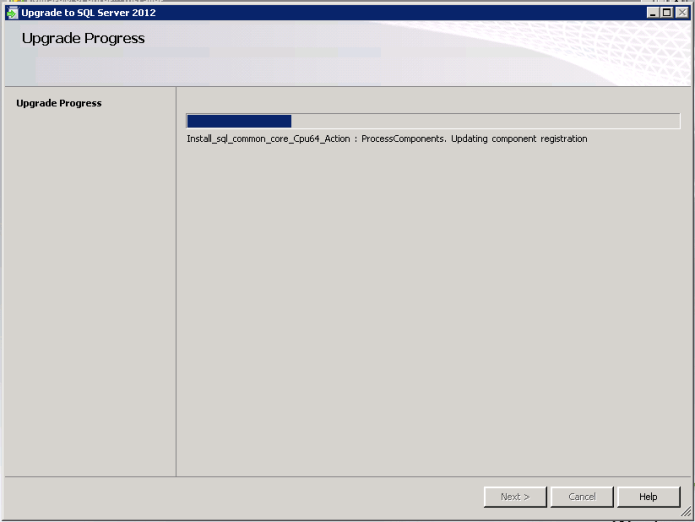
After Click on Run

Accept the English Language

the Wizard will start
Click Next

Accept the user agreement

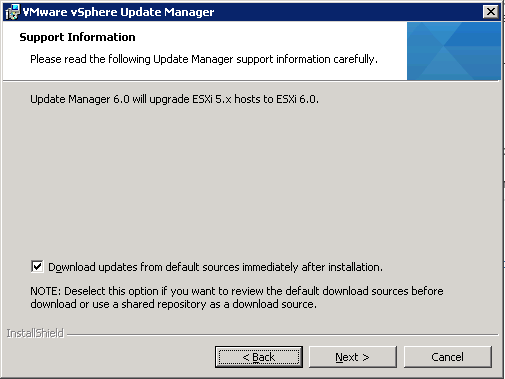
Check the box to download the update from default source and click Next
Enter the IP Address of the vSphere vCenter Server information
Specify the Update Manager and click Next
i un-check the box for the internet

Accept the Directory location

click OK on the warning

Click Install

it will take couple of minute

Click Finish

Now login to the vCenter
ad as you can see under Home Page under Monitoring you can see the (Update Manager)
click on it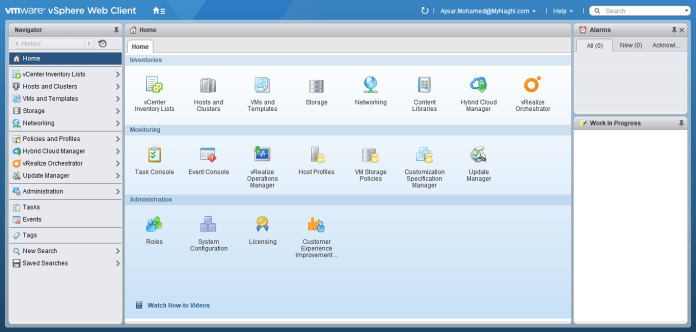
and as you can see my server showing there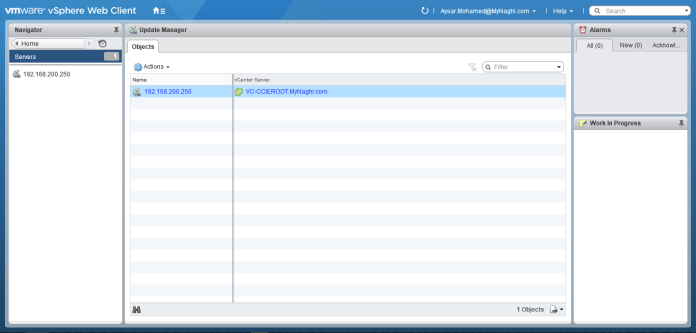
First step is Uploading the ESXi Image
Click on Manage > ESXi images > Import
Click Browse to upload the new image
Select the image i downloaded from VMWare Web page
Upload will take a certain time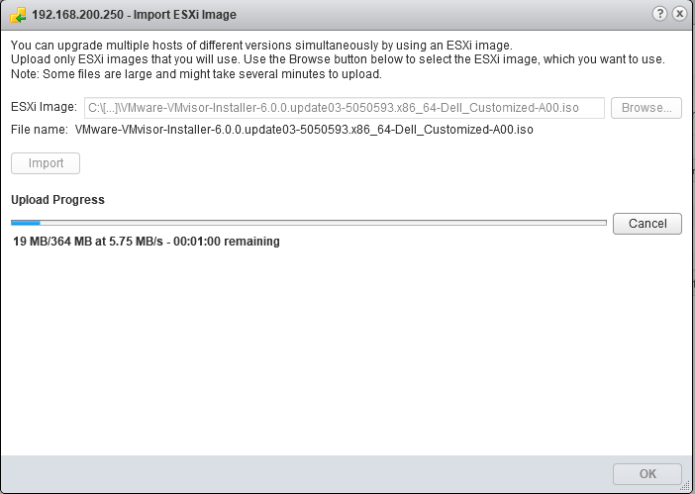
Done then click OK
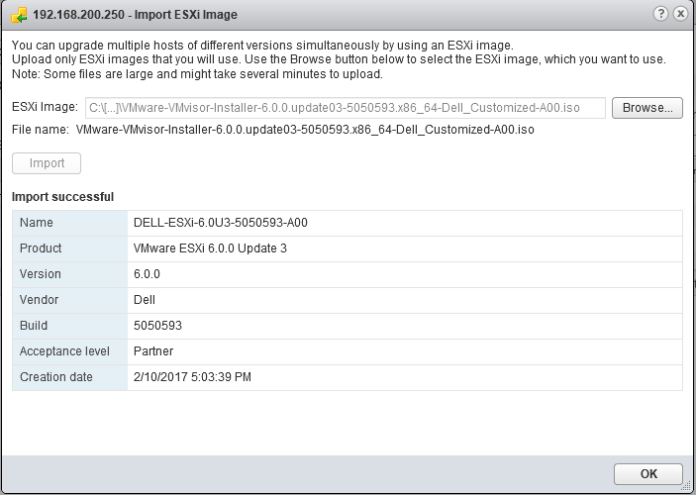
now as you can see i have image available in my Server
Click on (Create baseline > name it ESXi 6.0)
now let me create a group baseline
go to Manage > Hosts Baselines > + create new baseline group
you can see the baseline i created in the previous step available here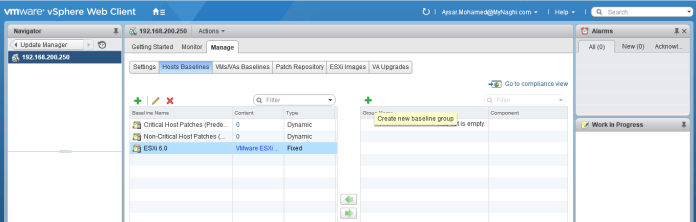
Choose a name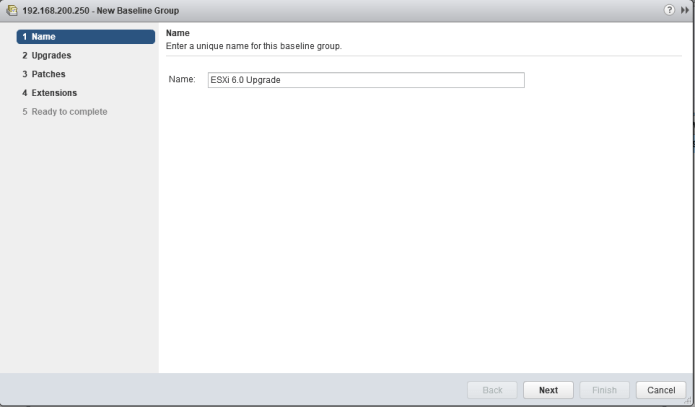
Select the upgrade image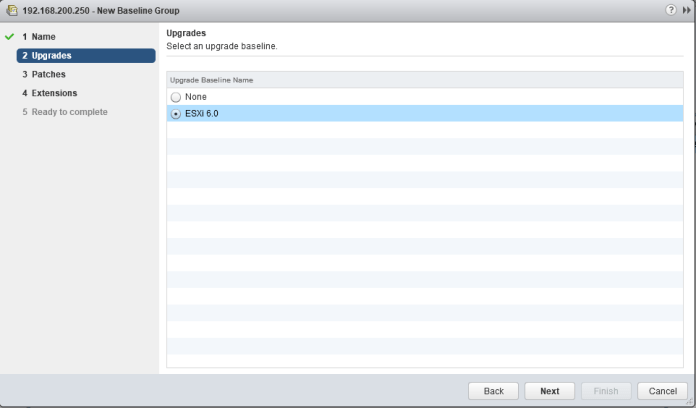
Click Next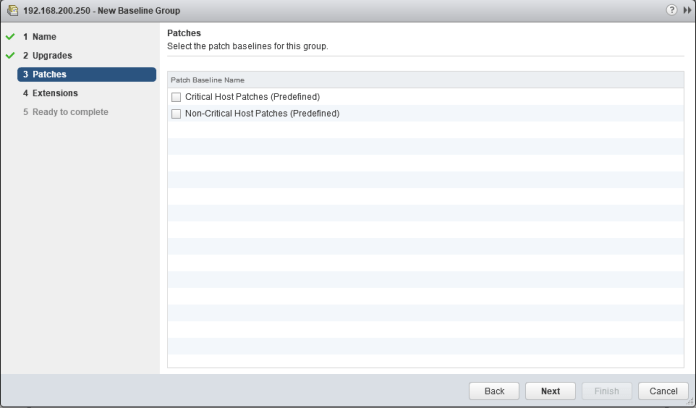
Next again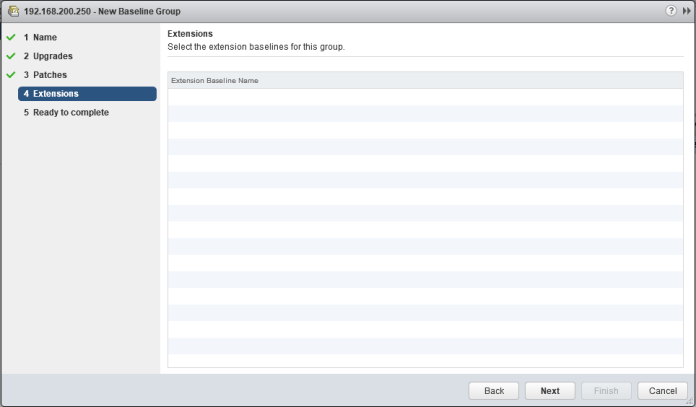
and Finish
Done
Now go to Home > Inventories > Hosts and Clusters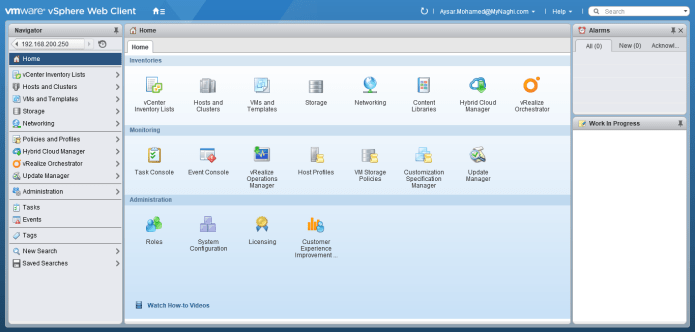
Select my ESXi > Manage > update Managers > Attach Baseline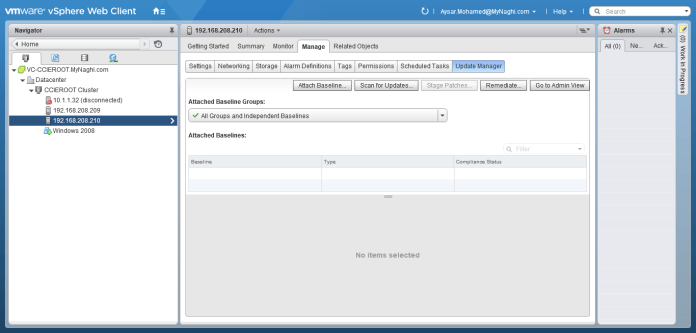
Select the ESXi 6.0 Upgrade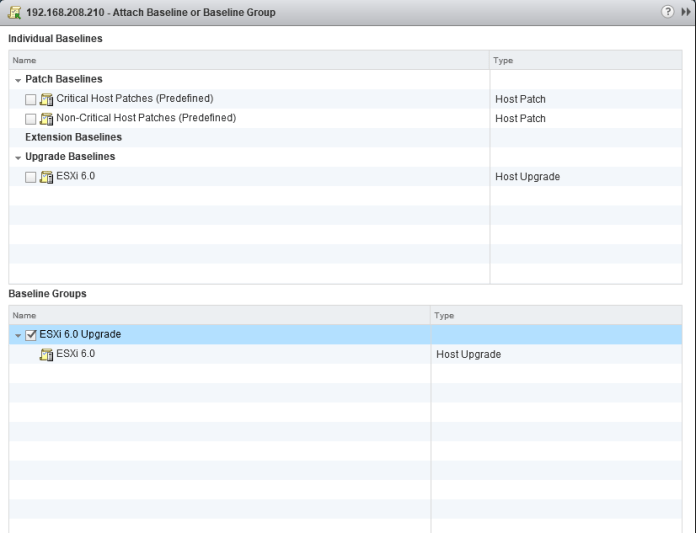
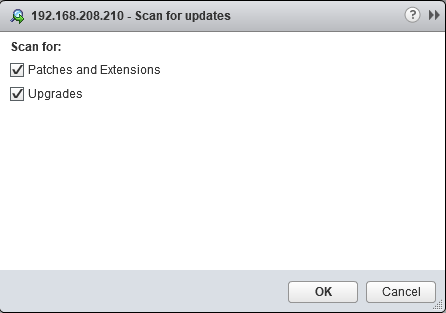
now click on Scan for Updates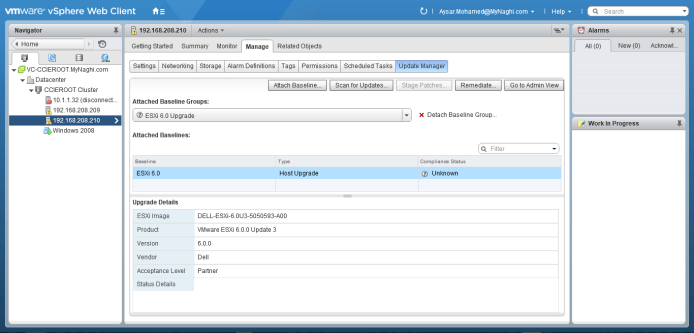
Click OK
it say non-compliant
no problem i will try since it’s a lab

Now put the ESXi Machine in Maintenance mode
Right Click the ESXi > Maintenance Mode > Enter Maintenance Mode
Click OK

Click OK

Click on Remediate
Select the baseline
Select the host
Accept the EULA
Click Next
Click Next Again
I disable the removable hardware
Also i disable the FT and high availability
Click Finish
you can see from the progress the update state
Now Exit from the Maintenance Mode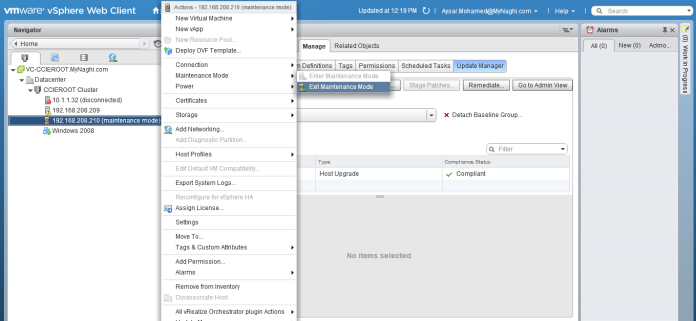
Now if i highlight the ESXi host you can see the Version been upgraded to 6.0
Now i will HTTPS to the host
Accept the New certificate
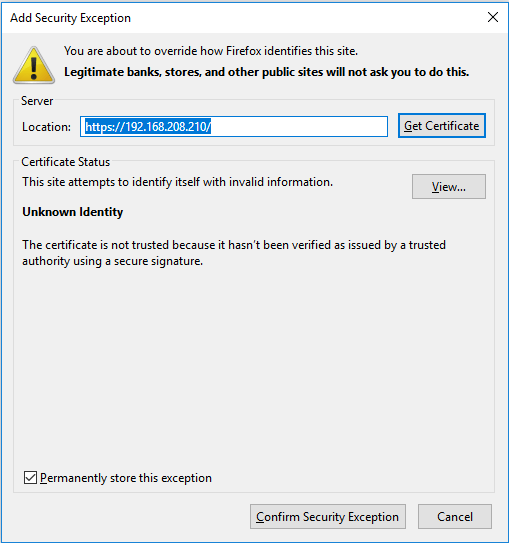
and in the last couple of lines you can see it mention (ESXi 6.0 update 3)

I will open the Web Page and login
and as you can see the beautiful glamour of version 6.0 😀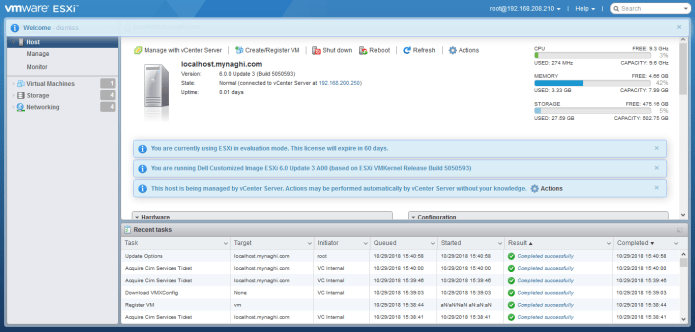
 Root
Root 
Pingback: Install VMware ESXi 5.5 | Root