
This is one of the most amazing feature introduced in vSphere 6.0 that allows virtual machines (VMs) to switch from one vCenter Server instance to another
Traditional VMware vMotion is the feature to allow users to move virtual machine to another host managed by the same vCenter, but Cross vSwitch vMotion basically allows you to migrate virtual machines between different vSwitches. Not just from vSS to vSS but also from vSS to vDS and vDS to vDS.
Note:
that vDS to vSS is not supported. This is because when migrating from vDS metadata of the VM is transferred as well and the vSwitch does not have this logic and cannot handle the metadata.
so in the previous blog we did ELM (Enhanced Linked Mode) which is requirement for vMotion Cross vCenter and that mean (Shared SSO domains) and another requirement is Enterprise Plus license. Both vCenter Server instances must be time-synchronized and last thing For migration of compute resources only, both vCenter Server instances must be connected to the shared virtual machine storage.
Note: in case you didnt match the VM requirement you can use app such as (Vinchin Backup & Recovery)
there is a network port requirement but i connected both machine in my lab to the same network so no need for them but you can check them in the VMware website
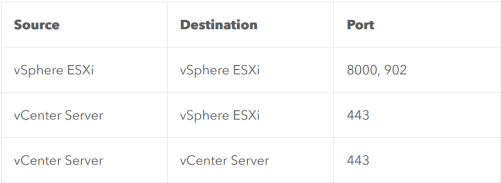
so Lets start
Go to vCenter Home page > Host and Clusters
Expand vCenter > Cluster > Host > manage > Networking > VMKernel adapter > select the network card

Enable the port properties > select vMotion traffic
i used the same interface as the management traffic since i don’t have many network card
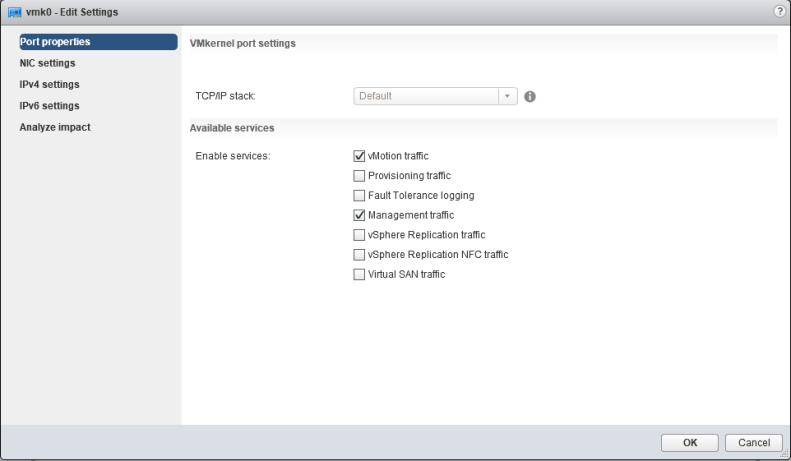
Repeat the same steps in the other vCenter
Migration Steps
Now i will move my VM from host (192.168.208.210) to (192.168.208.209)
Expand the cluster > expand the host > right-click the VM you would like to migrate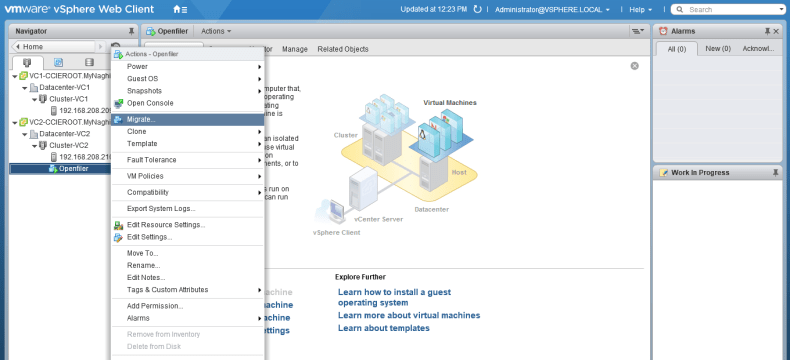
Select Change both computer resource and storage > Select Compute resource first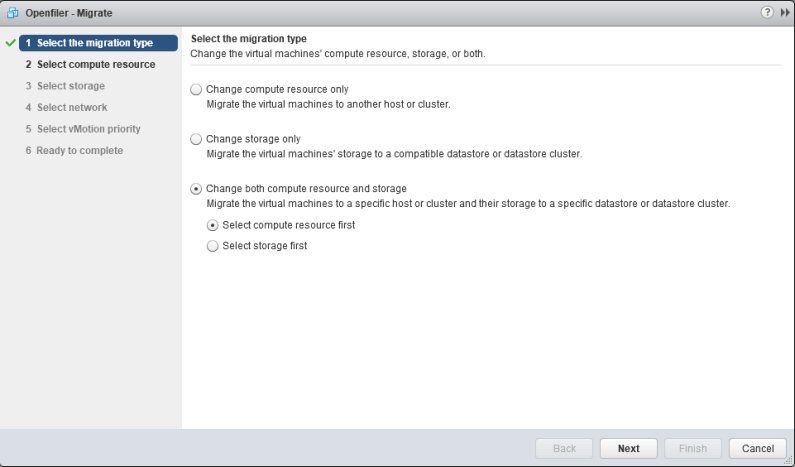
Now select the destination host (192.168.208.209)
Now select the storage
Then i will select the Datacenter-VC1
and finally i will select the Network Adapter
Note:
that the IP Address of the VM that you are migrating will not magically change, so you will need to make sure both the source and the destination Port-group belong to the same layer 2 network.
Next thing select to the schedule the vMotion
and last thing click finish
now as you can see it move the VM
and Done finally 😀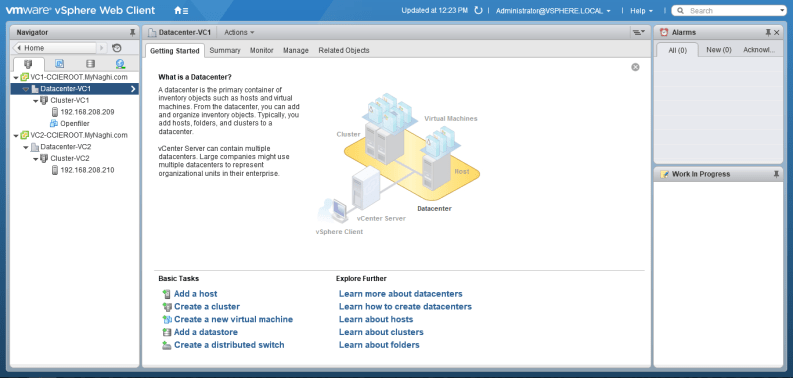
Note:
- this feature for instance Datacenter Migrations or when you are moving VMs between clusters for instance or are migrating to a new vCenter instance even and You can even do it without having a shared datastore between the source and destination vCenter
- Advanced Cross vCenter vMotion, introduced in vSphere 7.0 U1c, is only supported between vSphere (vCenter and ESXi) versions 6.5 or greater. The source vCenter must run vCenter 7.0 U1c or later.
 Root
Root 