
1 Host is simple installation
but
what if i have 100 host :O
i cant just go one by one to do it if it’s not a smart move so
Auto Deploy is the solution, The architecture of auto deploy has changed in vSphere 6.5, one of the main difference is the ImageBuilder build in vCenter, you can create image profiles through the GUI instead of Power CLI
one of the main requirement is to make sure of DHCP scope Configuration:
- Option 066 – with the Boot Server Host Name (in Cisco it will be different command)
- Option 067 – with the Bootfile Name
My Design :
vCenter Server : (192.168.200.251)
TFTP Server : (192.168.200.102)
Lets start
Go to Administration > System Configuration

Then Choose Services
Click on Auto Deploy > Actions >Edit the Start Type

its Manual by default so change it to Automatic

Then Click Start
Then Move to ImageBuilder Service and do the Same step
Now log out of the Web Client and Login Again
you will see in the home Page the Icon of (Auto Deploy)

in the in the right Pane click on (Auto Deploy)
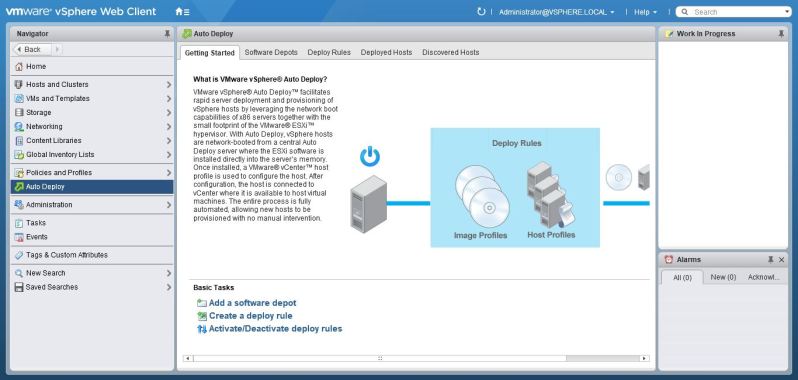
Then go to Software Depots > Import Software Depost
I already downloaded a Depots from VMware Web Site

Then i choose to import the Downloaded Depots

Once it finish Click Close

then when you highlight the Depots it show everything you have inside the File
Now go to Deploy Rules > Create A Deploy Rule

Choose a name and i made it simple i Select All hosts. you can define it by MAC or Range of IP Address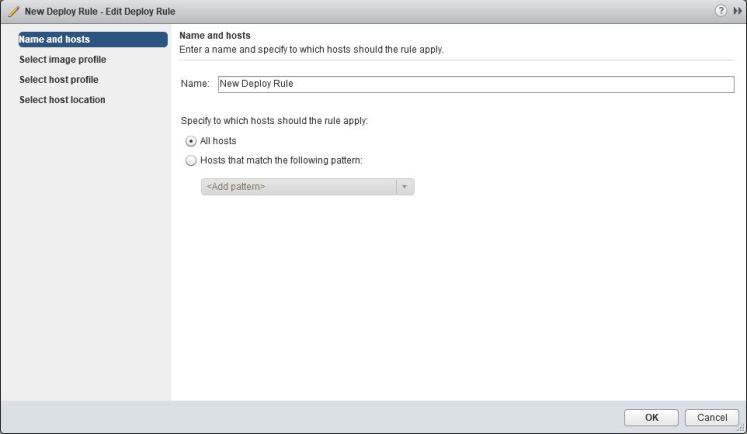
Select the Image Profile 
Choose the host profile i created in the earlier blog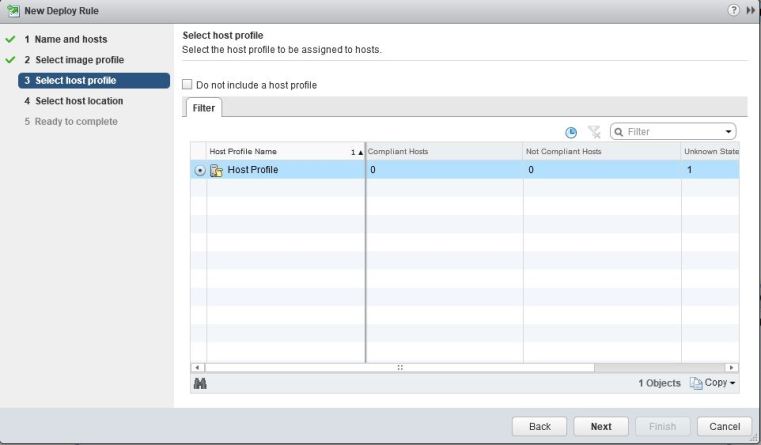
Choose where you want the Host to be in which cluster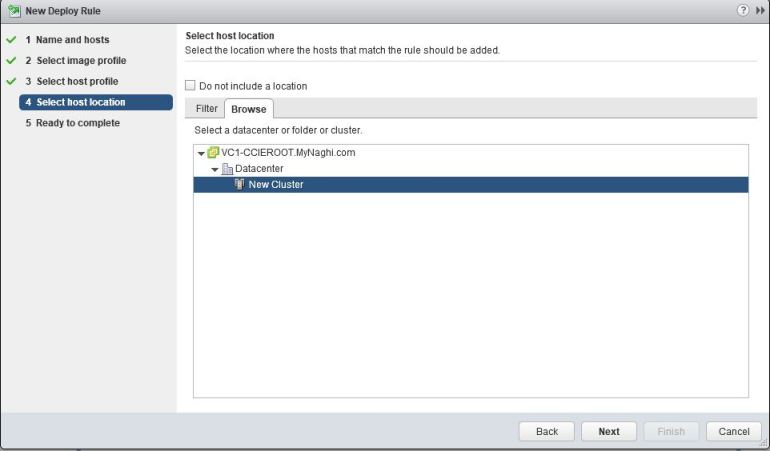
Review and click Finish
As you can see the rule is in (inactive) Status we will activate it after complete our other configuration in DHCP Side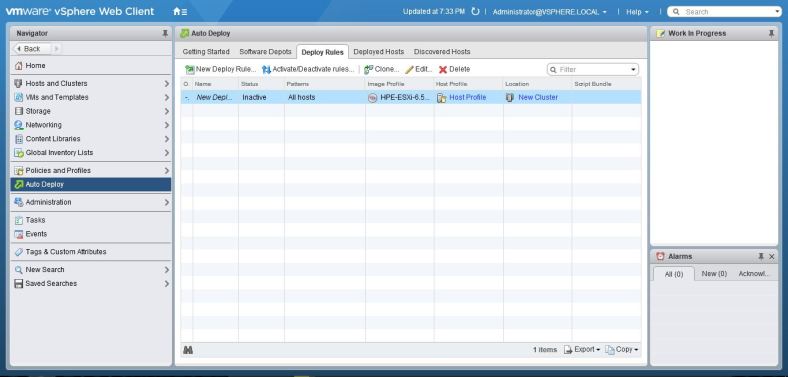
I will download my TFTP Files from my vCenter
Go to vCenter – Configure – Auto Deploy and click on Download TFTP BOOT Zip

And Extract it the ZIP File to my TFTP Folder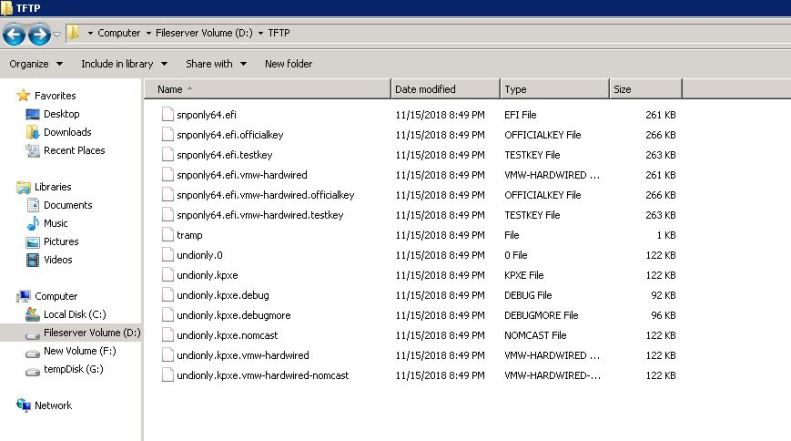
Then i Turn my TFTP
i use Tftpd64 it so easy to use

Now go back to the vCenter – Configure – Auto Deploy and this time Copy the BIOS DHCP File Name i will need it in Cisco DHCP Configuration
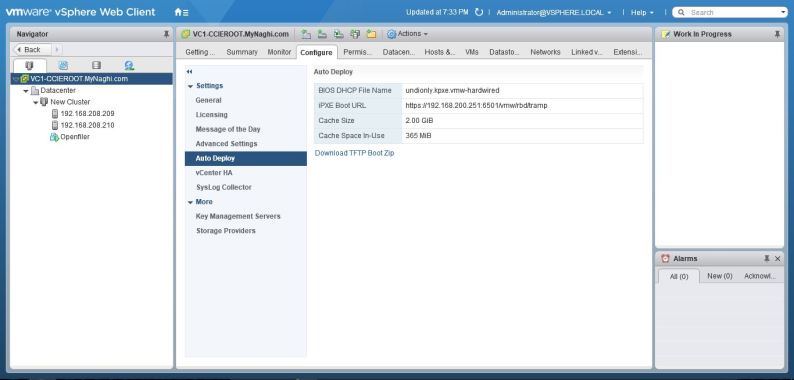
and as you see
Option 66 is the Command (Next-server) Which direct to IP of my TFTP Server
Option 67 is the BIOS DHCP File Name

Now Lets go back to the vCenter and Activate our Rule
highlight the rule and click on Activate

The rule will go up Then press Next 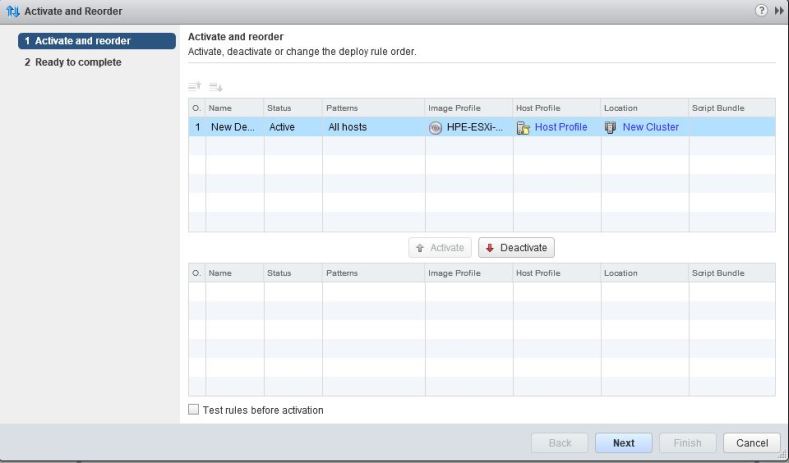
Now Click on Finish 
Now lets start our Machine
you can see configuration is loading

it will take couple of minute
and as you can see it start loading the VMware ESXi

and as you see it Applying the host Profile
and Done and it took an IP of (192.168.250.13)
so now i press F2 to login

Username : root
Password: still not set so you just press Enter
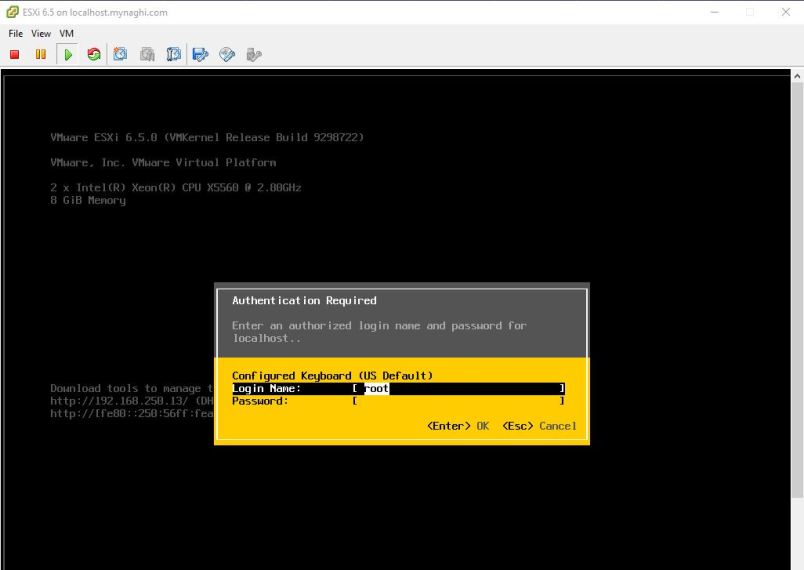
now click on Configure Password
and put the new password and press Enter

Now browse to (192.168.250.13) and click on Advanced and made an Exception 
Confirm the Exception

put the Username and Password i configure earlier
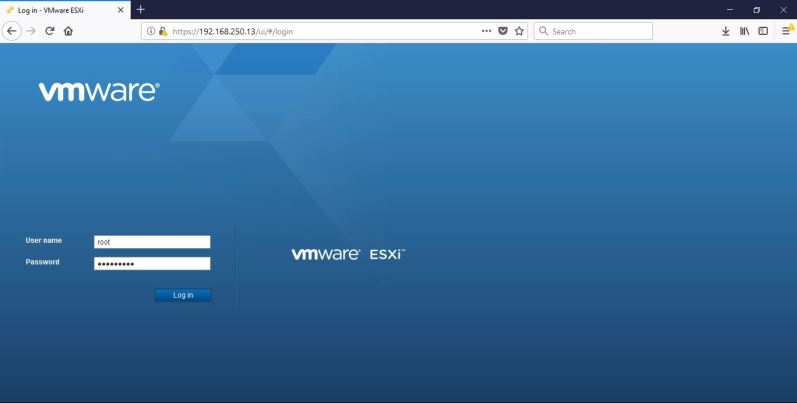
and finally you can see the host now running HPE customized image 6.5 that we download from VMware
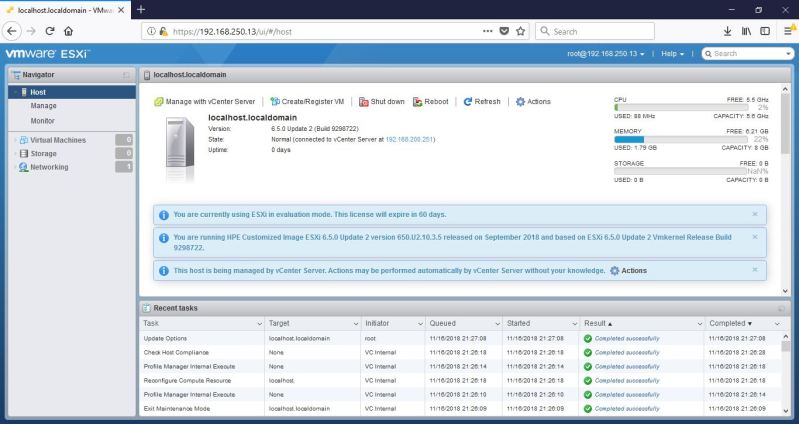
and in vCenter page i see it added to my Cluster

;D
 Root
Root 