BGP

Basic BGP Configuration

The Biggest Routing Protocol in The World
in 2011 i created me and my earlier Manager Wahiduddin [TIKO] a group called [BGP For Life]

and Implemented an over 10 BGP Site and reach to 30 Site in 2 year and i fell in love till VOIP Came and got engaged in it for a while, so i decide to create my BGP blogs.

i will walk you through my BGP Series how to configure BGP in every way i know ;D

We have 65535 number we choose from our AS just like private and public IP addresses:

  • 0 : reserved.
  • 1-64,495 : Public AS numbers.
  • 64,496 – 64,511 : reserved to use in documentation.
  • 64,512 – 65,534 : Private AS numbers use for customer and my LABs.
  • 65,535 : reserved.

So BGP Resume:

  • It use TCP-Based Port 179
  • Triggered Update 5 Second Internally and 30 Second Externally
  • Complicated “Metric” for finding the best route
  • Neighbors Manually Configured
  • BGP Packets (Open, Update, Keepalive & Notification)
  • BGP Status (Idle, Active, Open Sent, Open Confirm & Established)

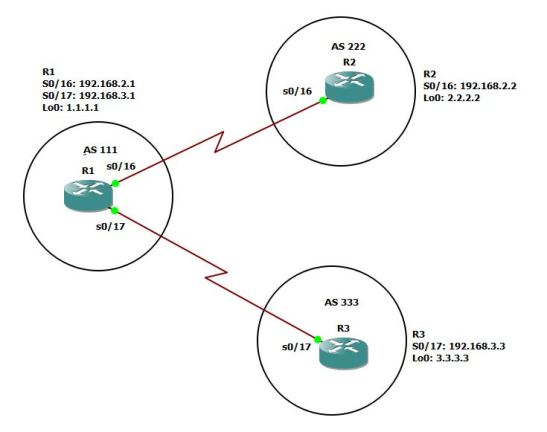
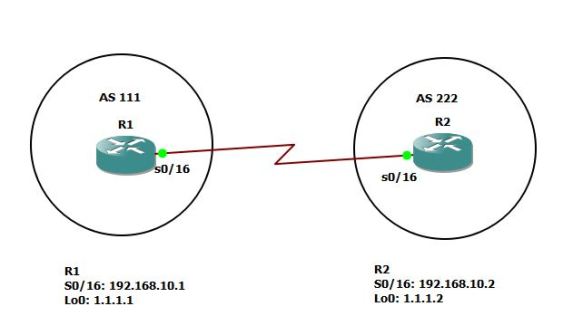
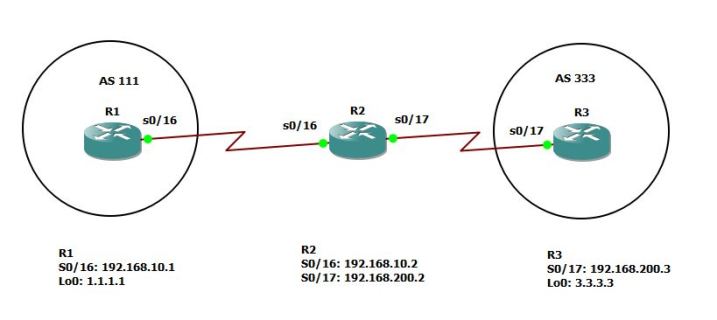
I will use GNS3 for my Labs so let start by configure basic connectivity between two router

1
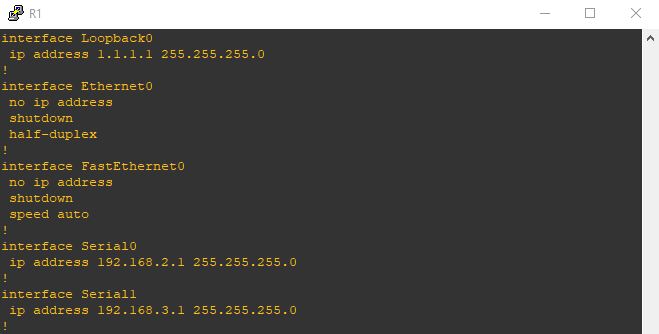
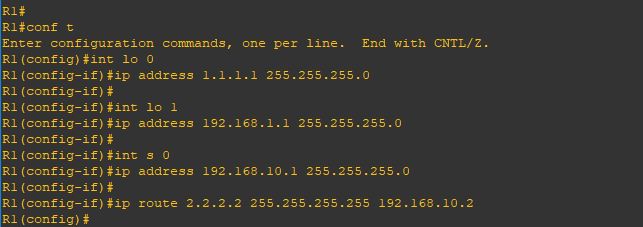
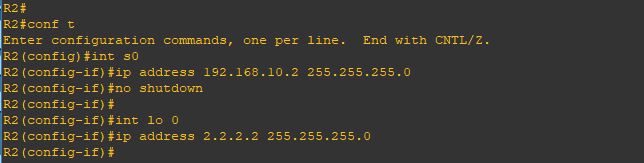
i will start by configuring the interface for R1 and loopback 2
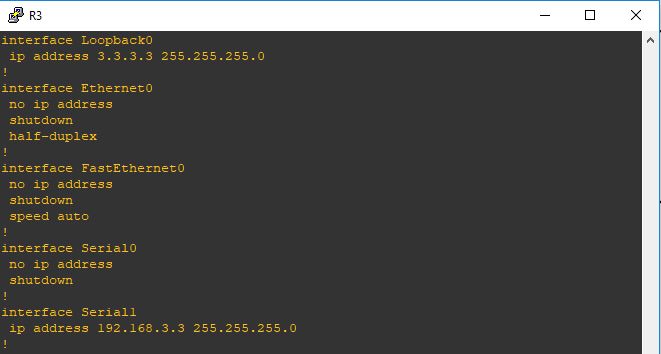
Then proceed with R2
3
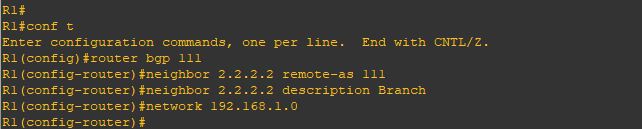
Now the BGP Neighbor Configuration on R1 by first mention the AS number of R1 (remote-as)
then the first command for our neighbor is by typing their IP Address of Router and their AS number
6
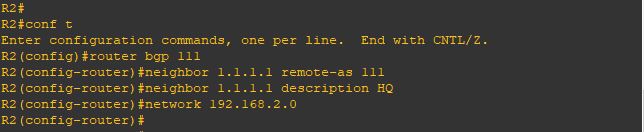
Repeat the same step on R2
7
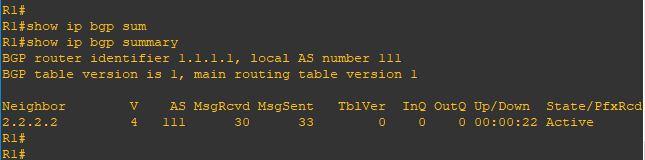
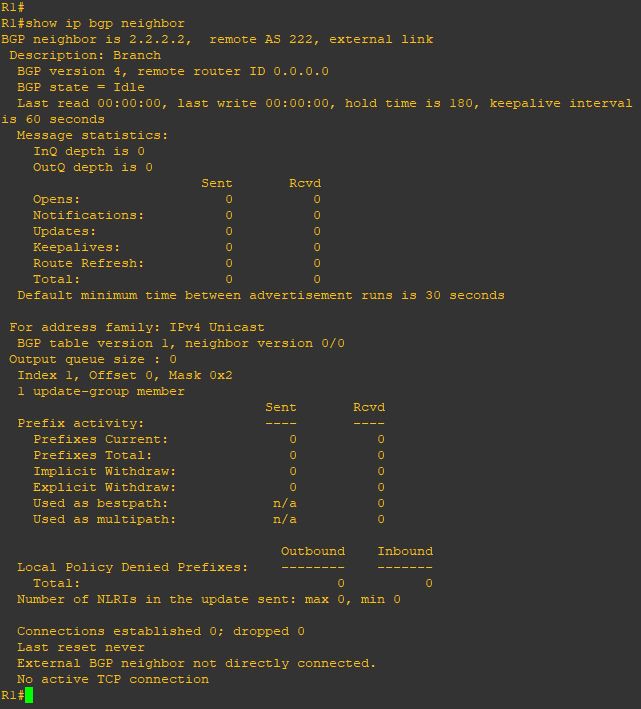
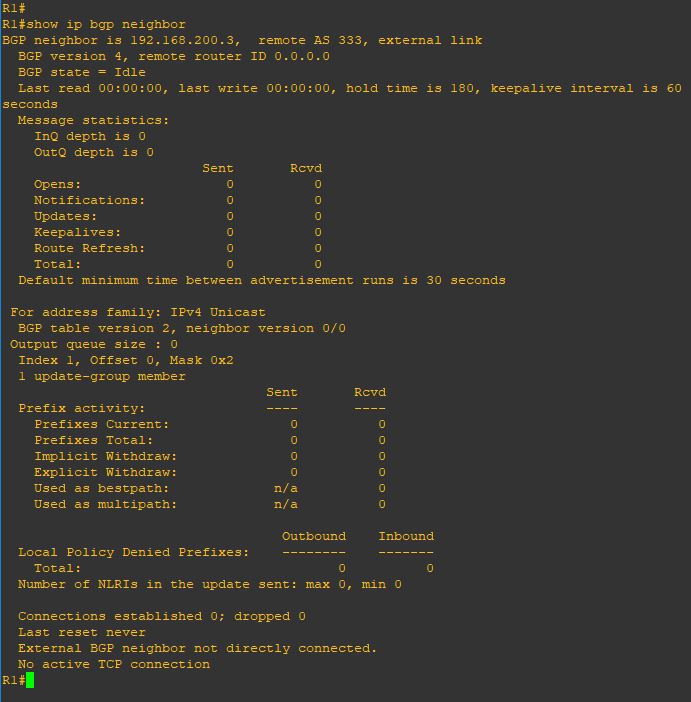
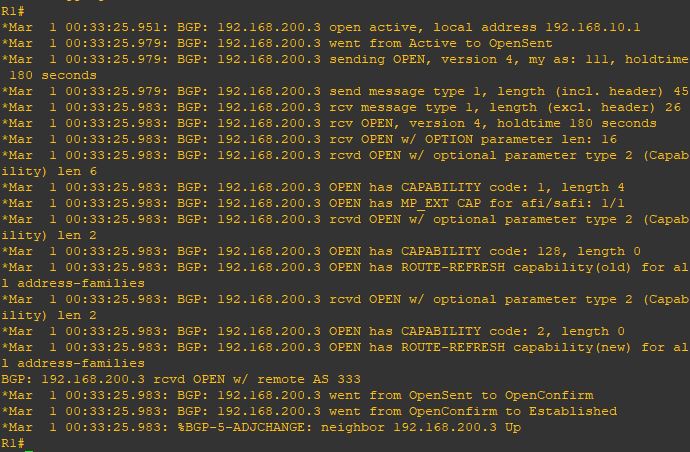
Finally the neighbor came up8
Same in Router 2
9
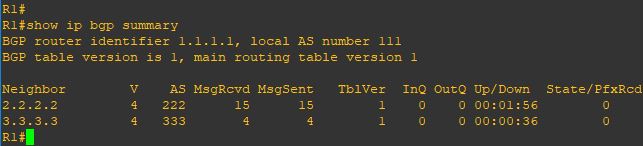
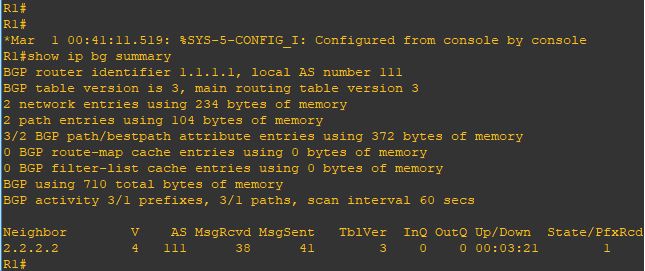
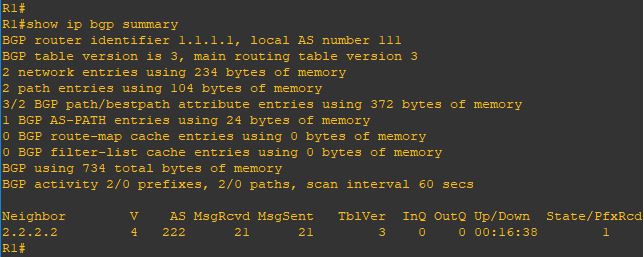
Now i will Issue the command (show ip bgp summary) which is a quick overview of your Border Gateway Protocol neighbor status, showing neighbor IPs, ASNs, BGP state (Idle, Connect, Established), uptime, and the number of prefixes learned/advertised, helping quickly spot peering issues or route exchange problems
10
repeat the same command on R211
Now i will tells a router to advertise specific IP prefixes to its BGP neighbors by issuing the command

(network x.x.x.x mask x.x.x.x)
12
Repeat the same on R2
13
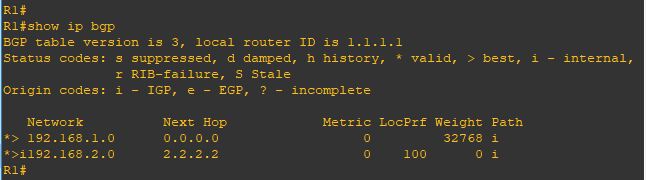
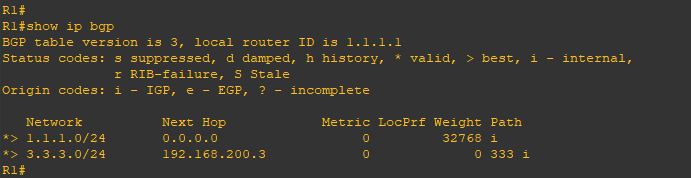
and now you can see the network that been advertise to you by issuing the command
(show ip bgp) and if you look at the local network on my router [1.1.1.0/24] have a weight of (32768)
which is local to me but the other network [2.2.2.0/24] have a path of an AS 222
14
Same on R2
15
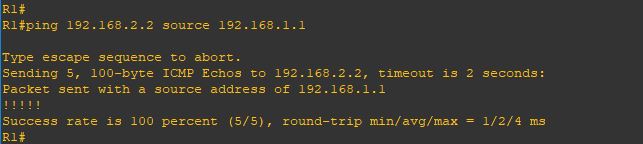
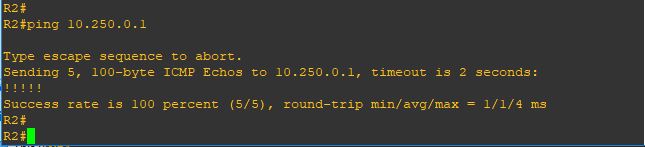
test connectivity using [ping] and it goes very well16
if you look above we advertise the network using (network x.x.x.x mask x.x.x.x) because unlike IGP protocols, it only injects routes that already exist as exact matches (network address and subnet mask) in the router’s local routing table. let me show you

i will configure the new loopback 1 with a /24 mask
20
and advertise it without mentioning the Mask 21
and as you can see it doesn’t show up because the BGP will advertise the default subnet mask for the network (10.0.0.0) which is (/8) and that subnet not available under my network 22
so let’s correct it
23
and Wallaaaaaaa
24
and yup i can ping it
25

Note:

  • IBGP administrative distance of 200 while EBGP is 20
  • When your router learns about a prefix through EBGP and an IGP (RIP, OSPF or EIGRP) then it will always prefer the external BGP route. EBGP uses an administrative distance of 20 so it’s preferred over OSPF (110), RIP (120), or EIGRP (90).

Standard
6.7

Migrating vCenter Server 6.5 for Windows to vCenter Server Appliance 6.7

Last subject in VMware and 2023 has finally come to an end
VMware has officially announced that vCenter Server appliance is the default deployment of the vCenter server and Windows based vCenter Server will be discontinued in the next numbered release.

Only vCenter Server 6.0 and 6.5 versions can be upgraded directly to vCenter Server 6.7 version

VMware vCenter Server (VCS) Converter Appliance which enabled users to migrate from vCenter Server for Windows and an external MS SQL database to a VCSA with an embedded vPostgres database.

Let’s get to it
Here is tool which is part of the new VCSA vSphere 6.0 Update 2m

1
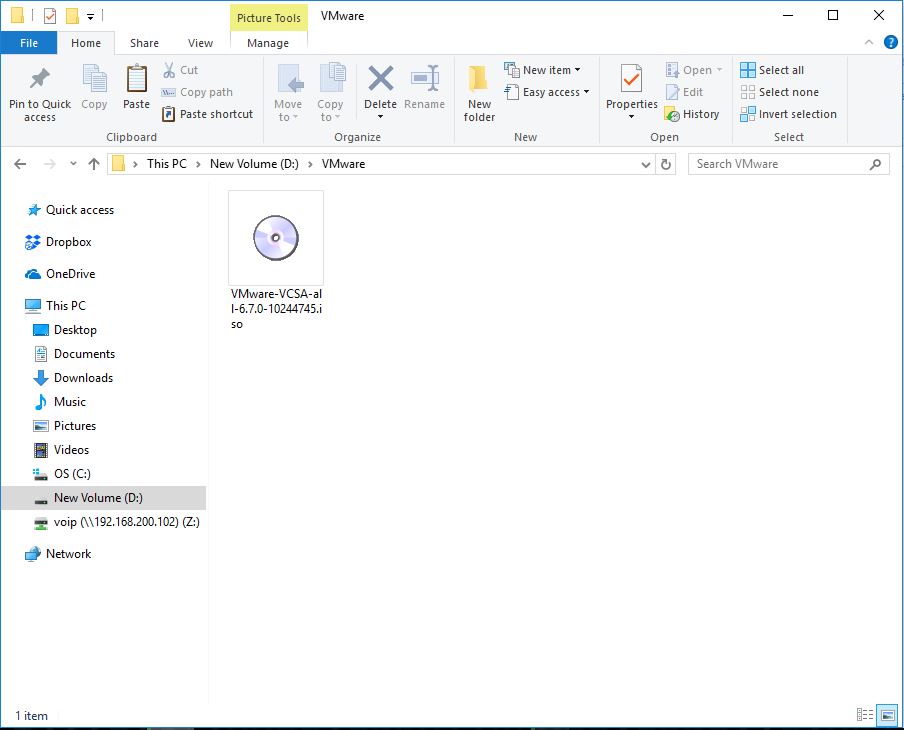
i will unzip it
2
and here all the files i will start Migration Assistant3
Click YES
4
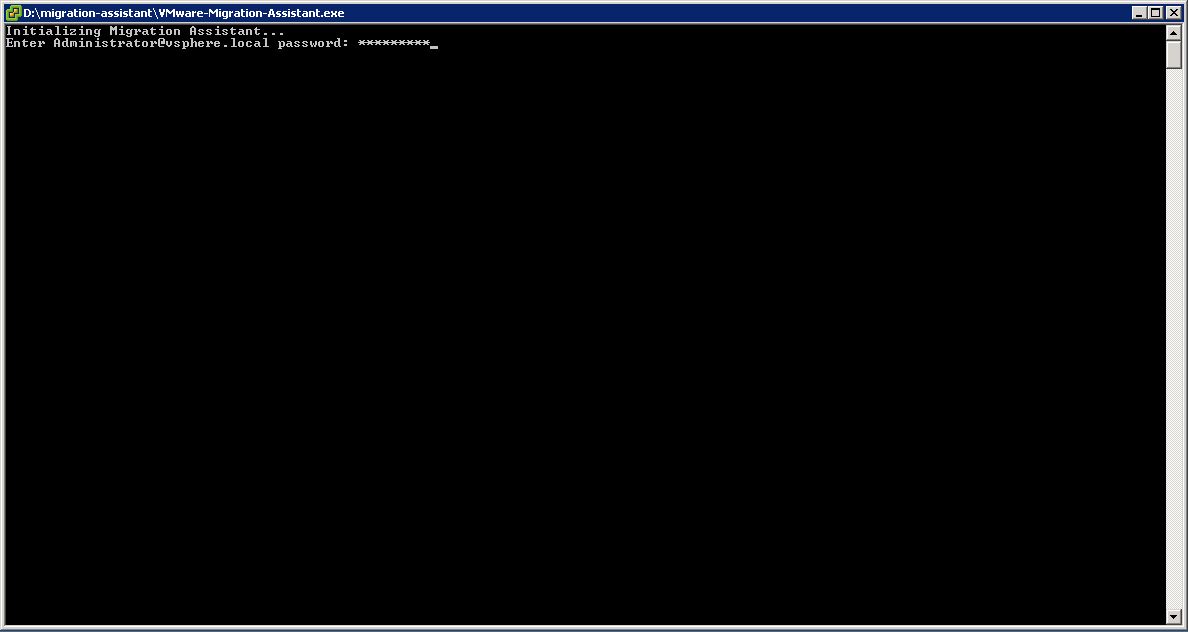
Enter the Administrator password 5
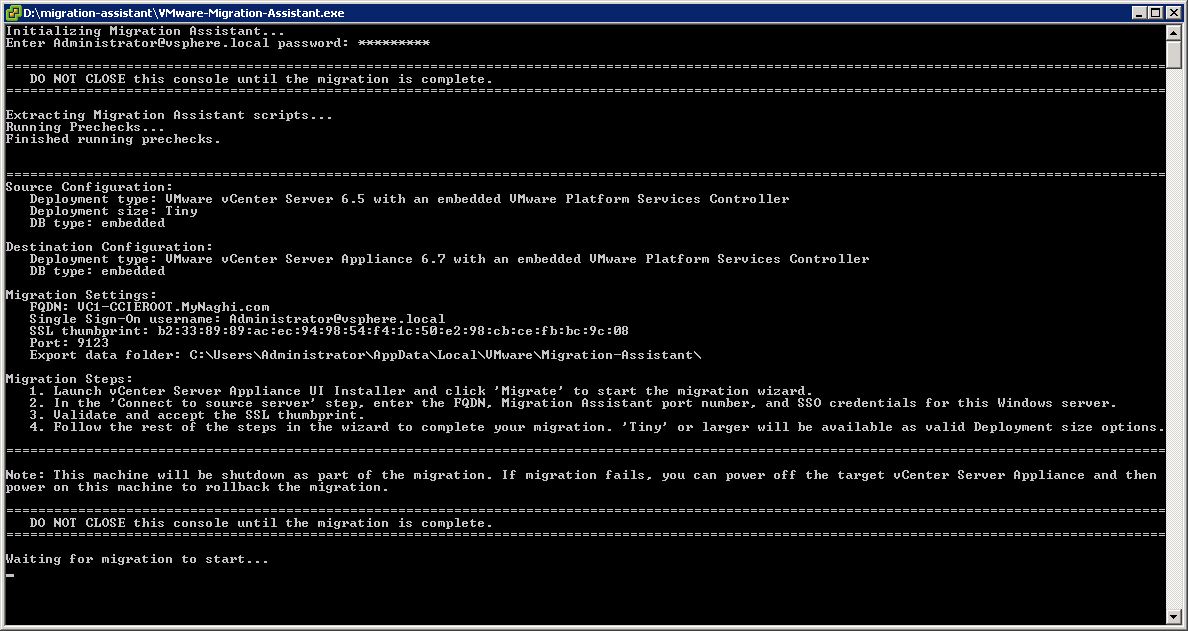
the Script will extract6
Once it mention for you to start the migration we will jump to the files again7

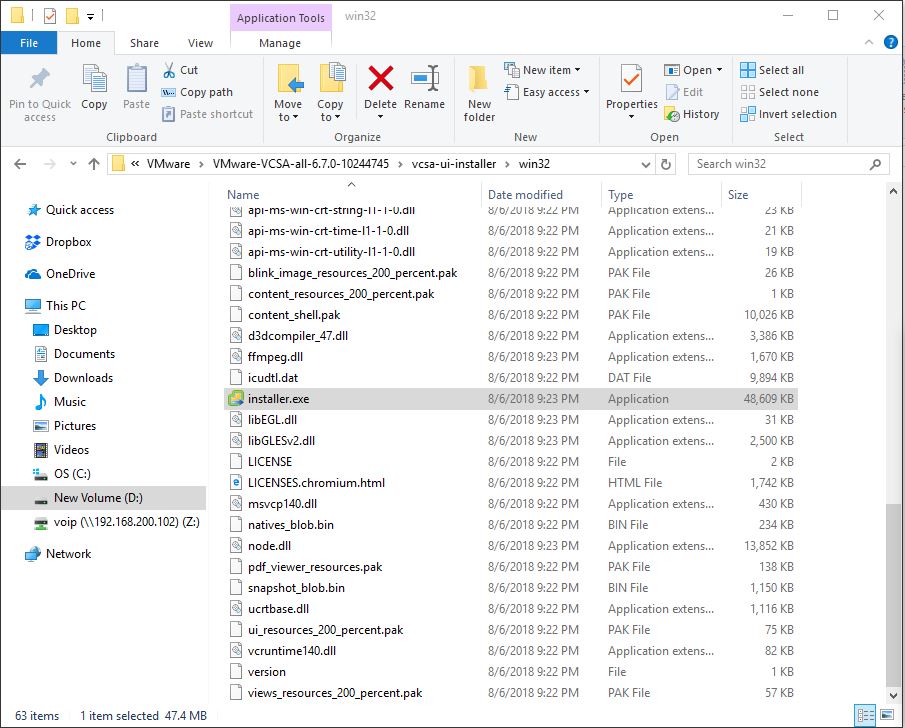
Now go to D:\VMware\VMware-VCSA-all-6.7.0-10244745\vcsa-ui-installer\win32
Click on Installer.exe
10
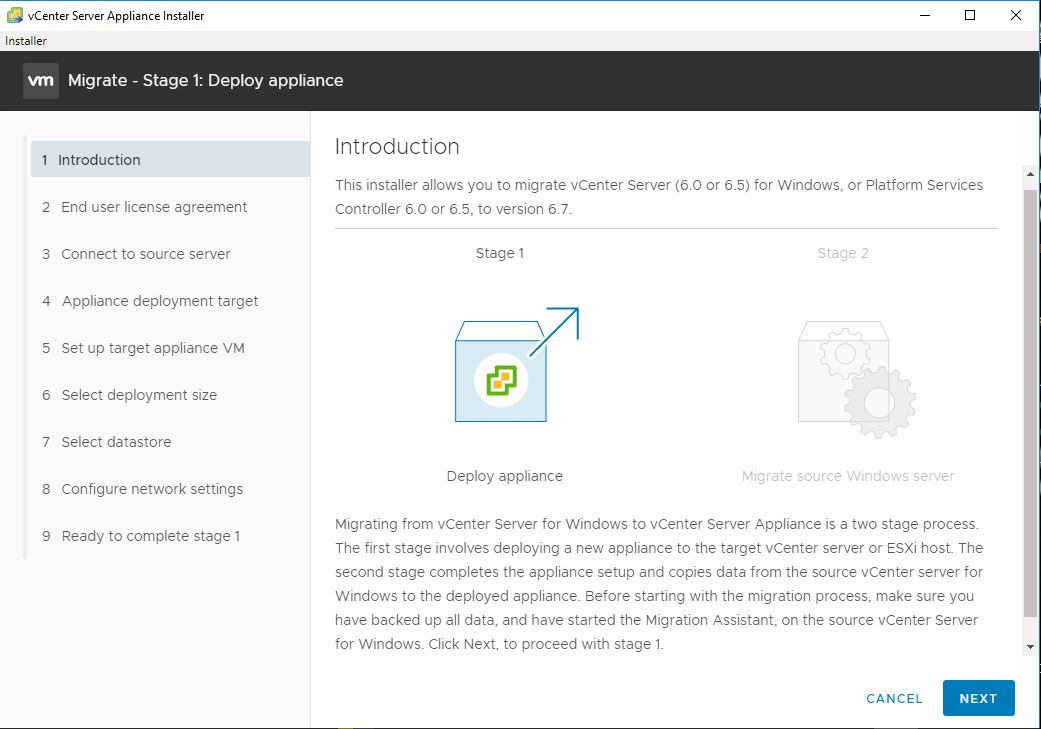
Choose Migrate

8
Click Deploy9
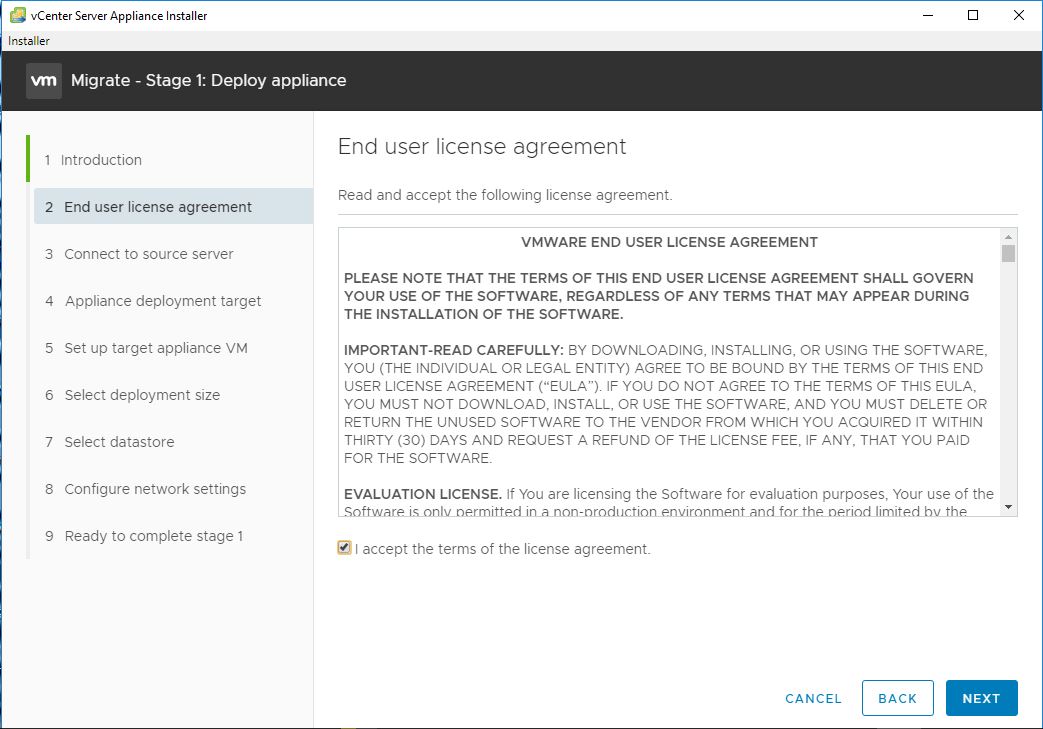
i Accept the License10
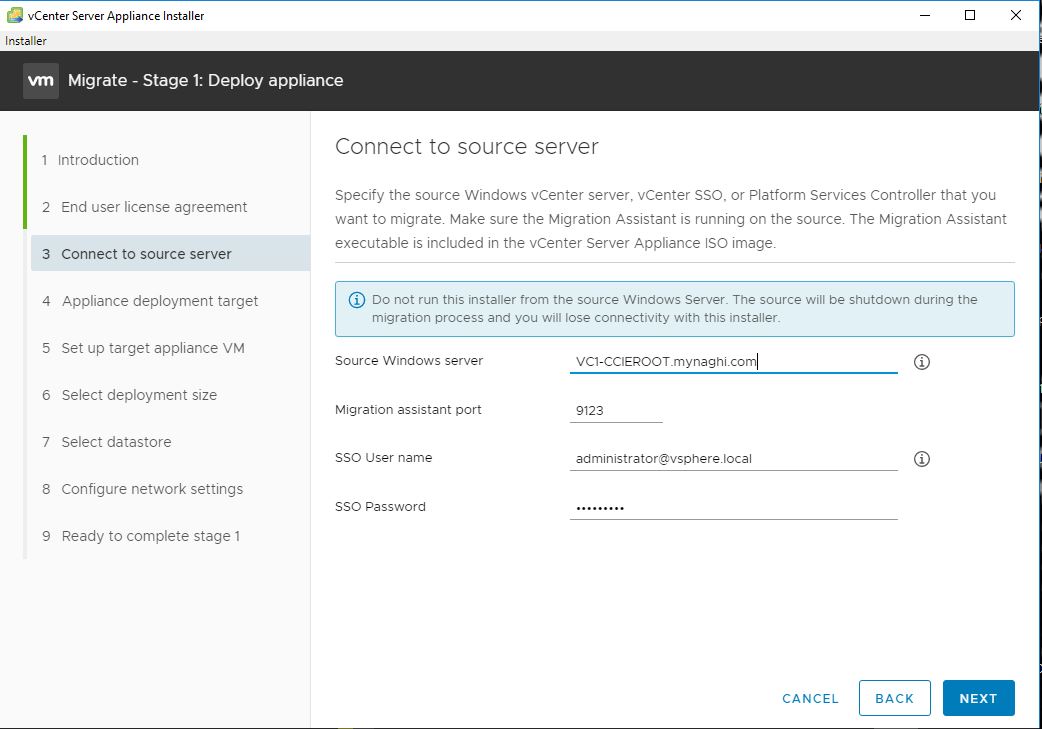
Enter the detail of the Source vCenter11
I will verify the thumbprint
12
Enter the Target vCenter Detail

1
Click YES
2
Put the new Name3
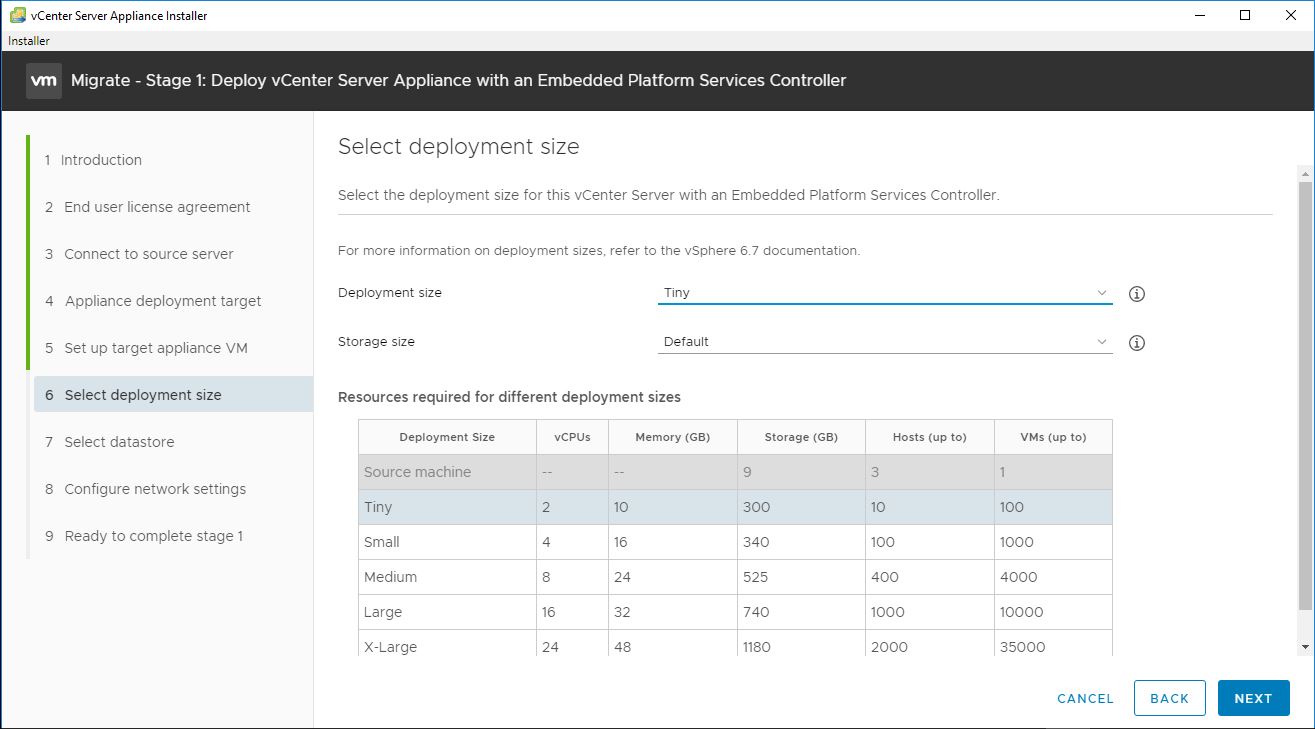
Select the Deployment Size4
Select the Datastore5
Choose the network configuration7
Click FINISH8
Monitor the Deployment9
Click CONTINUE10
Click Next11
Save in progress 😀12
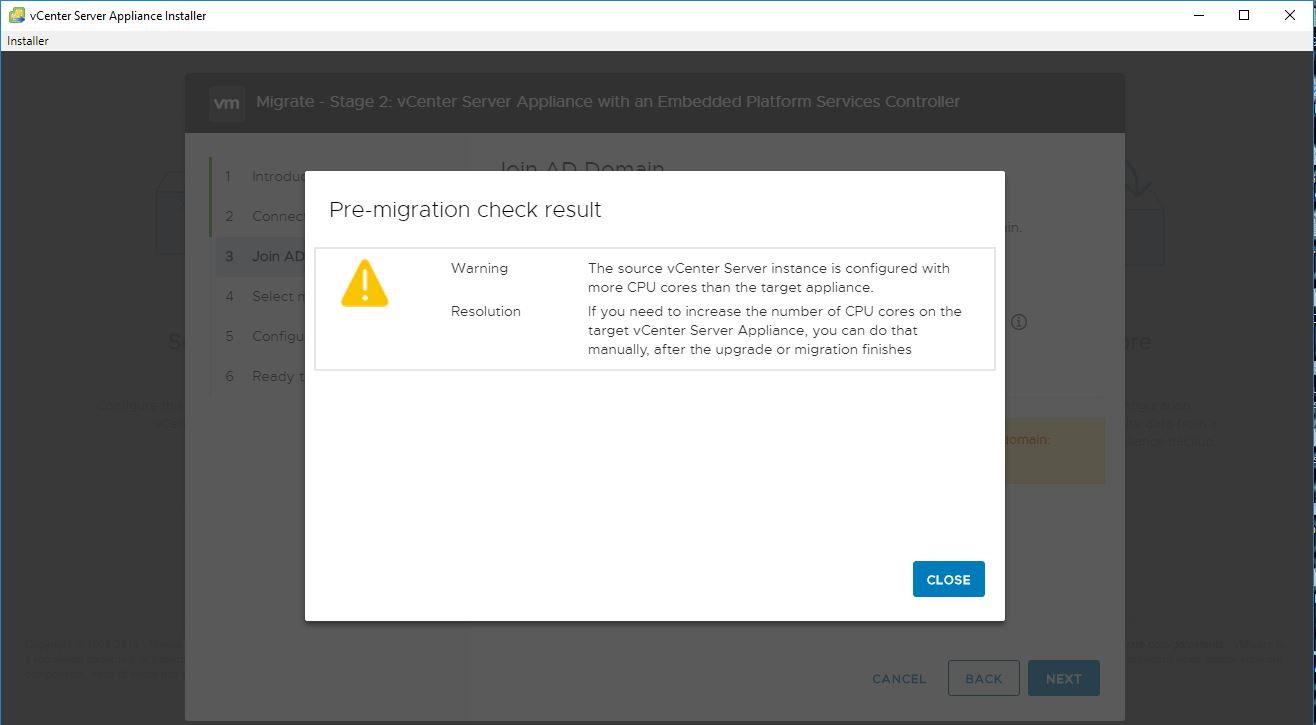
Pre-migration Check but that is ok since it’s a lab13
enter the detail to join the machine to the domain14
Validation Success15
Select the Migration data 16
Click Next17
Click FINISH18
Click OK to shutdown the machine19
it will take coupe of minute to Start20
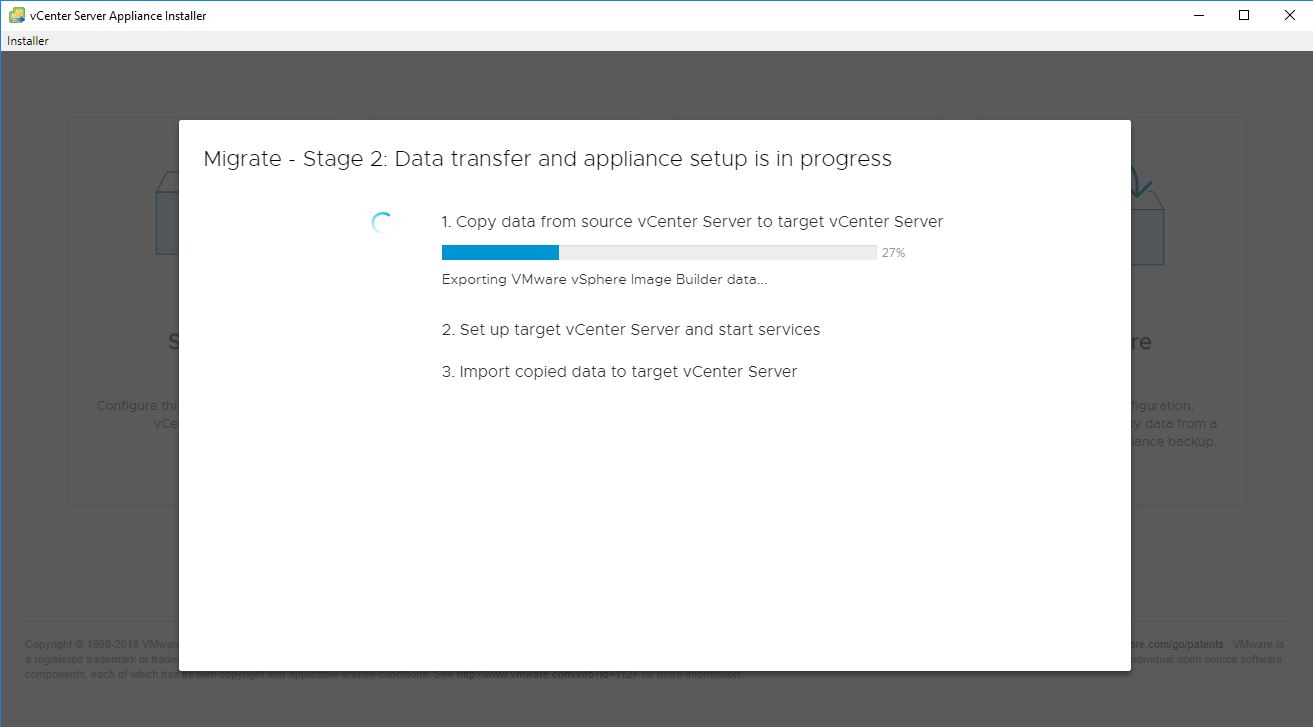
the data will be copies from the source21
then the target machine will start the services22
Warning messages will show up just press OK23
and Done24
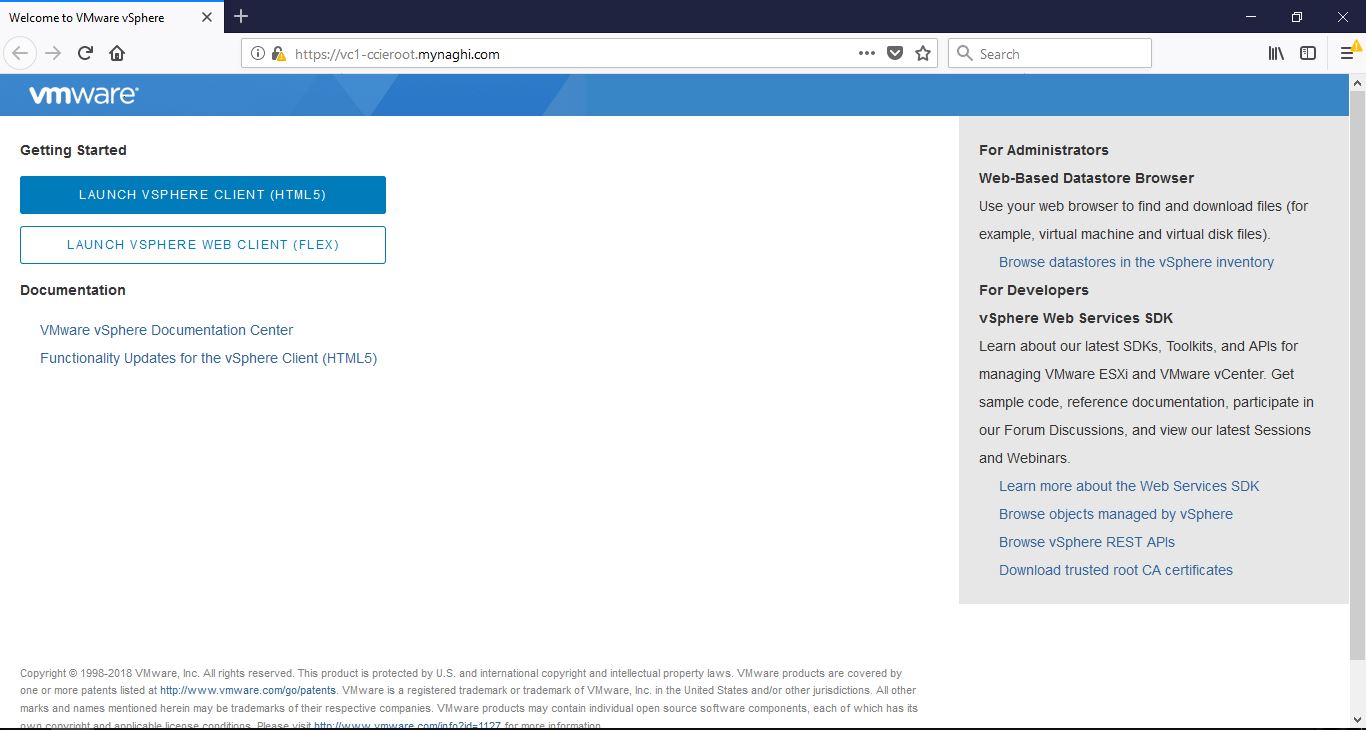
Now when i browse to the URL i will see the new machine
Click to Launch vSphere Client25
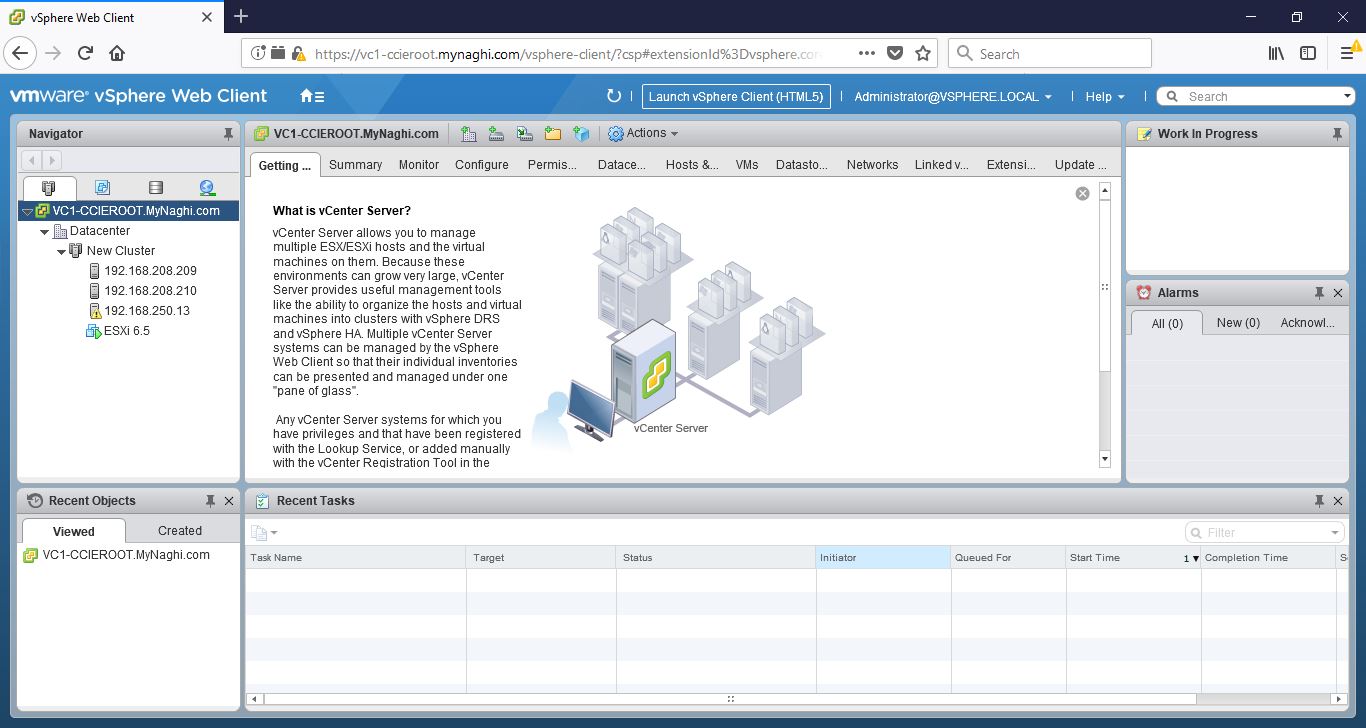
I will use same login that i used for the old vCenter26
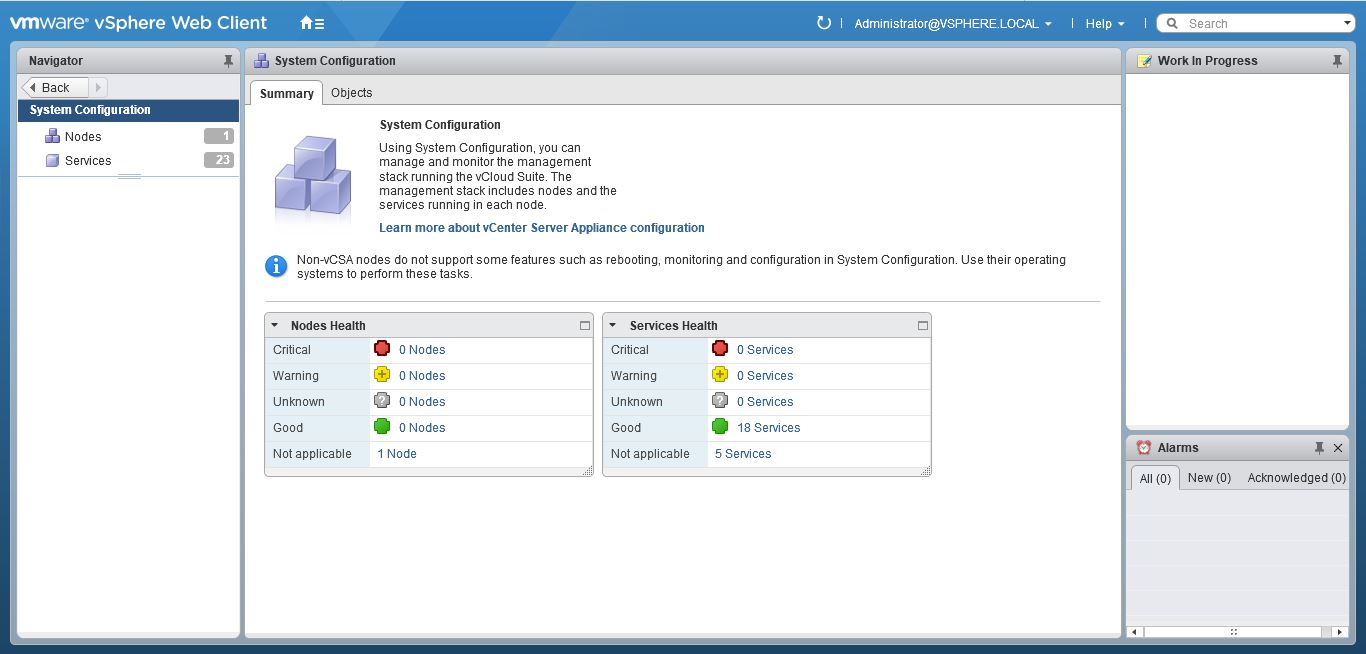
and YES it work perfectly and Happy New Year everyone27

Standard
6.5

VMware vSphere Auto Deploy (ImageBuilder)

1 Host is simple installation
but
what if i have 100 host  :O
i cant just go one by one to do it if it’s not a smart move so

Auto Deploy is the solution, The architecture of auto deploy has changed in vSphere 6.5, one of the main difference is the ImageBuilder build in vCenter, you can create image profiles through the GUI instead of Power CLI

one of the main requirement is to make sure of DHCP scope Configuration:

  • Option 066 – with the Boot Server Host Name (in Cisco it will be different command)
  • Option 067 – with the Bootfile Name

My Design :
vCenter Server : (192.168.200.251)
TFTP Server : (192.168.200.102)

Lets start
Go to Administration > System Configuration
2
Then Choose Services4
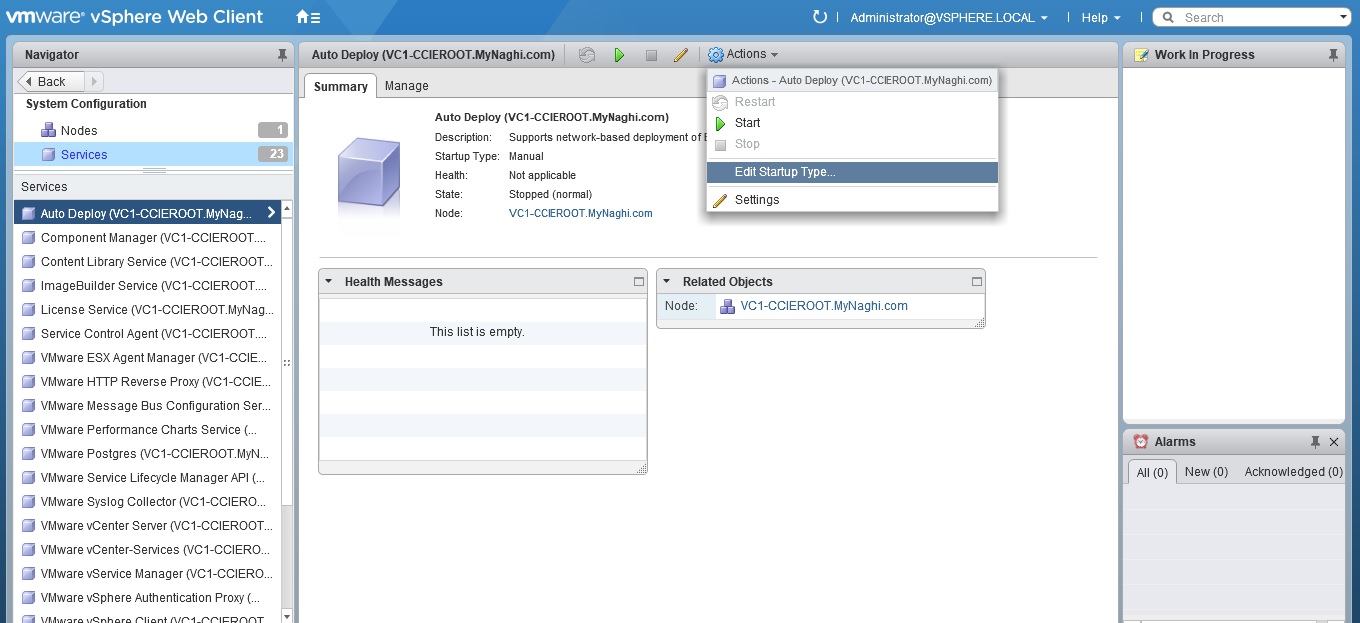
Click on Auto Deploy > Actions >Edit the Start Type
5
its Manual by default so change it to Automatic
6
Then Click Start7
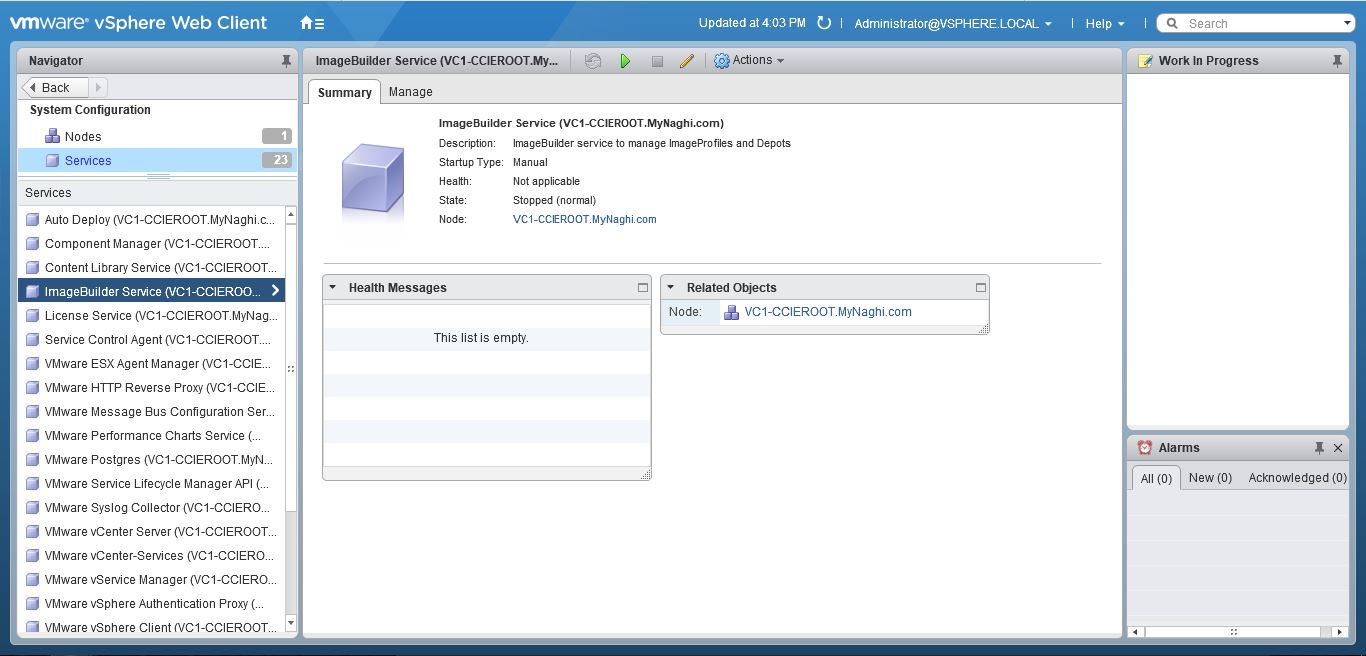
Then Move to ImageBuilder Service and do the Same step8
Now log out of the Web Client and Login Again
you will see in the home Page the Icon of (Auto Deploy)
12.JPG
in the in the right Pane click on (Auto Deploy)
13
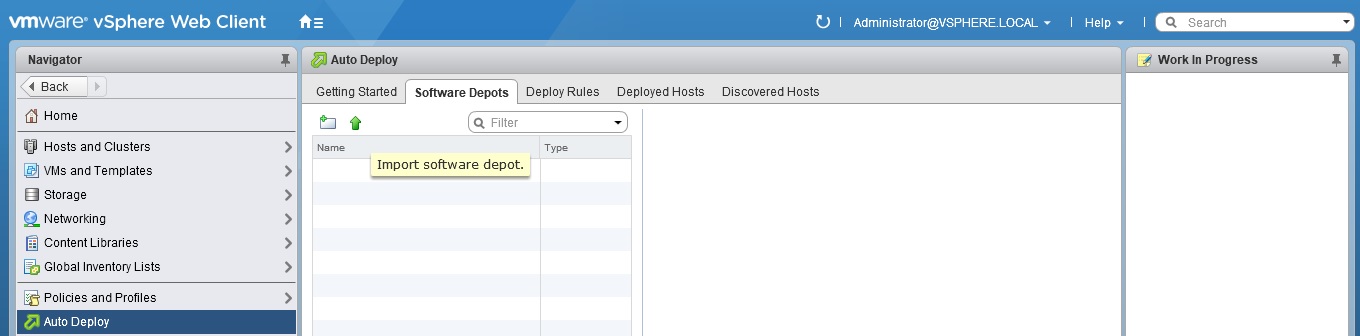
Then go to Software Depots > Import Software Depost14
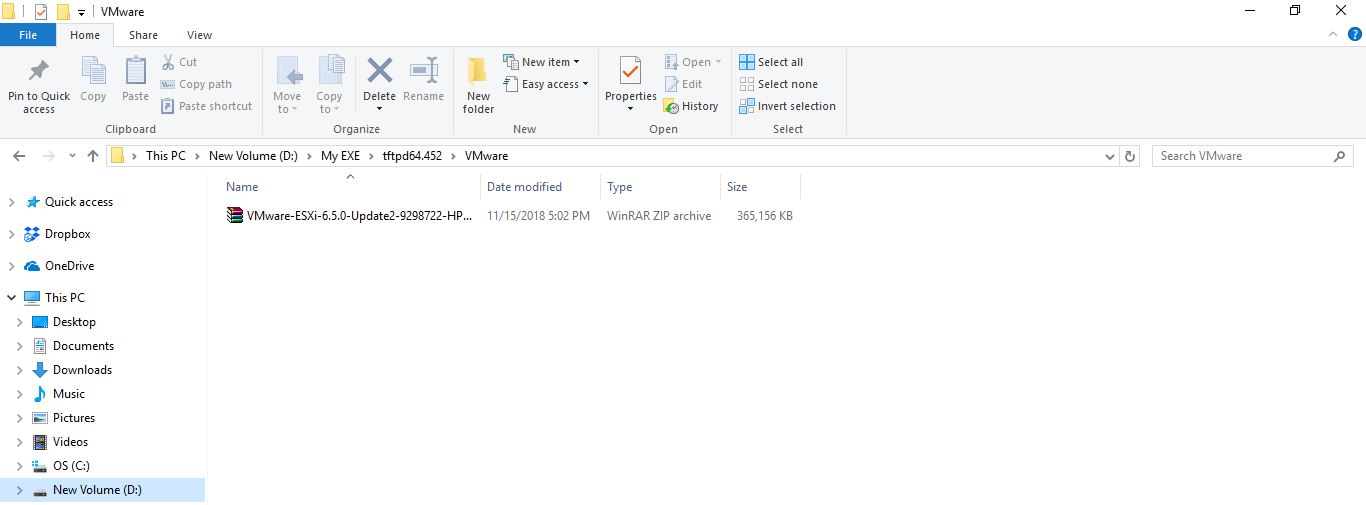
I already downloaded a Depots from VMware Web Site
13A
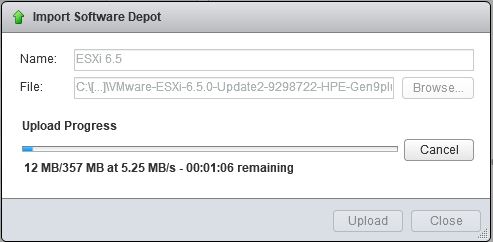
Then i choose to import the Downloaded Depots
15
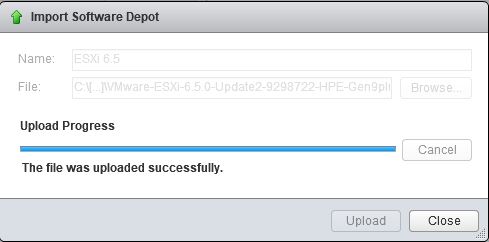
Once it finish Click Close
16
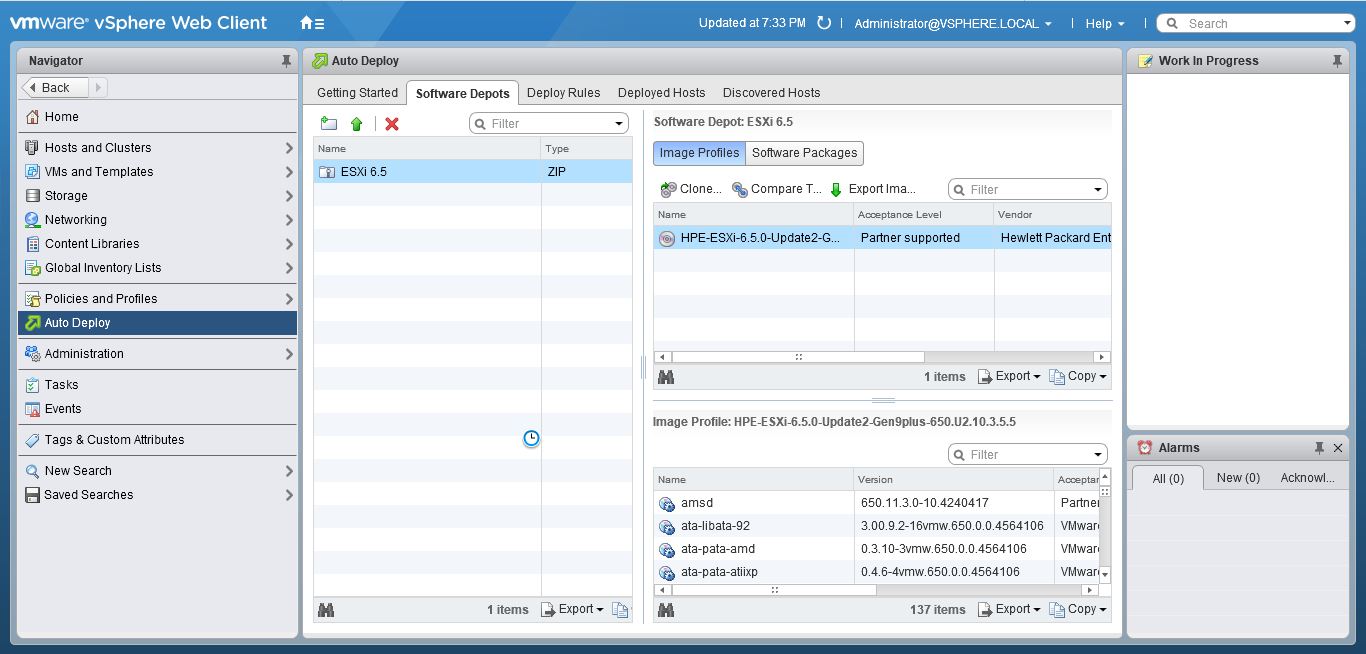
then when you highlight the Depots it show everything you have inside the File17A
Now go to Deploy Rules > Create A Deploy Rule
30
Choose  a name and i made it simple i Select All hosts. you can define it by MAC or Range of IP Address31
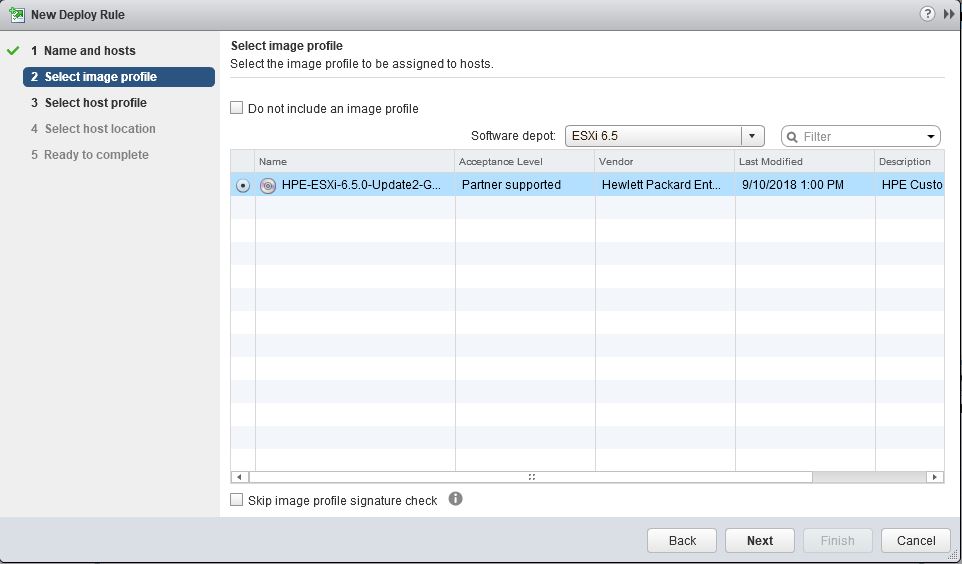
Select the Image Profile 32
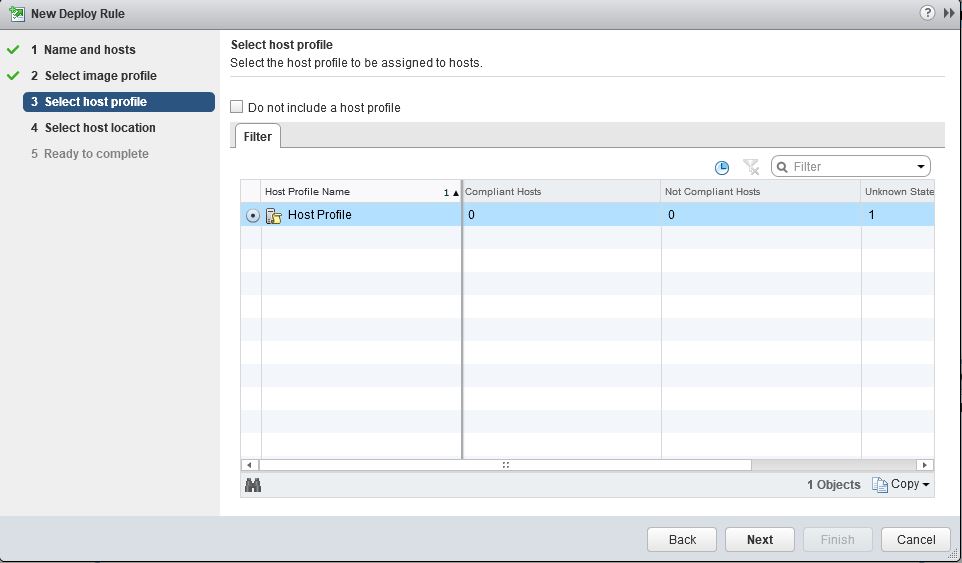
Choose the host profile i created in the earlier blog33
Choose where you want the Host to be in which cluster34
Review and click Finish35
As you can see the rule is in (inactive) Status we will activate it after complete our other configuration in DHCP Side36
I will download my TFTP Files from my vCenter
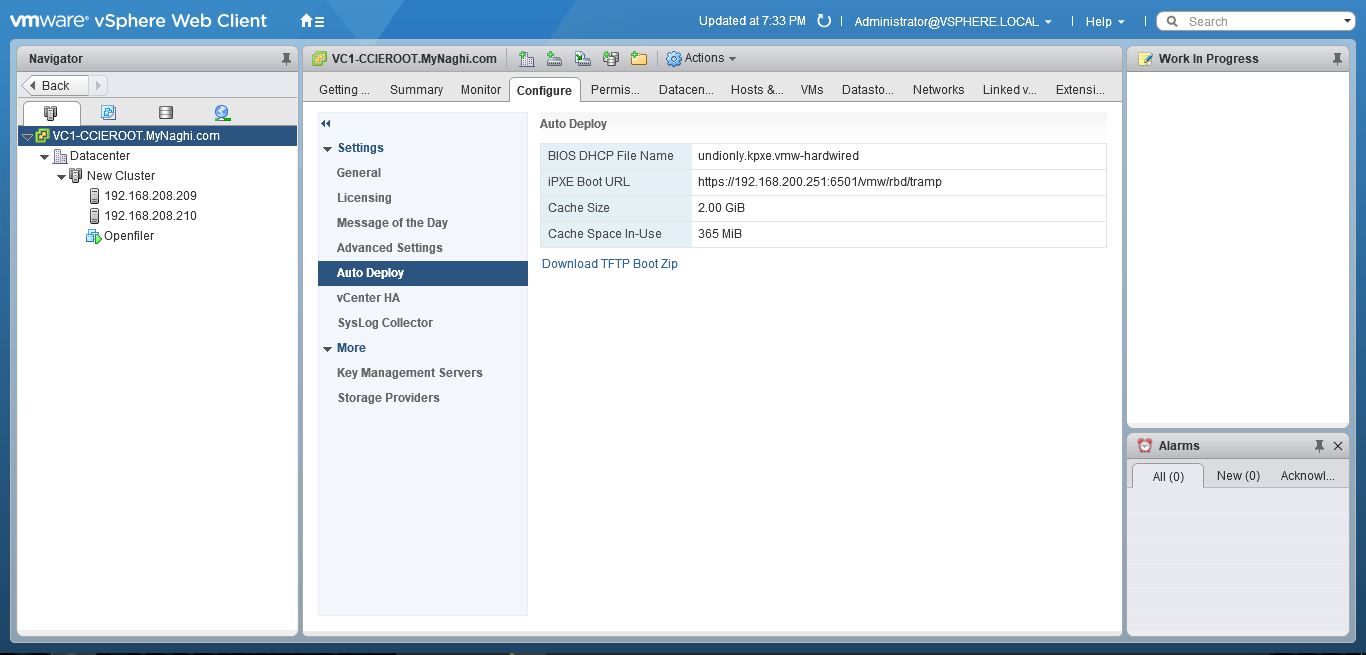
Go to vCenter – Configure – Auto Deploy and click on Download TFTP BOOT Zip
0
And Extract it the ZIP File to my TFTP Folder60
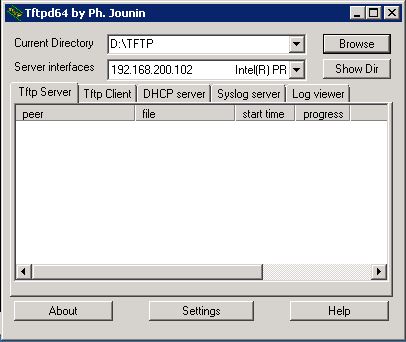
Then i Turn my TFTP
i use Tftpd64 it so easy to use
61
Now go back to the vCenter – Configure – Auto Deploy and this time Copy the BIOS DHCP File Name i will need it in Cisco DHCP Configuration
0
and as you see
Option 66 is the Command (Next-server) Which direct to IP of my TFTP Server
Option 67 is the BIOS DHCP File Name
1000
Now Lets go back to the vCenter and Activate our Rule
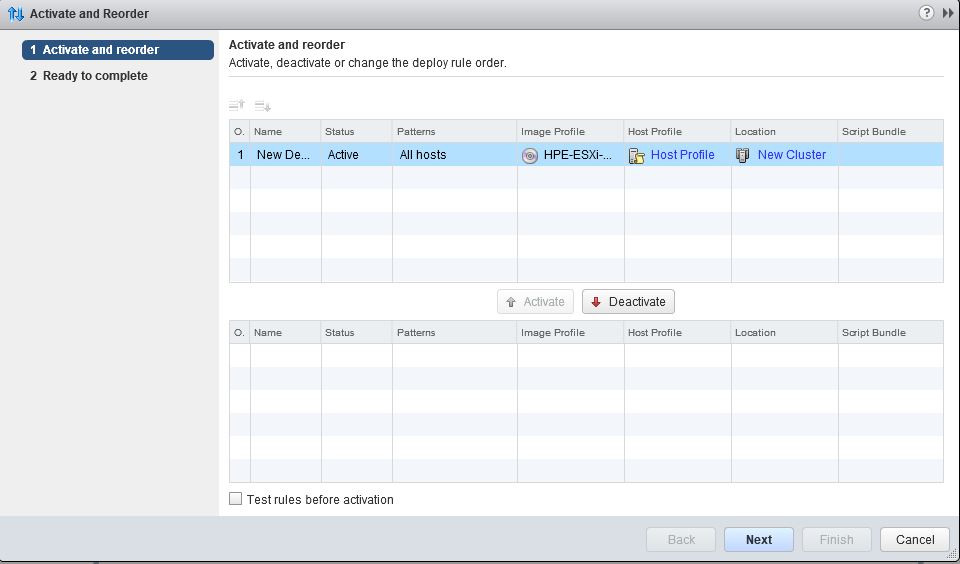
highlight the rule and click on Activate
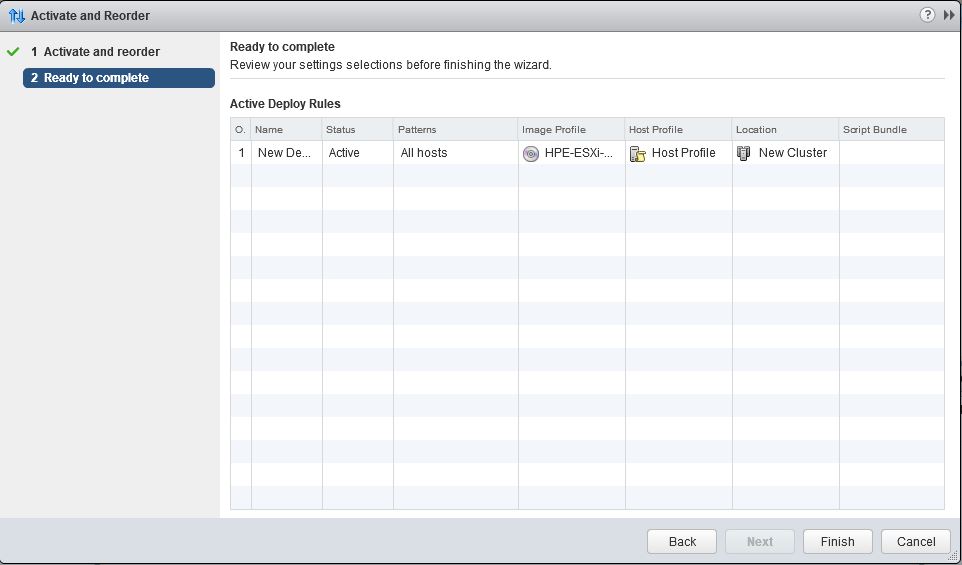
0C
The rule will go up Then press Next 0D
Now Click on Finish 0F
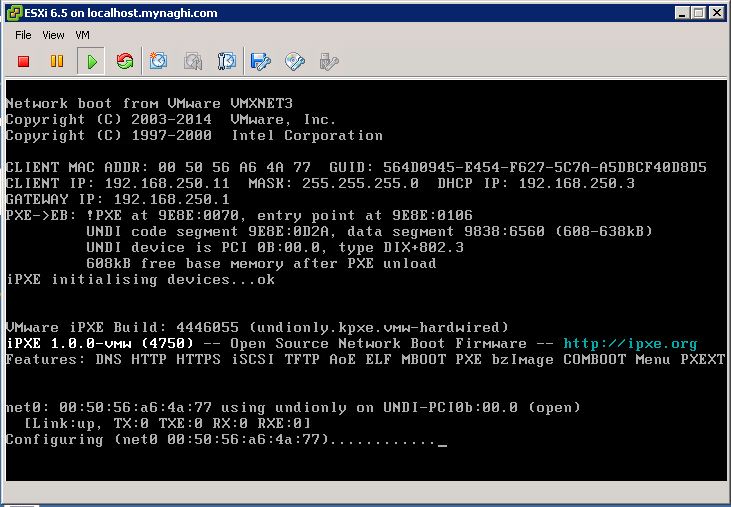
Now lets start our Machine100
you can see configuration is loading
101
it will take couple of minute1000
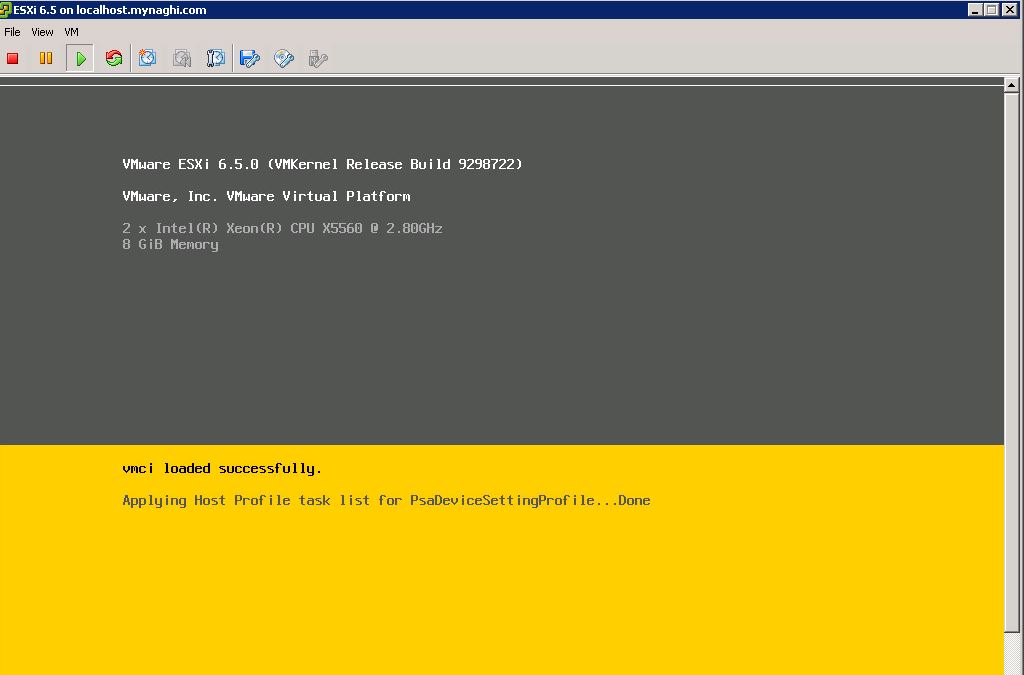
and as you can see it start loading the VMware ESXi
300
and as you see it Applying the host Profile700
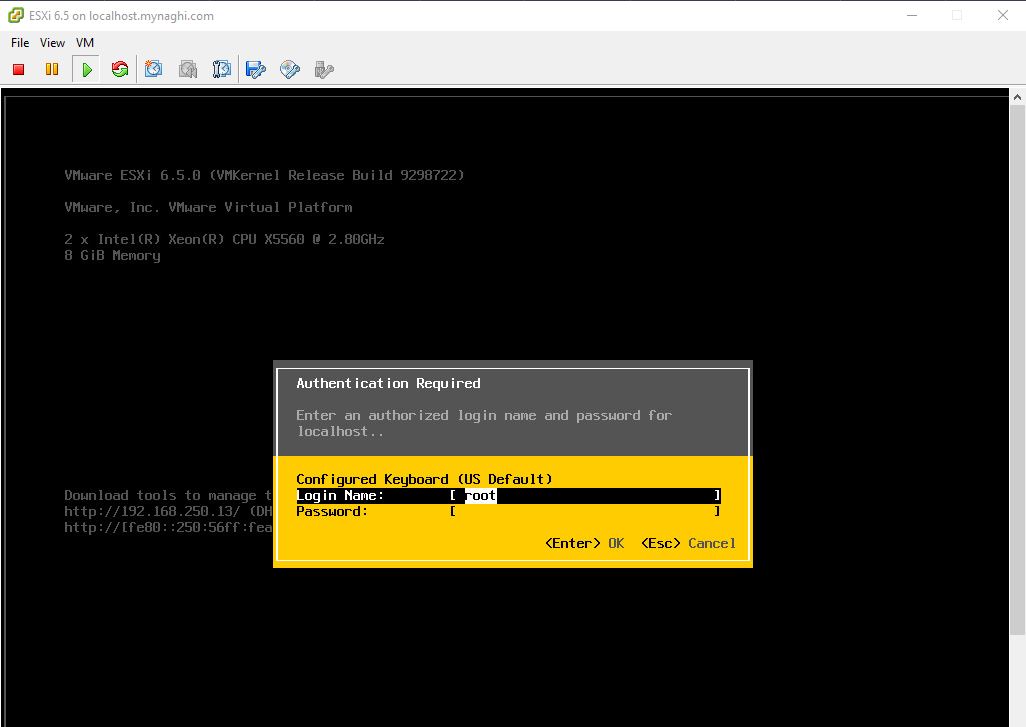
and Done and it took an IP of (192.168.250.13)
so now i press F2 to login
1001
Username : root
Password: still not set so you just press Enter
101010
now click on Configure Password905
and put the new password and press Enter
906
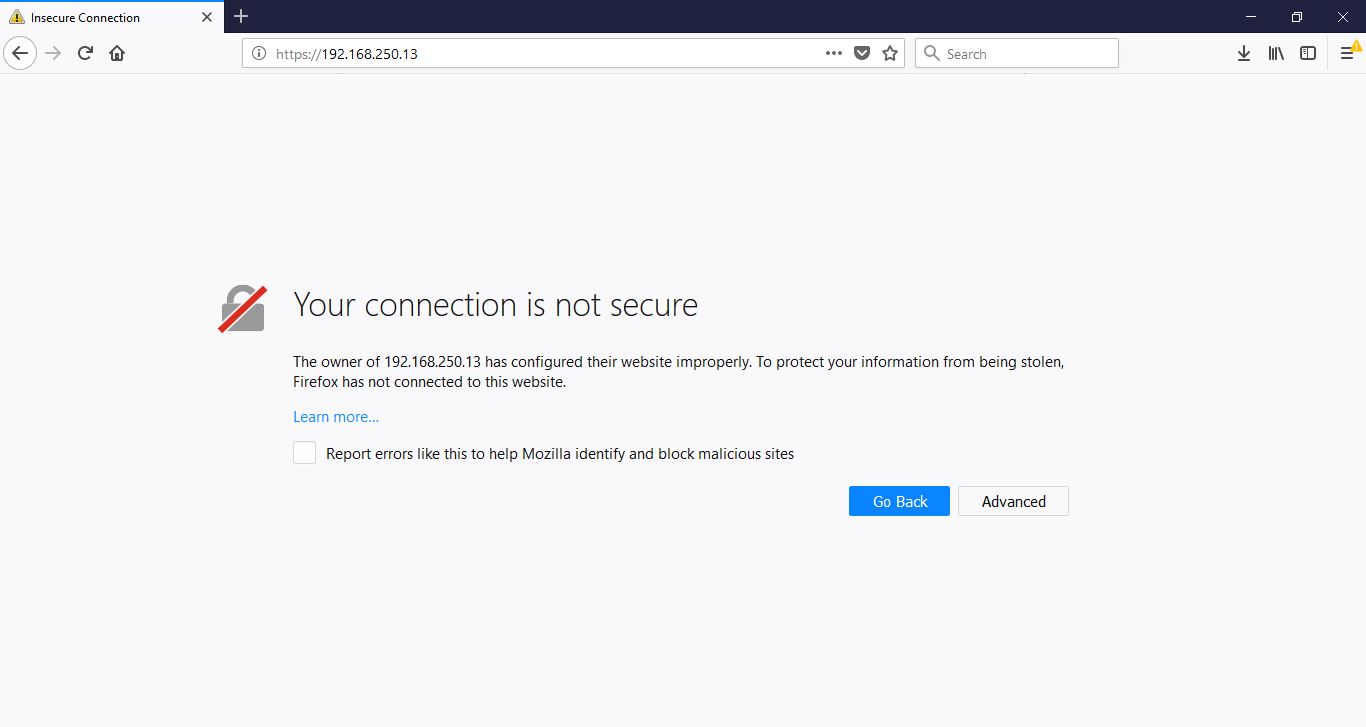
Now browse to (192.168.250.13) and click on Advanced and made an Exception 1002
Confirm the Exception
1003
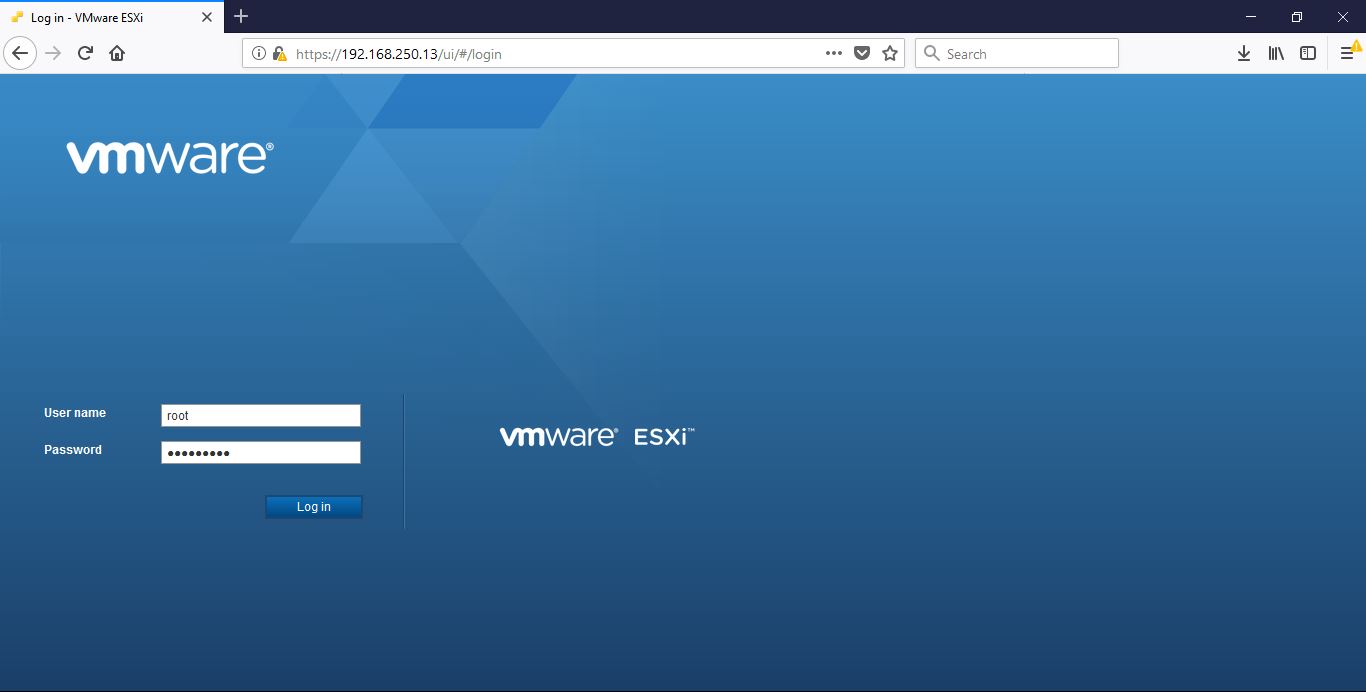
put the Username and Password i configure earlier
1004
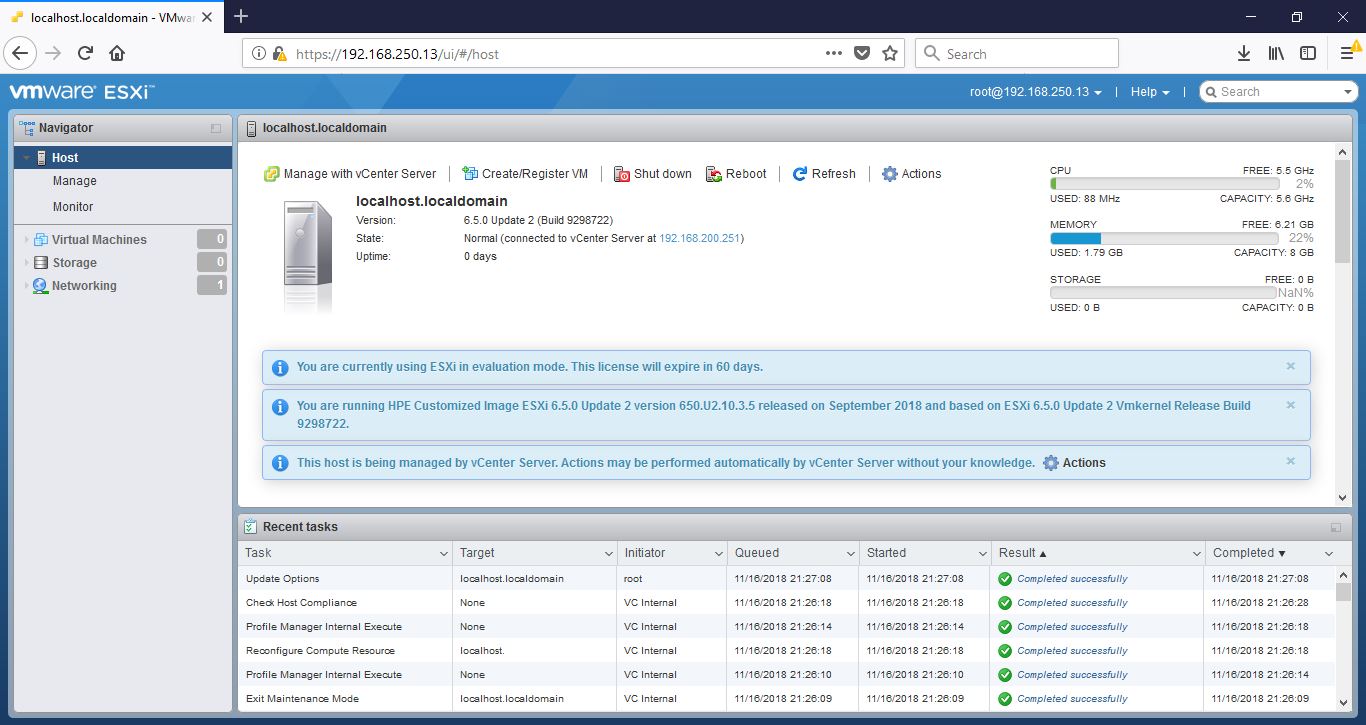
and finally you can see the host now running HPE customized image 6.5 that we download from VMware
1005
and in vCenter page i see it added to my Cluster
100A.JPG

;D

Standard
6.0

VMware vMotion Cross vCenter 6.0

This is one of the most amazing feature introduced in vSphere 6.0 that allows virtual machines (VMs) to switch from one vCenter Server instance to another

Traditional VMware vMotion is the feature to allow users to move virtual machine to another host managed by the same vCenter, but Cross vSwitch vMotion basically allows you to migrate virtual machines between different vSwitches. Not just from vSS to vSS but also from vSS to vDS and vDS to vDS.

Note:
that vDS to vSS is not supported. This is because when migrating from vDS metadata of the VM is transferred as well and the vSwitch does not have this logic and cannot handle the metadata.

so in the previous blog we did ELM (Enhanced Linked Mode) which is requirement for vMotion Cross vCenter and that mean (Shared SSO domains) and another requirement is Enterprise Plus license. Both vCenter Server instances must be time-synchronized and last thing For migration of compute resources only, both vCenter Server instances must be connected to the shared virtual machine storage.

Note: in case you didnt match the VM requirement you can use app such as (Vinchin Backup & Recovery)

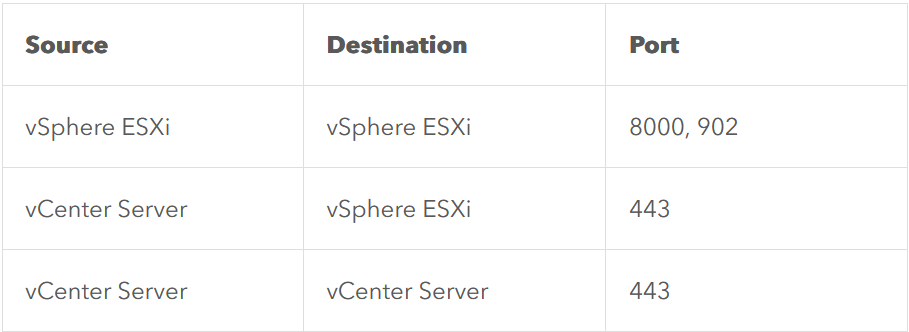
there is a network port requirement but i connected both machine in my lab to the same network so no need for them but you can check them in the VMware website
Screenshot 2023-12-27 114416

so Lets start
Go to vCenter Home page > Host and Clusters1
Expand vCenter > Cluster > Host > manage > Networking > VMKernel adapter > select the network card
2
Enable the port properties > select vMotion traffic
i used the same interface as the management traffic since i don’t have many network card
3
Repeat the same steps in the other vCenter

Migration Steps
Now i will move my VM from host (192.168.208.210) to (192.168.208.209)
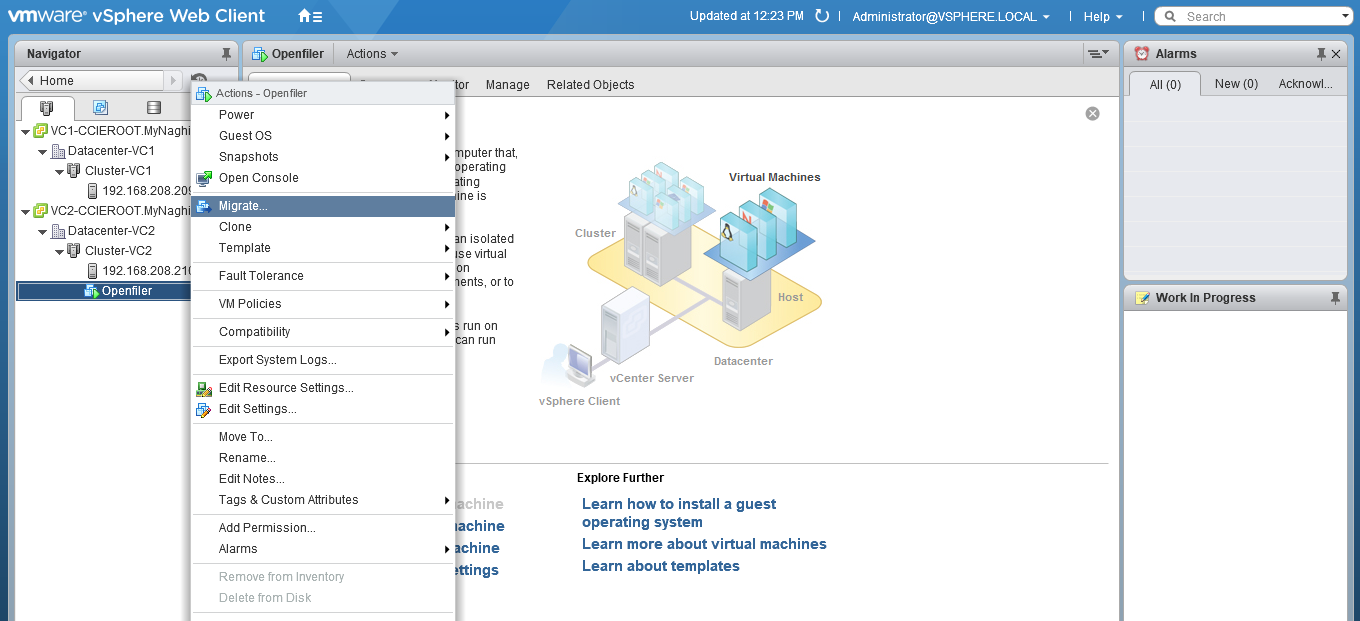
Expand the cluster > expand the host > right-click the VM you would like to migrate4
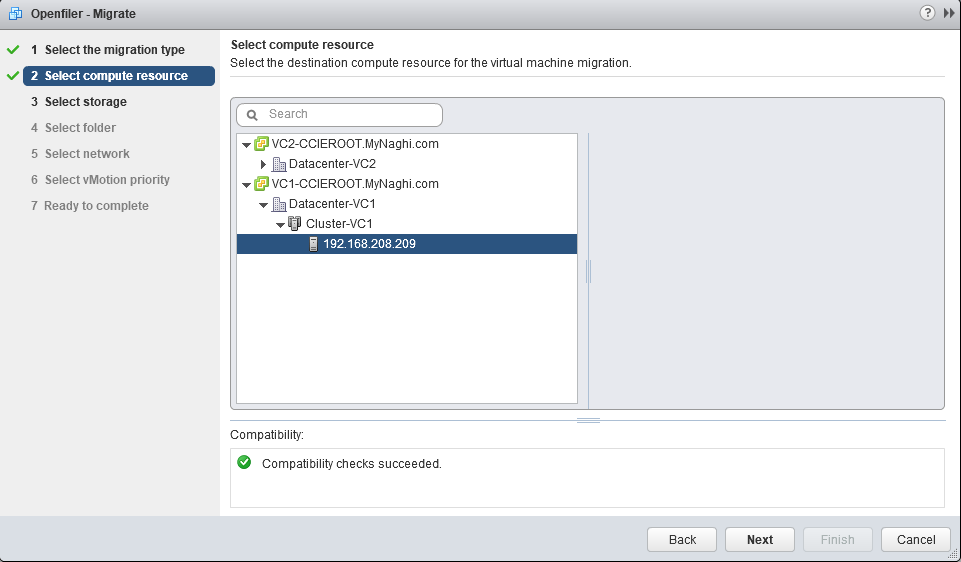
Select Change both computer resource and storage > Select Compute resource first5
Now select the destination host (192.168.208.209)6
Now select the storage7
Then i will select the Datacenter-VC18
and finally i will select the Network Adapter9
Note:
that the IP Address of the VM that you are migrating will not magically change, so you will need to make sure both the source and the destination Port-group belong to the same layer 2 network.

Next thing select to the schedule the vMotion10
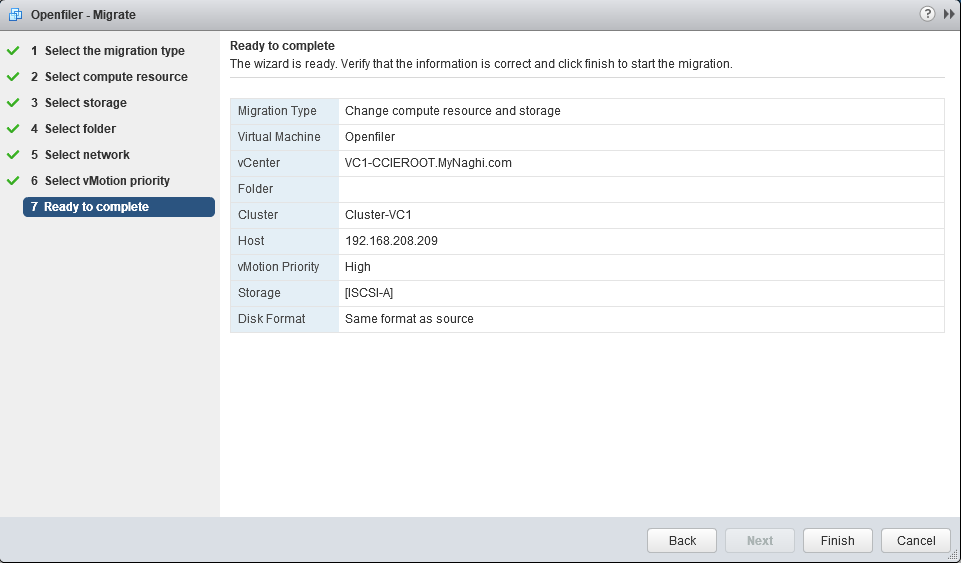
and last thing click finish11
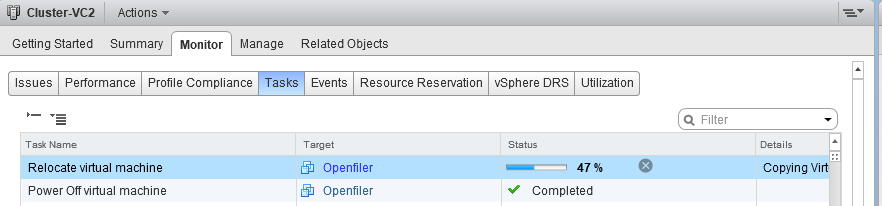
now as you can see it move the VM12
and Done finally 😀14

Note:

  • this feature for instance Datacenter Migrations or when you are moving VMs between clusters for instance or are migrating to a new vCenter instance even and You can even do it without having a shared datastore between the source and destination vCenter
  • Advanced Cross vCenter vMotion, introduced in vSphere 7.0 U1c, is only supported between vSphere (vCenter and ESXi) versions 6.5 or greater. The source vCenter must run vCenter 7.0 U1c or later.
Standard
6.0, VMware

VMware 6.0 Configuring vCenter Server ELM (Enhanced Linked Mode)

Hello Again

I show you in earlier blog how to configure Linked mode for VMware 5.5  As a result of these architectural changes, Platform Services Controllers can be linked together. Previously, vCenter Linked Mode was only available for Windows vCenters.

Until the release of vSphere 6.0, the new vCenter Enhanced Linked Mode (ELM) can connect multiple vCenter Servers (both vCenter Servers running on Windows and vCenter Server Appliances) by using one or more Platform Services Controllers.
vSphere 6.0, Platform Services Controller (PSC) was introduced as Embedded PSC for single vCenter Server and External PSC to manage multiple vCenter Servers.

the limitations for Linked Mode with external or embedded PSCs are different:

  • For vCenter Servers deployments with external PSCs, you can join up to 10 external PSCs and 15 vCenter Server systems in a single SSO domain.
  • For vCenter Servers with an embedded PSC, you can join up 15 nodes in one SSO domain.

You can also migrate virtual machines across clusters on separate vCenter instances

so let’s go
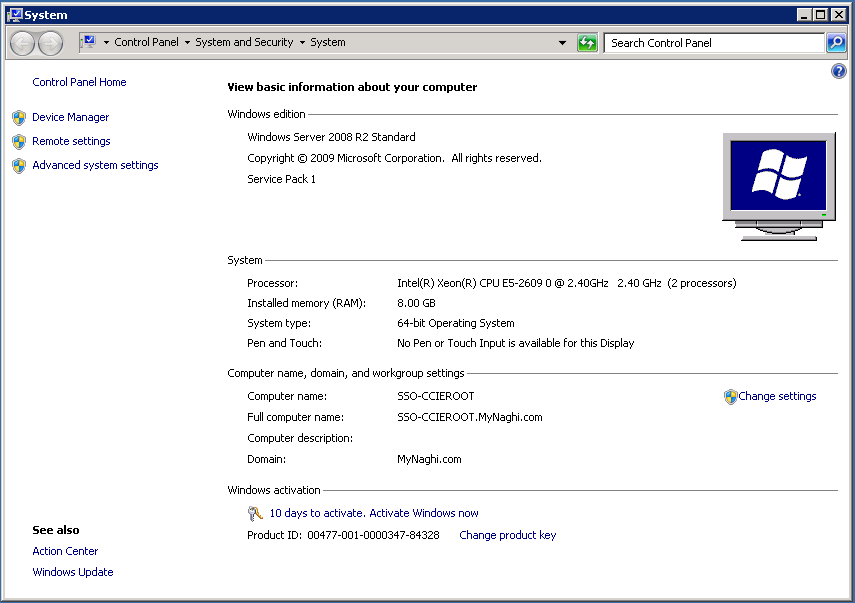
This is my Single Sign-on Machine

2
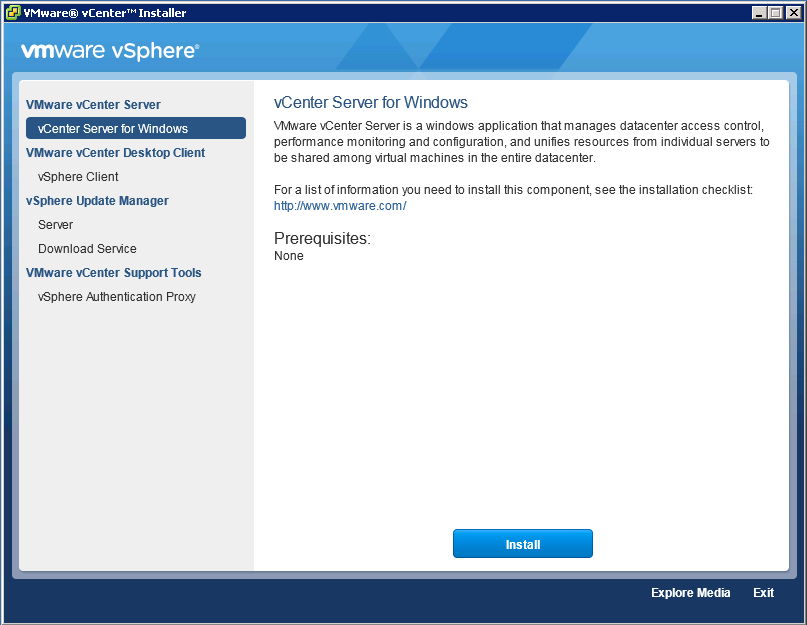
i will run the VMware CD3
Click Install vCenter Server for Windows4
Click YES
5
Press Next
6
Check the box
I Accept the term of the license agreement7
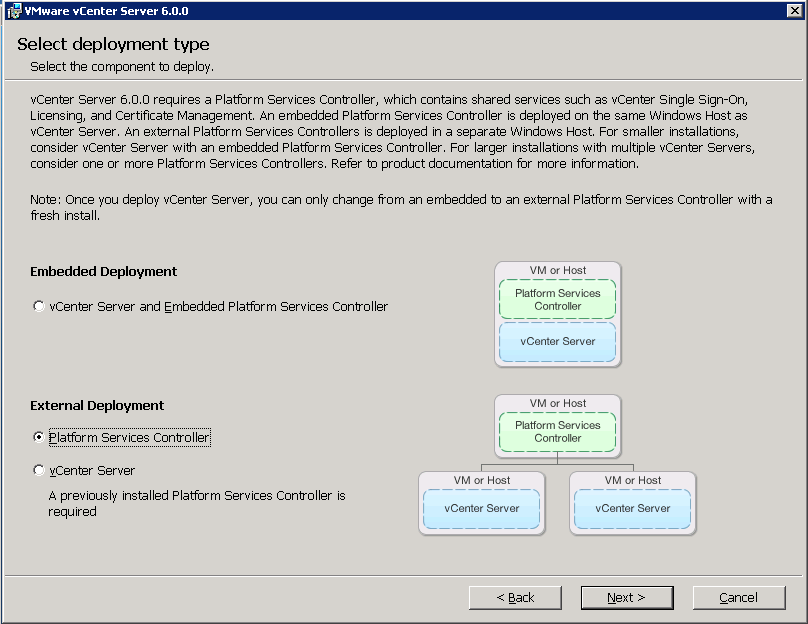
I choose (Platform Service Controller)8
i put the Machine FQDN9
then i click OK
10
put the domain name, vCenter admin and password and default site name as this is a new SSO11
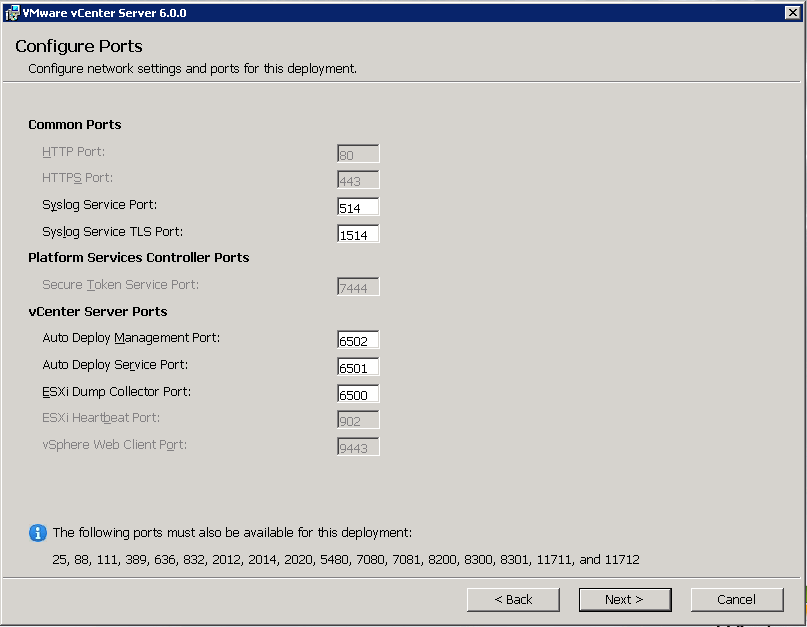
Leave the port to it default
12
Press Next
13
again Next
14
now click Install
15
it will take couple of minute
16
Press Finish
17
you can go to Program and software and you will fins the software installed on the machine
(platform Service Controller)
18

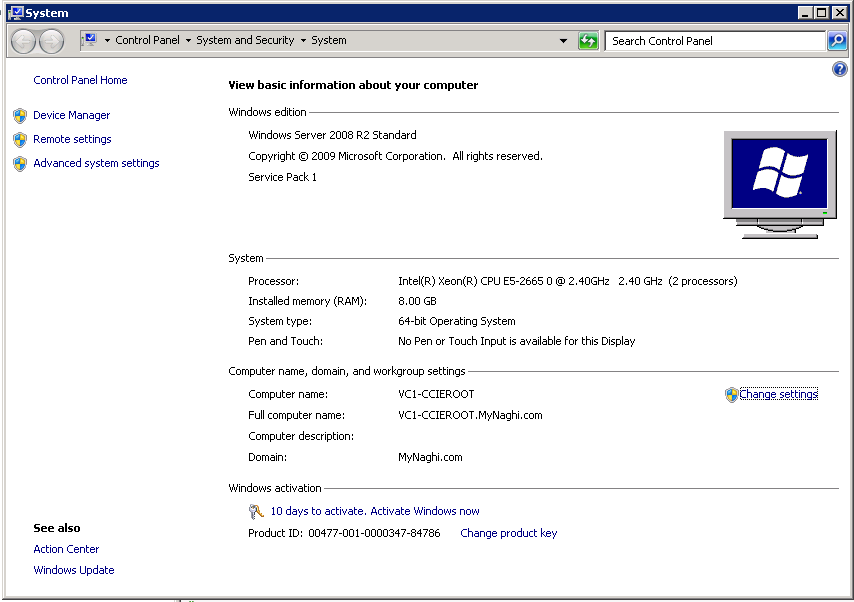
Now lets go to my First vCenter (VC1-CCIEROOT) 19
Lets start the installation same way20
Click Next
21
Accept the agreement and Click Next22
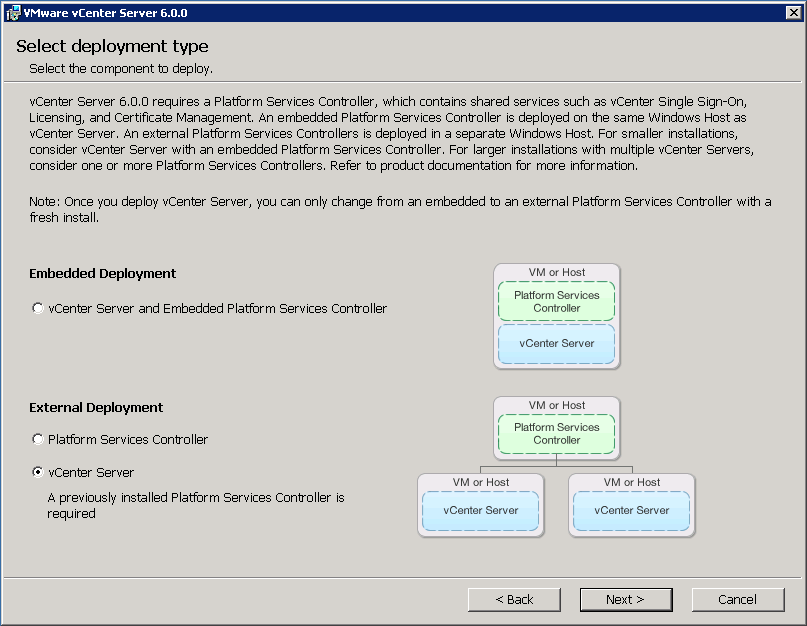
this time choose Deployment type as (vCenter Server)
1
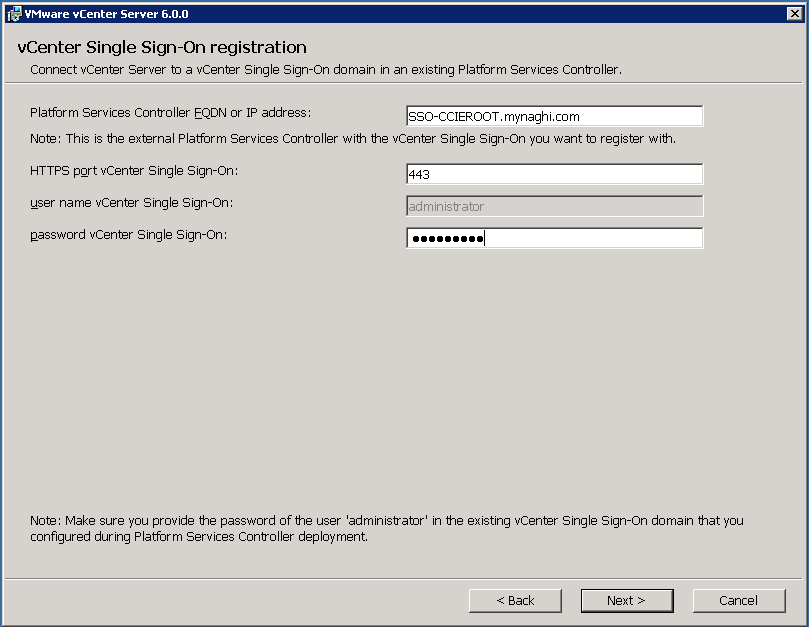
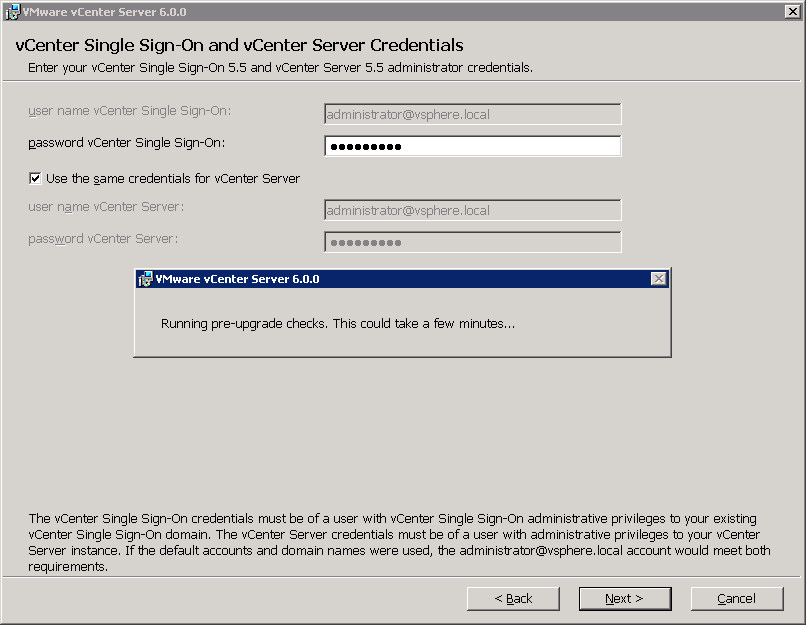
Specify the SSO Server FQDN name or IP Address and the SSO Administrator credentials (administrator@vsphere.local ) which will be the same system running your vCenter SSO service (192.168.200.250)2
Make sure that all vCenter Servers in a Linked Mode group are registered to the same vCenter Single Sign On server.

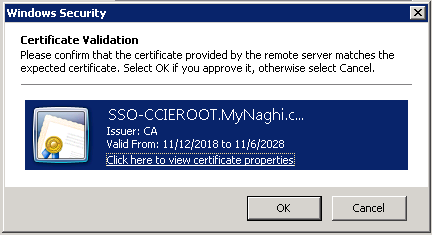
Click OK to accept the SSO Certificate
3
choose to use the Windows Local Account and Click Next4
Again Accept the default value and Click Next5
and again accept the default value for ports and Click Next6
Click Next 😀

7
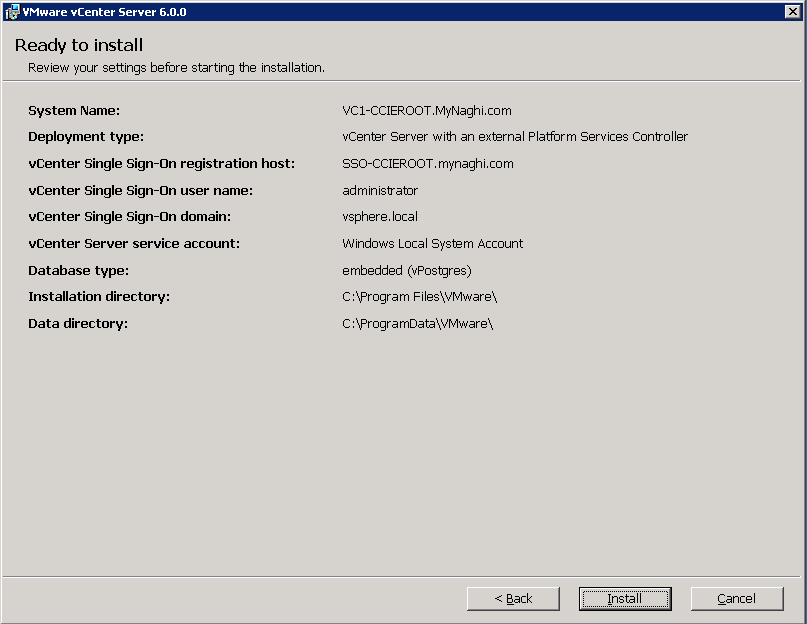
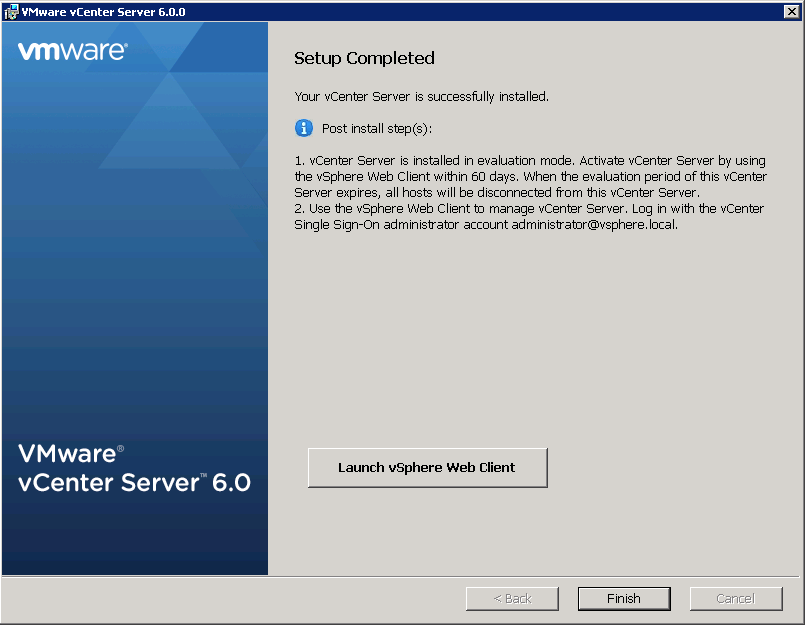
and Finally Install
8
And Finish
11
you can see the software (vCenter Server with an External PSC)30
Repeat the same Steps with VC2-CCIEROOT

Now to check your configuration go and browse to any of vCenter IP Address
60
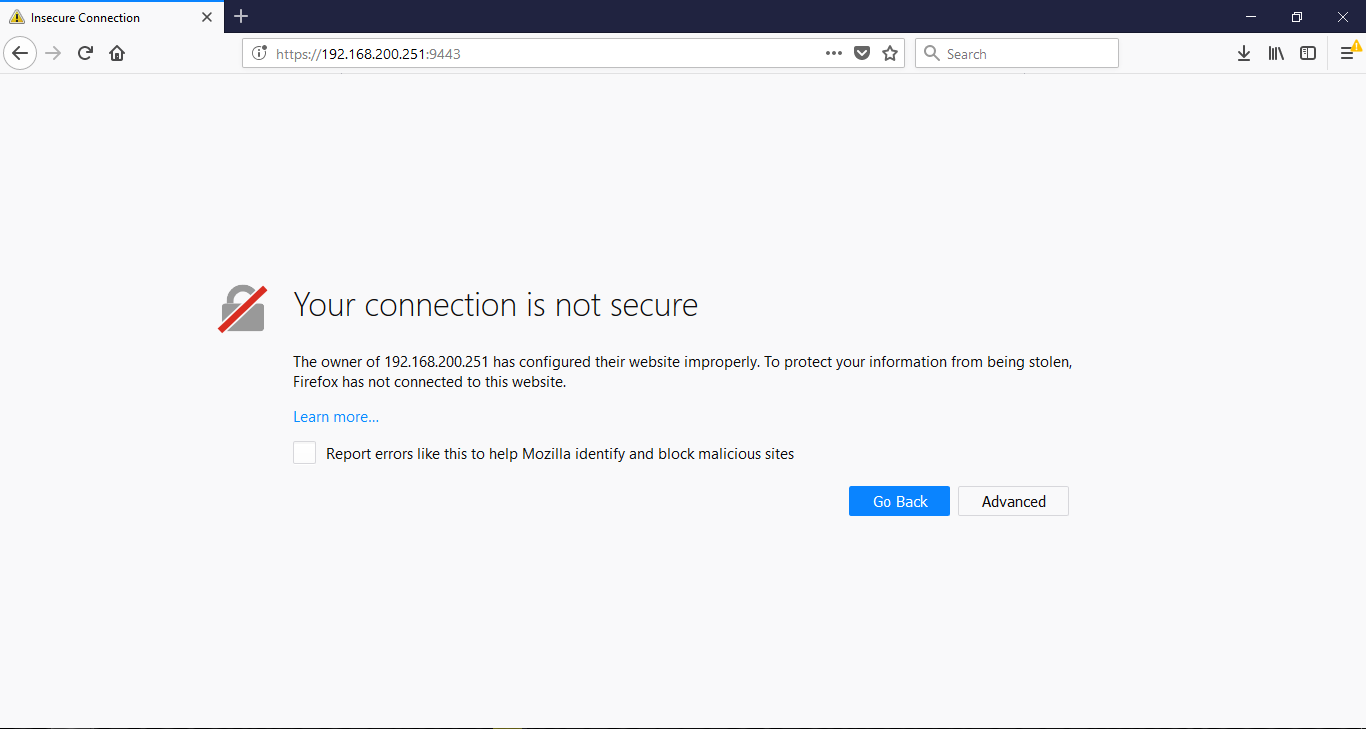
Accept the Certificate
61
Login using the Administrator account62
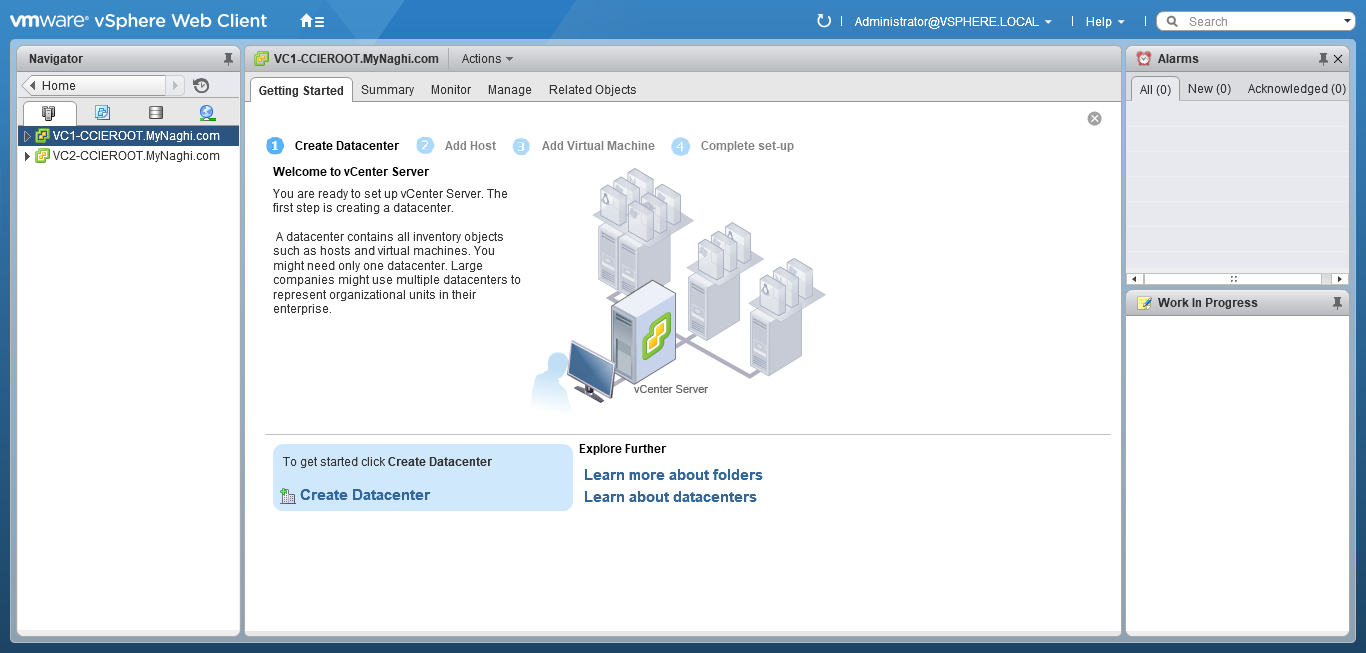
in the dashboard go to Hosts and Clusters26
you can see in the right side both vCenter27
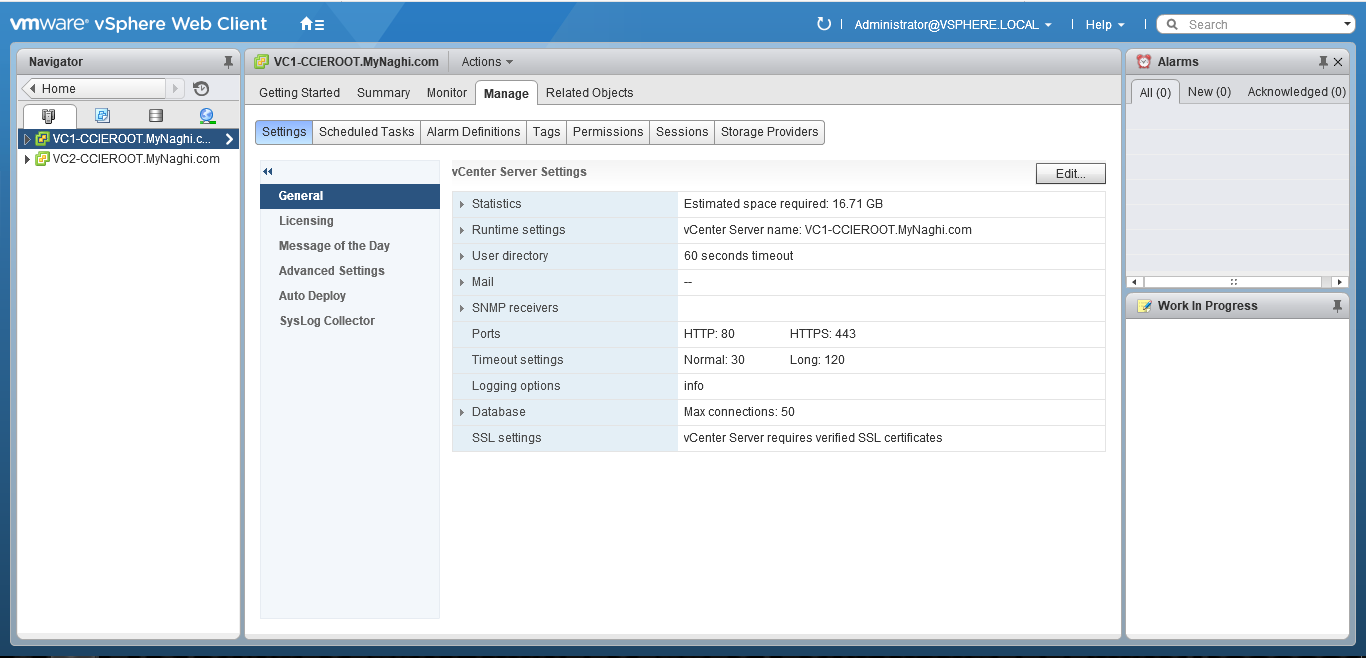
Once selected the vCenter you can see the detail of it under the Manage > Settings > General28
and the same for the second vCenter29

Note:

  • A single vCenter can manage 300 ESXi host with 3000 virtual machines, while using linked mode can manage 1000 ESXi hosts with 10000 virtual machines. 
  • You can create a vCenter Enhanced Linked Mode group only during the deployment of vCenter Server Appliance or installation of vCenter Server. You cannot create a vCenter Enhanced Linked Mode group after you install vCenter Server or after you deploy the vCenter Server Appliance.
  • from vSphere 6.5 U2 and vSphere 6.7 onwards, External PSC has been deprecated, Embedded PSC is recommended to manage multiple vCenter Servers and deploy VCSA with embedded PSCs will be used now and onward.

That is a Win ;D

Standard
VMware

Upgrade ESXi 5.5 to 6.0 using Update Manager

Last blog was upgrading the vCenter
now i will upgrade the ESXi using Sevres Update Manager

So First i will install the Server Update Manager
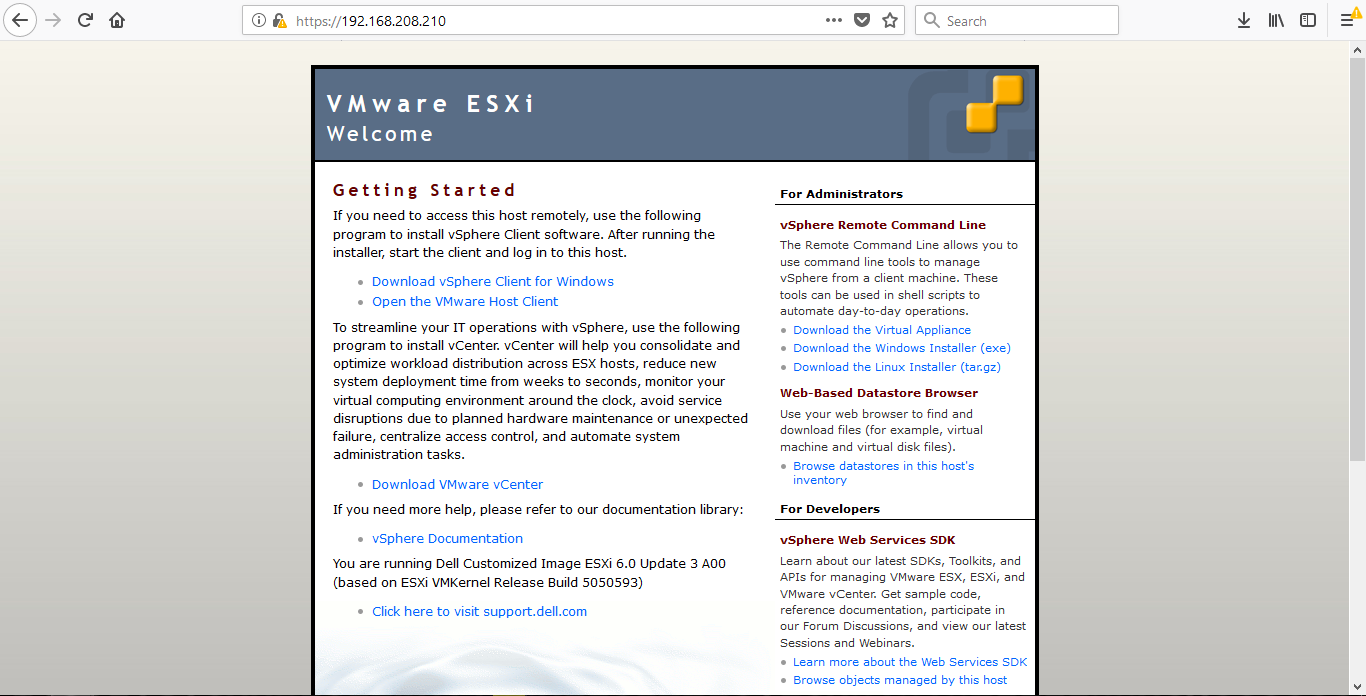
i will run the software from my CD (Windows vCenter) run it
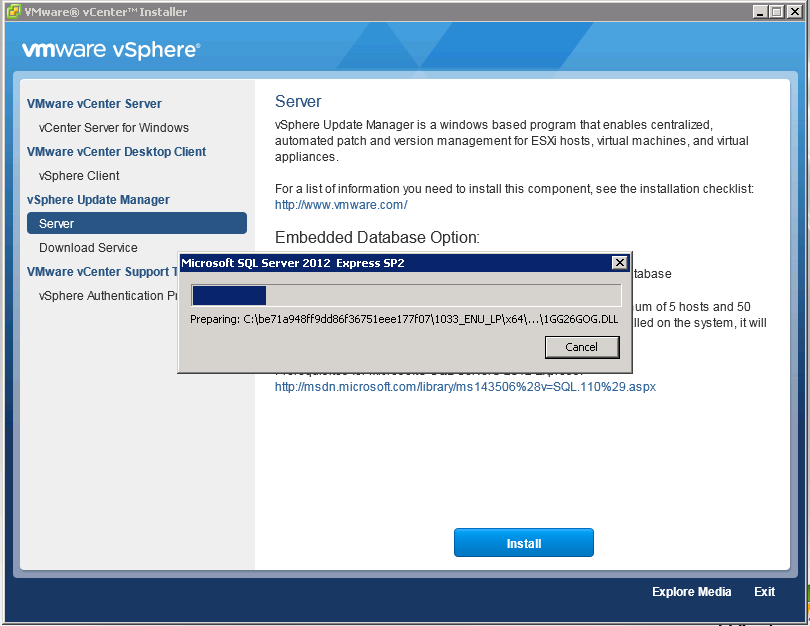
Click on vCenter Update Manager > Server > Install2
the process will start2A
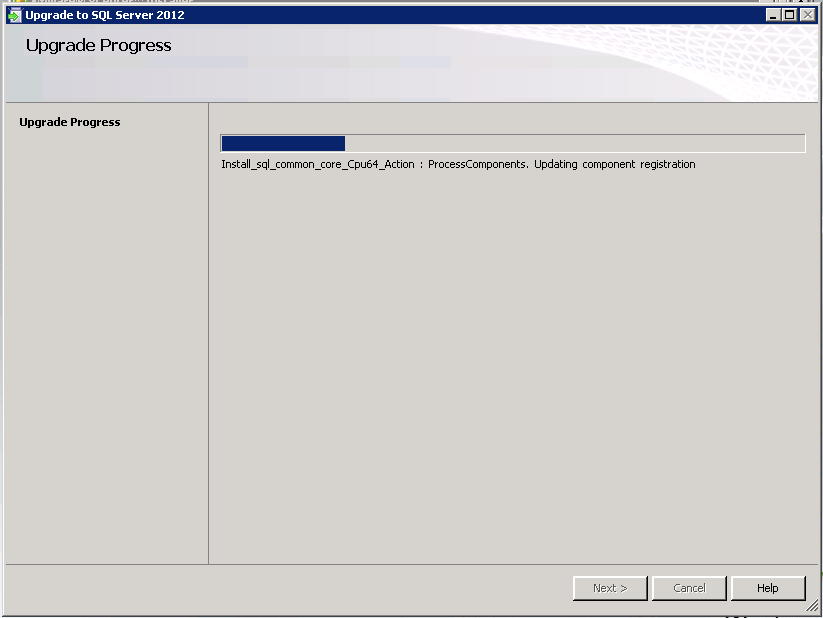
First thing is the SQL will be upgraded to match compatibility matrix2B
then it will install the SQL2C
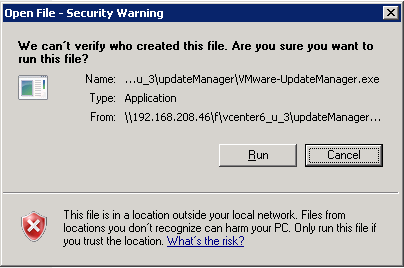
After Click on Run
3
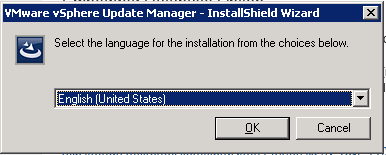
Accept the English Language
4
the Wizard will start5
Click Next
6
Accept the user agreement
7
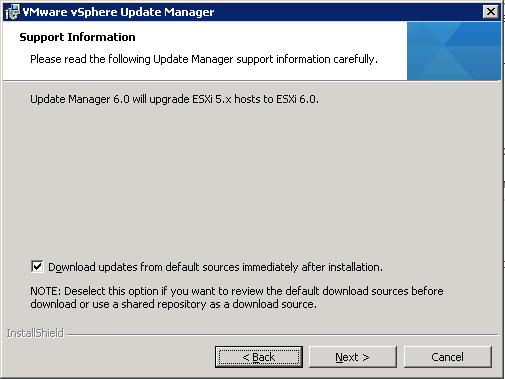
Check the box to download the update from default source and click Next
8
Enter the IP Address of the vSphere vCenter Server information9
Specify the Update Manager and click Next
i un-check the box for the internet
10
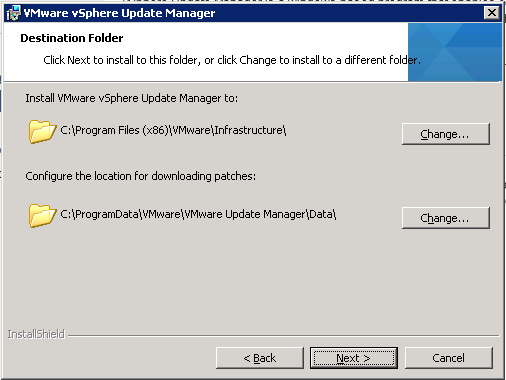
Accept the Directory location
11
click OK on the warning
12
Click Install
13
it will take couple of minute
14
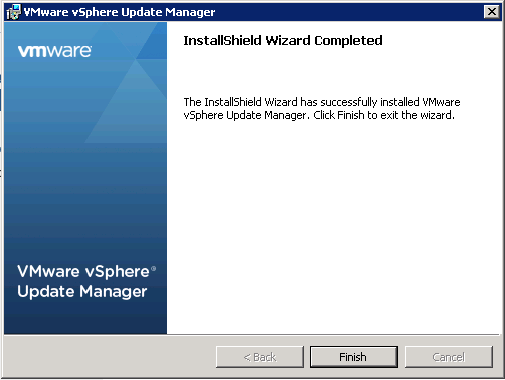
Click Finish
15
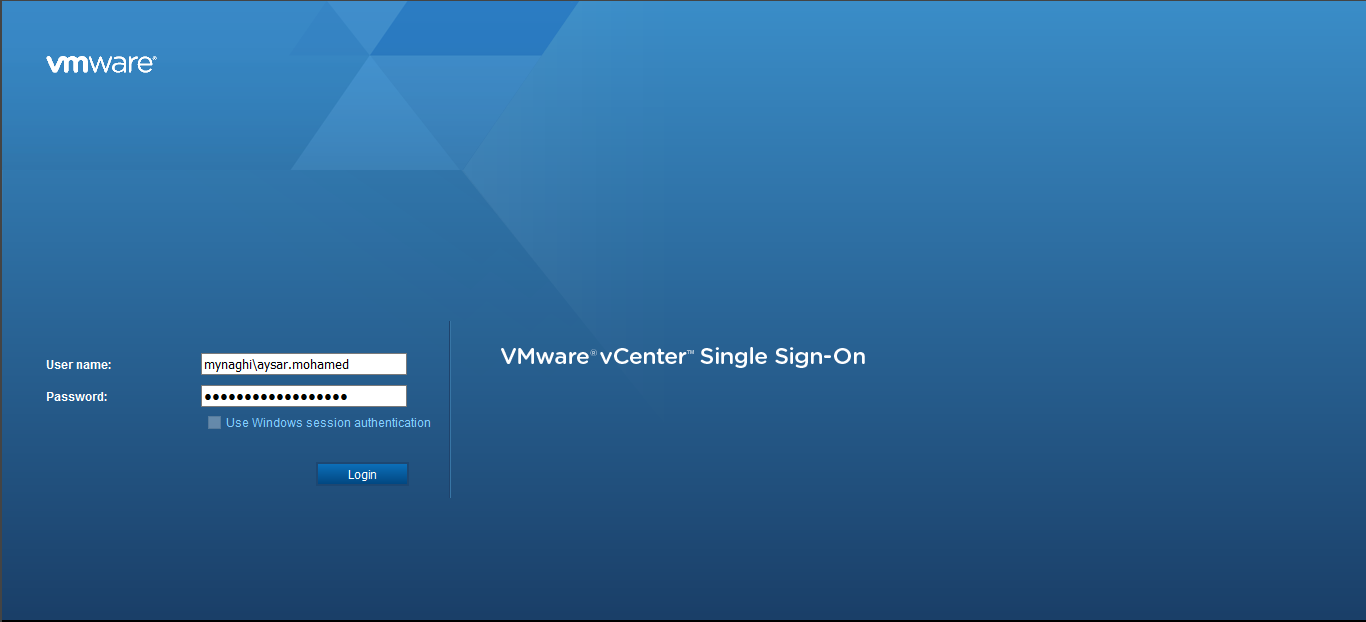
Now login to the vCenter16
ad as you can see under Home Page under Monitoring you can see the (Update Manager)
click on it17
and as you can see my server showing there18

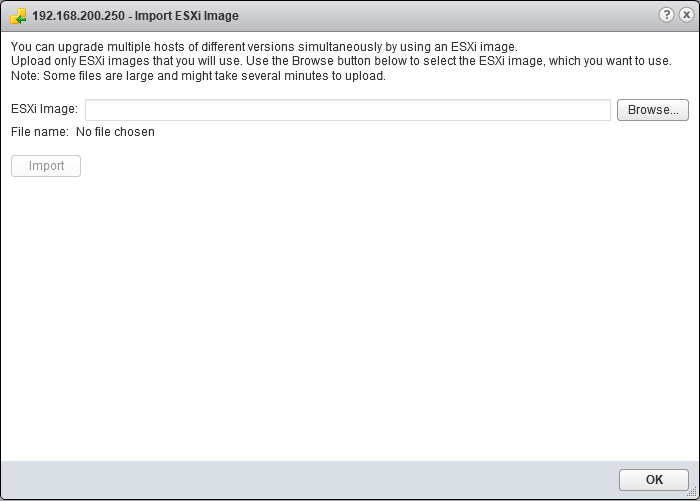
First step is Uploading the ESXi Image
Click on Manage > ESXi images > Import19
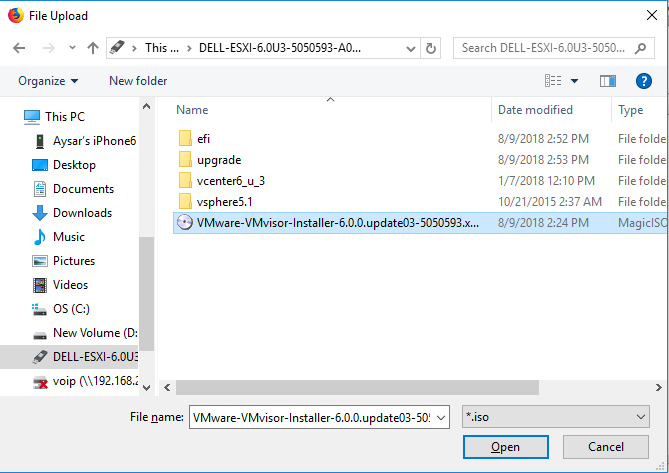
Click Browse to upload the new image20
Select the image i downloaded from VMWare Web page21
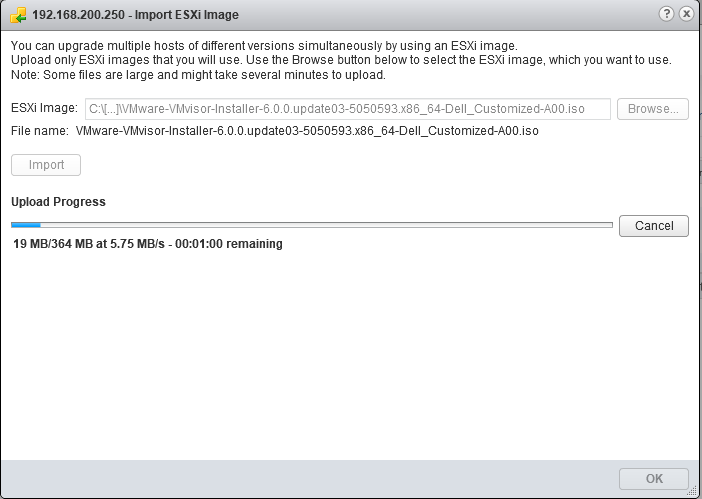
Upload will take a certain time22
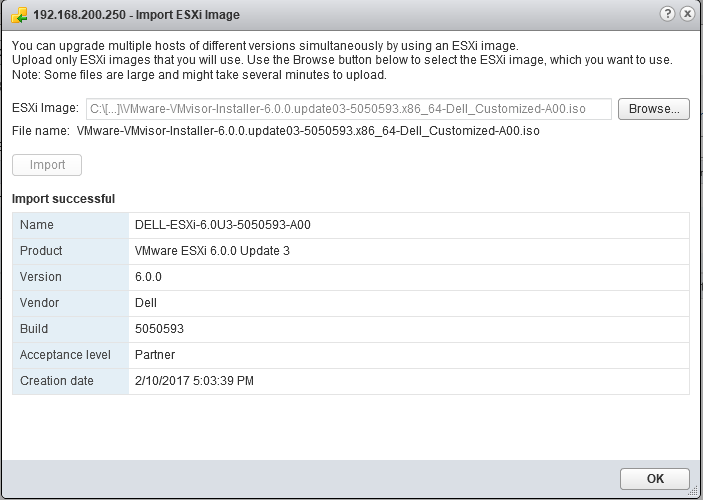
Done then click OK
23
now as you can see i have image available in my Server
Click on (Create baseline > name it ESXi 6.0)24

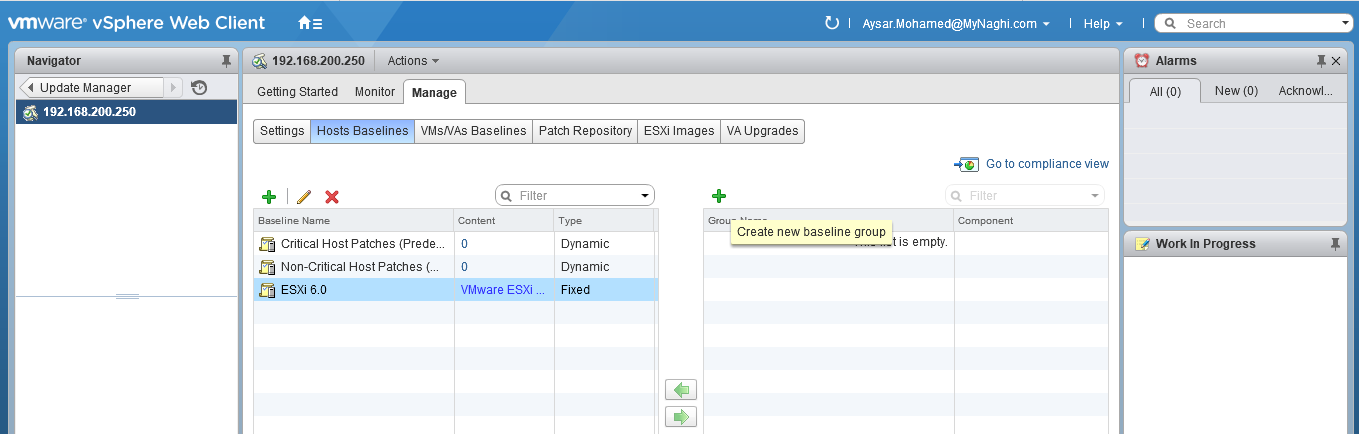
now let me create a group baseline
go to Manage > Hosts Baselines > + create new baseline group
you can see the baseline i created in the previous step available here
26
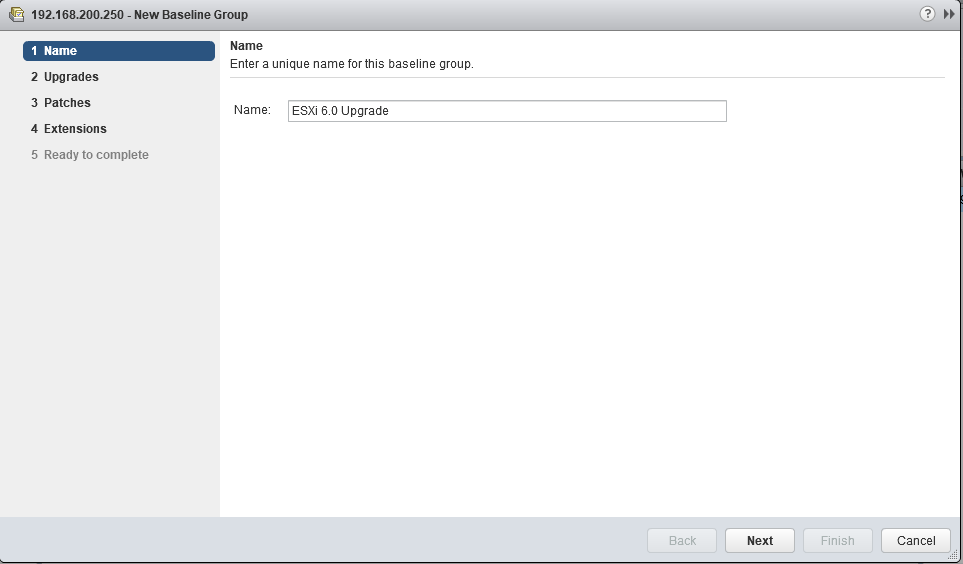
Choose a name27
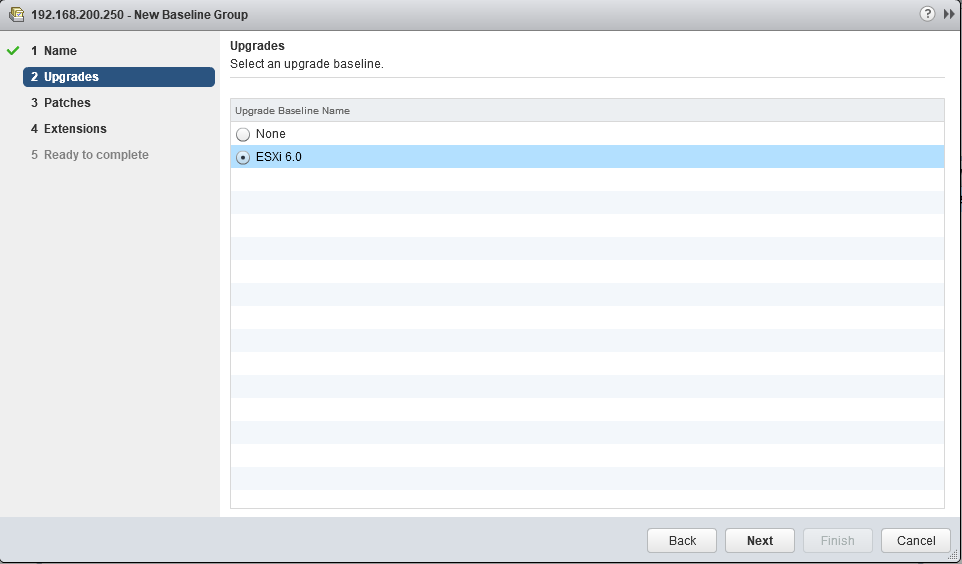
Select the upgrade image28
Click Next29
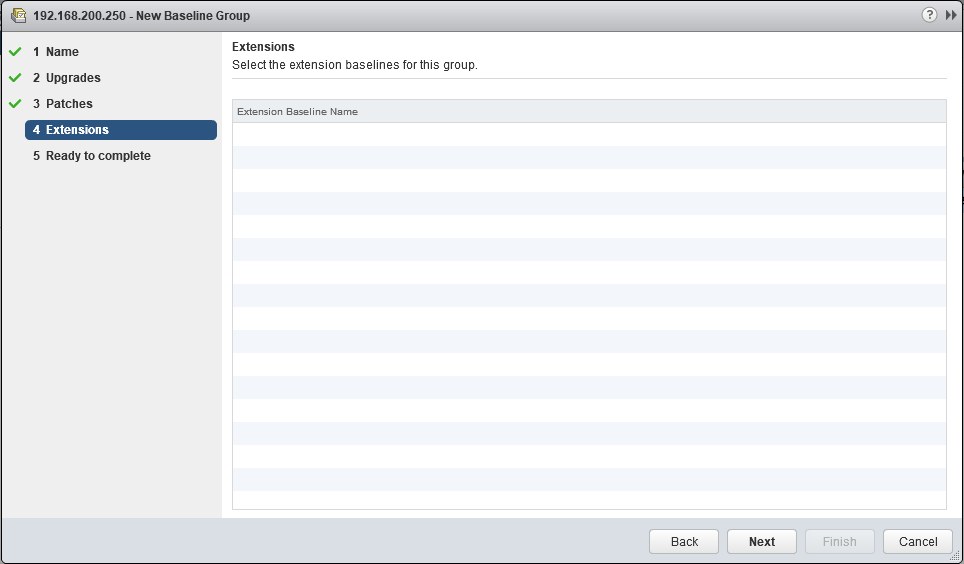
Next again30
and Finish31
Done32

Now go to Home > Inventories > Hosts and Clusters33
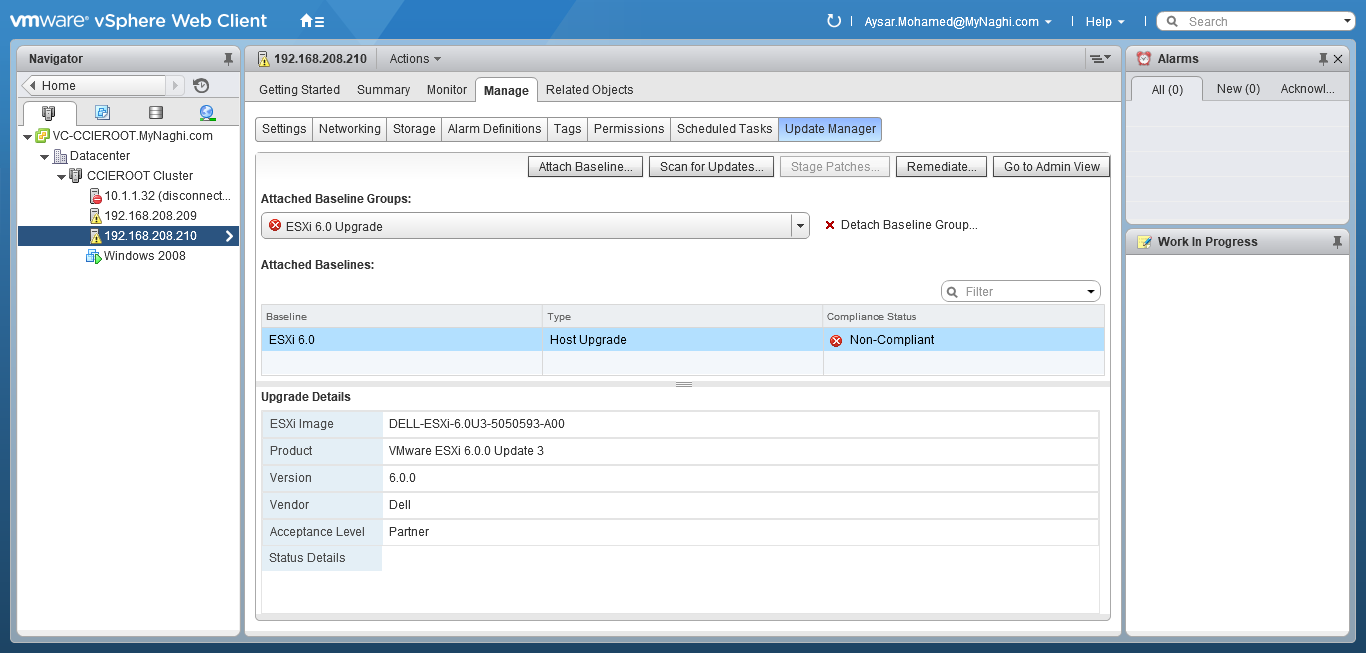
Select my ESXi > Manage > update Managers > Attach Baseline33A
Select the ESXi 6.0 Upgrade33B
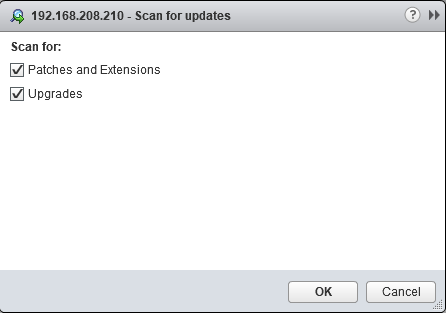
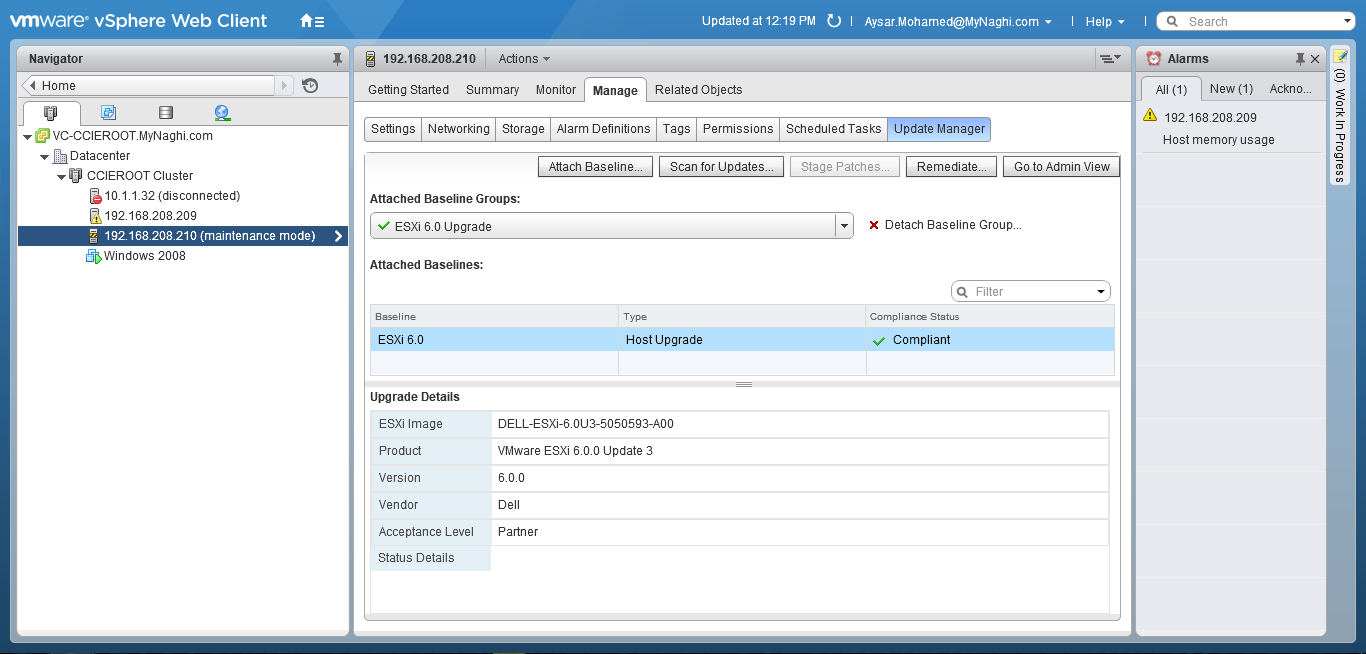
now click on Scan for Updates36
Click OK
37
it say non-compliant
no problem i will try since it’s a lab
38
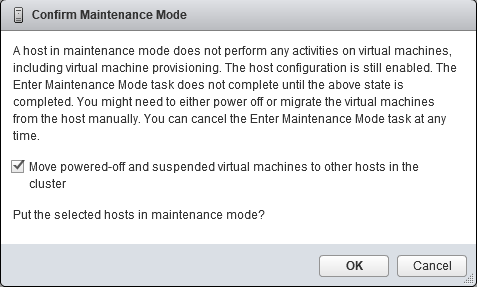
Now put the ESXi Machine in Maintenance mode
Right Click the ESXi > Maintenance Mode > Enter Maintenance Mode38A
Click OK
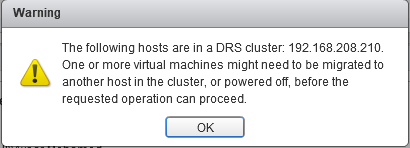
38B
Click OK
38C
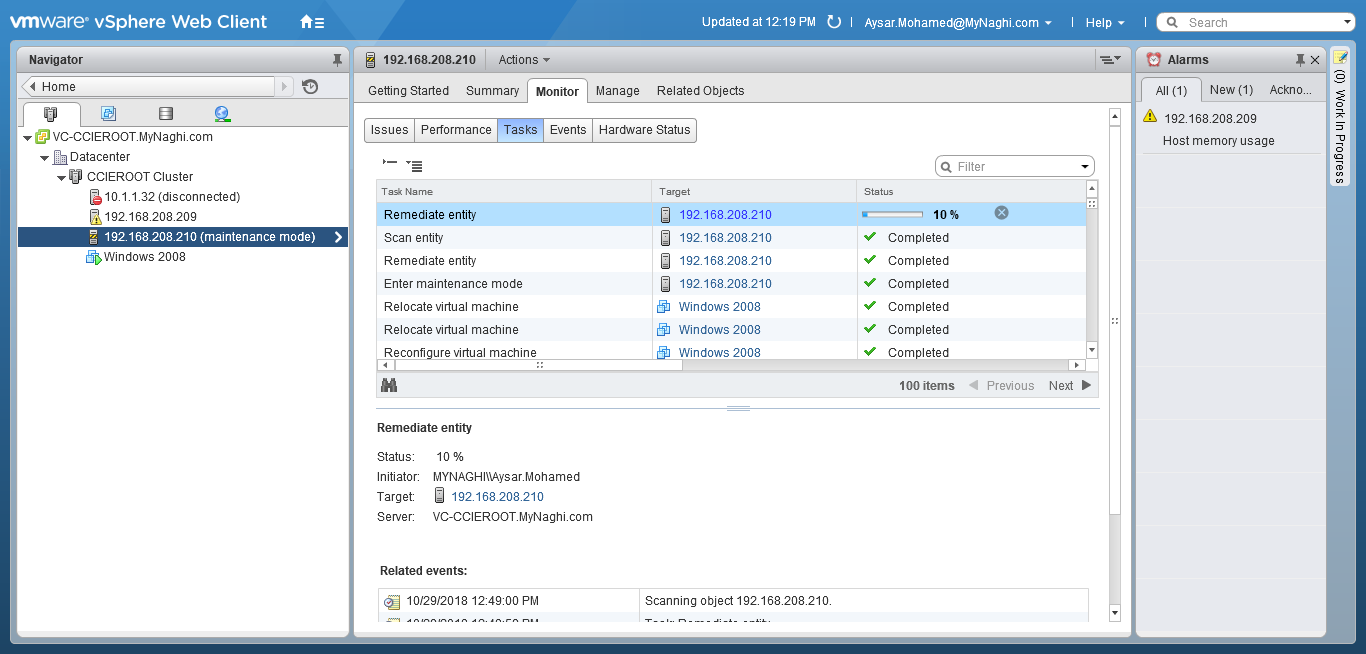
Click on Remediate70
Select the baseline71
Select the host72
Accept the EULA73
Click Next74
Click Next Again75
I disable the removable hardware76
Also i disable the FT and high availability77
Click Finish78
you can see from the progress the update state79
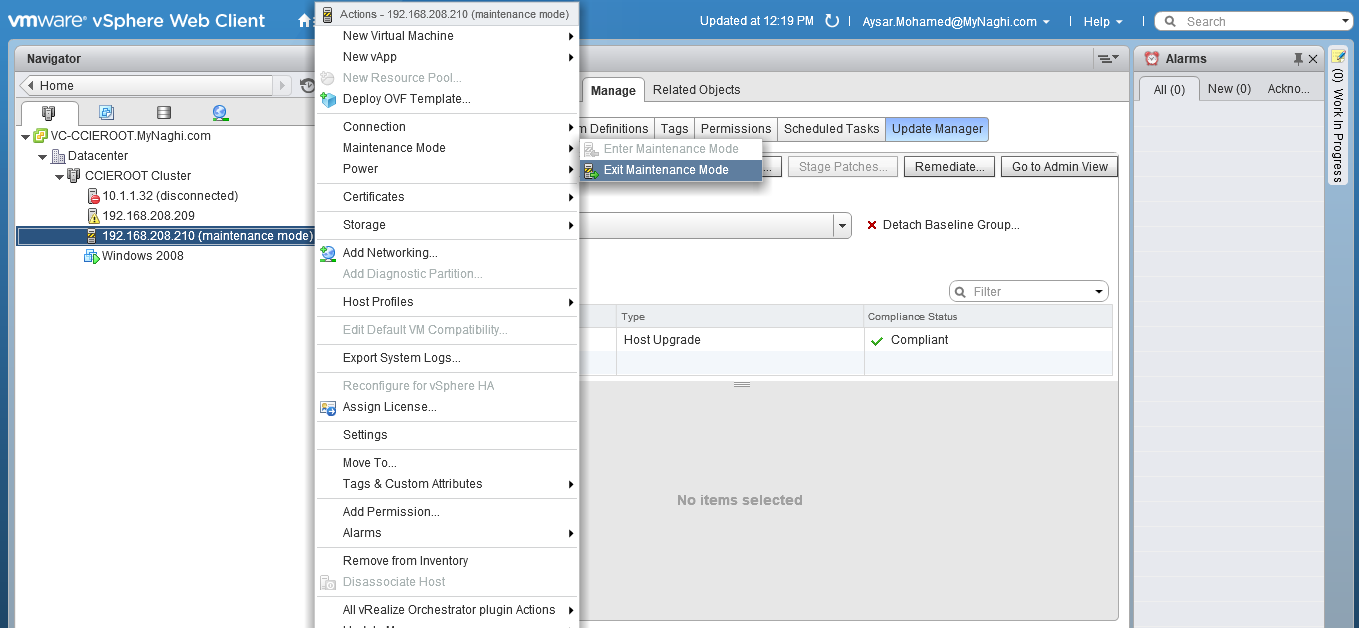
Now Exit from the Maintenance Mode80
Now if i highlight the ESXi host you can see the Version been upgraded to 6.081
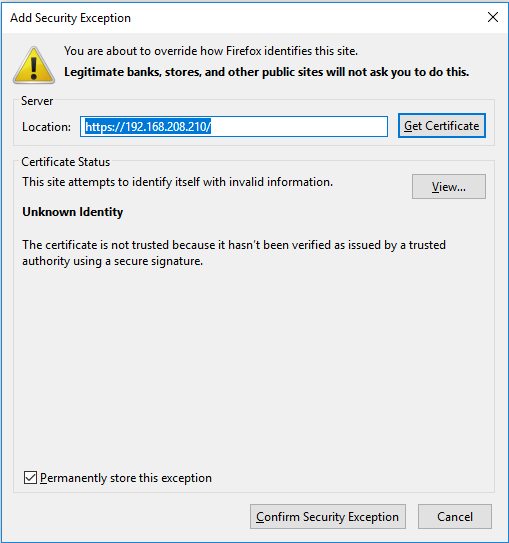
Now i will HTTPS to the host82
Accept the New certificate
83
and in the last couple of lines you can see it mention (ESXi 6.0 update 3)
84
I will open the Web Page and login85
and as you can see the beautiful glamour of version 6.0  😀86

Standard
6.0, VMware

Upgrade VMware vCenter 5.5 to 6.0

Hello again
i show you in the previous blog the Feature of vCenter Server Linked Mode
but that is an old feature available in Version 5.5 now to introduce the new features we need to go above a version
v 6.0

i will start the wizard to upgrade my vCenter first before upgrading the ESXi
i will choose > vCenter Server for Windows > Install

1
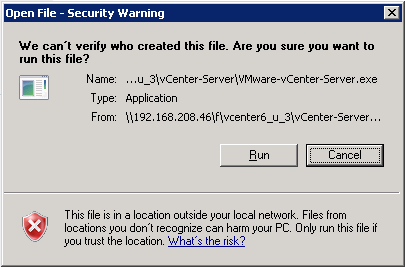
Click Run
2
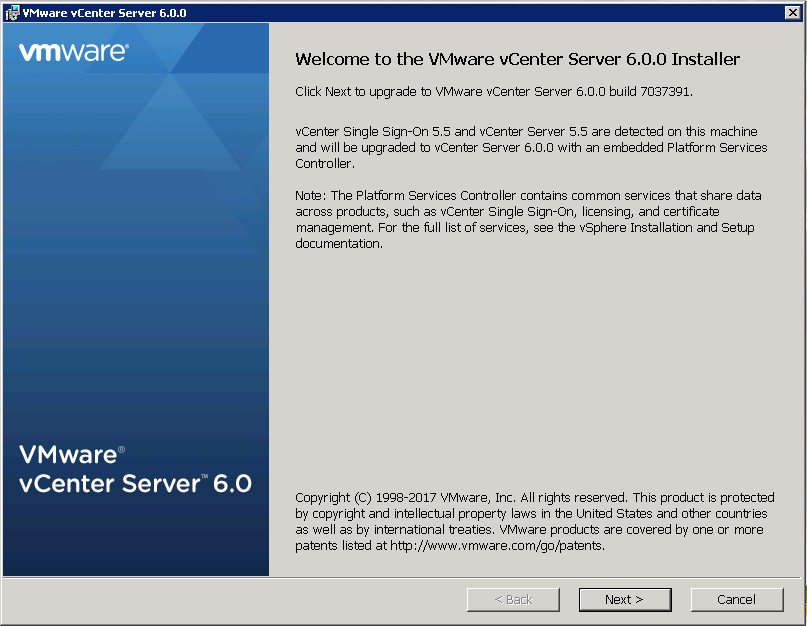
Click Next4
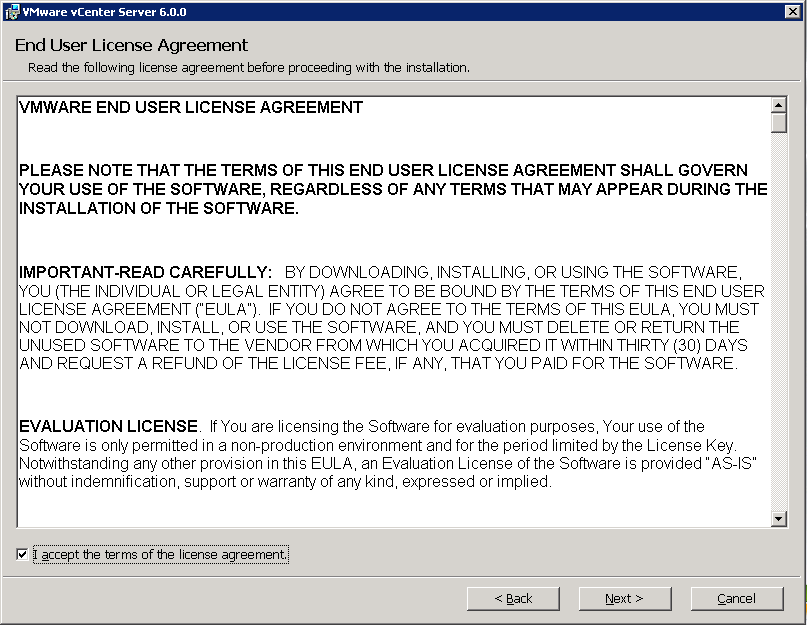
Accept the User License Agreement5
Enter the Administrator Password and click Next6
Here you accept the configured port and click Next7
Accept the Destination Directory and click Next
8
Click Next9
Check the box and start the Upgrade10Upgrade will take it time so no rush12
once it complete press Finish16
Browse to the vCenter webpage and accept the Security Certificate17
Confirm it
18
now login using the username and password from my LDAP19
and that Simple
welcome to the vCenter version 6.020

Standard
5.5, VMware

VMware 5.5 Configuring vCenter Server Linked Mode (Single Console Multiple vCenter)

Now who wouldn’t love to manage his VMware Infrastructure using a single management console. And you can do this with VMware vCenter Linked Mode. it’s available since vSphere 5.1 but im doing it here in 5.5 but let me warn you, there is a degradation in your scalability which i will not Discuss but you always need to check this feature is supported for how many vCenter and how many Hosts
1
i took this picture from kendrickcoleman which explain my design for this scenario and to to tell you the truth i learn alot from this site, even CBTNuggets didnt mention the way to configure vCenter in Linked mode in their Nugget so i had to test alot and here is the way
one of the most important requirement of Linked Mode is that both vCenter Server is Registering to the Same Single Sign-on Server which force me to change my LAB.

My LAB:
Single Sign-on Server (SSO): 192.168.200.250
vCenter 1 (VC1-CCIEROOT): 192.168.200.251
vCenter 2 (VC1-CCIEROOT): 192.168.200.252

I configured my  DNS resolution (forward / reverse working) on all my Windows servers.

Now similar to my second blog where i install vCenetr i will follow the same procedure.1
I will choose Custom Install > vCenter Single Sign-On > Install2
Click Next
3
Check the Box to Accept the License Agreement
4
Check the Box to add the AD as my identity source
5
Choose the standalone vCenter Single Sign-On Server
6
Choose a password
7
Use the default Site name
8
Click Next for the default port
9
Click Next
10
Choose Install
11
it will take couple of minute to finish the installation
12
Click Finish
13
and here i finish the first part on the first server14

Now we move to the first vCenter (VC1-CCIEROOT) to configure the features
But this time we will Choose vSphere Web Client1
Click OK
2
Click Next
3
Accept the License Agreement
4
Click Next
5
Click Next to accept the default port
6
Now the Most Important step is to define the SSO Server
Choose a password
7
and before you press next also put the IP Address of the SSO Server8
Click Yes to accept the SSL SHA fingerprint
9
Click Install Certificates
10
Click Install
11
Click Next and it will proceed with the installation
12
Click Finish
13
and this is a message to let you know the installation is finish successfully
14
Second step install the vCenter Inventory Service > Install15
Click OK
16
Click Next
17
Accept the License Agreement
18
Click Next to accept the location of the installation
19
Enter the FQDN for the first vCenter
(VC1-CCIEROOT.mynaghi.com)
20
Click Next
21
Select the Small and click Next
22
Also again here you enter the SSO Credential and the IP Address of the SSO Server
23
Select Yes
24
Click Install to start the installation
25
it will take time to finish
26
Click Finish
30
Last but not least Select the vCenter Server > Install31
Click OK
32
Click Next
33
Accept the Agreement
34
no need to input any license since this is a LAB just click Next and it will install the evaluation License35
Choose to install the Database
36
Check the box to use the Administrator Account since i’m login with the Domain Admin Credential37
Create a standalone vCenter
38
Click Next to Accept the Default Ports
39
Choose the Small Size
40
and again Enter the Credential of the SSO Server
41
Click Yes
42
Click Next
43
make sure the name is the correct one
44
Click Next
45
Click Install
46
it will take couple of minute
47
and the database will take more time too48
once the SQL is finish the Server will progress with the vCenter Installation
50
Click Finish
51
and as you can see all my servers are installed52

Now we will repeat the same step in the second vCenter (VC2-CCIEROOT) for both feature Web Client and Inventory but for vCenter Server there is a little change so i will show it to you here
so select vCenter Server > Install 1
Click OK
2
Click Next
3
Accept the Agreement
4
Click Next on the License
5
Select to install the SQL Database
6
Also use the Local Admin here
7
Now this is the most important Step
Choose to join a VMware vCenter Server group using Linked Mode
8
Click OK
9
ENter the DNS FQDN for the first vCenter
(VC1-CCIEROOT.mynaghi.com)
and click Next
10
Click Next
11
Select Small Size Deployment
12
Enter the Credential of the SSO Server
13
Click Yes to Accept the SSL SHA1 fingerprint
14
Click Next
15
Enter the FQDN of the Server
(VC2-CCIEROOT.mynaghi.com)
16
Click Next
17
Click Install
18
Give it time
19
and more time20
and more more time 😀21
and just more more more time
i promise this is the last time
22
and Finish
23
now let’s browse to the vCenter page
vCenter 1 (VC1-CCIEROOT): 192.168.200.251
Click Advanced to accept the Certificate24
Confirm it
25
and now i will login to the vCenter page26
and as the page of vCenter show up click on vCenter27
and as you can see it show two vCenter in my page
VC1-CCIEROOT.mynaghi.com & VC2-CCIEROOT.mynaghi.com 28
As Easy As It Get  😀

Standard
VMware

VMware High Availability

(OMG we lost everything)

i don’t think there is any manager in this world want to hear this
losing all the VM and you have to wait for hours to restore your backup
so the solution is high availability
from this picture below there is VM Registered to each hosts (BTW the picture is borrowed from another web :D)
host1
Once the host fail the VM will move to the other Hosts
host2
so let’s deploy this and test it
GO to Home > Host and Clusters1
Select Datacenter > CCIEROOT Cluster > Manage > Settings > vSphere HA choose Edit2
Check the box (Turn ON vShere HA) and then you choose from the Menu in the right3
Select Host Monitoring > VM Monitoring Status > Choose Option (VM Monitoring Only)4
Select Datastore heartbeating > choose to Automatically Select Datastore accessible from the host
5
Under vSphere DRS > select Fully Automated
6
Now go to Datacenter > CCIEROOT Cluster > Monitor > vSphere HA > click on Summary
7
Then select the Related Object > Virtual Machines and you can see each VM reside under which host
8
i will need to install VMware tools under all machines
9
Click Mount
10
then double click on the DVD Drive (D:)
11
Choose Yes12
Complete the Installation13
Select Next
14
Choose Typical
15
Click Install
16
The installation will take less than 1 Minute
17
Click Finish
18
and click yes to restart the machine and repeat this on all your machines
19
now the Machine is up 20
now for testing let’s shutdown our host (192.168.208.209) which VM (windows 10-B) reside on21
Just click OK
22
and you can see the shutdown initiated
23
As you can see the machine windows10-B is disconnected
243 minute and the machine moved to the new host (192.168.208.210)33.PNG
and just like that we establish High Availability 😀

Standard
5.5, VMware

VMware Storage DRS

So im finally back with a new blog
i know i been sleeping during the corona pandemic, so lets get to it
i previously explain how to configure the DRS in VMware Level and now we will do it in the Storage level
so in my previous blog i show you how to install Storage
so the reason for Storage DRS is to move machine from an over utilized storage to a none busy storage
here i will show you only how to install it and the result is similar to the VMware DRS
similar to the VMware DRS i will create a new Cluster

Go to vCenter – Datacenter – New Datastore Cluster
1

Choose a name and check the box to Turn ON Storage DRS2

Choose the DRS storage Automation to be Fully Automated3

Leave this section as it’s but sometimes this I/O check box could cause Error but this is a lab so i would leave it as it’s
and  i played the thresholds a little bit so it triggered the storage automation 4

I selected the cluster here that need connecting to the Storage DRS
5

in this step i selected the 3 Storage that will be under this cluster  (ISCSI-A, ISCSI-B & ISCSI-C)6

At the summary page press Finish7

and now i can see all my storage is under the Datastore Cluster
8

now let me add a new Virtual Machine
10

Select Create a new Virtual Machine11

Select the Datacenter
12

Choose the Cluster were you want to install the VM 13

Now the BIG Step, no need to choose a specific storage, i can select the Storage Cluster and automatically the system will choose the storage14

Choose ESXi 5.5 and later15

Select the Guest Machine16

In the Customization page just press Next17

Now in the summary page you can see under the Datastore
the Machine chooses the ISCSI-B as (Recommended) by the ESXi DRS Storage
Click Finish to start deployment
19

From Recent Task you can see the Task been Deployed
20

Finally the Machine created under the Cluster and in the Summary page you see the Storage (Storage Cluster)21.PNG

;D

Standard