
(OMG we lost everything)
i don’t think there is any manager in this world want to hear this
losing all the VM and you have to wait for hours to restore your backup
so the solution is high availability
from this picture below there is VM Registered to each hosts (BTW the picture is borrowed from another web :D)

Once the host fail the VM will move to the other Hosts

so let’s deploy this and test it
GO to Home > Host and Clusters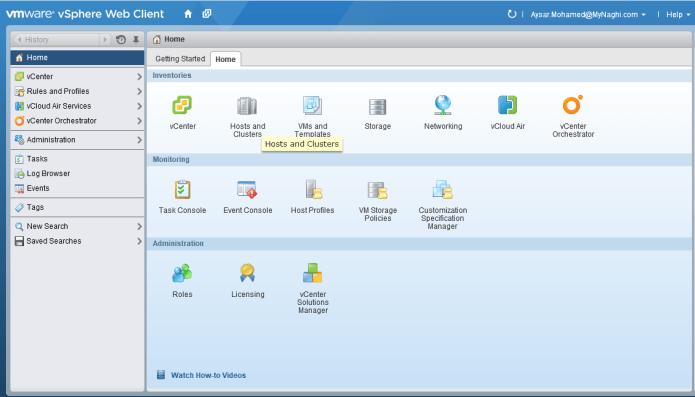
Select Datacenter > CCIEROOT Cluster > Manage > Settings > vSphere HA choose Edit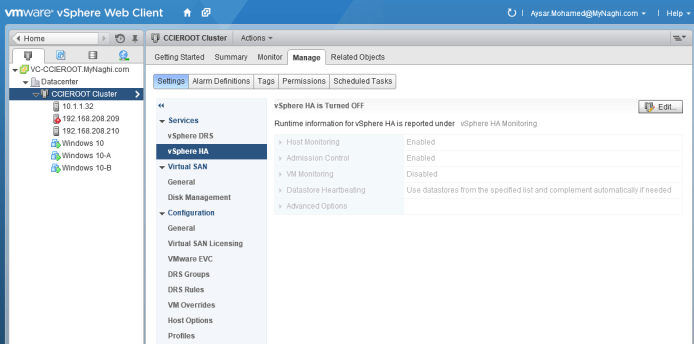
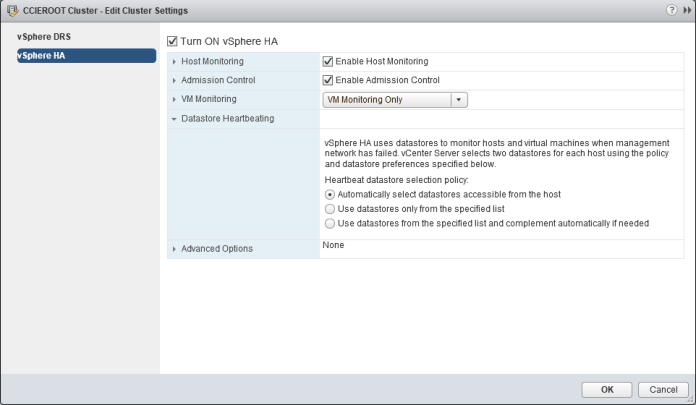
Check the box (Turn ON vShere HA) and then you choose from the Menu in the right
Select Host Monitoring > VM Monitoring Status > Choose Option (VM Monitoring Only)
Select Datastore heartbeating > choose to Automatically Select Datastore accessible from the host
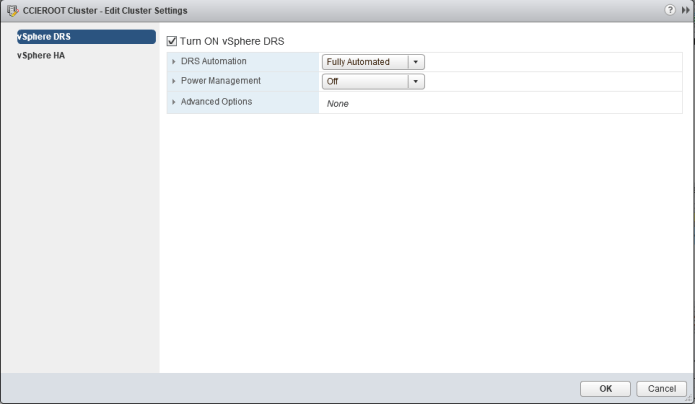
Under vSphere DRS > select Fully Automated
Now go to Datacenter > CCIEROOT Cluster > Monitor > vSphere HA > click on Summary

Then select the Related Object > Virtual Machines and you can see each VM reside under which host
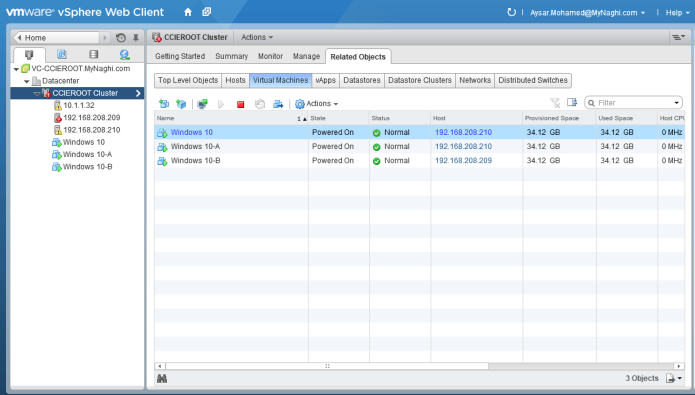
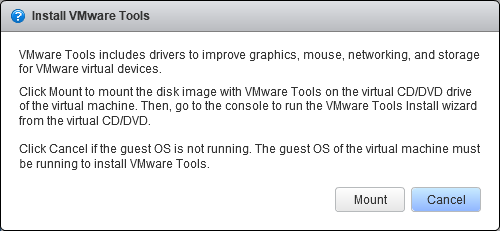
i will need to install VMware tools under all machines

Click Mount
then double click on the DVD Drive (D:)

Choose Yes
Complete the Installation
Select Next
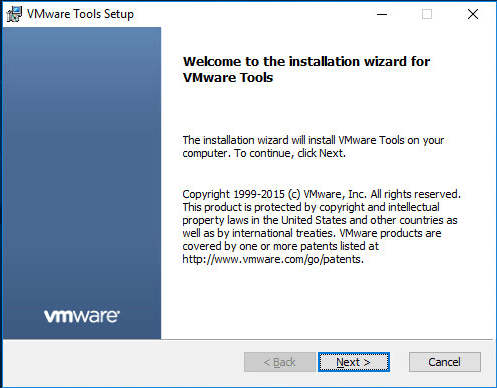
Choose Typical

Click Install

The installation will take less than 1 Minute

Click Finish

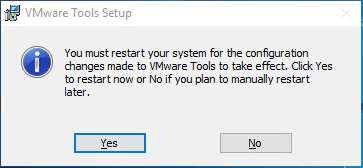
and click yes to restart the machine and repeat this on all your machines
now the Machine is up 
now for testing let’s shutdown our host (192.168.208.209) which VM (windows 10-B) reside on
Just click OK

and you can see the shutdown initiated

As you can see the machine windows10-B is disconnected
 3 minute and the machine moved to the new host (192.168.208.210)
and just like that we establish High Availability 😀
 Root
Root 
Pingback: Install VMware ESXi 5.5 | Root