
In Earlier post i Show you how to add a DHCP on IOS Router with Option 150 to provide the TFTP IP Address for the IP Phone https://ccieroot.com/2016/03/10/configure-dhcp-on-ios/
Today i will show you how to configure a DHCP it in Windows Server 2008
First in Server Manager i go to Roles and Add New Roles
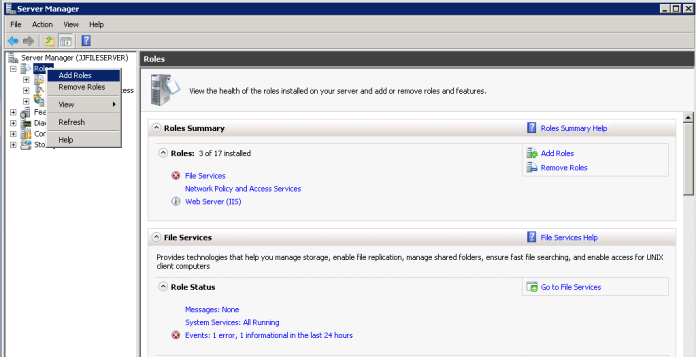
 I Choose DHCP Server
Define the DNS
Define the DHCP Scope
Define the Credentials for Authorize the DHCP
Last is the Installation Confirmation
Now when i start the DHCP it will show an Arrow Sign to Down
I Have to Authorize it
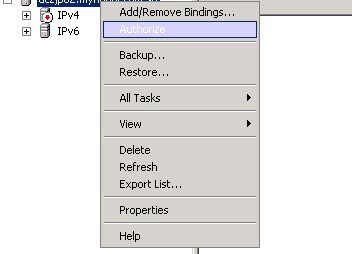
and Like that the DHCP is ready
Since this Scope will support Both Data and VOIP i should add a new option 150 to support the phone and provide them with their TFTP IP Address
First go to IPv4 and Set Predefined Option
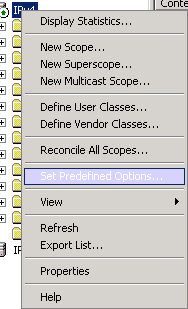
Add the New option
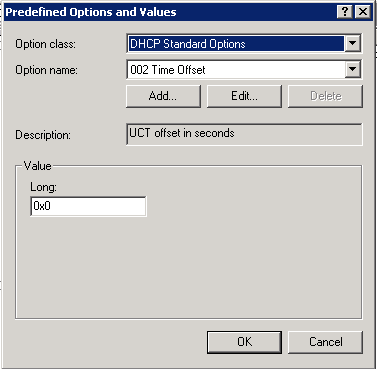
Name: Cisco
Data Type: IP Address
Check Mark on Array
Code:150
Description:Cisco IP Phone

Now Right Click on your Scop and Choose Configure options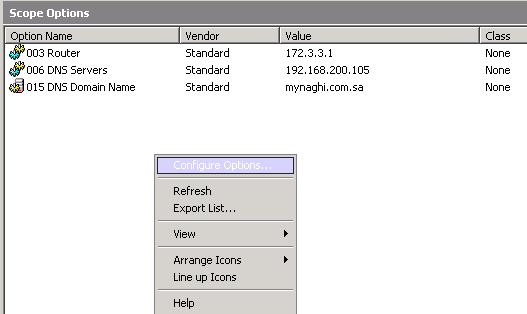
Check Mark on the Option that you Add and Select the Write the IP Address of your TFTP
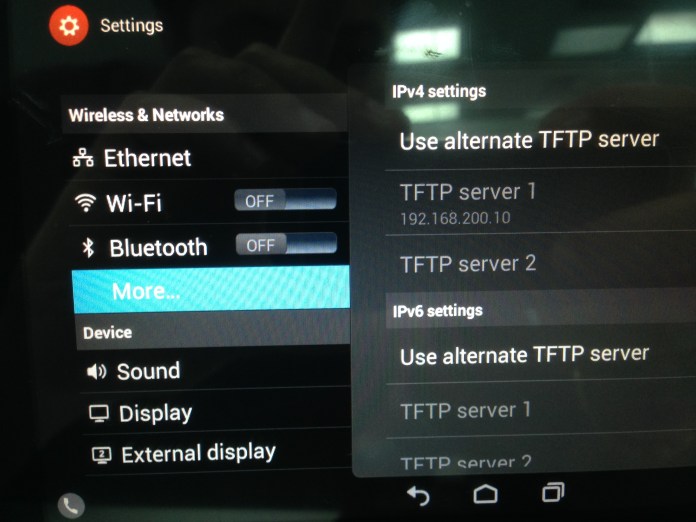
in out Case it’s 192.168.200.10 which is our Publisher

Now Define a VLAN in the Core Switch
and configure a Veritual Interface for the Same Vlan and Define the DHCP by the Command “IP Helper-Address”

Last Configure the Port were the User PC and IP Phone is Connected

Now COnfirm the PC is taking the IP Address from the Same VLAN
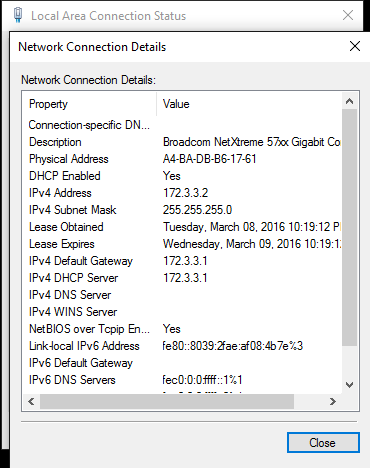
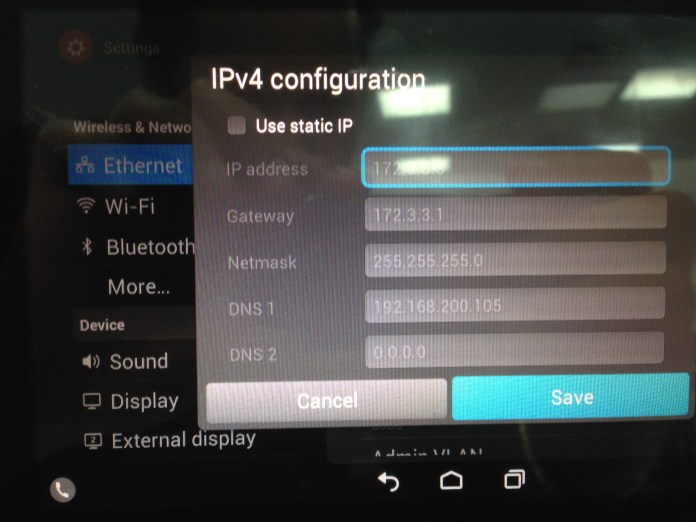
And Also the IP Phone is taking the Correct IP Address and VLAN and the TFTP Configuration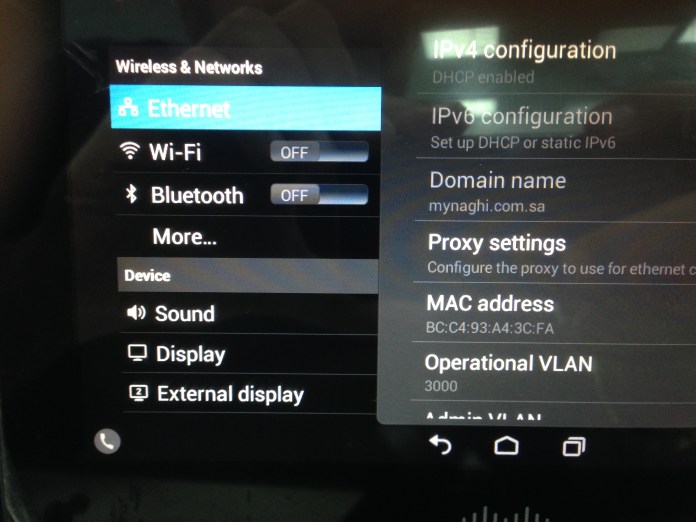
 Root
Root 
Superb!!….I”m going to give you thumbs up…and this explains of Windows dhcp was really inspiring :)
Looking forward to see ur explanation of Windows dhcp with option 43 as well..
Thx Root..
LikeLike