yes i reached my second blog thanks god ;D
the first thing that should be taught in the voice track is how to install the application that you are going to use for the rest of your life in case you didn’t get fired of your job afcors
i will show you here how to install the Cisco Unified Communication Manager 8.6 in a very small step
I have a small lab that contain VMWare Machine with ESXI 5.0, Cisco Router that act as an NTP Server you could exchange this by your laptob windows timer and a Switch that all this item connected too
Let’s Start
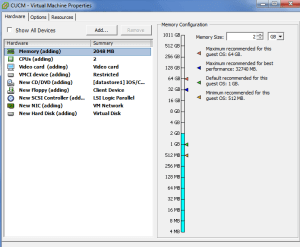
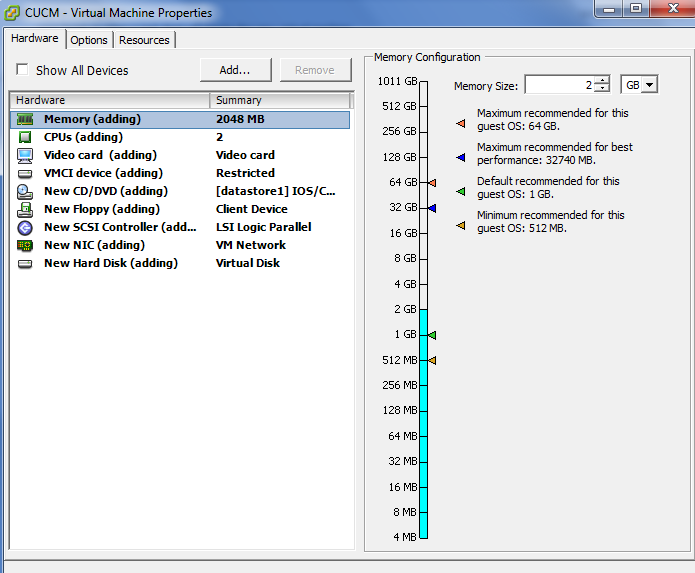
first prepare your VMWare:
- Operating system – Red Hat Enterprise Linux 5 (32 bit).
- Processors – at least 2 cores
- Memory – dedicate at least 4GB. 2 is enough but in a large environment Better to keep your precaution
- HDD – one partition of 160GB
- Network Adapter – bridge it directly to the physical one.
- CD/DVD – I Already upload the Image to the Storage of the VMWare
- Display – Auto
It end looking like this
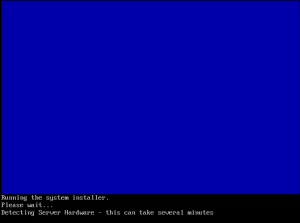
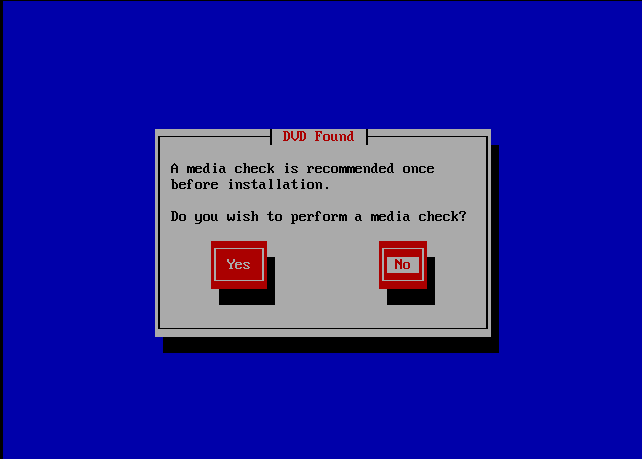
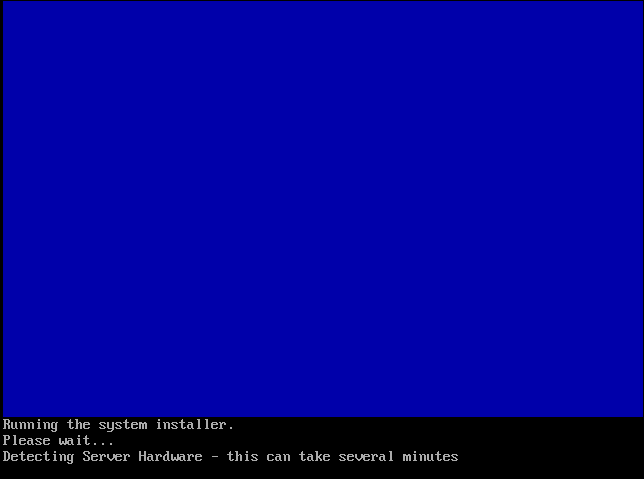
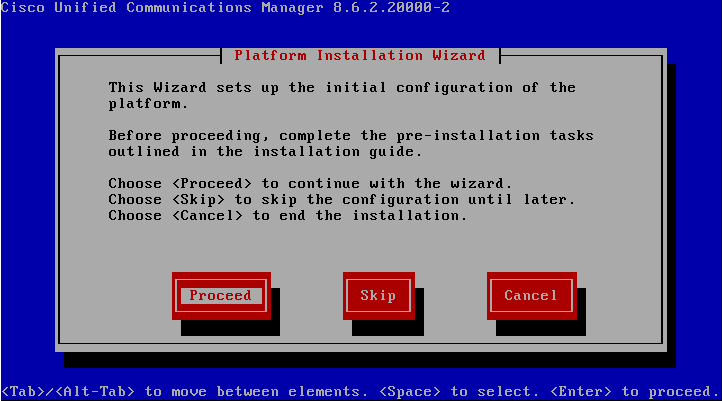
Now Power the Machine and then it ask you to check the Image on the Cd just press No

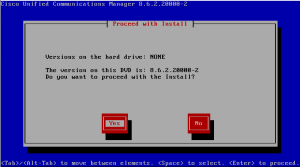
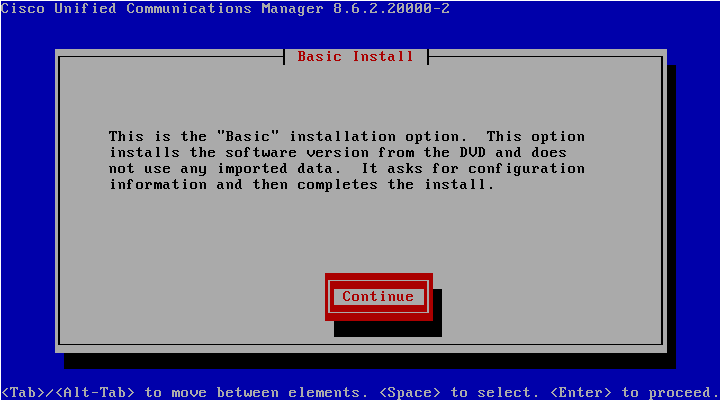
After that it will verify the version of the CUCM
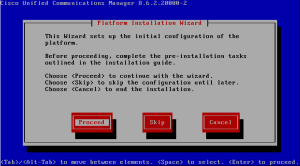
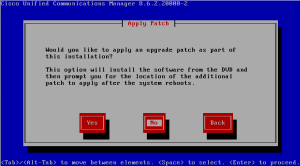
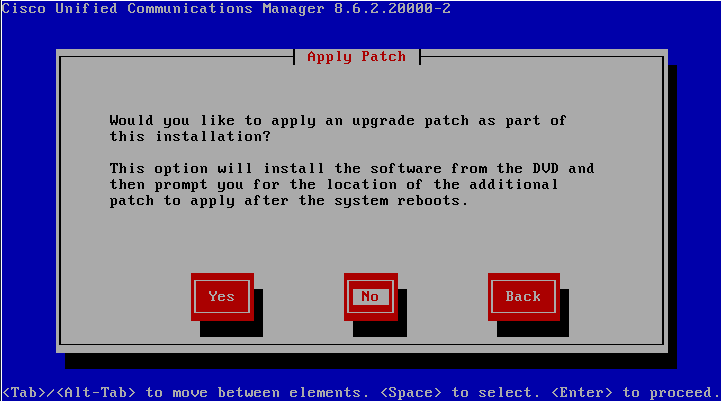
Since it’s a New Installation that mean there is no System to apply the patch to so press No
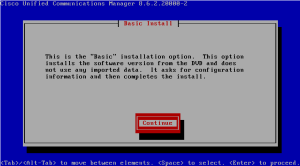
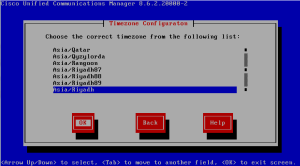
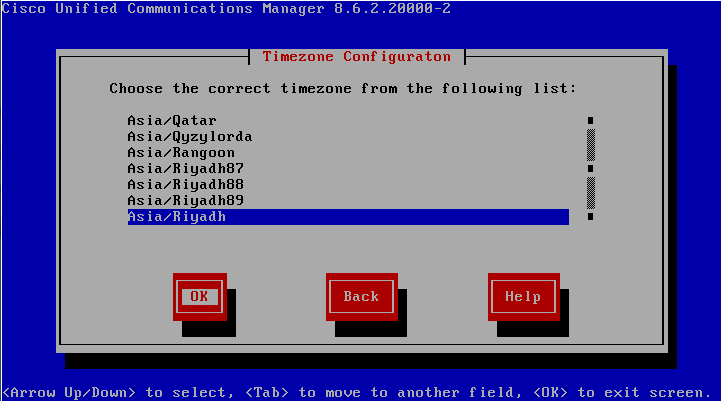
Then Choose the Location you are in
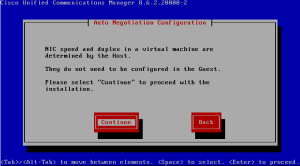
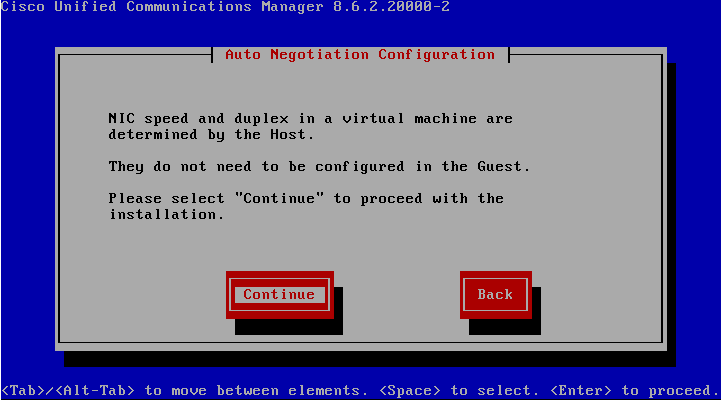
Let the NIC Speed and Duplex determined by the Virtual Machine in case you need to change it in the future
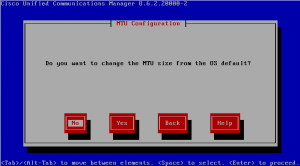
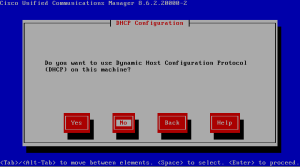
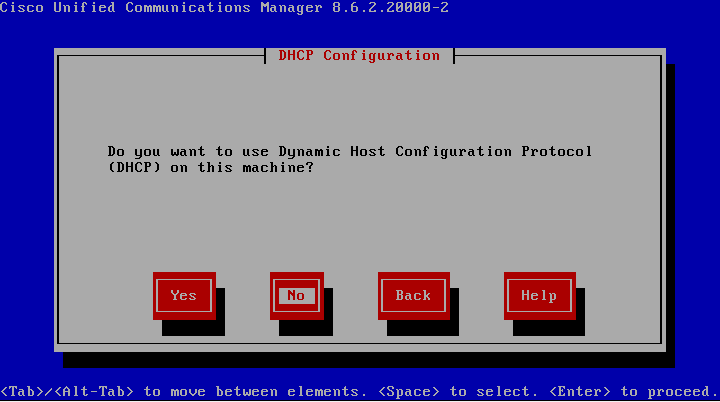
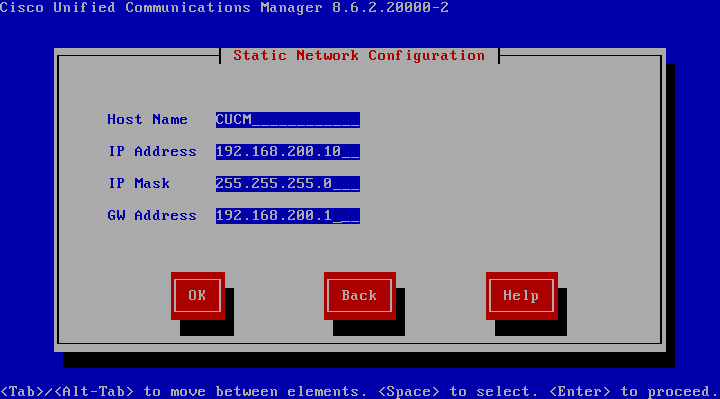
The Most important Part is the DHCP so be careful
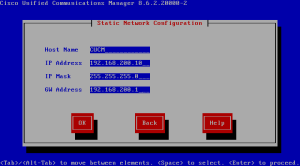
We didnt choose DNS since it’s a lab only in most of the installation i attend no one using it except in the biggest scenario
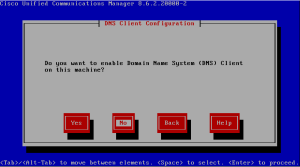
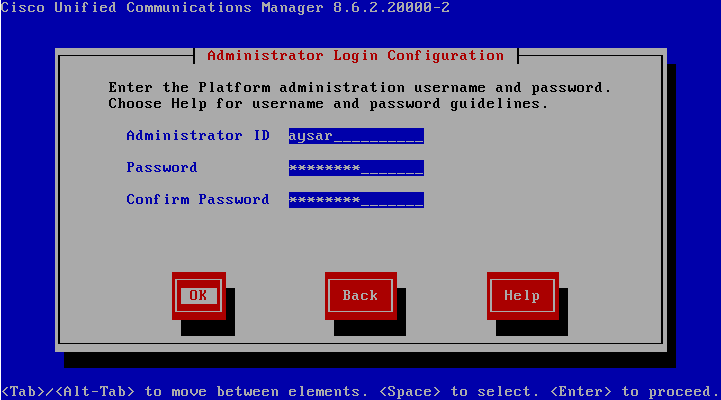
Now Enter the Administrator Username and a Password
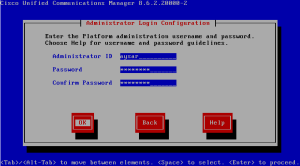
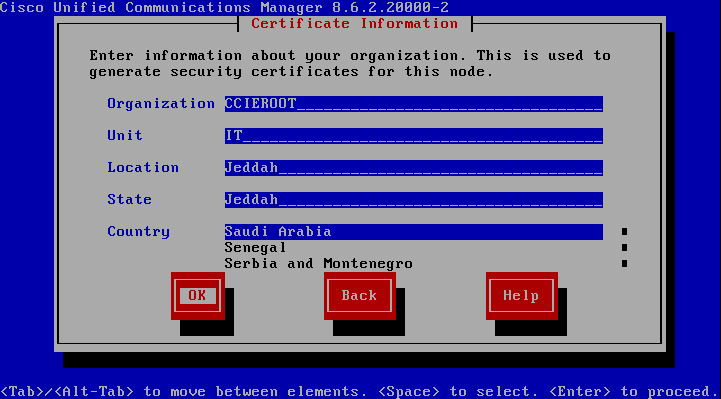
Enter the Company Name and City
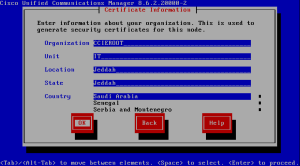
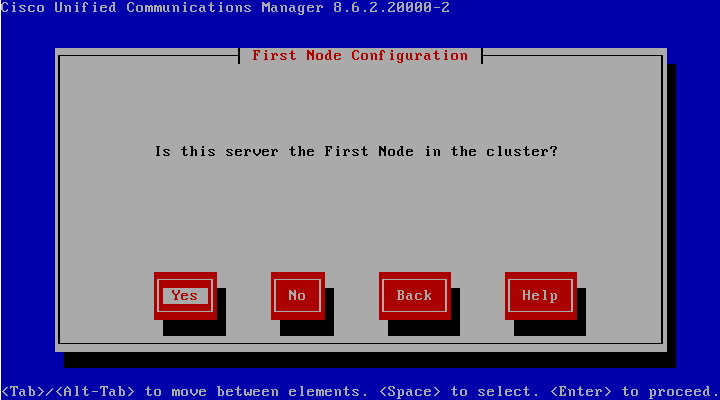
in case this was not the first server you would press no and enter the cluster configuration which is another blog in the future but for now we would press Yes

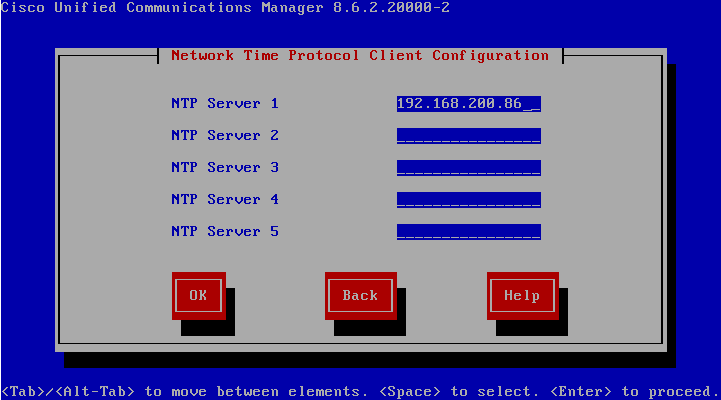
Enter here our NTP Server which is our Router IP also it’s my Voice Gateway
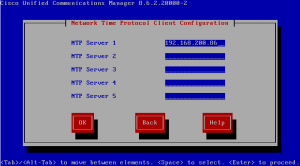
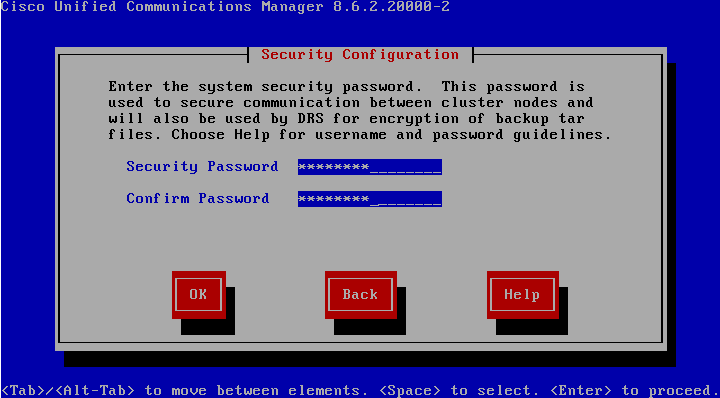
This Part is useful later in case i add a subscriber this is the password that I’m going to use
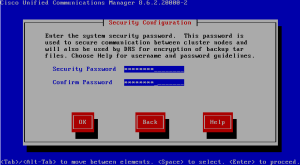
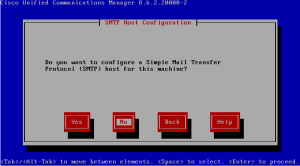
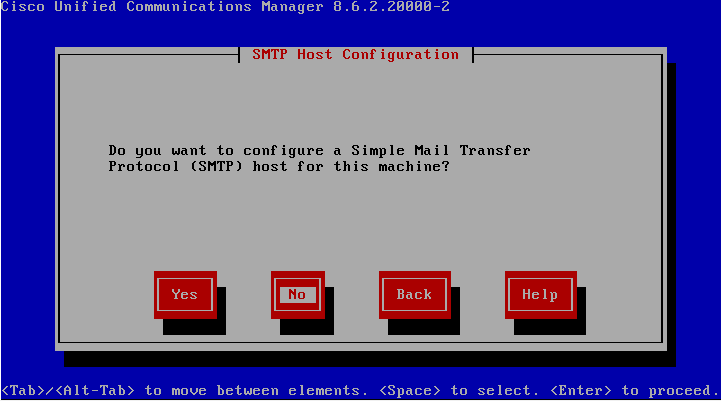
Im not using SMTP here so i press No
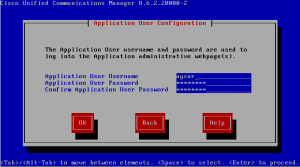
Now Enter the user name and password for the Application Administrator
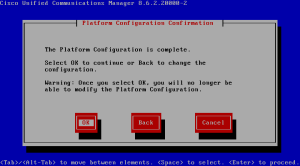
Last Step press the most beautiful Button to complete your mission
Like that it start the configuration go and take a cub of Cappuccino it will take Hours
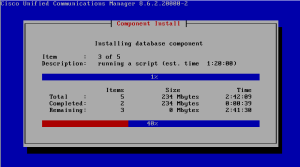
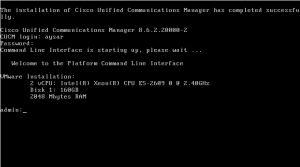
And Done
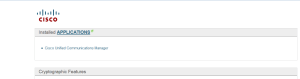
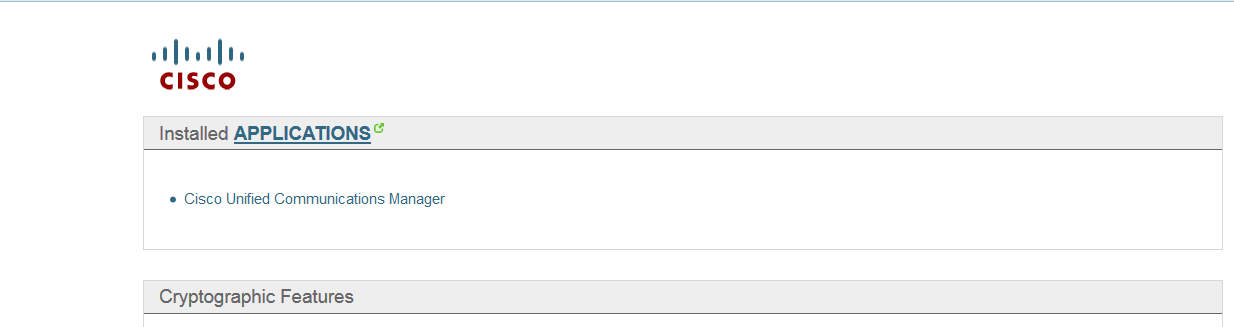
just take the Same ip address you used and past it in the Firefox or whatever web browser you are using and login

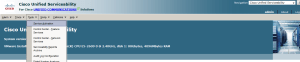
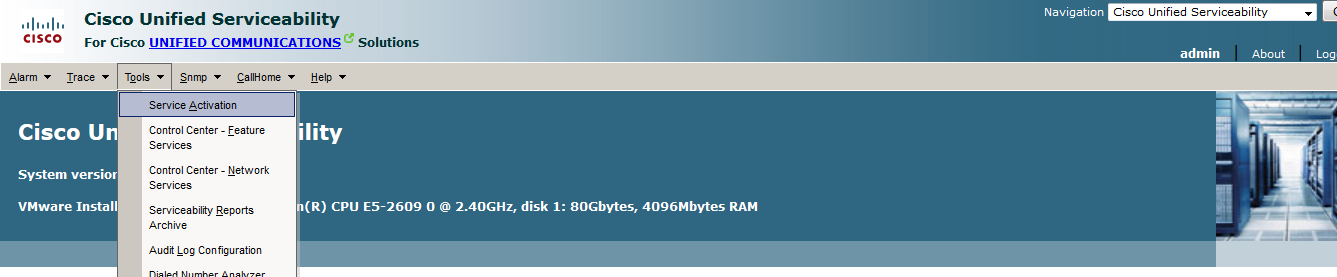
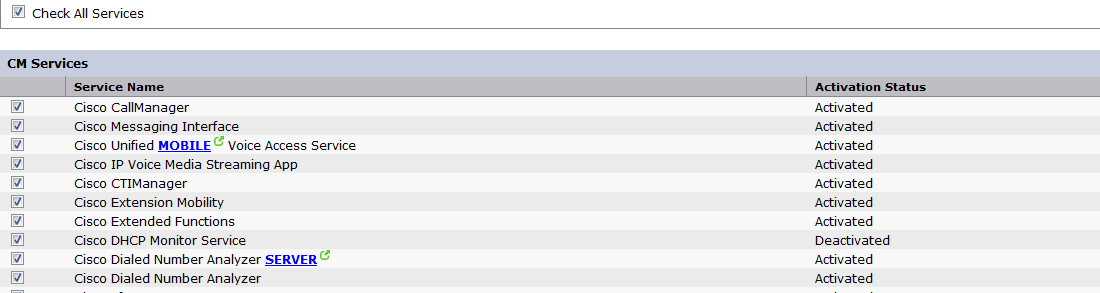
Then from the Drop Down on the Right Corner Choose Cisco Unified Serviceability and press GO so you can be able to Activate all the Service on the CUCM

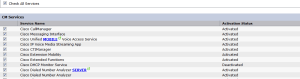
and Like That your CUCM 8.6 is Ready to be Configure























 Root
Root 