
in the last blog “VMware DRS” i show you how to migrate machine automatically and this was the result, it moved my VM Machine “Windows 10-A” & “Windows 10-B” to the ESXi host “192.168.208.210”
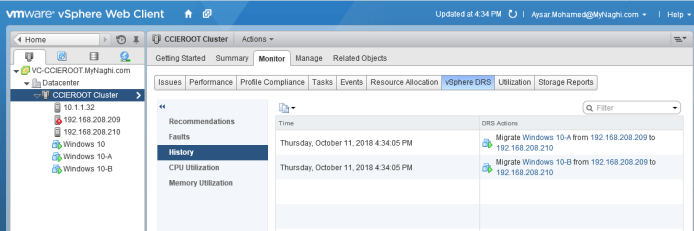
but what if i do not want those two machines to be together and i want “Windows 10-A” & “Windows 10” to be together and “Windows 10-B” to be far away from “Windows 10-A” and not share the same host.
well there is one solution “Affinity and Anti-Affinity”
so if you go also to your Cluster – Related Objects -Virtual Machines

Okay lets adjust the component so we can see the host of each Machine
Add the Host Field

As you can see here
Windows 10 on host (192.168.208.209)
Windows 10-A on host (192.168.208.210)
Windows 10-B on host (192.168.208.210)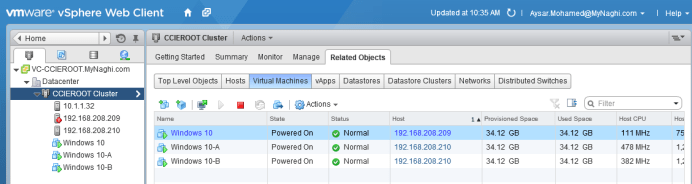
lets create first rule that will join Windows 10-A & Windows 10 Together
so lets go to Cluster – Manage – Settings – DRS Rules

Add a new Rule – Choose a Name
Select to Keep Virtual Machine Together
Now Add the Machine

I choose Machines:
Windows 10
&
Windows 10-A

Now Choose OK

as you can see if you highlight the rule it will show you the machine affected by that rules 
Now if you go back to Cluster – Related Object – Virtual Machines
you can see that Machine Windows 10 Joined the other Machines and now become hosted by host 192.168.208.210
and you can see the Task Detail here
As i remembered we mention that we want “Windows 10-B” to be far away from “Windows 10-A”
so lets add another rule and this time we choose to (Separate Virtual Machines)

Lets choose Machines Windows 10-A & Windows 10-B
Now press OK
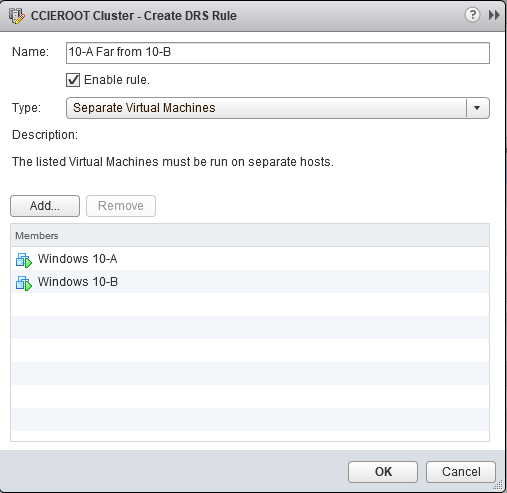
and if you highlight the Rule you will see the affected Machines
and if we go to the Task we will see that Machine Windows -A is moving from host 192.168.208.210 and since there is a rule to keep Windows10-A and Windows 10 together in that case also Machine Windows 10 will be moving to the other host

and Yup both machine now faaaaaar away from Windows 10-B
and both of Windows 10 & Windows 10-A hosted on 192.168.208.209
Okay now we finish with VM to VM Relationship
what if i want to Keep a specific VM tagged to a specific Host
Here we go to a new thing called : DRS Group
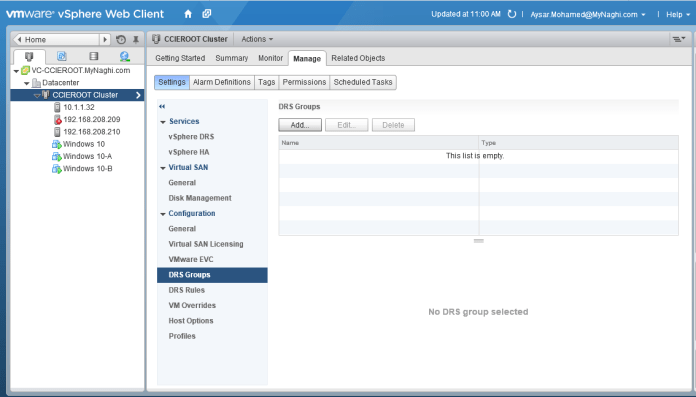
Add a DRS Group and choose a name
and choose a Type should be VM DRS Group
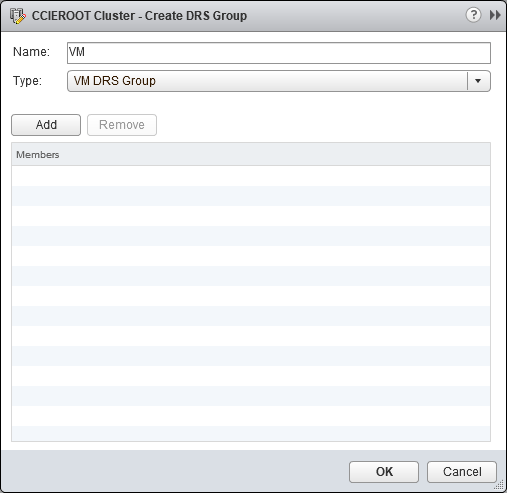
First Select the VM Machine and i selected Windows 10-B
Note: make sure you dont select the wrong VM cause it will cause an issue since you have another rule that separate Windows 10-A from Windows10-B

and its added

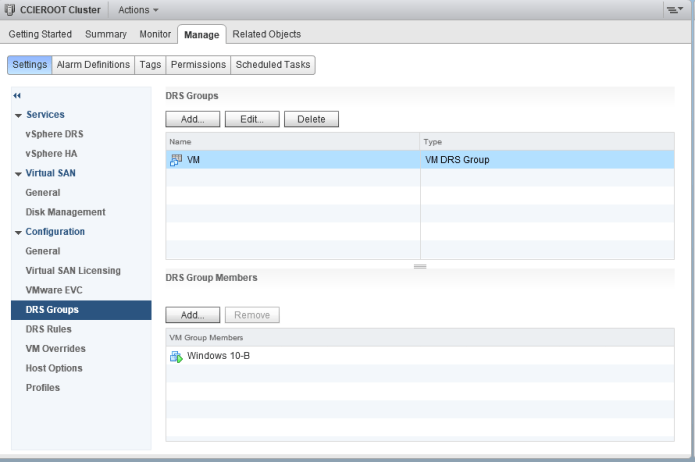
Now Add another DRS Group and choose a name and Type should be Host DRS Group
and select the Host needed

and then press OK


Now go back to the DRS Rule and add a rule
Type: Virtual Machine to a Host
and select the VM DRS Group and Host DRS Group that you created

and if you highlight the rule you will see the affected Machine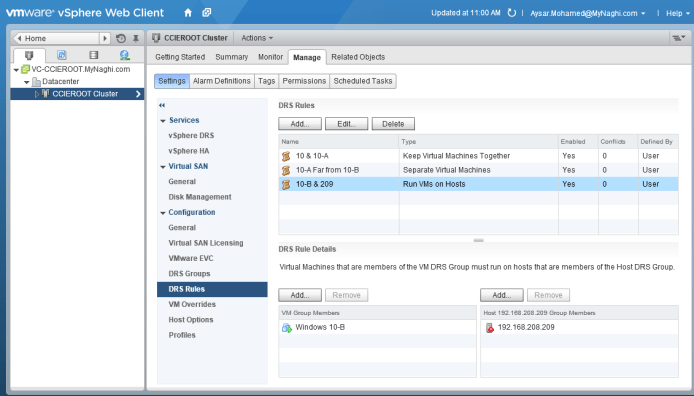
Now you can see VM Windows 10-B moved to 192.168.208.209
an since there is an older rule that separate windows 10-A from Windows 10-B so the VM windows 10-A moved to host 192.168.208.210
also there is a rule that Join VM Windows 10-A & Windwos 10 together then the VM Windows 10 moved to host 192.168.208.210
i know that a really confusing but i suggest you read it couple of time and test it your self to get the matter
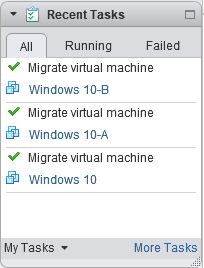
and that is the beautiful result

and you can go to the Cluster – Monitor – vSphere DRS – History to see the procedure 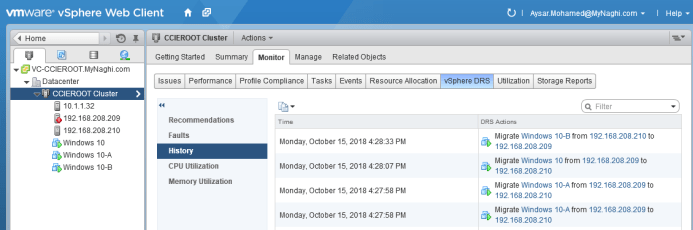
;D






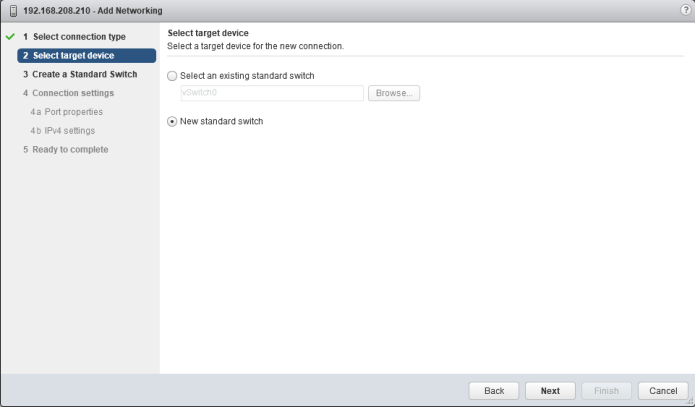

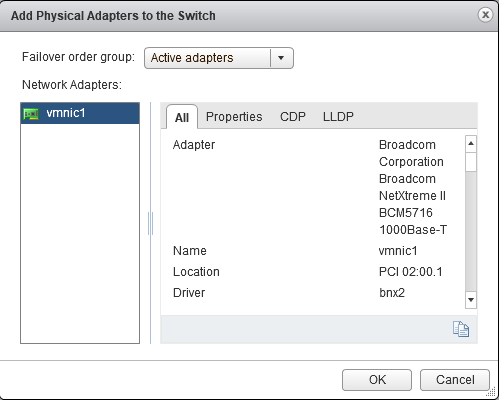


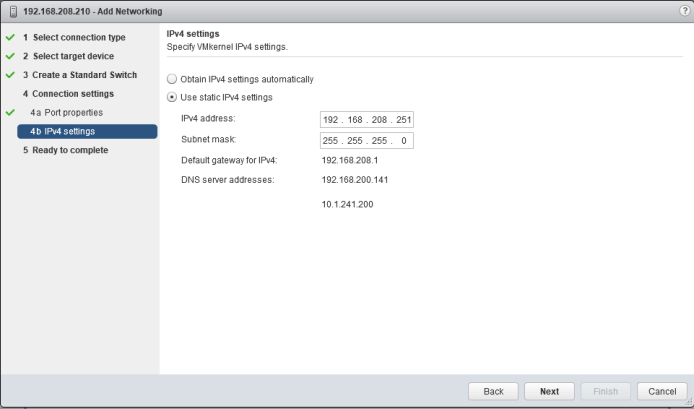

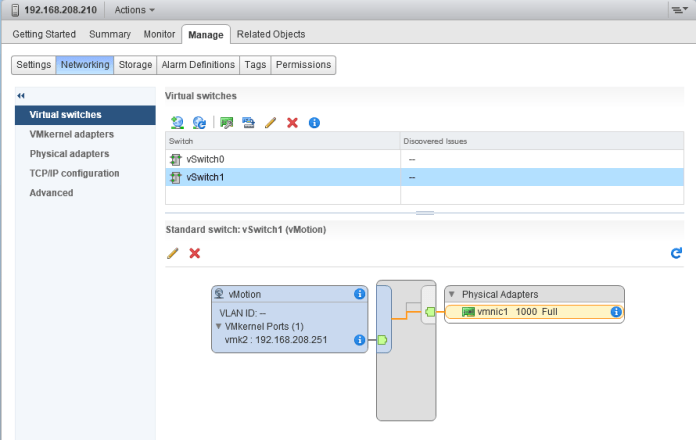




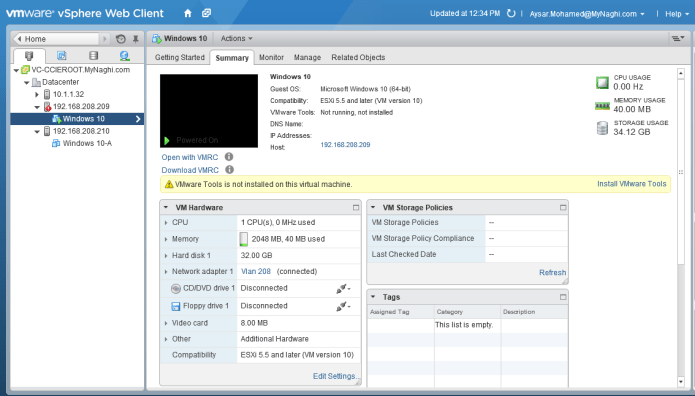











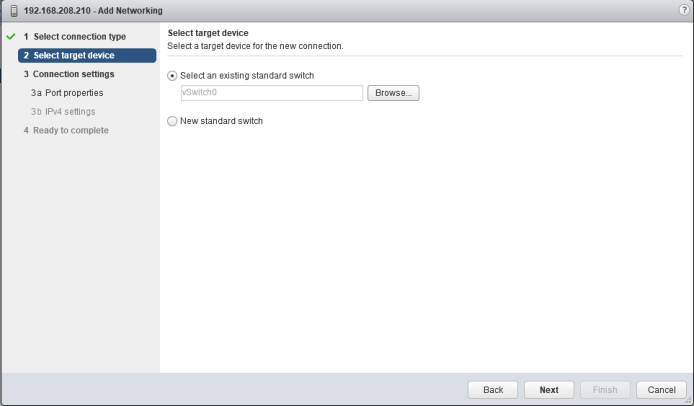


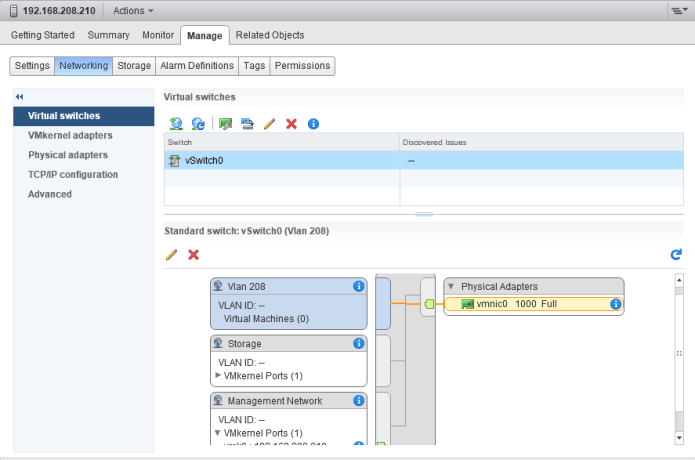


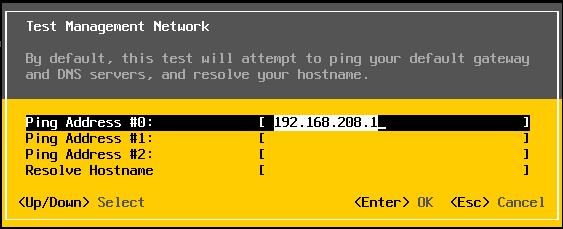
 Put the IP Address of you Storage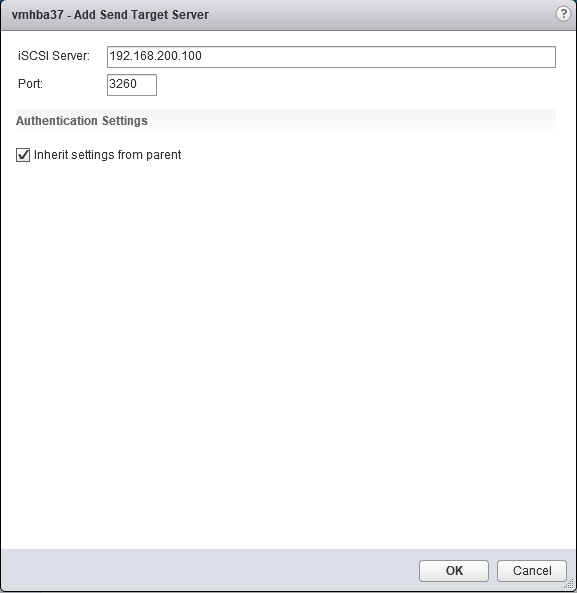
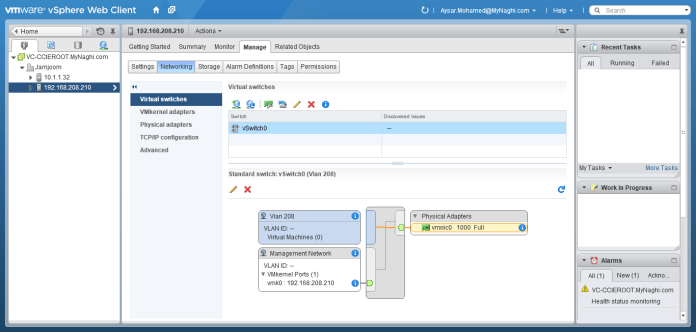
 Now I will associate the VMKernel Adapter with it
 Select the Storage VMKernel Adapter that I configure in the beginning of the blog
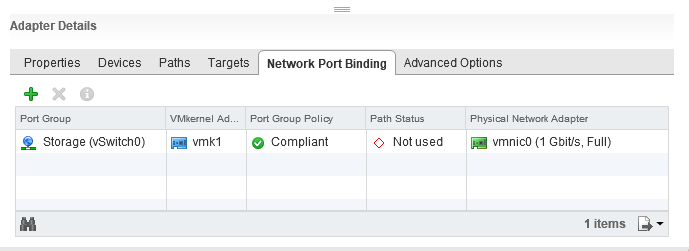 Click In Rescan icon to refresh the page and

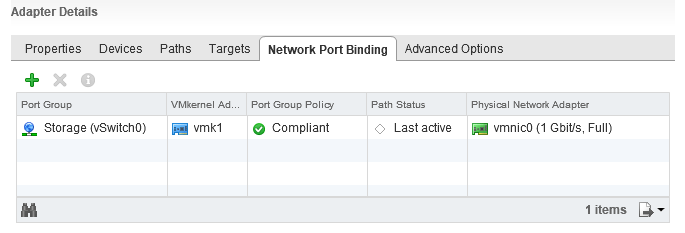 Now Third Step is to add Datastore


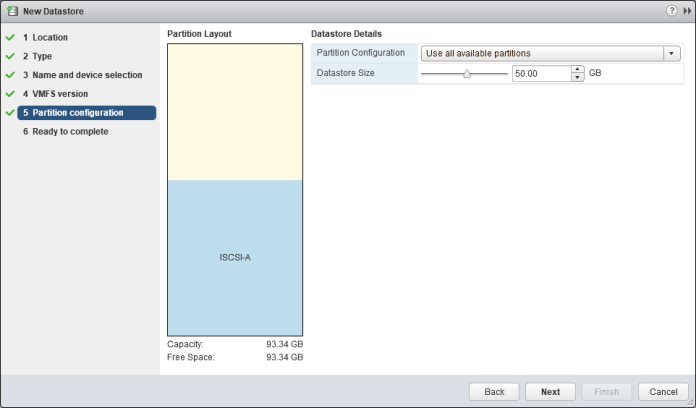
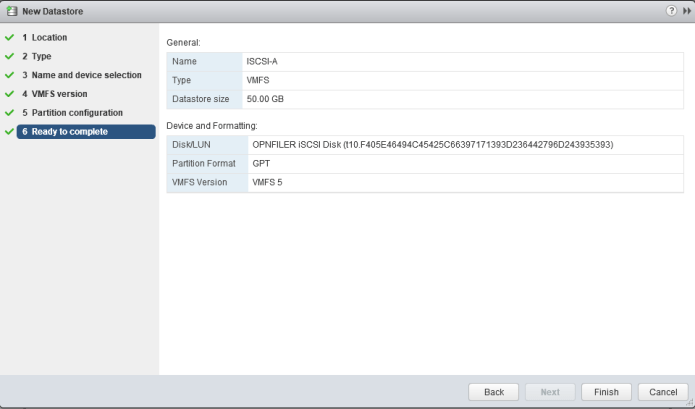
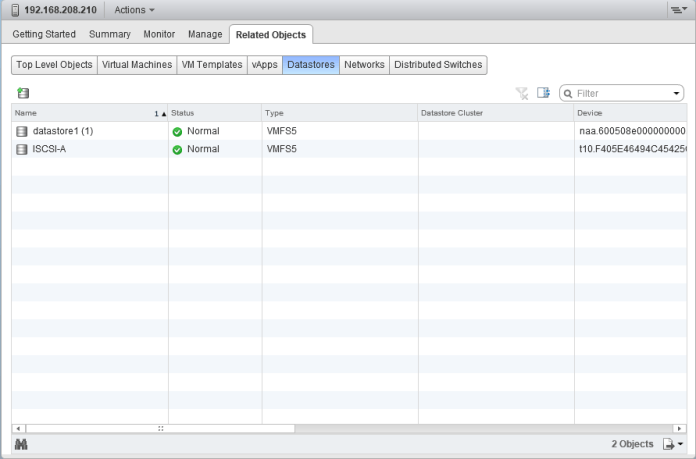


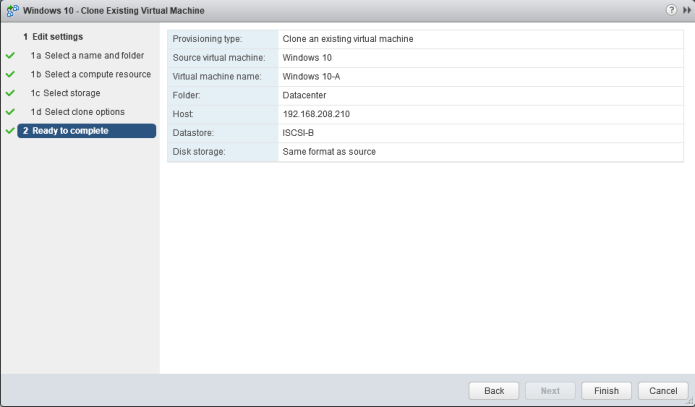
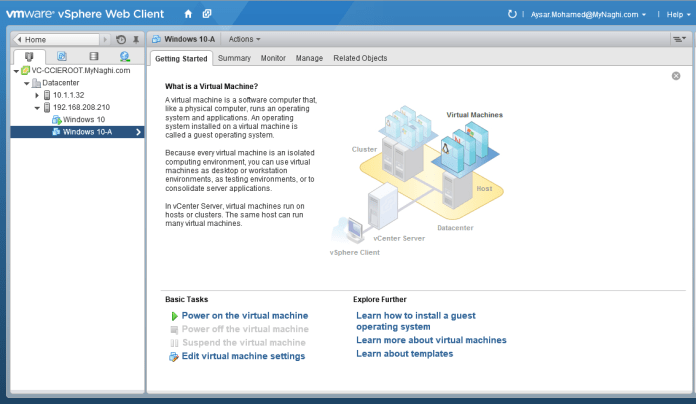
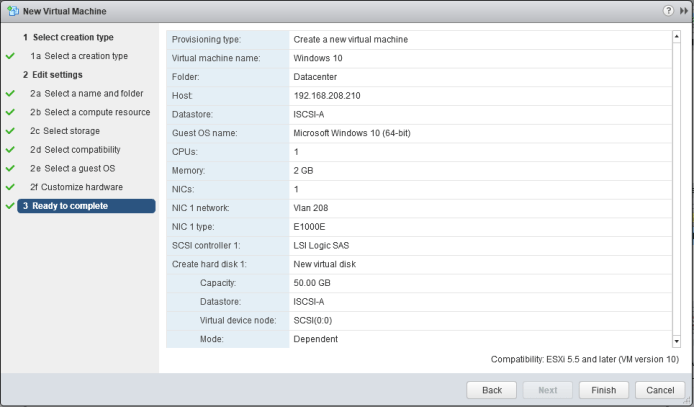
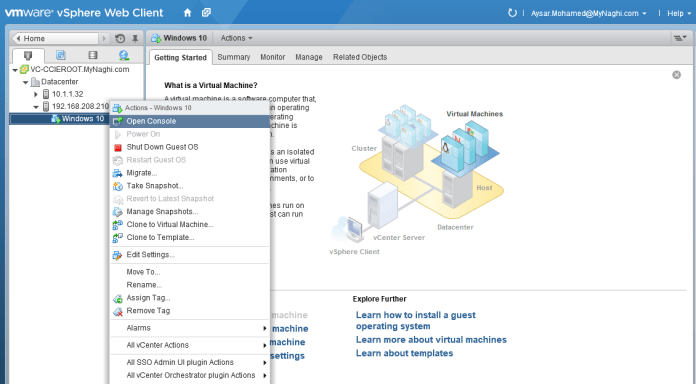
 Now lets Create a Virtual Machine to be inside that storage


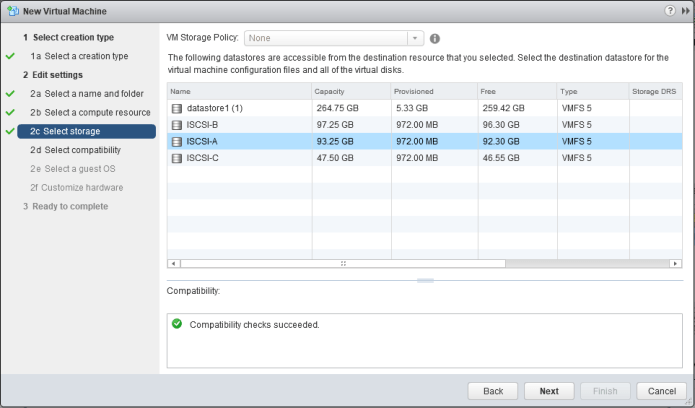

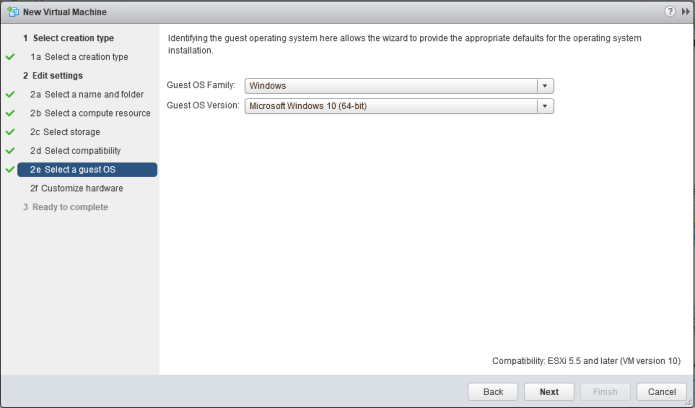
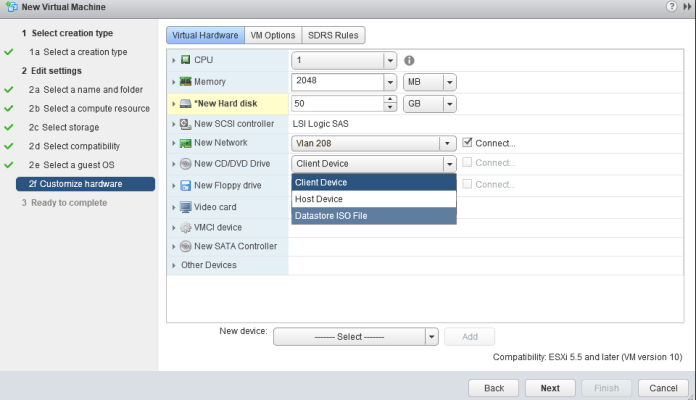
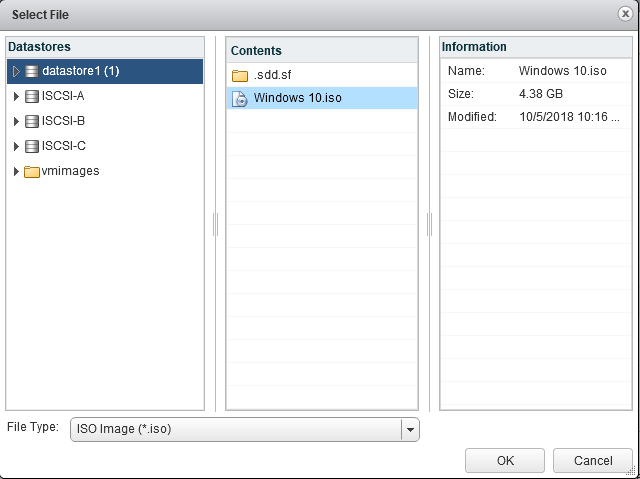






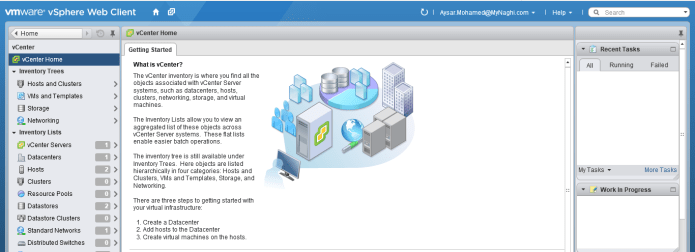

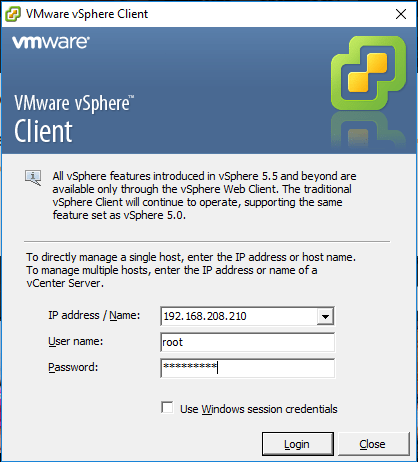


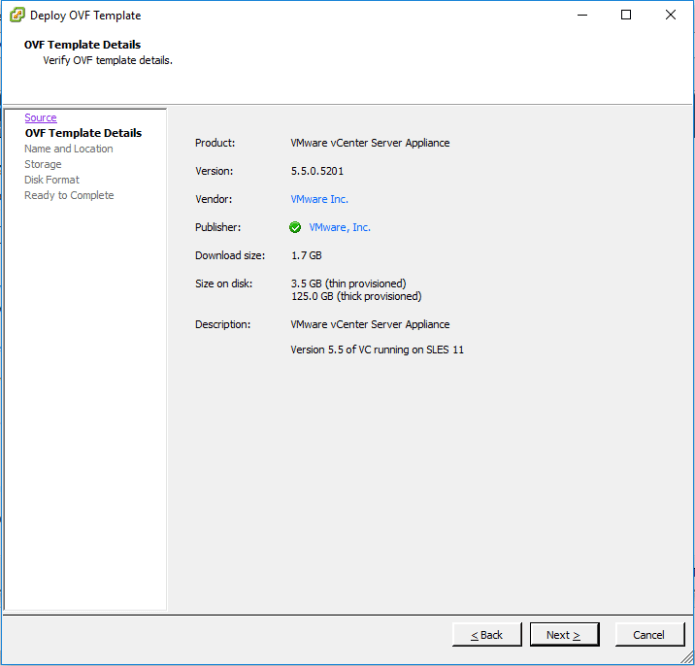


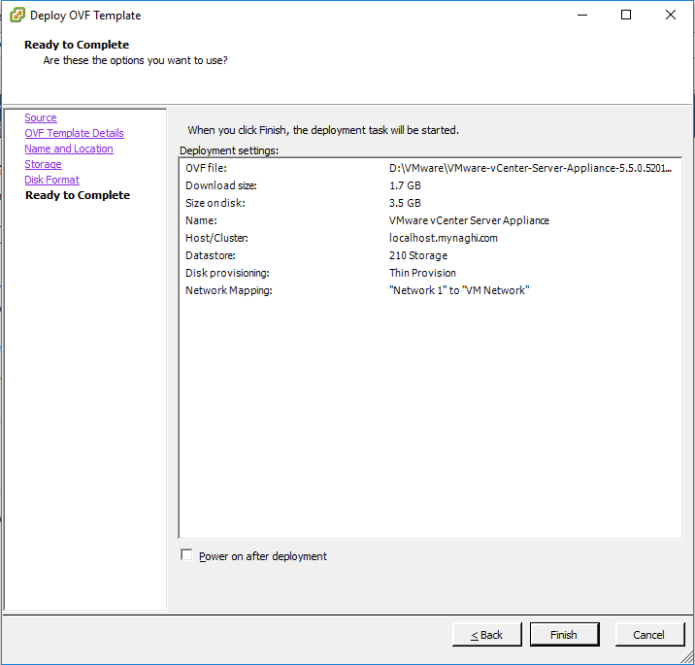


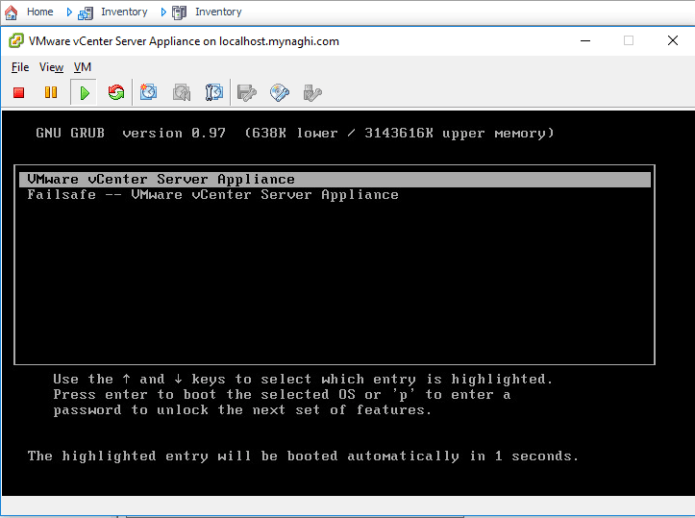

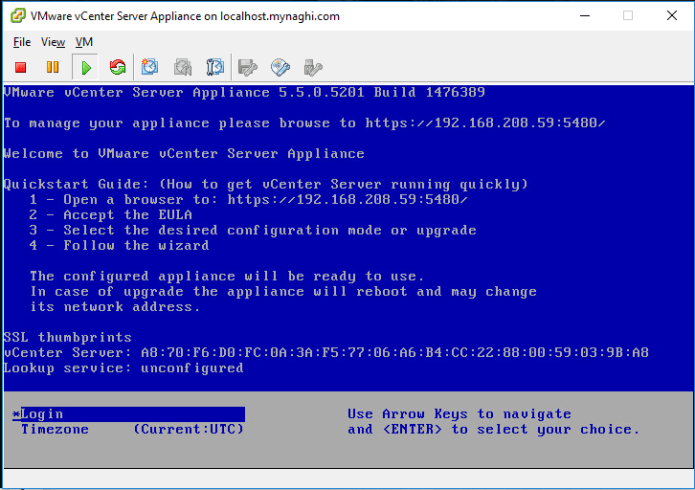


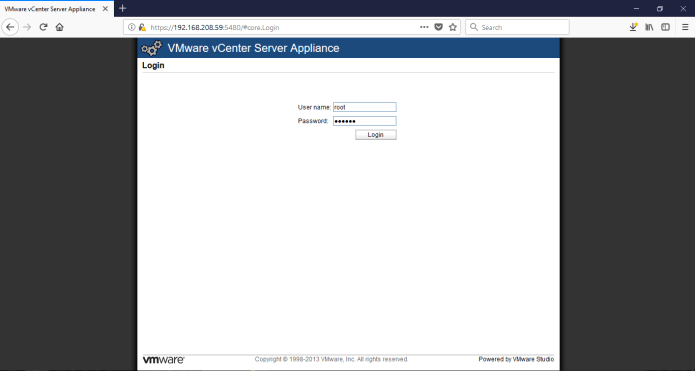


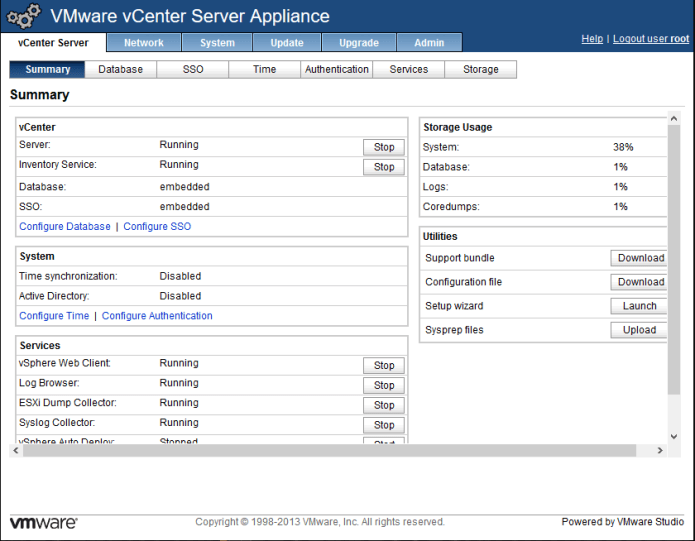




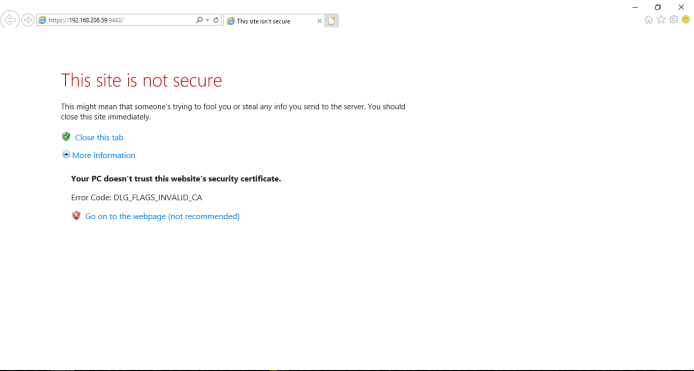
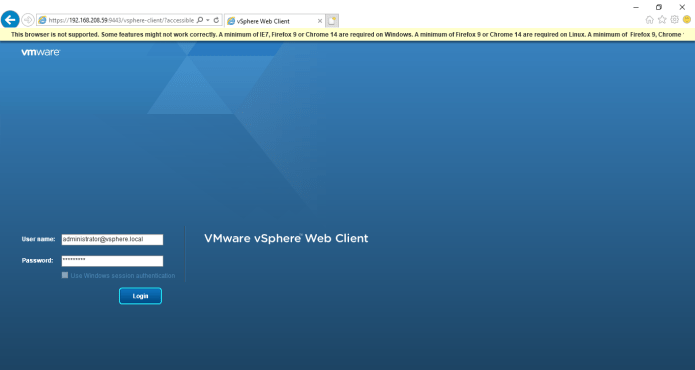


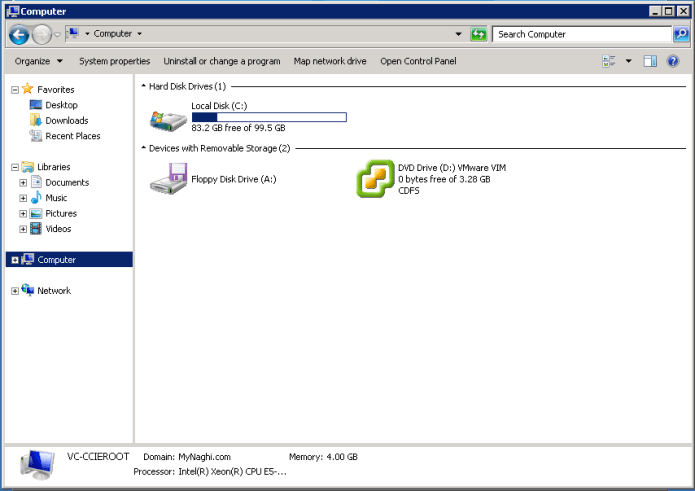


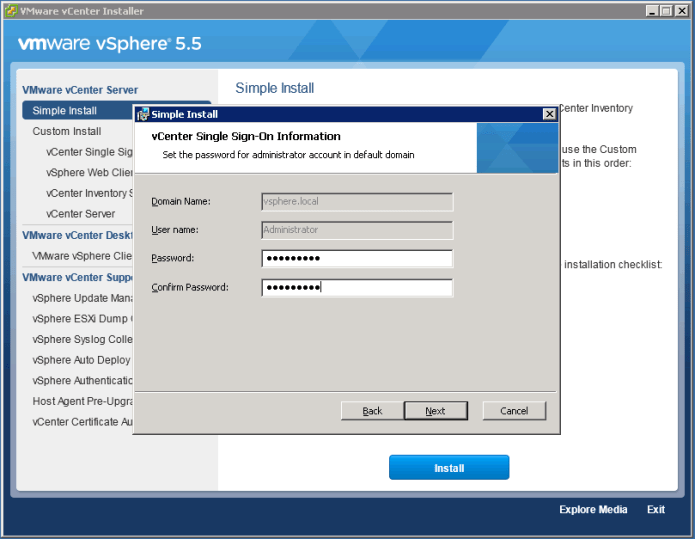


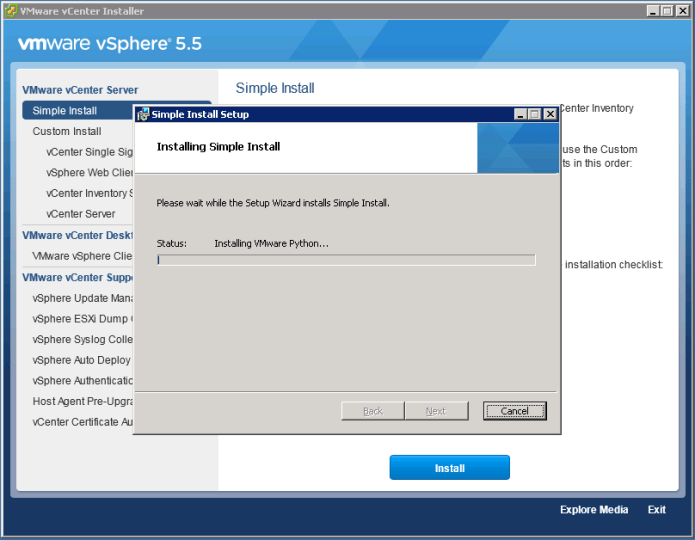






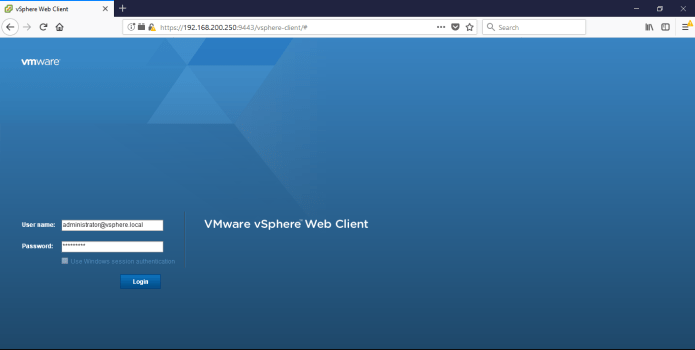
 Now lets go to the Web

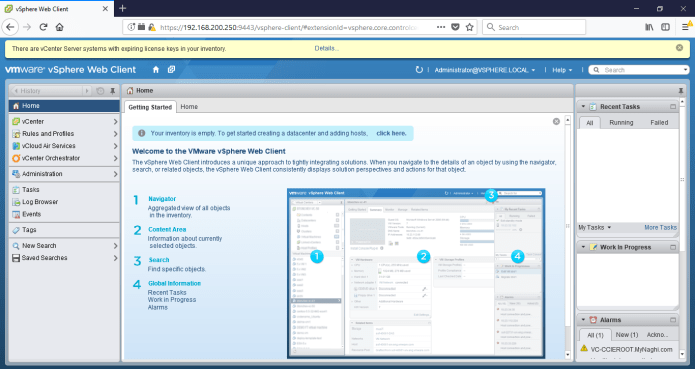
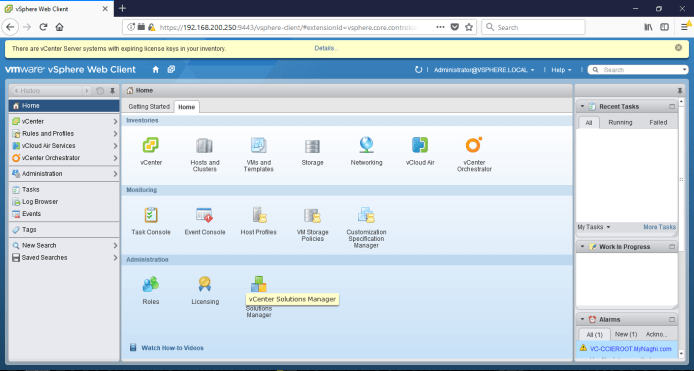








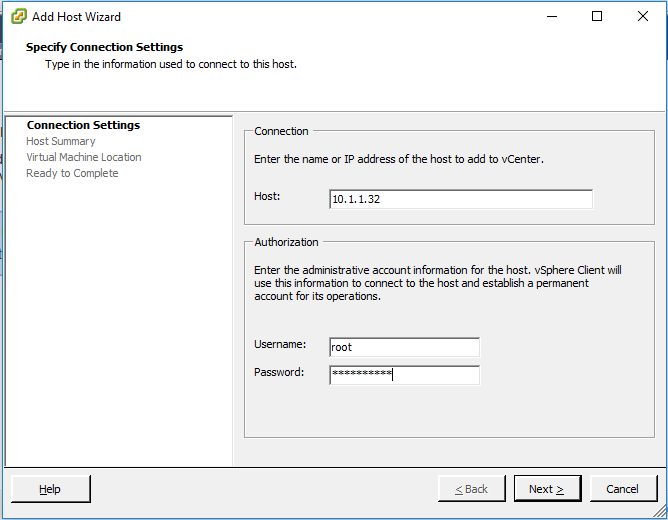


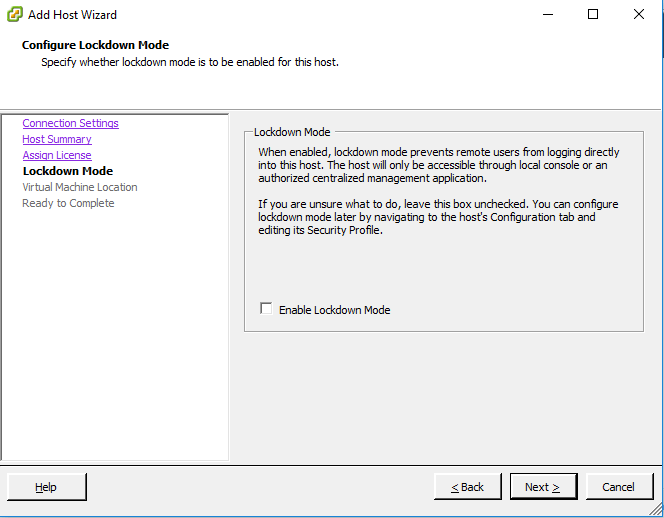


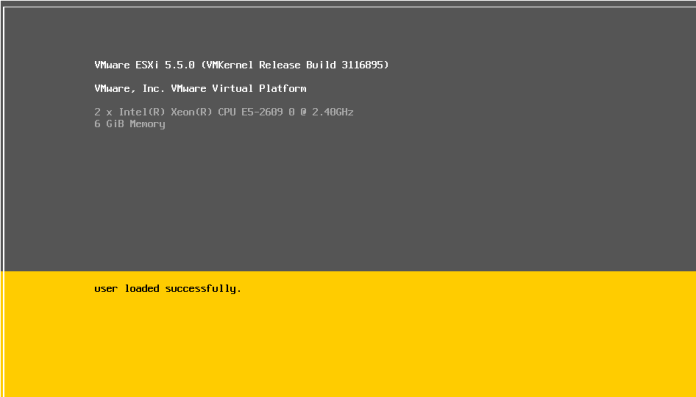









 Root
Root 