Cisco UC (Unified Communication) family has many members – CUCM (CallManager), Unity, UCCX (IPCC Express), CER, CUPS, etc.
UCCX (Unified Contact Center Express) is also known as IPCC Express or CRS (Customer Response System).
Since from version 8.5, UCCX was migrated to Linux platform (just like CUCM). The installation process is very similar to CUCM. However, the use of “Application Administrator” is quite different.
UCCX relies heavily on CallManager. Instead of managing a duplicated set of users, it makes sense for UCCX to “import” users from CallManager and make them call center agents, supervisors, administrators, etc. All UCCX authentication was referred from UCCX server to CallManager server via AXL protocol.
The Steps required to integrate and setup UCCX include:
- Adding a new device
- Associating a device with a user
- Assign an Owner for the Phone
- UCCX Initial Configuration
- Assign the new Device an IPCC
- Build Skills & Assign it
- Assign a Supervisor Capabilities to the user
- Build CSQ
- Build Team
- Build Call Control Group
- Build Script
- Upload the script to the IPCC
- Create a Prompt Folder
- Add wav file to the prompt folder
- Create an Application and CTI Route Point
- Add the Ports to the CTI Admin and the Phones to the RMCM Admin
- Configure Cisco Unity
- Configure Transcoder
This post is based on UCCX version 10.0.1 and CUCM version 9.1.2
Lets Start
First in CUCM we build phones

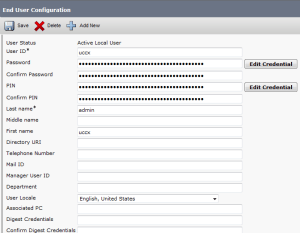
Then Create Admin User to use for UCCX Administration Page
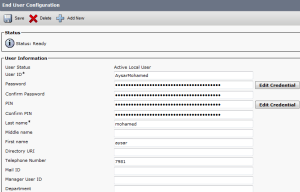
Then create the Agent and Associate them with the Phone


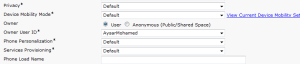
Then we Configure the Owner in the Phone Side
Now Lets Start the UCCX Side
login by the User that been Created During UCCX Installation

Enter the CUCM IP address and the AXL username & password

Here we will use the 60 Days Demo
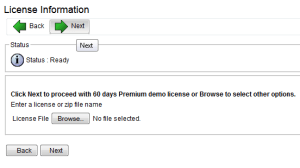

Then Activate the License Once it activated the next button will highlight

Press Next at the second page

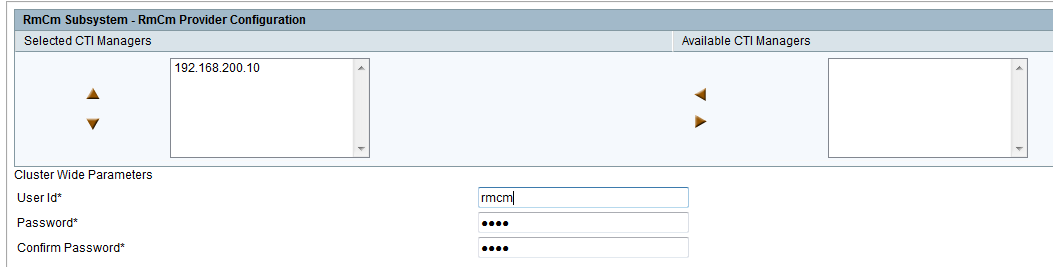
Now Lets Create Username and Password for AXL, CTI Ports and RMCM


Now after that those users will be created automatically in CUCM
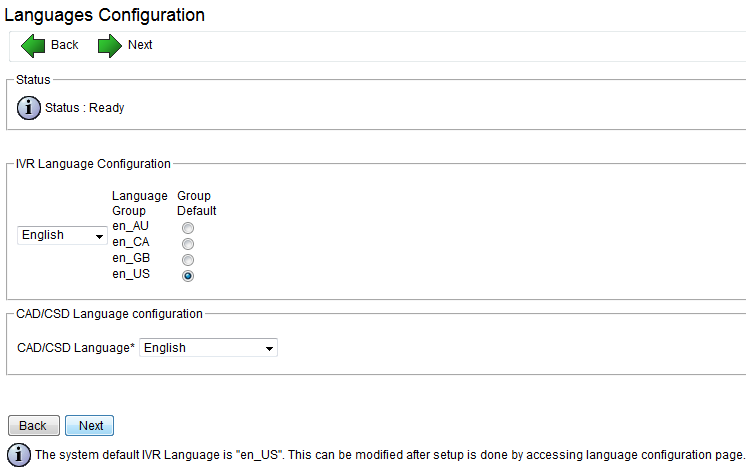
then configure the service Parameter and Language
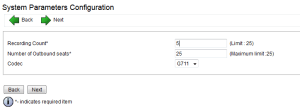
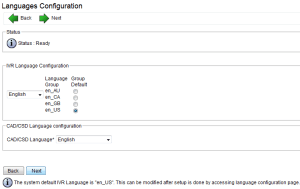
That is it it will ask you to install the Cisco Unified CCX Desktop Configuration

Now Assign the user i create in CUCM which is UCCX as the UCCX Admin

Verification and like this the initial setup is finish

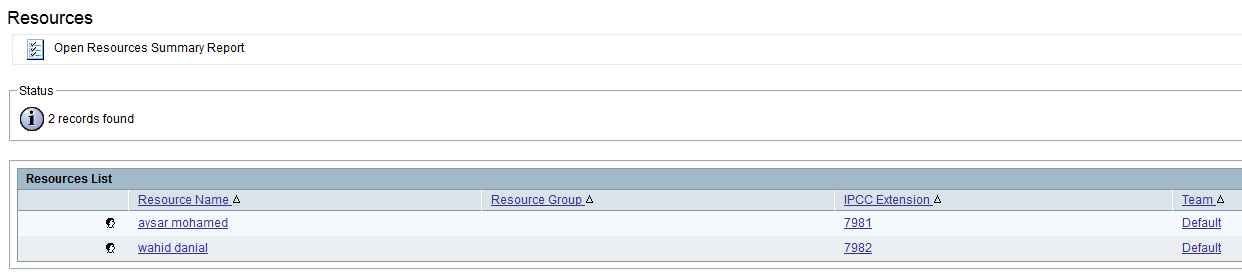
Now Go Back to CUCM and assign to the User an IPCC Extension so you can see the Agent in the resource of UCCX Resource page

now login to UCCX and go to
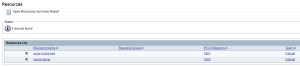
Subsystem – RmCm – Resource
you will see the Agent Sync with CUCM already
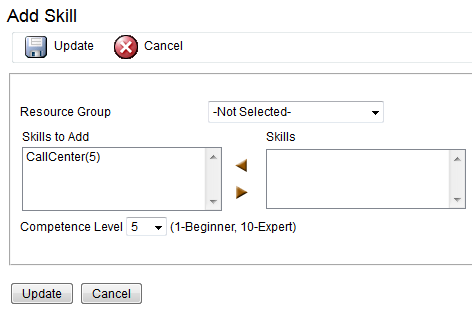
Now Create Skill and Assign it
Subsystem – RmCm – Skills – Add new : Call Center

you can go to
Subsystem – RmCm – Resource and Assign it one by one
or
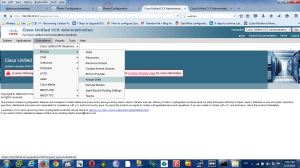
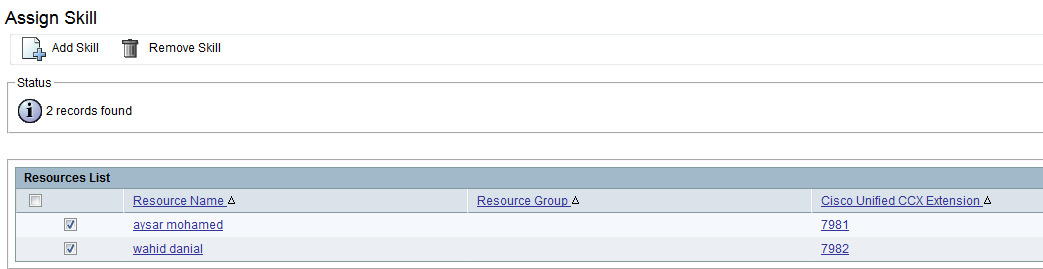
Subsystem – RmCm – Assign Skills to do it all at one
lets go by the second option
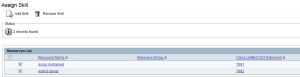

Now if you go to the User to check it
Subsystem – RmCm – Resource and select the user you see it already become one f his Skills

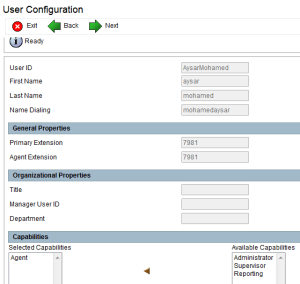
Now Assign Supervisor Capabilities
Wizard – RmCm Wizard – Add Supervisor
by default all user have agent capability only so all what you need to click on the supervisor and the arrow will move it to the Right Side
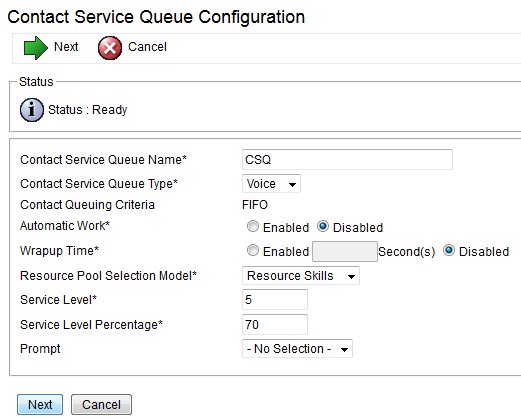
Now Lets Build Contact Service Queues
Subsystem – RmCm – Contact Service Queues
Define the Resource Pool Weather it was by Group or Skill
we will use skills for this option
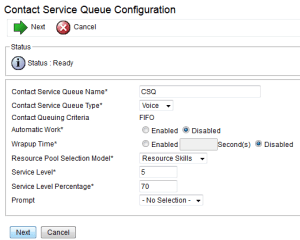

by default the Competence is 5 by default you can create your own
i will use the default
Now lets build the Team
Subsystem – RmCm – Teams
1-Assign Supervisour
2-Assign Agent
3-Assign CSQ

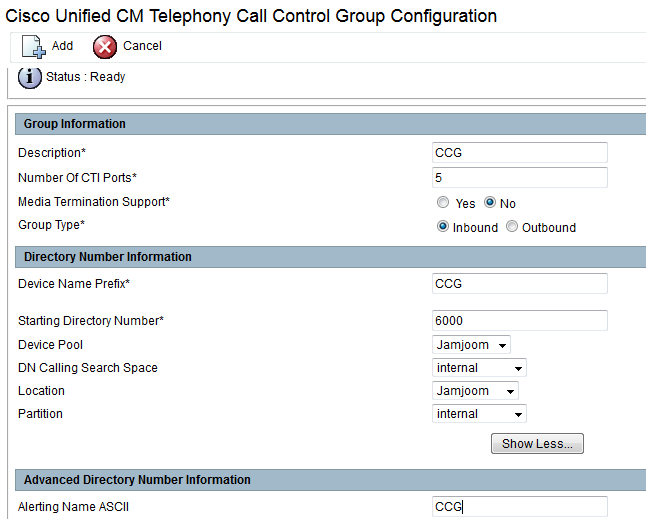
Now Configure Call Control Group
Subsystem – Cisco Unified CM Telephony – Call Control Group

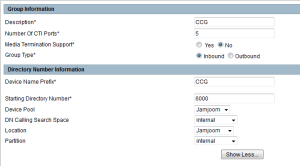
Now if you go to CUCM you will find the CTI Port has been Created
Device – Phone

Now the Big Script
there is a default scrip liberary when you install Cisco Unified CCX Editor which available in C:\Program Files\UCCX Program\Scripts\system\default
our script design to that the agent will recive a call and if they are not available in 30 second the call will forward to the voicemail which include a small configuration in Cisco unity
first login to the software CUCCX Editor which can be downloaded from plugin in uccx web page

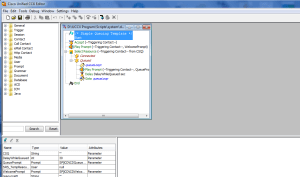
the software will open, i used the default script icd.aef to edit
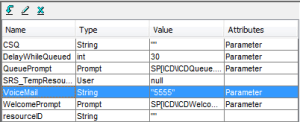
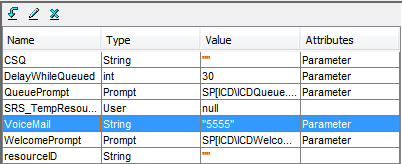
and there is a small button like an Arrow

called new variable
Name the Variable and write the Voice Mail Number that you want to use
in our case we used the name: Voice Mail and the Number : 5555

then Choose an option to forward the call to Voice Mail once it reach 30 second
the delay is 30 second by default so we only need to add the forward option


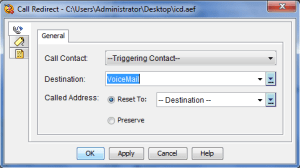
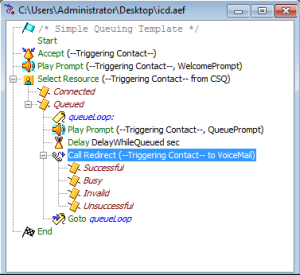
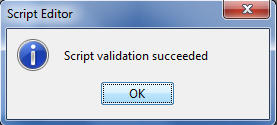
That is it. now validate the Configuration
Tools – Validate

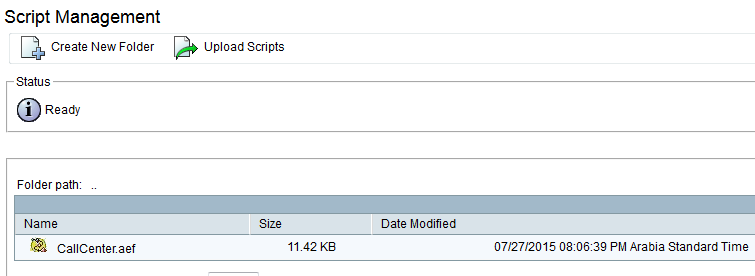
now Save the script to your PC and upload it
Application – Script Management

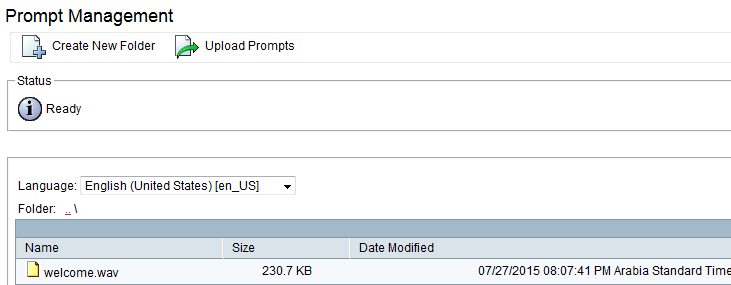
now create a wav welcome message and upload it also to the system
you can create a welcome message by iphone and then convert it in your PC, i use WavPad Sound Editor
Application – Prompt Management – en_US folder then Upload

Finally the Application were everything will be collect there and also add a trigger number which is the number will call the whole system
Application – Application Management


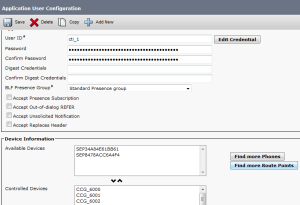
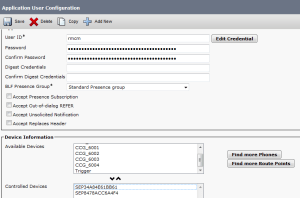
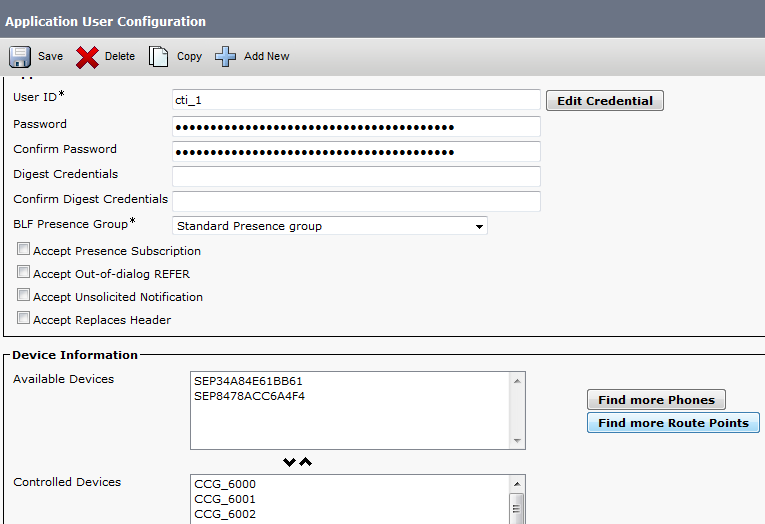
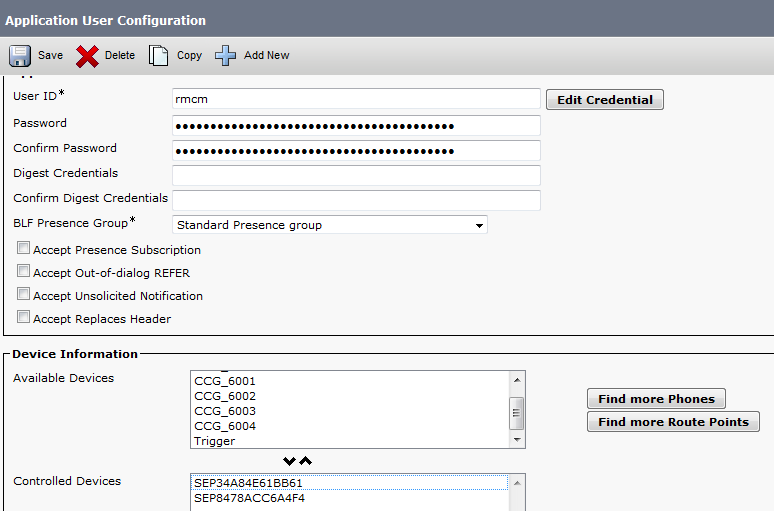
Now go back to CUCM and check the user that been created in the initial Setup in UCCX and assign the CTI Port to the CTI Admin and Associate the phones to RmCm Admin
Now the Voice Mail Side
in earlier Article i show you how to configure voicemail https://ccieroot.com/2015/07/11/sccp-integratinon-cisco-unity-connection-with-cucm/
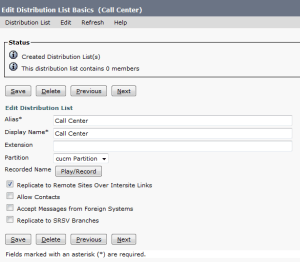
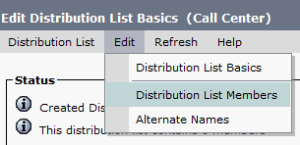
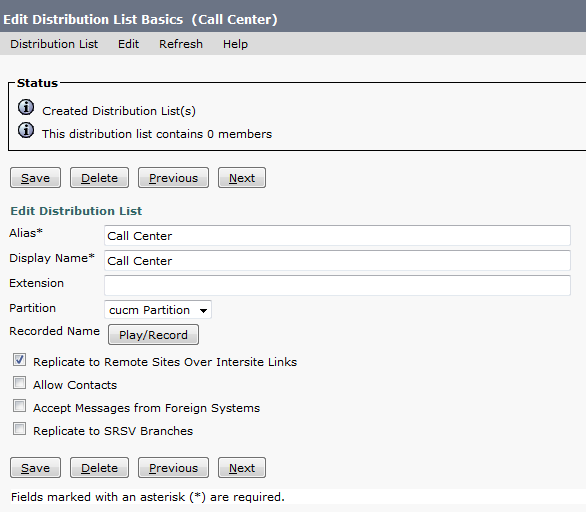
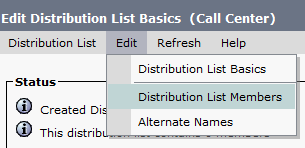
so here i will show you how to create a Distribute List that collect the user of UCCX in one Voicemail inbox so they can check the messages
go to Cisco unity connection – Distribute List – System Distribute Lists Add New


Now Create the Call Handler with the same Variable number that been created in the UCCX which is the Voice Mail Number
in our case is 5555
go to Call Management – System Call Handler – Add new

Then after Save go to Edit – Message Settings
change the Message Recipient to Distribute List and choose your Distribute List

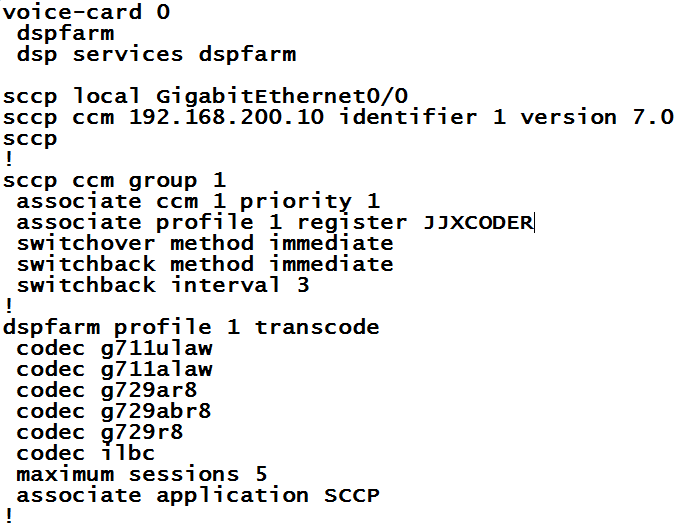
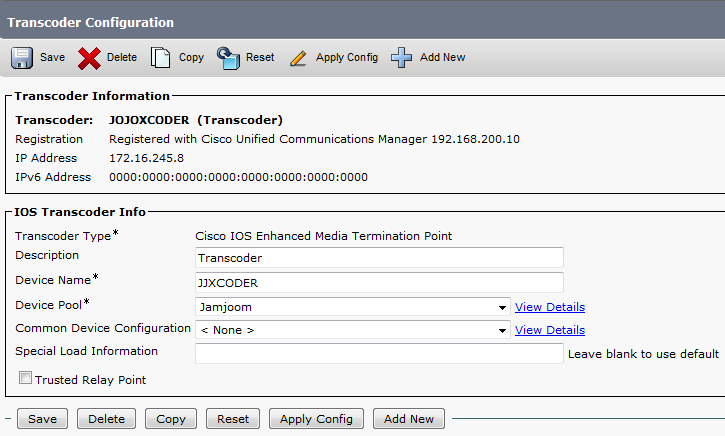
Last thing you need to create a Transcoder since UCCX call will be transferred to CUC
you need to configure it in Router Side and CUCM Side
first configure it in router
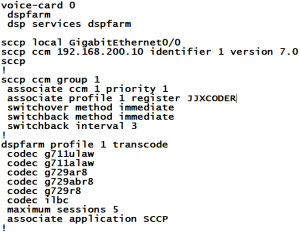
Then go to the CUCM to add it
Media Resources – Transcoder – add it and reset

Then Add the Transcoder to a media resource group and a media resource list
Media Resource – Media Resource group

Media Resource – Media Resource Group List

Now Assign the Media Resource List to the Same Device Pool so it will Transcode the Calls
System – Device Pool
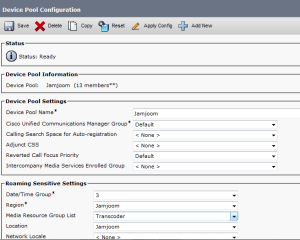
And that is it
the System is ready to go

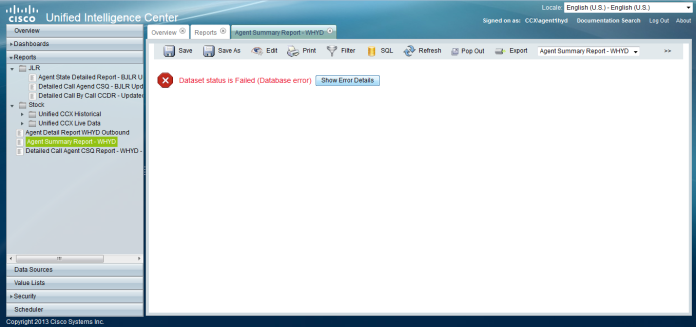




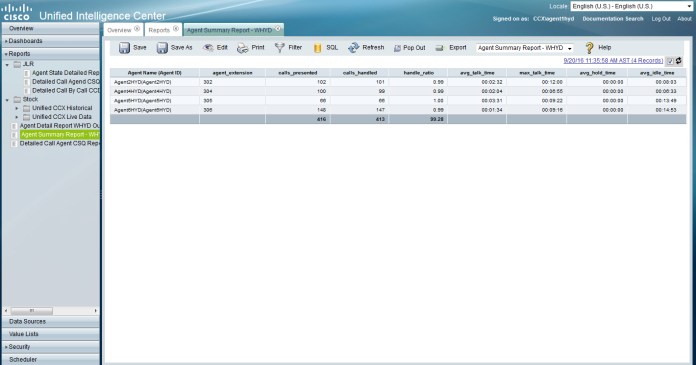
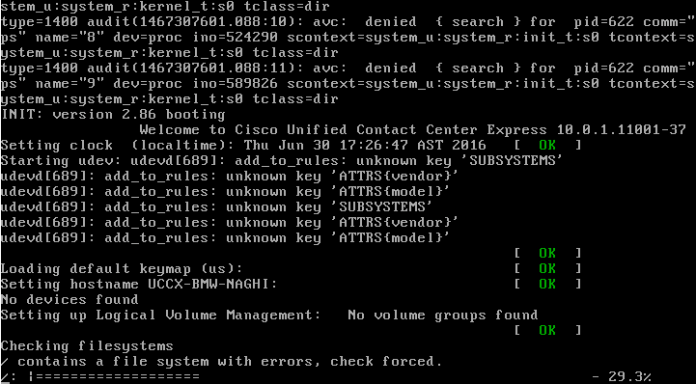 this error message appears regarding inconsistencies in the file system:


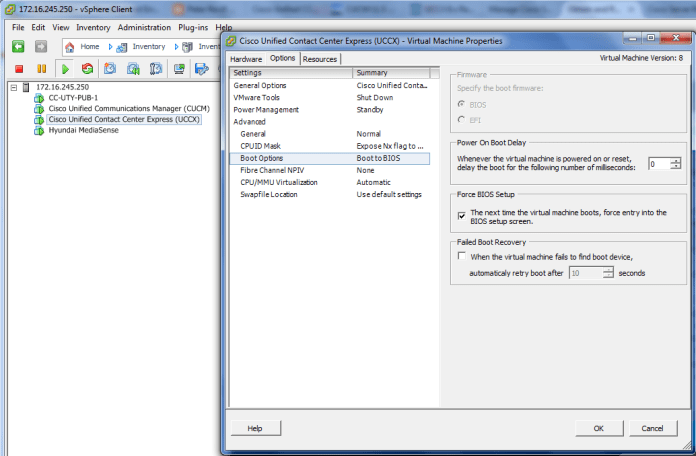
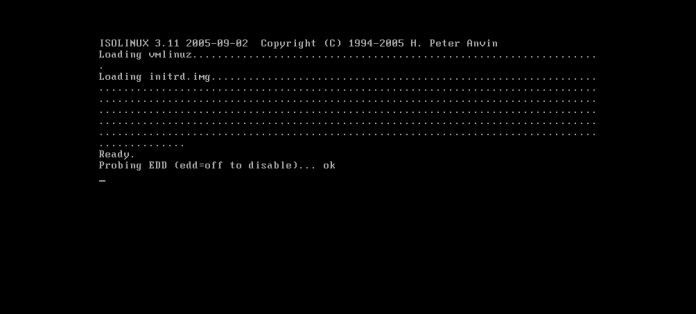

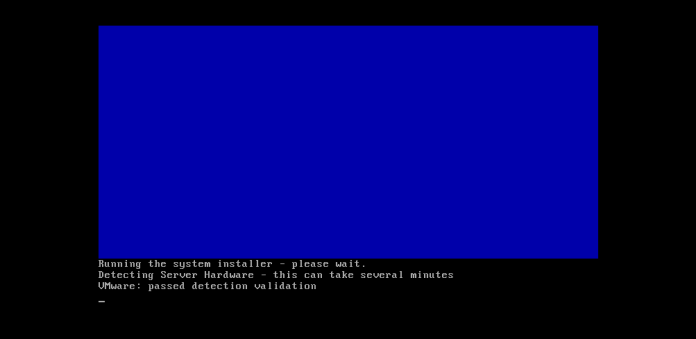
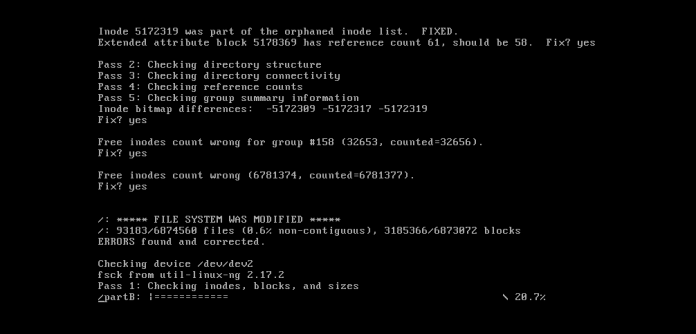
 Choose option F, and respond YES. This will check and correct the file system automatically.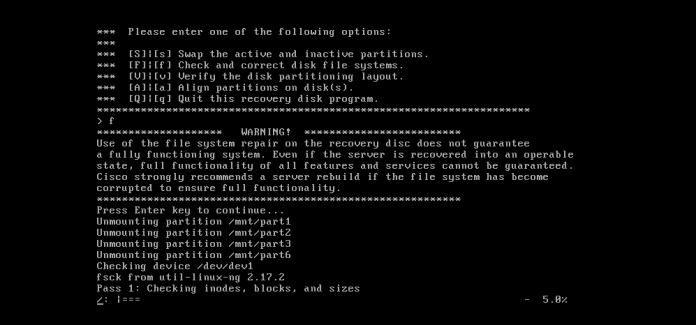



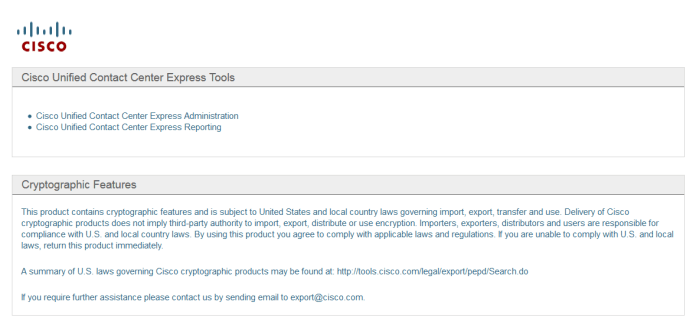
 Second Create a record profile I give it Destination address


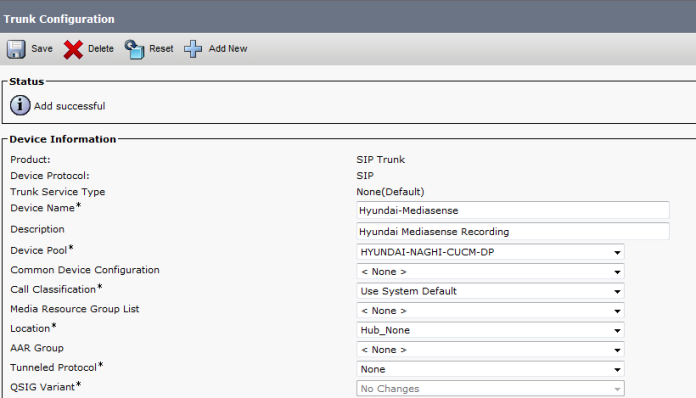
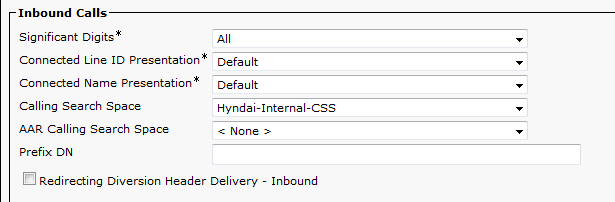

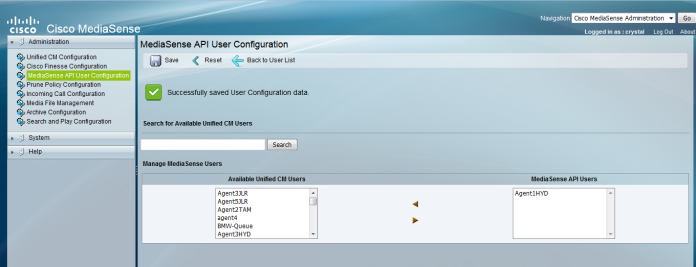
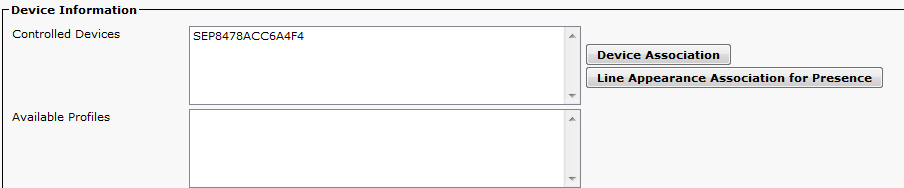
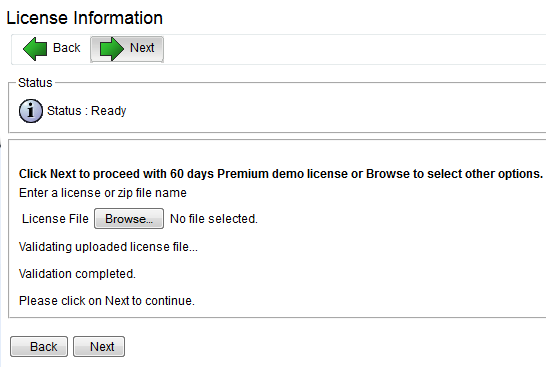
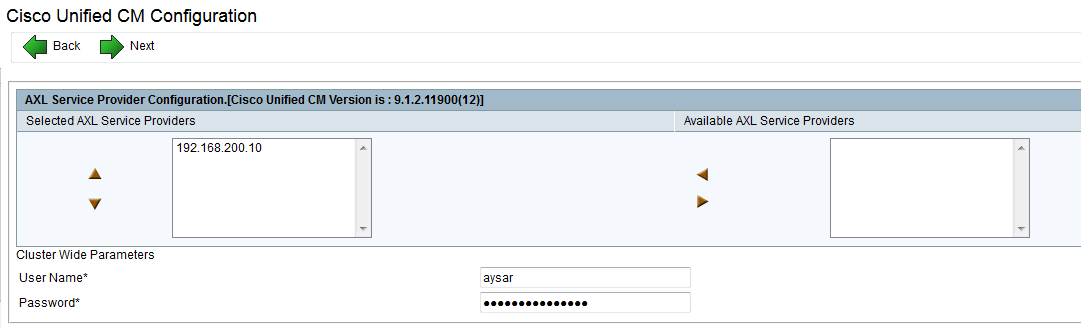
 Now Let’s start from the Media Sense Setup Wizard
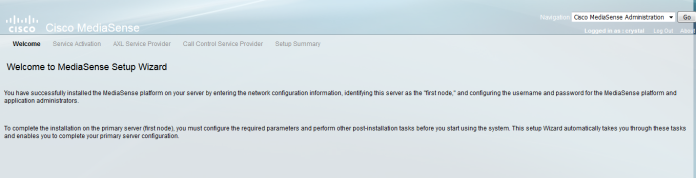


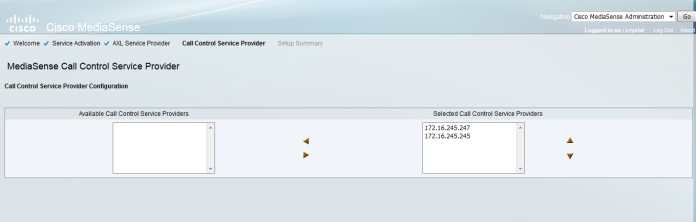






























 Root
Root 