UCCX

UCCX – Barge Features

Hi today I will show you a new feature of UCCX that I just implemented in Call Center of Hyundai.
In earlier blog I show you how to integrate the UCCX with CUCM

UCCX Integration with CUCM

today I will show you the Barge Features.
It allows the Supervisor to monitor Agents in their Team and Participate in the call and listen to the agent conversation with the customer.

From a Barge session, the agent see the call turn to a conference and the Supervisor can then intercept the call and drop the Agent from the call. and the Customer is now talking directly to the Supervisor.

First Enable in the phones for Built-in Bridge
1

Supervisor DN must have the Monitor CSS populated with a CSS that has access to the Agents DN Partition. it’s configured under the supervisor DN

2

now the supervisor should open the CAD Cisco Agent Desktop first then the CSD Cisco Supervisor Desk

3

4

Now Check the Agent That have a cal for example Agent7HYD have outgoing call to 7403
6

Select the Call and then go up you will see the button Barge-in Press it and suddenly the call turn to a conference
6

9

also you can intercept the call which result that the Agent7HYD will be Drop from the call and Supervisor Agent1HYD will be talking directly to the Customer 74037

The Same Configuration for CDA Cisco desktop Agent will go for the Cisco Finesse.


Standard
Cisco Jabber, Uncategorized

Installing and Configuring Cisco Jabber on IPhone

Long Time No See  ;D
i think by now everyone realize that cisco product Jabber Voice cant be downloaded in IPhone anymore which affect everyone as there EOL9796 – Amended
Cisco announces the end-of-sale and end-of-life dates for the Cisco Jabber Voice for iPhone. The last day to order the affected product(s) is January 31, 2015.

and i never cared after that till last week my manager Mr.Anas Aldeiri was in vacation and request to have his extension in his phone by any mean  and i start to keep looking and found out that there is another Cisco Jabber.
the New Cisco Jabber provide you by Chat, Phone Service, Conference and share photo

Last Post i show you how to Install & Configure IM and Presence 9.1 with CUCM 9.1 The Next step is to configure Jabber which can be done in a simple steps

First Just like you Adding a Normal Phone
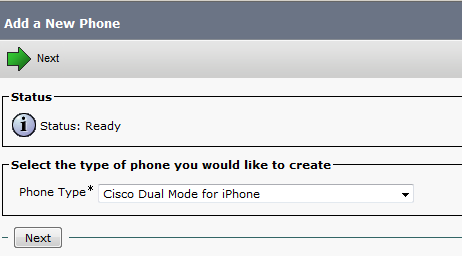
Device – Phone – Add New
Cisco Dual Mode for iPhone
Then for IPhone Name Always start with TCTname and you should choose the Owner and the Primary Phone and the Digest User
1
2
3

Also enable video cause it’s disable by default
8

Second Add the Directory Number and Associate the Phone with the User

4
5
After that go to the User Option and Add the phone to the User
6

Now your Device is Ready go in your IPhone and Download from APP Store the Application Called : Cisco Jabber
2016-01-23 13.54.22

Please Excuse My Phone i dont Look at Email or SMS Alot
the APP Store Icon in Left Corner Down
2016-01-23 13.54.43.png

Now i Open the Application and Enter the Advanced Setting to Configure my IM Presence Option. you also can configure Phone Service Only or Webex
in Our Case My IM Presence IP Address is 192.168.200.10 and CUCM is 192.168.200.6

2016-01-23 12.19.53

Then Save and Back to Login Option
Put the Username and then Continue for Password Input

2016-01-23 12.20.08

2016-01-23 12.20.15

Finally I’m Done and You Can See i’m Available

2016-01-23 12.20.29.png

Then Let me Choose Contact to add my College Coco Test1 and Add him to a Company Group, I can also add him to my Favorite

2016-01-23 12.20.402016-01-23 12.20.452016-01-23 12.20.522016-01-23 12.21.032016-01-23 12.21.142016-01-23 12.24.16
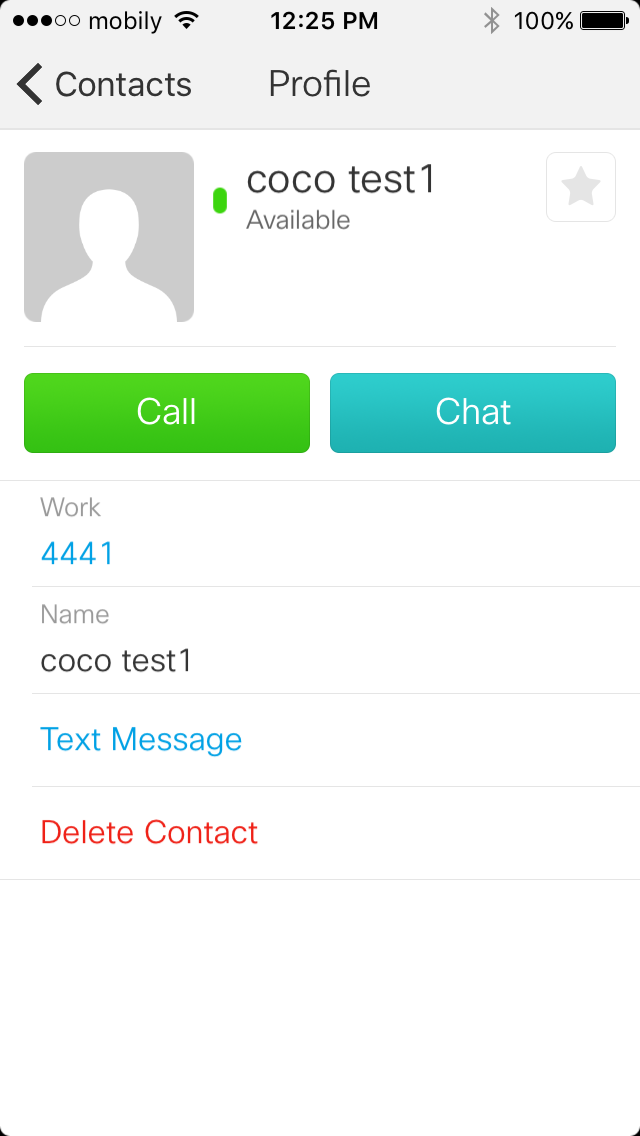
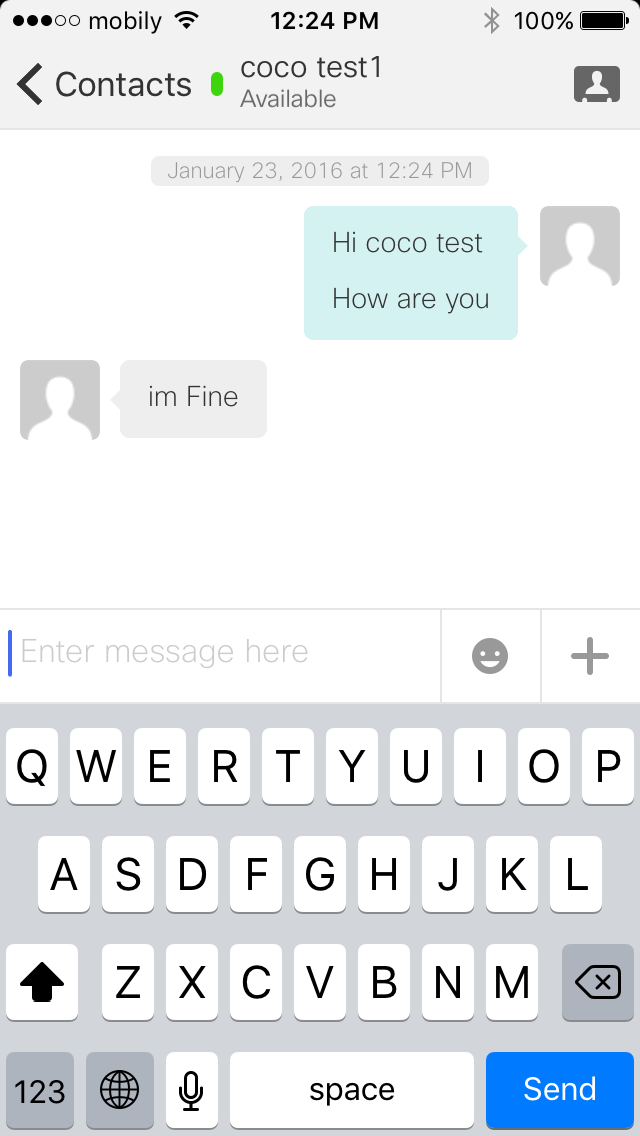
I Click in the Right Arrow i can Call and Chat with my College COCO Test1 which he have Jabber in his PC

2016-01-23 12.25.14
2016-01-23 12.24.502016-01-23 12.25.202016-01-23 12.25.46
I have the Ability to Hold, Transfer and make Conference

2016-01-23 12.25.34

Inside the Chat i have the option to Send a Picture too

2016-01-23 12.27.48

2016-01-23 12.27.56

2016-01-23 12.28.042016-01-23 12.28.33

You can also have video call
File Jan 24, 5 13 50 PM

Also show me My Recent Call 2016-01-23 12.29.13

and the Status of my Jabber

2016-01-23 12.29.40

And Just Like That I made my Manager Happy

Standard
Collaboration

IM and Presence Integration with CUCM

Cisco Unified Instant Messaging (IM) and Presence is now better known as Cisco Unified Communications Manager IM and Presence (Cisco Unified CM IM and Presence). This is due to the integration of Cisco Unified Presence technology with Cisco Unified Communications Manager for Release 9.0 and later.

I will guide you through the installation
List of Software:
Cisco Call Manager 9.1.2
Cisco IM and Presence 9.1.1

let start by CUCM Side
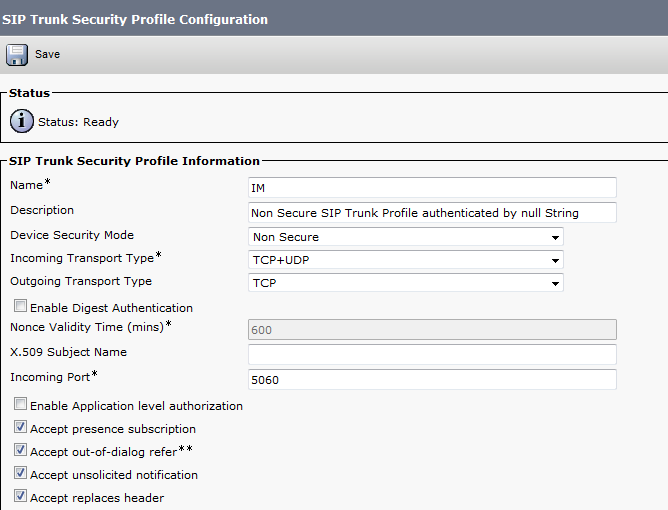
first configure the SIP Trunk Security Profile
System – Security – SIP Trunk Security Profile – Copy the Non Secure SIP Trunk Profile –
Accept presence subscription
Accept out-of-dialog refer
Accept unsolicited notification
Accept replaces header
1

Then Configure SIP Profile
Device – Device Settings – SIP Profile – Copy the Standard SIP Profile
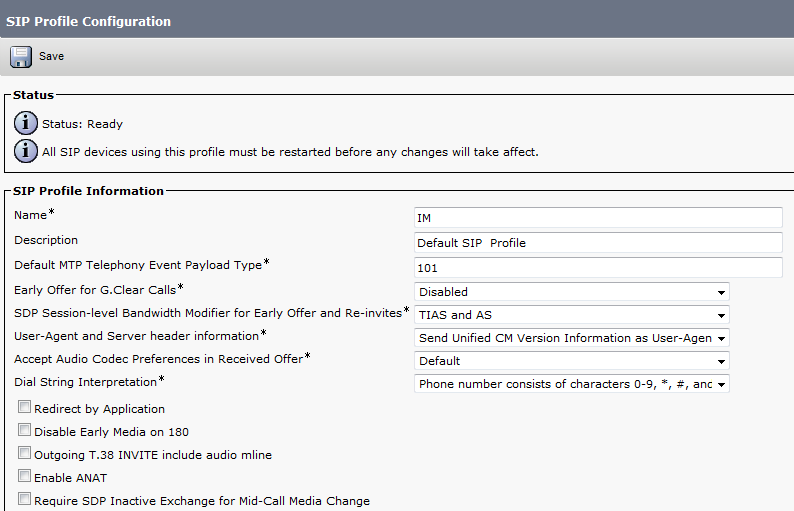
Allow Presentation Sharing using BFCP
3

4

Now Create Trunk to IM and Presence Server
Device – Trunk
2

5

6

7

Configure User Service
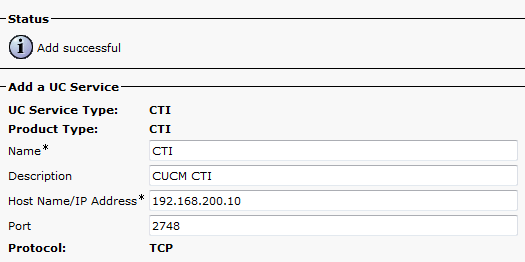
User Management – User Settings – UC Service – Add Cti, Directory & Presence

When it comes to Directory Integration for user lookup there are two options, EDI and UDS.

EDI – Enhanced Directory Integration requires no configuration by default. If you install Cisco Jabber for Windows on a workstation that is registered to an Active Directory domain, Cisco Jabber for Windows automatically discovers the directory service and connects to a Global Catalog in the domain.

UDS – User Data Service is an interface in Cisco Unified Communications Manager that makes contact information available to Cisco Jabber for Windows.

No server configuration is required for UDS. You create your directory source in Cisco Unified Communications Manager and then synchronize the contact data to Cisco Unified Communications Manager. After the synchronization occurs, your contact data resides in Cisco Unified Communications Manager. Cisco Jabber for Windows then automatically connects to UDS and performs all contact resolution.
8

9

10

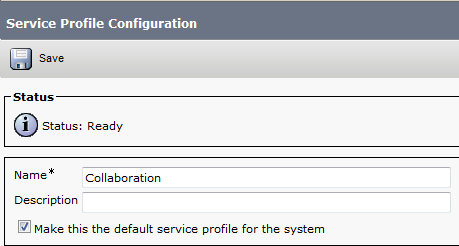
Configure Service Profile
User Management – User Settings -Service Profile
11
User data service is a service that provide access to user informatin stord in the CUCM backend storage. Check the check box if select to use the UDS service provided in CUCM for the directory lookup instead of external directory.
12

13

Create the jabber-config.xml global configuration file.
you can use Jabber Config File Generator to do that or use mine
The following config file enables screen capture, file transfer and video. Potentially malicious files are blocked for file transfer such as exe, msi etc.
UDS is specified to use the Call manager as user search database which I will use in my document.
you can use Jabber Config File Generator to do that
Cisco File Generator:
Available by one of Cisco Web Page member Szelenka
https://supportforums.cisco.com/document/106926/jabber-config-file-generator

14

15

16

17

Upload the file to all TFTP servers, be sure to restart the tftp service on Pub/Subs.

Now Create the User and Assign the Service Profile to it
1

2

Now Create the Jabber Client
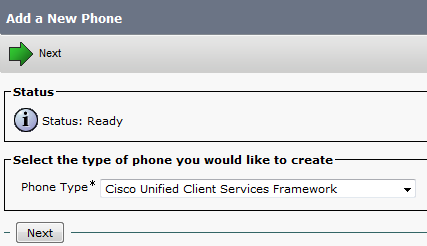
Device – Phone
Create a Client Service Framework Device. This is the softphone/desktop sharing used in Jabber for Windows. name it CSFuserid.
1

2

3

4

5

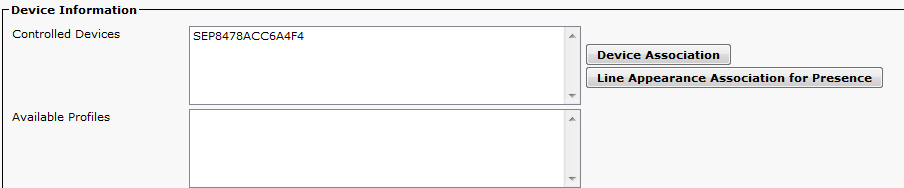
Goto the end user page. Add the CSF device and any desk phones to the end users device associations.
Add the Standard CTI Enable group.

7

1

Last Part in CUCM Side is Service Parameter Configuration
System – Service Parameter – Choose the Server – Cisco Call Manager
Default Inter-Presence Group Subscription : Allow Subscription
IM and Presence Publish Trunk : IM (the trunk i configure earlier)
1

2

Now Let’s Move to CUPS Side
First start the initial Setup
login to Administrator Applications
1
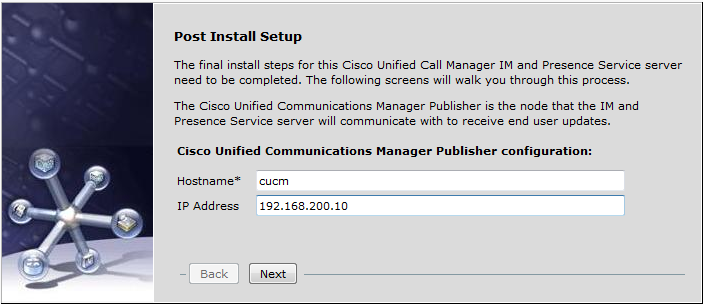
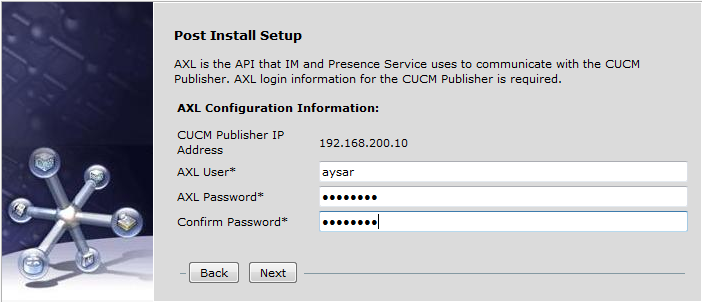
Put the CUCM name and IP Address and put the username and password for AXL Admin
2

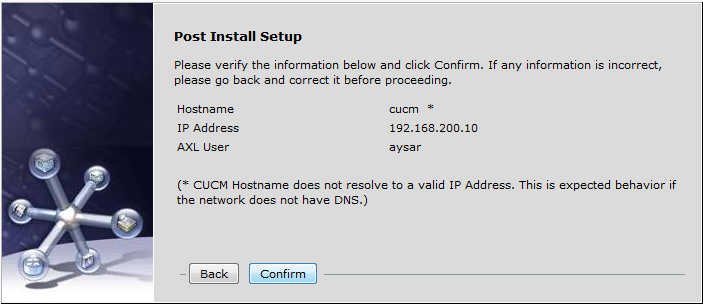
3
Then put the security password for the CUCM Cluster dirung cucm installation
4

5

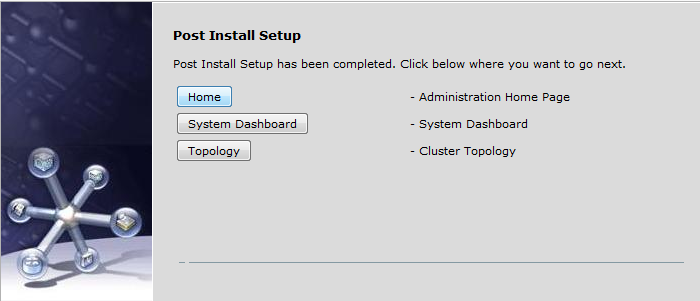
Now press the Home Button so you can go to the Home Page of the Server and like that the initial setup is done
6

First Step to activate the service of the Server
go to Cisco Unified IM and Presence Serviceability in the right corner
Tools – Service Activation
7
Activate all services

Second we go back to the Administration Page
and we need to change the Name of the Server to an IP plus Change the Domain Name
we need to stop 3 Services Before changing the Domain Name
1- Cisco Presence Engine
2- Cisco SIP Proxy
3- Cisco XCP Router
8

9

10
Now we Change the Domain NameSystem – Cluster Topology – Settings
Change the IM and Presence Domain
1

Now Change the IM Name to an IP Address
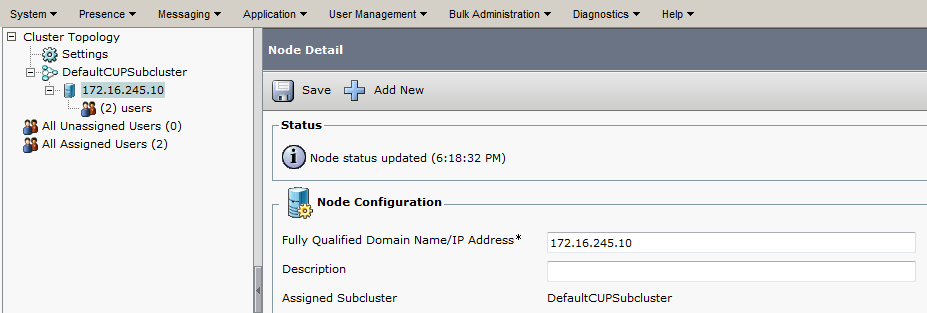
System – Cluster Topology – DefaultCUPSubcluster – im (which is the name)
Change the Fully Qualified Domain Name/IP Address Filed
2

Now Add A Gateway which is the CUCM Publisher
Presence – Gateway
3

Now Create the CCMCIP Profile and Add User to it
Application – Legacy Client – CCMCIP Profile
4
5

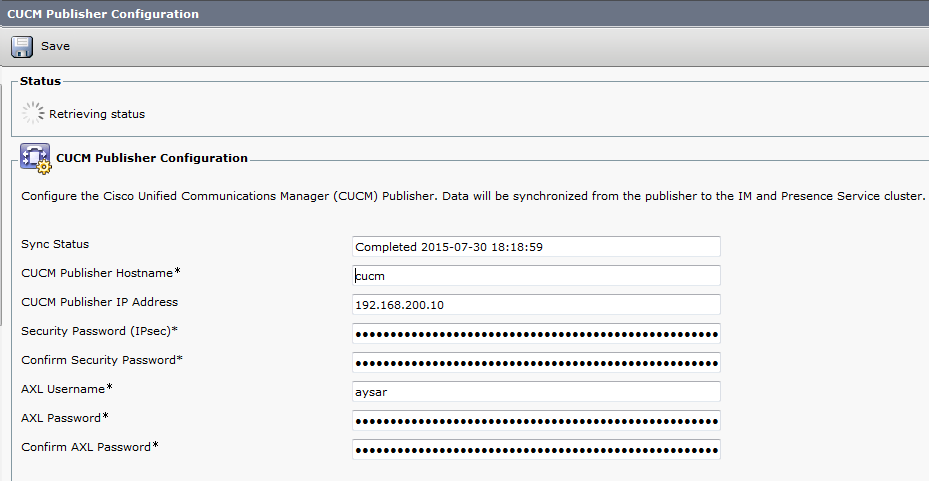
Make Sure the Connectivity Between CUCM & IM is working Fine
System – CUCM Publisher
1

2

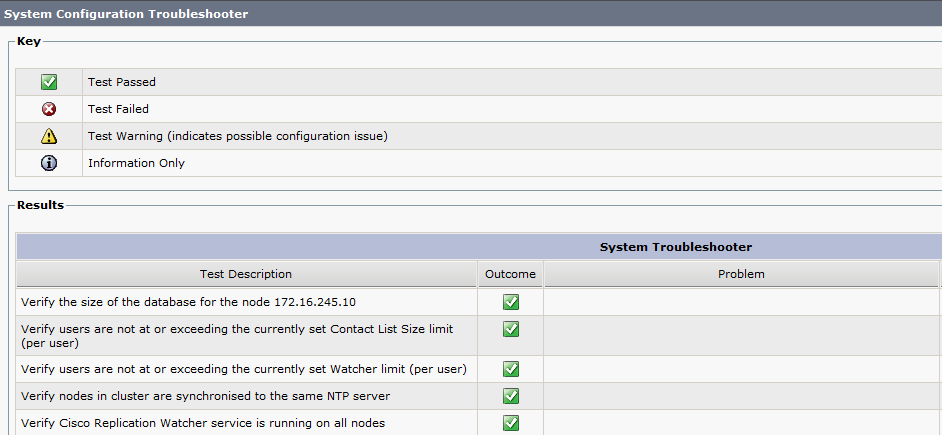
To Check Everything Else also
Diagnostics – System Troubleshooter
5
if you find any red or alarm it provide you by a solution too

Now all this finish need to check by turn jabber on
Enter the IP Address of IM Server and the Domain Name
1

2

3

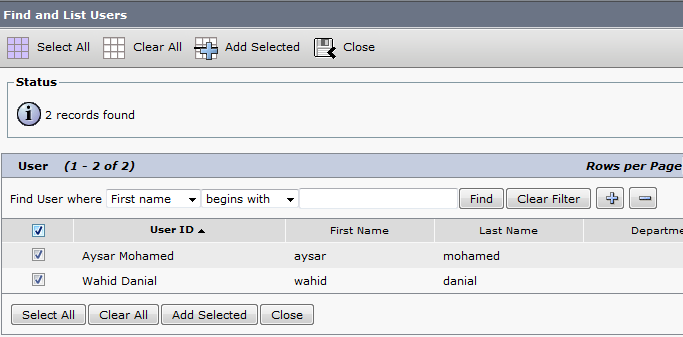
To Add Someone i need to type their names and Add them to a Group
4

5

6

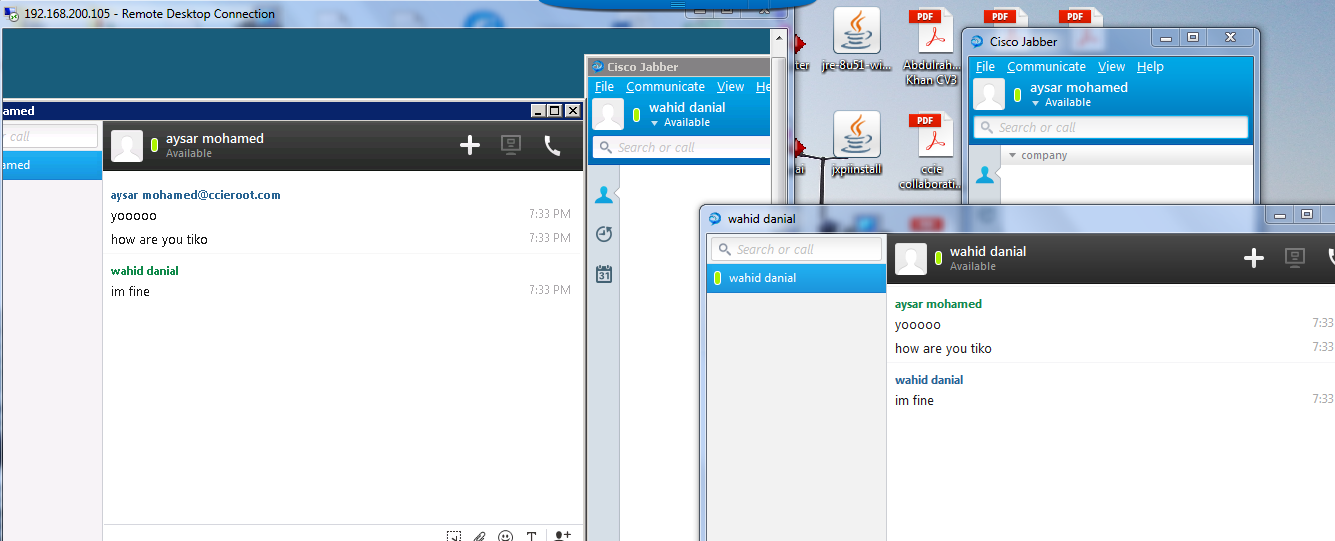
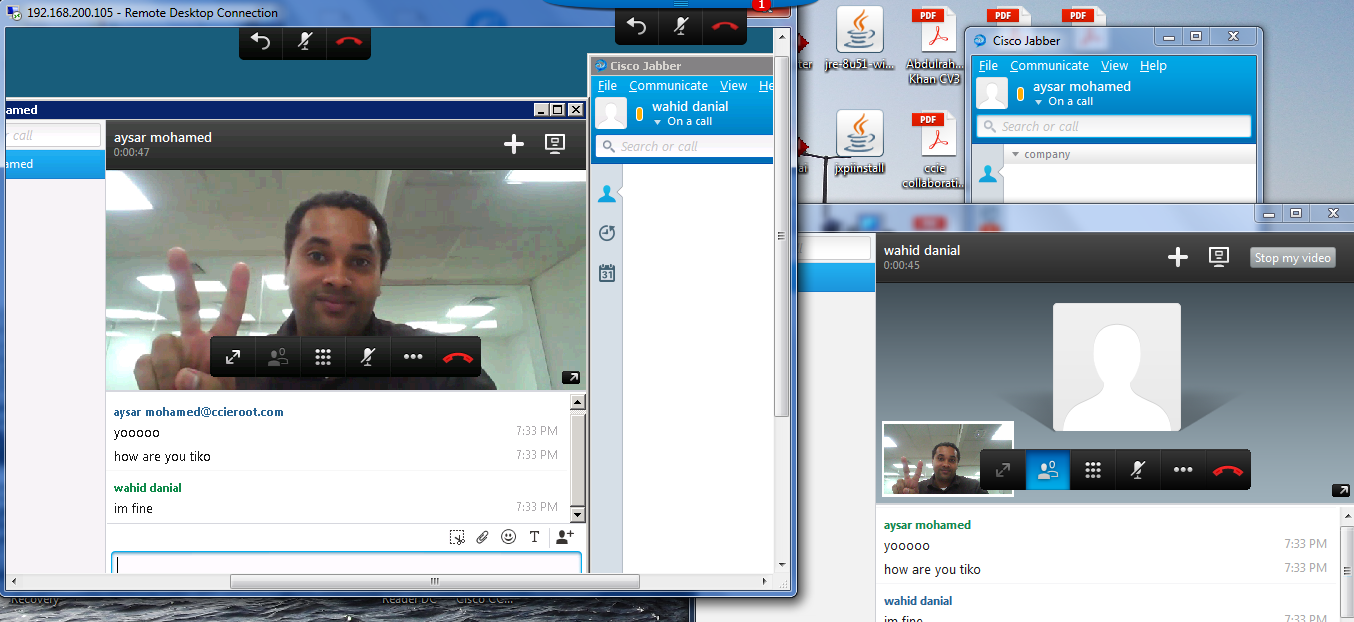
Now i Can Chat with my Friend Wahid Danial and Video Call him
7
8

Note. The Second Video is not working Because the second labtob has no Cam beside Wahid is a Shy Person ;D

Standard
UCCX

UCCX Integration with CUCM

Cisco UC (Unified Communication) family has many members – CUCM (CallManager), Unity, UCCX (IPCC Express), CER, CUPS, etc.
UCCX (Unified Contact Center Express) is also known as IPCC Express or CRS (Customer Response System).
Since from version 8.5, UCCX was migrated to Linux platform (just like CUCM). The installation process is very similar to CUCM.  However, the use of “Application Administrator” is quite different.

UCCX relies heavily on CallManager.  Instead of managing a duplicated set of users, it makes sense for UCCX to “import” users from CallManager and make them call center agents, supervisors, administrators, etc.  All UCCX authentication was referred from UCCX server to CallManager server via AXL protocol.

The Steps required to integrate and setup UCCX include:

  • Adding a new device
  • Associating a device with a user
  • Assign an Owner for the Phone
  • UCCX Initial Configuration
  • Assign the new Device an IPCC
  • Build Skills & Assign it
  • Assign a Supervisor Capabilities to the user
  • Build CSQ
  • Build Team
  • Build Call Control Group
  • Build Script
  • Upload the script to the IPCC
  • Create a Prompt Folder
  • Add wav file to the prompt folder
  • Create an Application and CTI Route Point
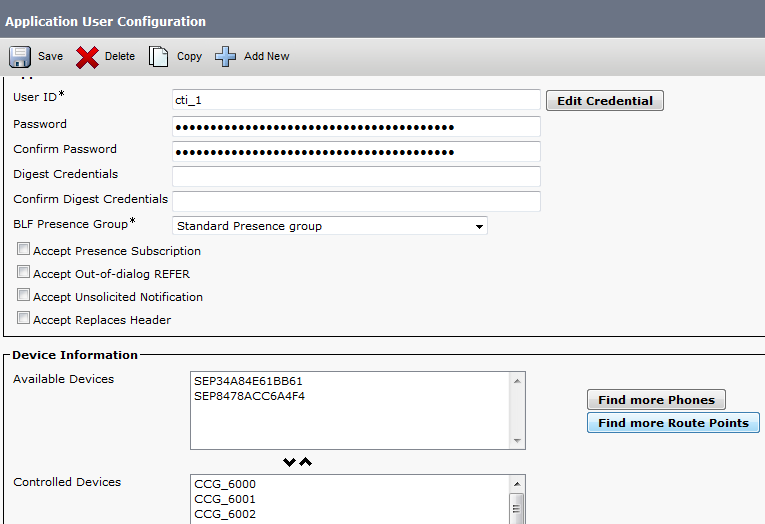
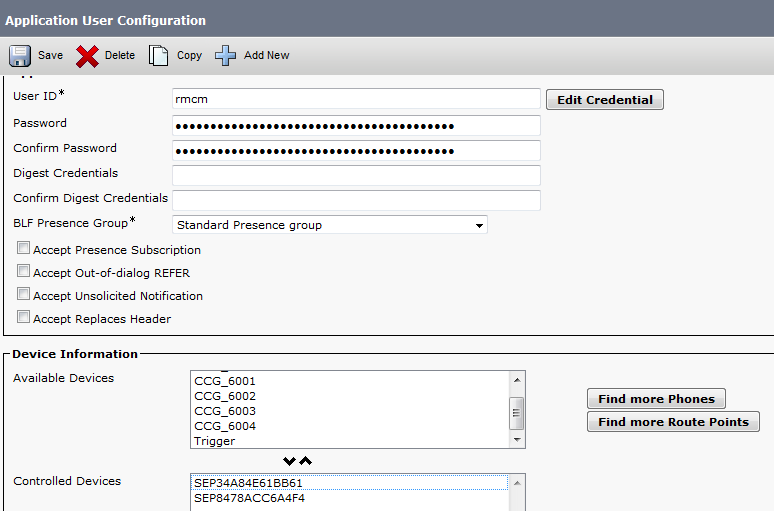
  • Add the Ports to the CTI Admin and the Phones to the RMCM Admin
  • Configure Cisco Unity
  • Configure Transcoder

This post is based on UCCX version 10.0.1 and CUCM version 9.1.2

Lets Start
First in CUCM we build phones
1

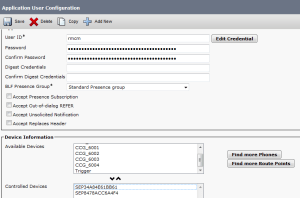
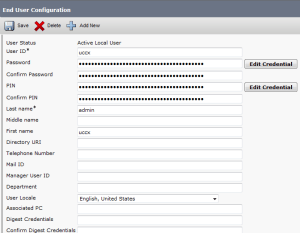
Then Create Admin User to use for UCCX Administration Page
3

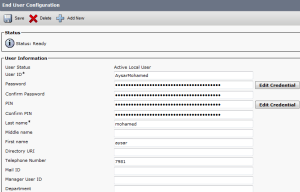
Then create the Agent and Associate them with the Phone
4

5

6

Then we Configure the Owner in the Phone Side
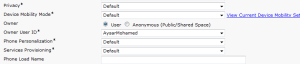
7

Now Lets Start the UCCX Side
login by the User that been Created During UCCX Installation
8

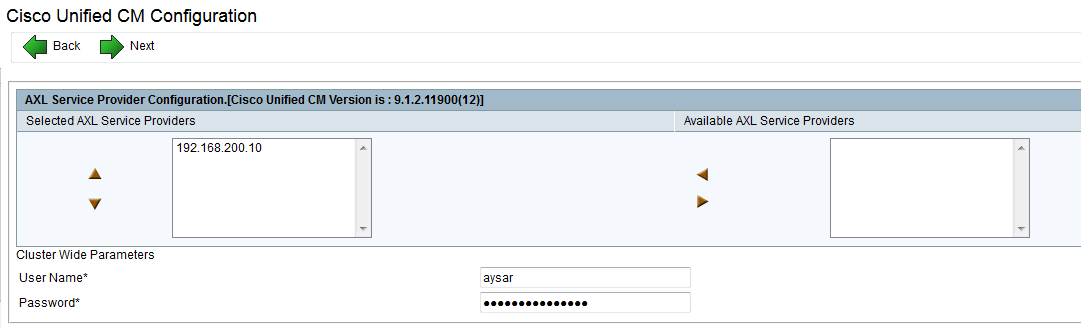
Enter the CUCM IP address and the AXL username & password
9

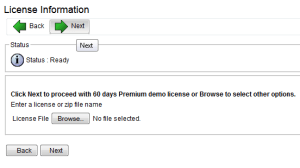
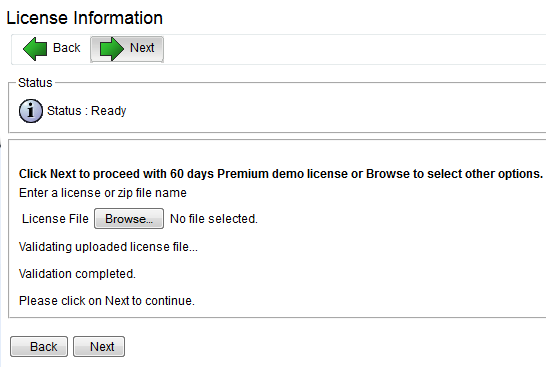
Here we will use the 60 Days Demo
10

11

Then Activate the License Once it activated the next button will highlight
12
Press Next at the second page
14

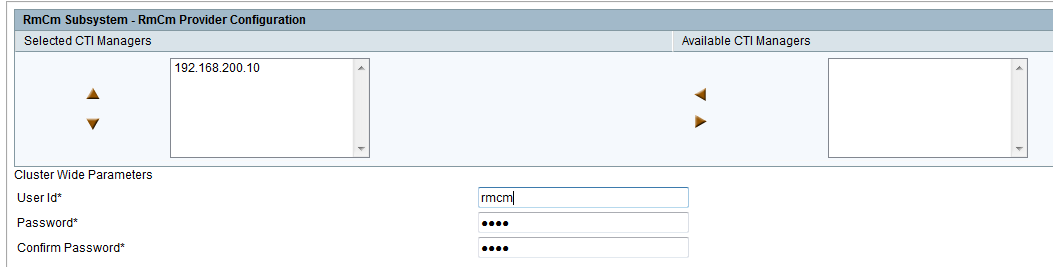
Now Lets Create Username and Password for AXL, CTI Ports and RMCM
15

16

17

Now after that those users will be created automatically in CUCM
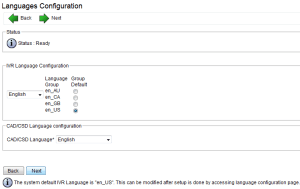
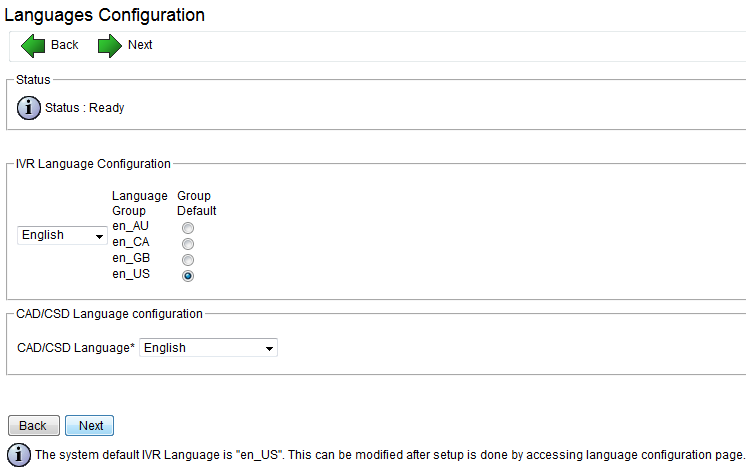
then configure the service Parameter and Language
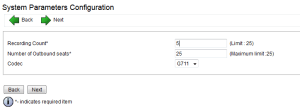
18

19

That is it it will ask you to install the Cisco Unified CCX Desktop Configuration
20

Now Assign the user i create in CUCM which is UCCX as the UCCX Admin
21

Verification and like this the initial setup is finish
22

Now Go Back to CUCM and assign to the User an IPCC Extension so you can see the Agent in the resource of UCCX Resource page
23

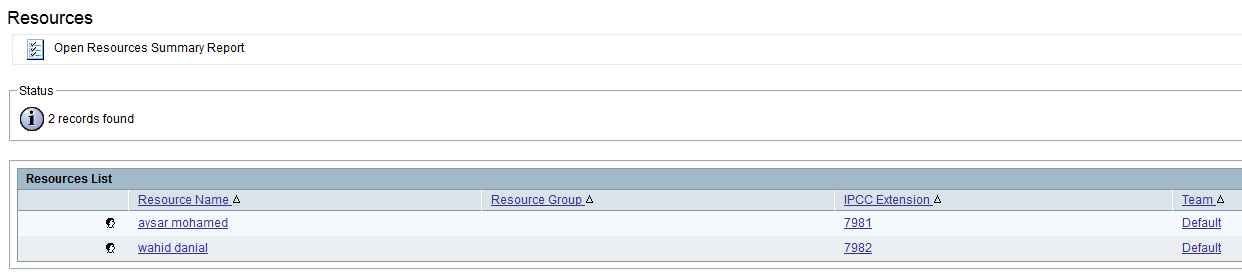
now login to UCCX and go to
Subsystem – RmCm – Resource
you will see the Agent Sync with CUCM already
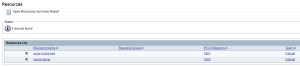
25

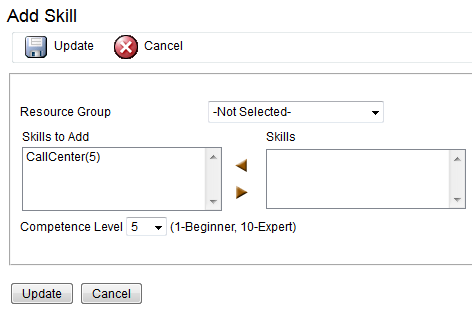
Now Create Skill and Assign it
Subsystem – RmCm – Skills – Add new : Call Center
27

you can go to
Subsystem – RmCm – Resource and Assign it one by one
or
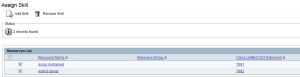
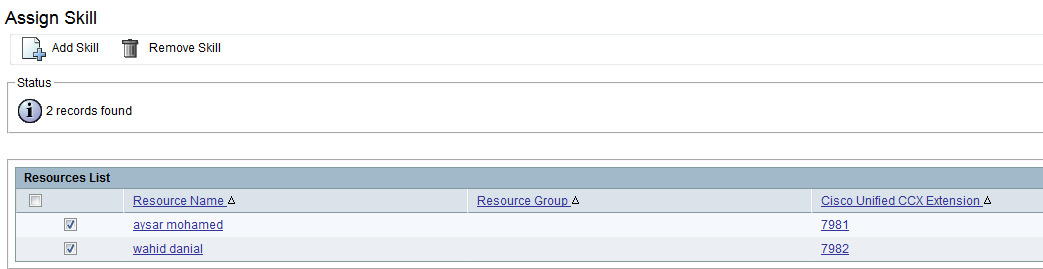
Subsystem – RmCm – Assign Skills to do it all at one
lets go by the second option
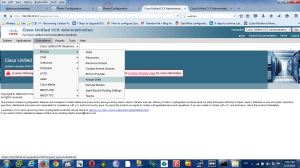
29

30
32

Now if you go to the User to check it
Subsystem – RmCm – Resource and select the user you see it already become one f his Skills
33

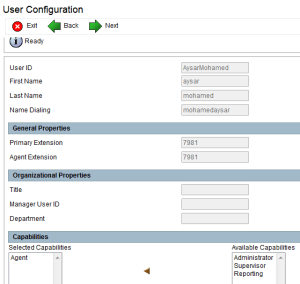
Now Assign Supervisor Capabilities
Wizard – RmCm Wizard – Add Supervisor
by default all user have agent capability only so all what you need to click on the supervisor and the arrow will move it to the Right Side
36
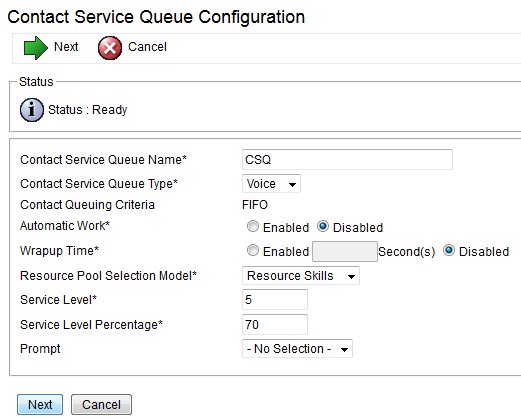
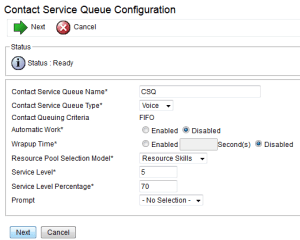
Now Lets Build Contact Service Queues
Subsystem – RmCm – Contact Service Queues
Define the Resource Pool Weather it was by Group or Skill
we will use skills for this option
38

39
by default the Competence is 5 by default you can create your own
i will use the default

Now lets build the Team
Subsystem – RmCm – Teams
1-Assign Supervisour
2-Assign Agent
3-Assign CSQ
41

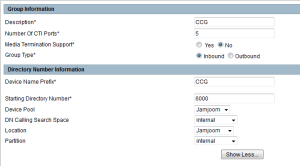
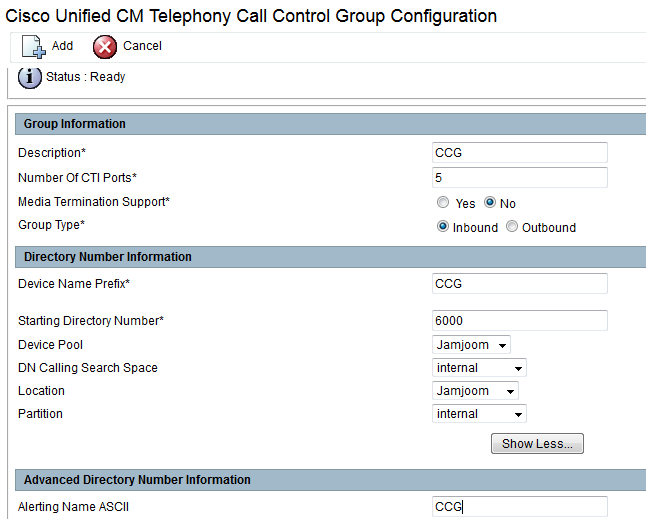
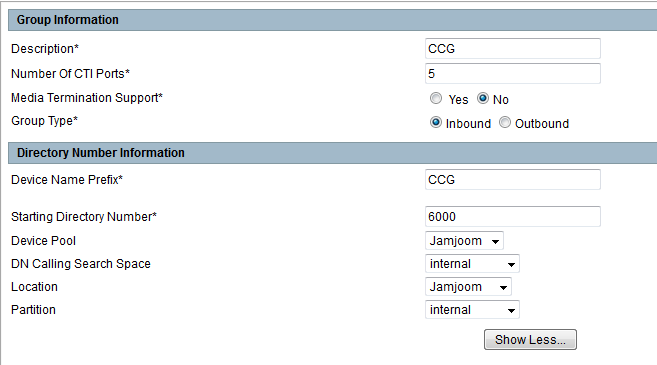
Now Configure Call Control Group
Subsystem – Cisco Unified CM Telephony – Call Control Group
43

44

Now if you go to CUCM you will find the CTI Port has been Created
Device – Phone
45

Now the Big Script
there is a default scrip liberary when you install Cisco Unified CCX Editor which available in C:\Program Files\UCCX Program\Scripts\system\default
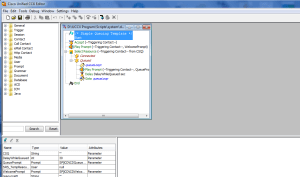
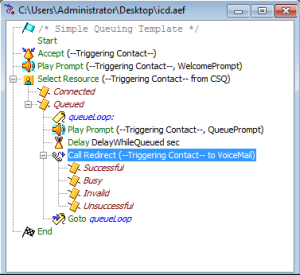
our script design to that the agent will recive a call and if they are not available in 30 second the call will forward to the voicemail which include a small configuration in Cisco unity
first login to the software CUCCX Editor which can be downloaded from plugin in uccx web page
1
1

the software will open, i used the default script icd.aef to edit
and there is a small button like an Arrow
2
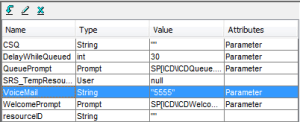
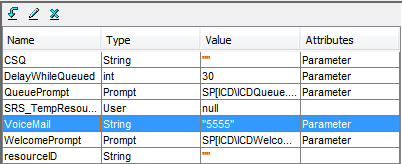
called new variable
Name the Variable and write the Voice Mail Number that you want to use
in our case we used the name: Voice Mail and the Number : 5555
48

49

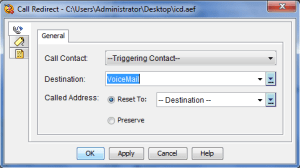
then Choose an option to forward the call to Voice Mail once it reach 30 second
the delay is 30 second by default so we only need to add the forward option
50

51

52

53

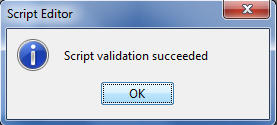
That is it. now validate the Configuration
Tools – Validate
55

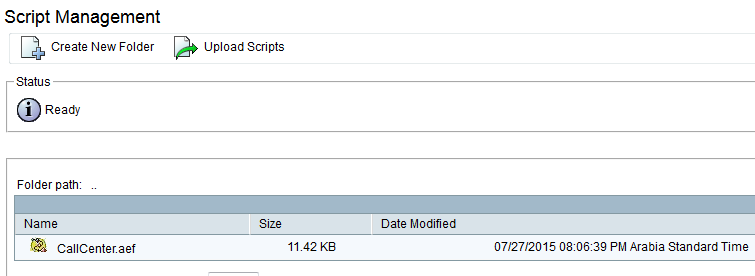
now Save the script to your PC and upload it
Application – Script Management

58

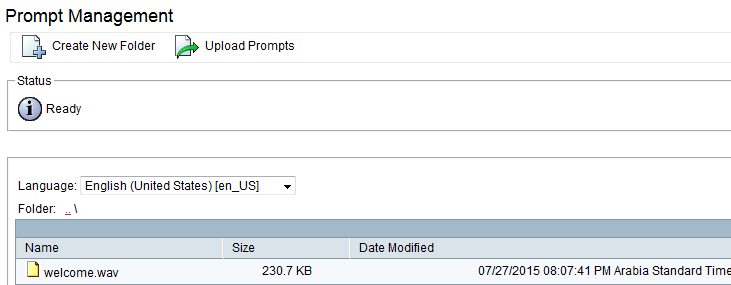
now create a wav welcome message and upload it also to the system
you can create a welcome message by iphone and then convert it in your PC, i use WavPad Sound Editor
Application – Prompt Management – en_US folder then Upload
61

Finally the Application were everything will be collect there and also add a trigger number which is the number will call the whole system
Application – Application Management
63

64

65

66

67
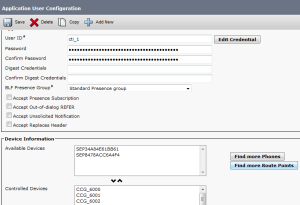
Now go back to CUCM and check the user that been created in the initial Setup in UCCX and assign the CTI Port to the CTI Admin and Associate the phones to RmCm Admin
68

69

Now the Voice Mail Side
in earlier Article i show you how to configure voicemail https://ccieroot.com/2015/07/11/sccp-integratinon-cisco-unity-connection-with-cucm/
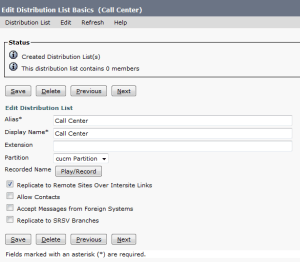
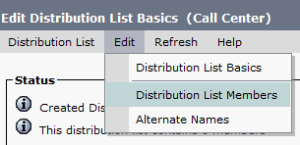
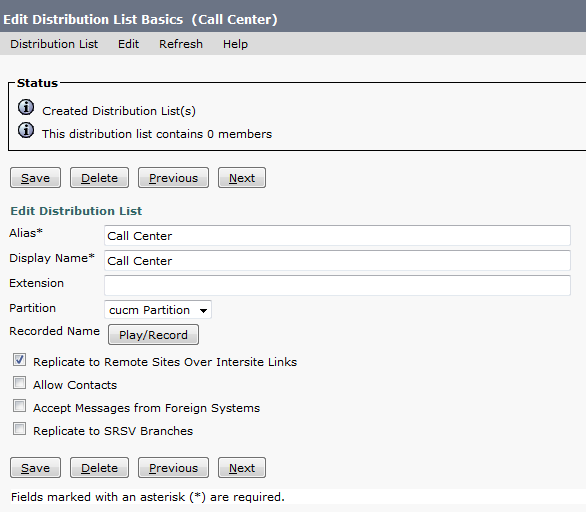
so here i will show you how to create a Distribute List that collect the user of UCCX in one Voicemail inbox so they can check the messages
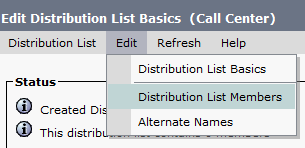
go to Cisco unity connection – Distribute List – System Distribute Lists  Add New
2323

71

72

73

Now Create the Call Handler with the same Variable number that been created in the UCCX which is the Voice Mail Number
in our case is 5555
go to Call Management – System Call Handler – Add new
75

Then after Save go to Edit – Message Settings
change the Message Recipient to Distribute List and choose your Distribute List
77

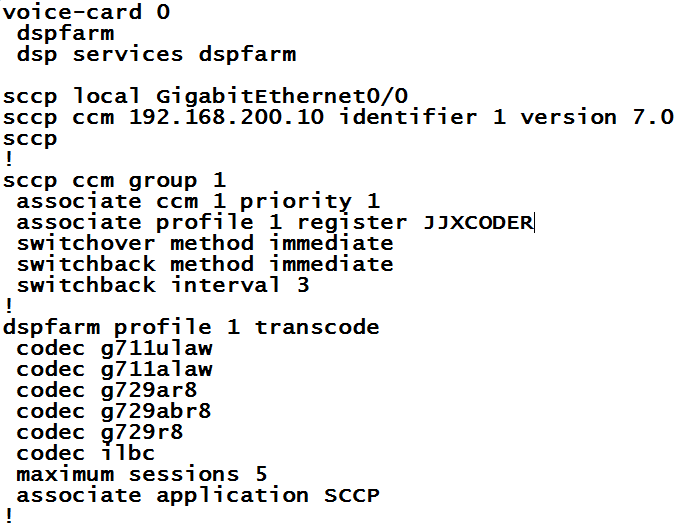
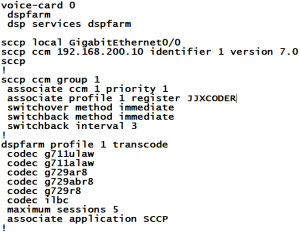
Last thing you need to create a Transcoder since UCCX call will be transferred to CUC
you need to configure it in Router Side and CUCM Side
first configure it in router
78

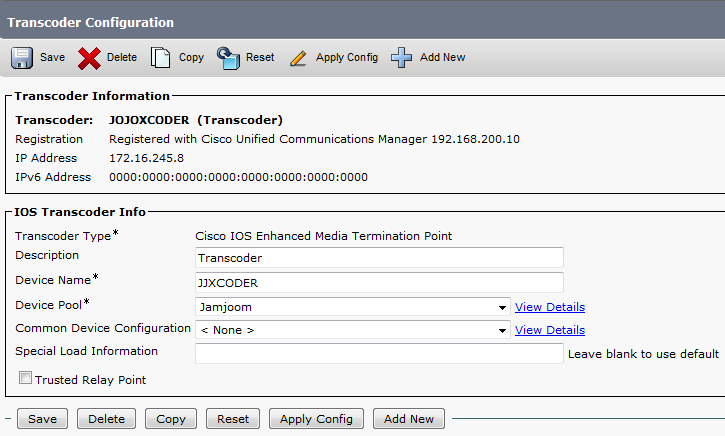
Then go to the CUCM to add it
Media Resources – Transcoder – add it and reset
79

Then Add the Transcoder to a media resource group and a media resource list
Media Resource – Media Resource group
81

Media Resource – Media Resource Group List
83

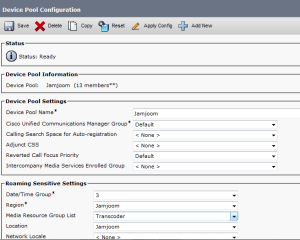
Now Assign the Media Resource List to the Same Device Pool so it will Transcode the Calls
System – Device Pool
85

And that is it
the System is ready to go

Standard
CUC

SIP Integratinon Cisco Unity Connection with CUCM

In an Earlier tutorial I explain how to integrate CUC with CUCM using SCCP Protocol
https://ccieroot.com/2015/07/11/sccp-integratinon-cisco-unity-connection-with-cucm/

Let’s move to the SIP

First Create Trunk to CUC
Device – Trunk
Configure the DevicePool, Location Incoming CSS,IP Address, SIP Trunk Security Profile & SIP Profile
1

2

3

4

Note: make sure the SIP Trunk Security Profile has the following settings are selected;

  • Accept Out-of-Dialog REFER
  • Accept unsolicited notification
  • Accept replaces header

Second Create a Route Pattern toward the Voice Mail Number which is 5555 in our case
Call Routing – Route/Hunt – Route Pattern
Choose a partition and the SIP Trunk that you just create

5
Next Step is to configure a Voice Mail Pilot and Voice Mail Profile
6

7

Last step is to configure MWI in service Parameter
System – Service Parameter – Choose the Call Manager Server – Call Manager
and Enable the Service Multiple Tenant MWI Modes
8
Now We Finish the CUCM Part let’s Move to the CUC
First Add the CUCM AXL Server which usable to import the Users from CUCM
13-A

2

Then From Right Corner we chose to add Port Group
here you Decide which protocol you are using weather its SIP or SCCP
in this scenario i choose the SIP
Notice there is no option for Prefix Name like SCCP or MWI Cause SIP use SIP-Notify not MWI Dn

4

5

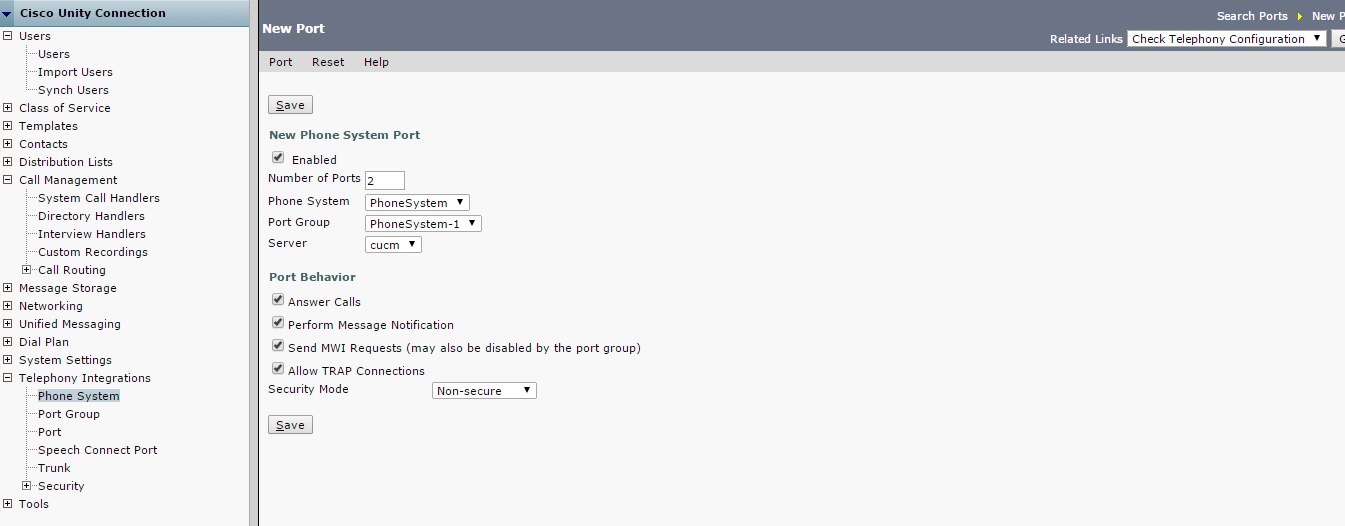
Then Configure The Ports
7

From Right Side Corner we can check the telephony to make sure no problem exist in the System

8
now time to import the users

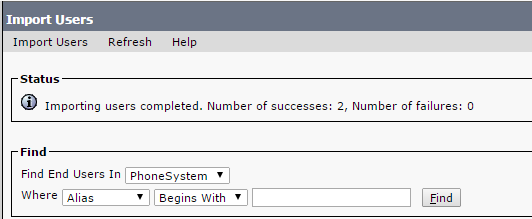
The only last thing is to import user from CUCM
go to Users – Import User
Select Import All or By Choose which user you want to have a Voice Mail
all 1

all 2

all 3
Change their Active Schedule to all hour is a better choice and Change their Password
all 4

all 5
and now you can test your Calls to the VM Pilot Number or press the envelop Button

Standard
CUC

SCCP Integratinon Cisco Unity Connection with CUCM

Long Time No See and Finally im back ;D

In this tutorial, i want to give you an overview what has to be done and configured to integrate Cisco Unity Connection 9 with CUCM 9.
Unity Connection can be integrated with CUCM using 2 methods, SCCP or SIP, the differences and similarities are detailed below:

SIP Integration

  • Requires a SIP Trunk pointing to Unity Connection
  • Requires a route pattern to send calls to the SIP trunk
  • Does not require MWI DNs, uses SIP NOTIFY messages

SCCP Integration

  • Requires SCCP Ports, along with Line Group, Hunt List & Hunt Pilot
  • Dedicated DNs for MWI on/off

Both integrations require a VM Pilot and a VM Profile.

i will start by the SCCP in this tutorial

at an earlier tutorial i show you how to configure CUCM to make calls
https://ccieroot.com/2014/11/08/cisco-unified-communications-manager-cucm-initial-setup/

After that we start the integration
First we create the Voice Mail Port
Advanced Featured – Voice Mail – Cisco Voice Mail Port Wizard
Give it a name
1
Then Choose the number of the Ports
2
Now Choose Description and Device Pool And CSS and the most important the Security Mode
3
Now Choose the Beginning Directory Number and Which Partition and CSS it will Contain
4
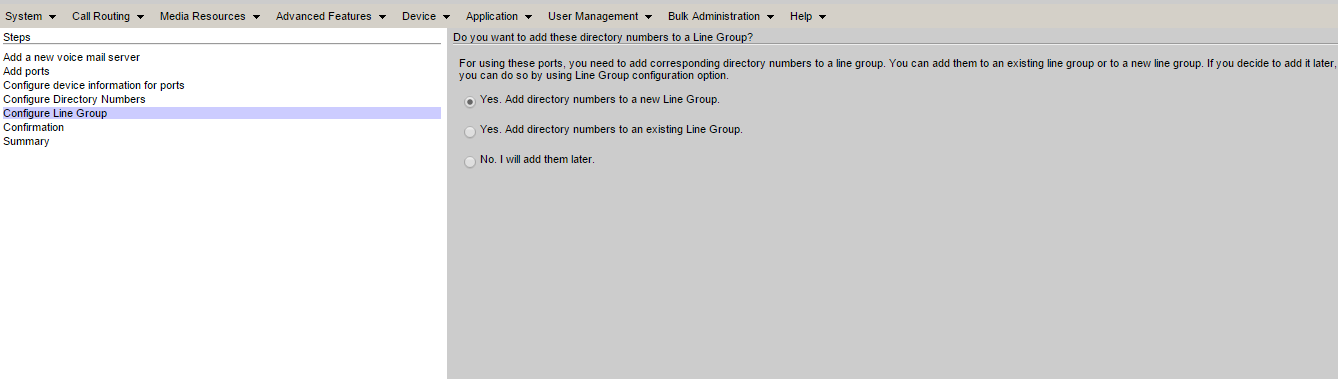
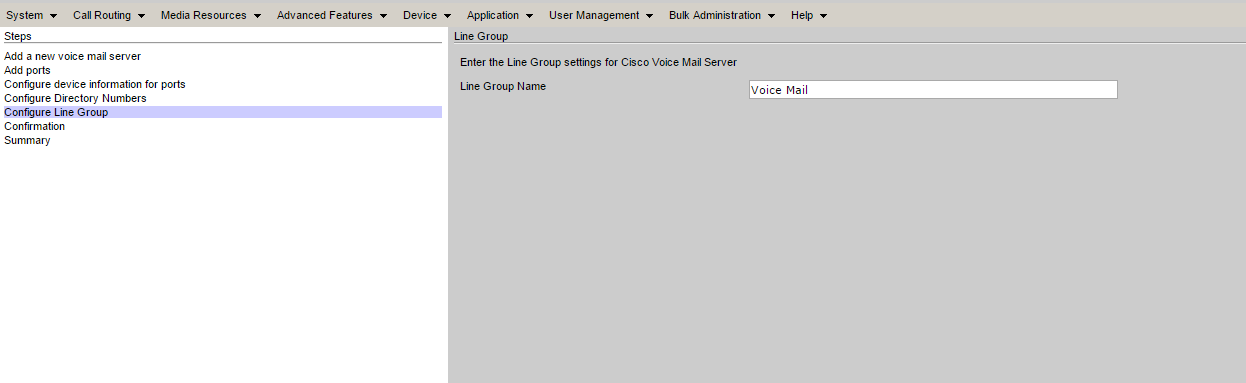
After this add it to a Hunt Group which contain the Voice Mail Port
5

6
Verification show in the next screen
7
Now it show the Final Result
8
Now i need to Add it to a Hunt List and Configure a Hunt Pilot Number in Our Case its 5555
9

10

Now Configure my MWI (Message Waiting Indicator) On & Off
11

12
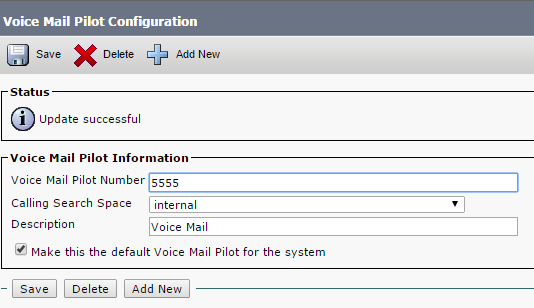
last two thing is the VOice Mail Pilot and Voice Mail Porfile
Voice Mail Pilot

Voice Mail Profile
Now We Finish the CUCM Part let’s Move to the CUC
First Add the CUCM AXL Server which usable to import the Users from CUCM
13-A

13-B

Then From Right Corner we chose to add Port Group
here you Decide which protocol you are using weather SCCP or SIP
in this scenario i choose the SCCP
be careful about the Device Name Prefix it should be the same you choose in CUCM Part which in our case is (CiscoUM1-VI) you can find it under Voice Mail Ports dont put the number next to the name
and Add the CUCM ip address and MWI
1

13
Second We Add Port to it
we choose the same number that you choose in CUCM part which is 2
14

Done
The only last thing is to import user from CUCM
go to Users – Import User
Select Import All or By Choose which user you want to have a Voice Mail
all 1

all 2

all 3
Change their Active Schedule to all hour is a better choice and Change their Password
all 4

all 5
and now you can test your Calls to the VM Pilot Number or press the envelop Button

Standard
Collaboration, ILS, URI

URI Dialing Between Clusters

The last blog was about URI Dialing at the same cluster which an easy step https://ccieroot.com/2014/10/30/uri-dialing/
But when it come between cluster there is another new feature Called ILS “Inter-Cluster Look-up Service”
Inter-Cluster Look-up Service (ILS) is a cluster-wide service in CUCM that when configured on and between CUCM clusters, synchronizes information throughout the “ILS Network”.

So after finishing configure the Basic URI and made Sure it working we start next step by configure the trunk between both publisher

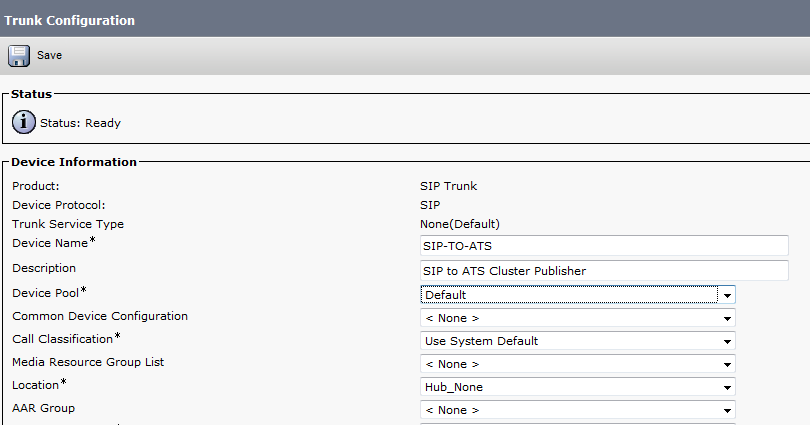
Go to Device – Trunk Add New and choose SIP Trunk and the Device Protocol also SIP and here is the final Look

Screenshot 2014-10-30 17.17.34


Screenshot 2014-10-30 17.18.04


If you want to use ILS to support intercluster URI dialing, check the Exchange Directory URI Catalogs with Remote Clusters check box in the Intercluster Directory URI Configuration window.
go to Call Routing – Intercluster Directory URI – Intercluster Directory URI Configuration and check the box and choose a name

Screenshot 2014-10-30 17.29.13


Before you start to configure the ILS go to the Enterprise Parameter – Change the name of  Cluster ID From StandAloneCluster to What ever name you wish in out case it’s CCIEROOT

ClusterID


then go to Advanced feature – ILS Configuration
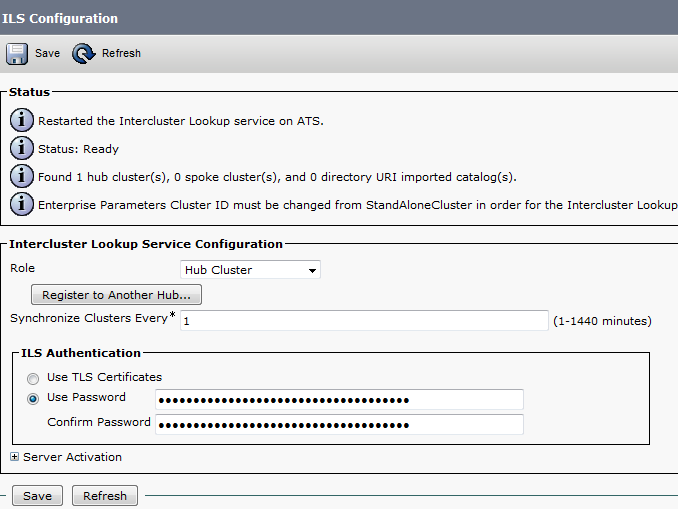
and make your Publisher as the HUB and configure password and press ok but don’t put IP in the field of Registration Server

Screenshot 2014-10-30 17.33.43


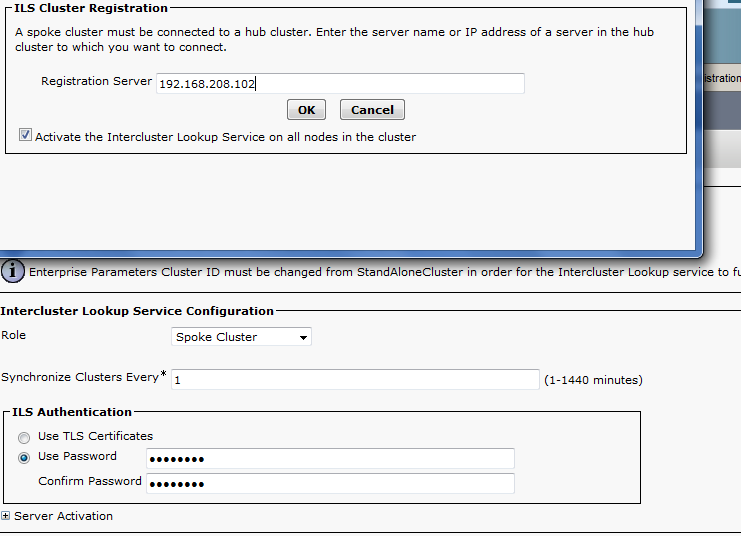
in the Other Server you configure it as a spoke and put the IP of the hub in the Registration Server

Screenshot 2014-10-30 17.38.37


Then Configure the Route Pattern by going to Call Routing – SIP Route Pattern
from CCIEROOT To ATS and in ATS sever you configure a SIP Route Pattern From ATS to CCIEROOT were the IPv4 Pattern is to our ILS URI Configuration name which was MOTO.LOC

Screenshot 2014-10-30 17.40.21


Now you can test the call and it Succeed Between Cluster


Standard
URI

URI Dialing

SIP Uniform Resource Identifier (URI) based dialing One of the 9 newest feature for CUCM version 9
This is beyond anything you imagine Finally we will forget about calling each other by extension number and the we will start typing the email ID instead to make a call. Seriously SIP URI can be best compared to an email address such as Aysar.Mohamed@ccieroot.com or Aysar.Mohamed@mynaghi.com.sa . A users can dial the called party via URI if they are using 8961, 9951 or 9971.
make sure you have to upgrade the IP Phone firemware to 9.3.1

A SIP address or SIP URI is a Uniform Resource Identifier written in user@domain.tld format (semantically, much like an e-mail address). It addresses a specific telephone extension. A SIP URI can be automatically imported from LDAP (provided the cluster is integrated with an LDAP server such as a mail or the msRTCSIP-primaryuseraddress attribute.

Configuration Steps:

The user name is case sensitive however host is case insensitive (RFC 3261). This parameter is configurable starting CUCM 9.1 (under Enterprise Parameters – URI lookup policy)

Go to Enterprise Parameter
Screenshot 2014-10-30 13.25.35


Then when you import the user from LDAP make sure the URI Map to the appropriate LDAP attribute
Screenshot 2014-10-29 22.43.18


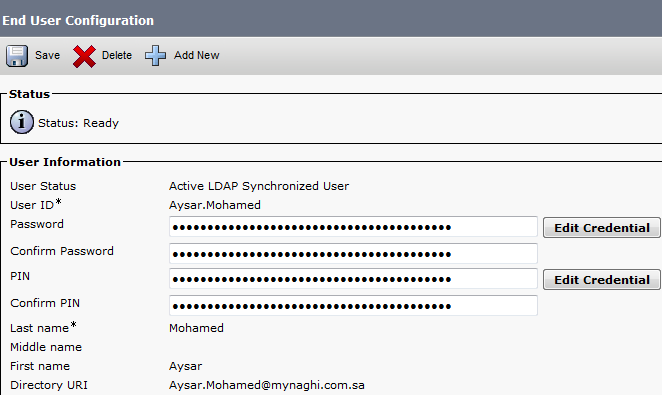
Now if you go to the End User Configuration you will find the Filed of Directory URI is your Email
Screenshot 2014-10-29 22.46.37


Now Configure a phone and Add Dn as you normally Do then go back to the end user and associate the Device and select the primary DN which you want to bind the Directory URI to it

Screenshot 2014-10-29 22.48.00


Screenshot 2014-10-30 11.53.03


Now Check the DN
Screenshot 2014-10-29 22.48.44


Its automatically bind to the DN

*The Directory URI is put into an automatically generated partition called “Directory URI”.  If you wanna call other DN with Directory URI configured, make sure your CSS has the partition Directory URI.*
You can try to make a call now.  It only supports on hook dialing for URI dialing, so you press the new call softkey, the press the “A B C” softkey so that you can enter alphanumeric characters.
If you don’t want to call the full directory URI, you want to call without the domain name, make sure you change the following in the Enterprise parameter.

Screenshot 2014-10-29 22.49.59


Now let’s Test it by dialing
2014-10-30 12.24.35-2


and yes it’s Calling by dialing the email address aysar.mohamed@mynaghi.com.sa not the extension


Standard
SIP

Unable to make outbound call from CUCM to ITSP via sip

Lately I saw this issue appear in many of the SIP Trunk that been provided by some of the ITSP Vendor and let’s not mention any name here I just started to blog ;D

I also face this problem in my site where I can make call to land line, National and international but not a mobile number which appear recently.

The first step is to identify if the calling and called numbers appear to the ITSP in a correct way that lead to a successful call The command is debug voice ccapi inout
In our case the calling and called number was correct so we had to go for the nest step
so the next command is to trace the SIP message in the router and the best command is debug ccsip messages

And it result That the Initial Invite is sent to ITSP SIP-TRUNK with no SDP inside it. you get Back a 183 session in Progress  with unsupported ptime in the SDP

debug ccsipMessages


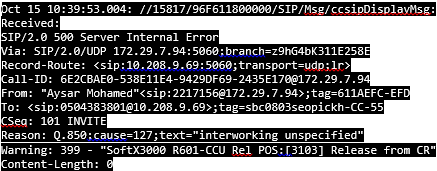
And then I receive an error
debug ccsip messages 500


So The Issue is that I’m sending the INVITE from the call manager (192.168.200.53) with a delayed offer and CUBE forward it to ITSP with the same ( delayed offer no sdp included ) , then 183 session in progress is sent back which start negotiating the codec ( G711 A law is taking Priority in the offer ) but when the 183 reach the CUCM back it send 500 Internal error
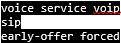
Most ITSP I’ve come across requires SIP early offer. They use this to always decide on which codec to offer for the calls.

In an Early Offer, the session initiator (calling device) sends its capabilities (for example, codecs supported) in the SDP contained in the initial Invite (thus allowing the called device to choose its preferred codec for the session).

In a Delayed Offer, the session initiator does not send its capabilities in the initial Invite but waits for the called device to send its capabilities first (for example, the list of codecs supported by the called device, thus allowing the calling device to choose the codec to be used for the session).

Solution:

In normal Setup, ISP forwards SDP messages to client with DTMF instruction so, I can ask My ISP about it, or force the answer by sending My information on My invite.

For enable Early Offer is possible global:
SIP under voice service


For enable in a Dial-peer:
SIP under Dial-Peer


Standard