UCCX

UCCX Crashed

“Crashed”
is one of the most word that scare any IT Admin
but don’t worry, any problem have a solution
there is many reason the system could crash, specially the boot order of the System

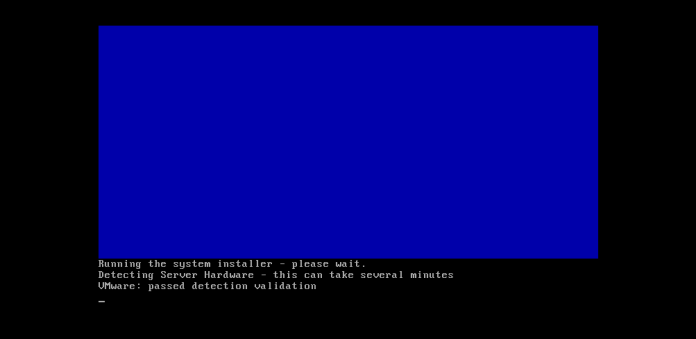
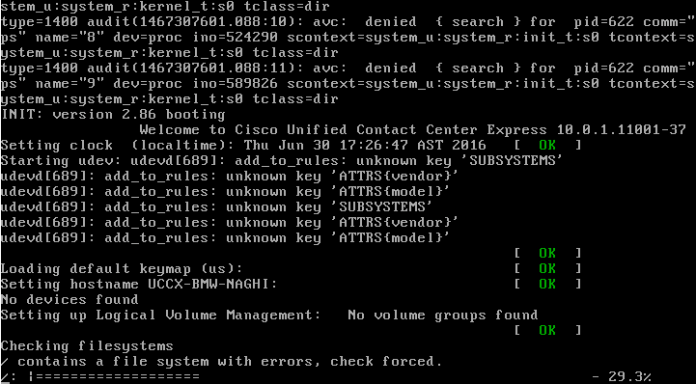
my case was that The Cisco Unified Contact Center Express server is unable to boot. When trying to reboot the server
1.pngthis error message appears regarding inconsistencies in the file system:
2.png
and it will ask you to insert the recovery disk
what you don’t know is the  UCCX has no recovery disk oops
so the solution is to Use the Unified Communications Manager Recovery CD to restore access to the file system. The Unified Communications Manager Recovery CD can be used on any server and application experiencing this issue. This process can be used to recover both Root and Common partition file systems that are affected. First, you need to download the ISO file for the recovery disk
go to cisco web site to download the ISO
Untitled13.png
Download it to your PC
Untitled14.png
Connect to your image in your diskUntitled15.png

Untitled16.png
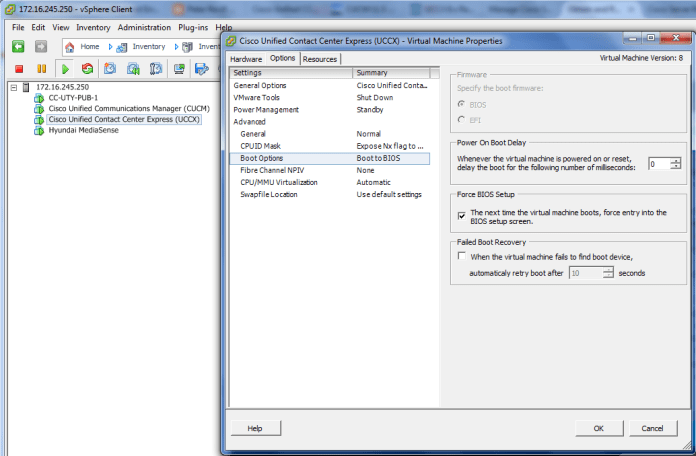
Now Configure your VM to boot from the CD
Untitled2.png
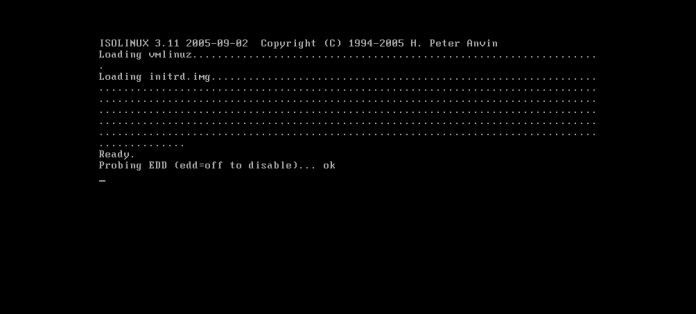
Now Start the Machine
Untitled3.png

Untitled4

Untitled5
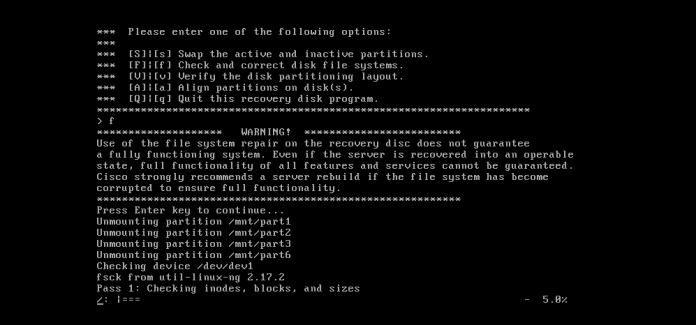
Now This menu for the recovery disk appears:
Untitled6Choose option F, and respond YES. This will check and correct the file system automatically.Untitled7
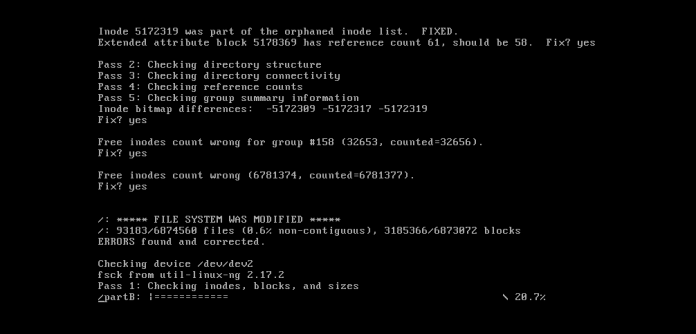
you can see in the last line it say
“ERRORS found and corrected.”Untitled8

Untitled9

Untitled10
Finally, choose option Q to exit the recovery disk program. and Remove the recovery disk and reboot the serverUntitled11
The system should boot normally.
Untitled12
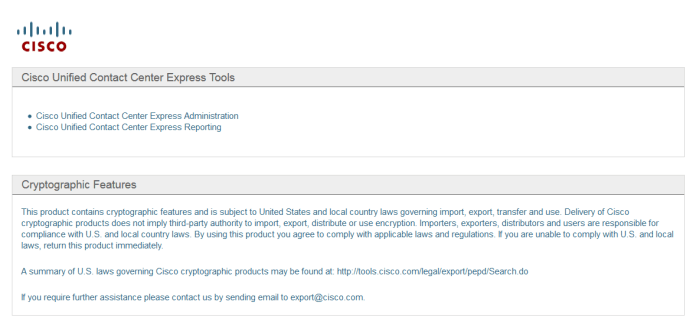
And The Magic Screen Came up Finally
111

Note:  It is highly recommended that you perform a full system backup weekly  ;D

Standard
Prime Collaboration Deployment, Uncategorized, Upgrade CUCM

Upgrade CUCM 8.6 to 11 Using PCD

Performing upgrades and migrations of CUCM has always been a long, manual process that required lots of staging and prepping as well as after-hours work.  With the release of version 10.X Collaboration Suite, a new product called Cisco Prime Collaboration Deployment (PCD) was released.
It allows the user to perform tasks such as migration of older software versions of clusters to new virtual machines, fresh installs, and upgrades on current clusters.In summary automates upgrade and migration task.
Once PCD is installed and configured, it can be used to perform a variety of tasks cutting down on the amount of time and frustration of a large manual migration.

Supported Releases for the Upgrade Task on PCD Version 10.5

These include releases for the upgrade task on the Upgrade Application Server or Install COP files:

  • Cisco Unified CM Releases Supported: 8.6(1-2), 9.0.(1), 9.1(1), 9.1(2), 10.x
  • Cisco Unified Presence (CUP) Releases Supported: 8.6(3), 8.6(4), 8.6(5)
  • Cisco Unified CM – IM and Presence Releases Supported: 9.0(1), 9.1(1), 10.x
  • Cisco Unified Contact Center Express Releases Supported: 9.0(2), 10.x
  • Cisco Unity Connection Releases Supported:
    • From 8.6(x) to 8.6(x)
    • From 8.6(x) to 9.x
    • From 9.x to 9.x
    • From 10.0(1) to 10.x

This document is focused on the upgrade task on PCD Release 10.5.I show in an Earlier post the steps for Installation of PDC https://ccieroot.com/2016/03/23/installation-of-cisco-prime-collaboration-deployment/

I spend the last couple of weeks searching in internet for a way to upgrade from 8.6 to 11 and there was no single resource i could catch to it so i made my OWN

Note.The test been Done on UCSC-C220

So let’s Start
First Download the RSA Keys from Cisco Web Site

RSA keys are used to sign Cisco Unified Communications Manager releases and other updates such as Phone Firmware, Locales, Dialplans, other cop files. This cop can be installed on any UCM or see README for versions needing this cop.
ciscocm.version3-keys.cop.sgn
and put it in your SFTP Folder and Upload to your CUCM 8.6
1
Fill the SFTP Information
2
Choose the RSA Key
3

4

56
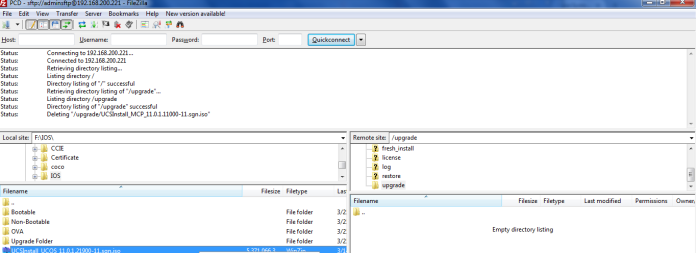
Then i will upload the Image to PCD through Filezilla
1
First Create a Site Manager2
Add the IP of your PCD and use Admin username : adminsftp & Password:same one used for web  login in PCD3

4
Press Ok
5
Now you are inside the PCD Directory if you need to upgrade an existing Cluster then copy the ISO to the Upgrade Folder if you want to create a new Cluster then copy the ISO to the Install Folder
In our Case i want to upgrade
1a

Select the ISO Image and Choose Upload4
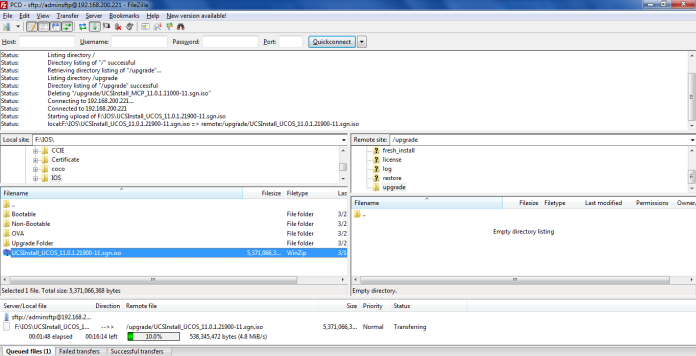
Now the Upload Start
5
Now it’s Complete and the ISO Available Under your Upgrade Folder on the right and also you can check your Data store in the web page
4.png
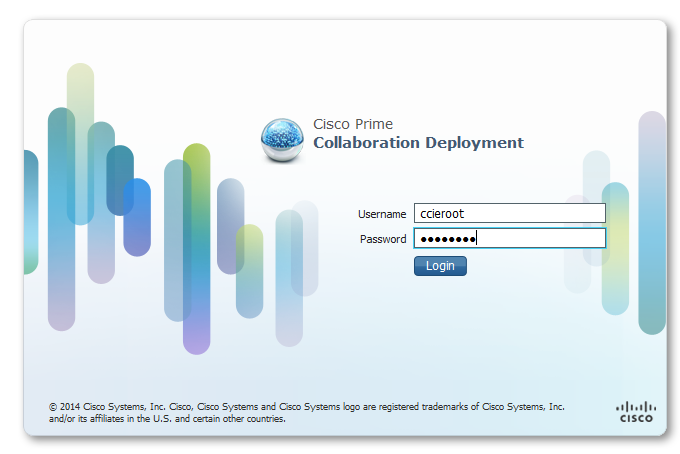
Login to the PCD
232425
I can check my ISO Image from Administrator Tab – SFTP Datastore
6
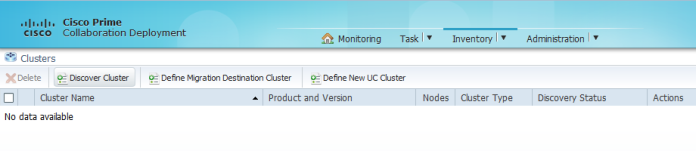
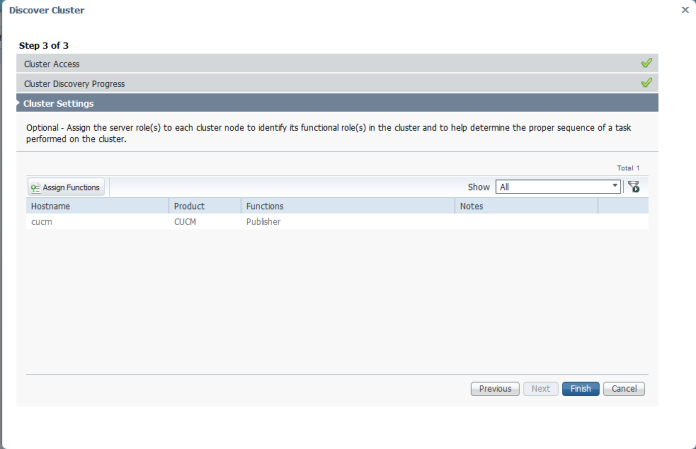
Now To Add a Cluster go to Inventory – Clusters – Discover Cluster1
Fill the Cluster Information2
3
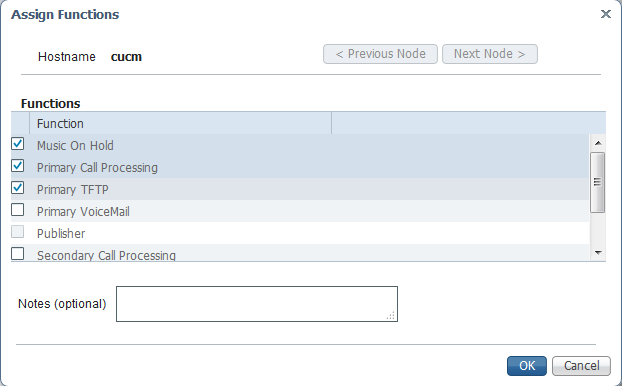
Then Choose to Assign Function to the Server4
Choose the Function that this CUCM is Providing5
Now we add the Cluster Successfully
6
Next Task is to Upgrade
From Task Tab – Upgrade
Then Choose to Add a New Upgrade Task
1
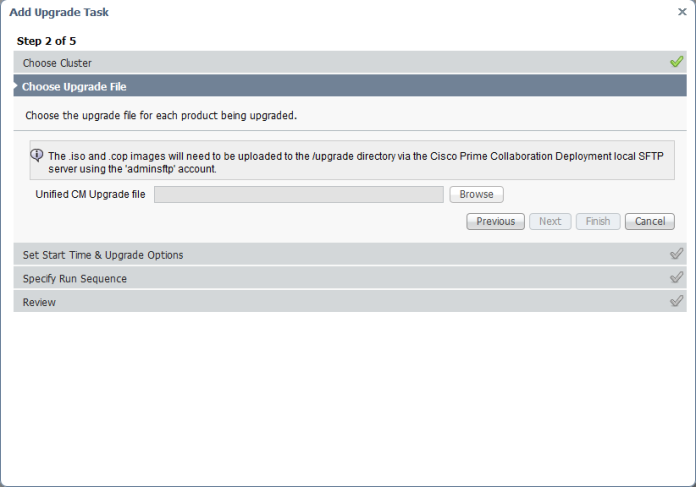
Select from the Drop Down the Cluster and the Product2
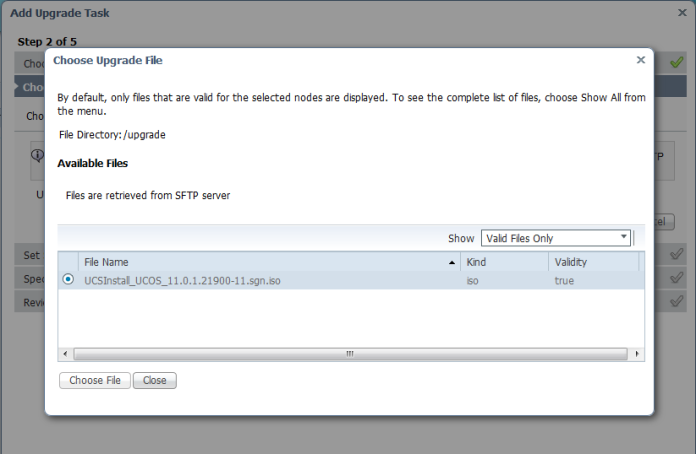
Browse From The SFTP The ISO Image
3
If the Image is not Valid or not Supported it will not Show when you select
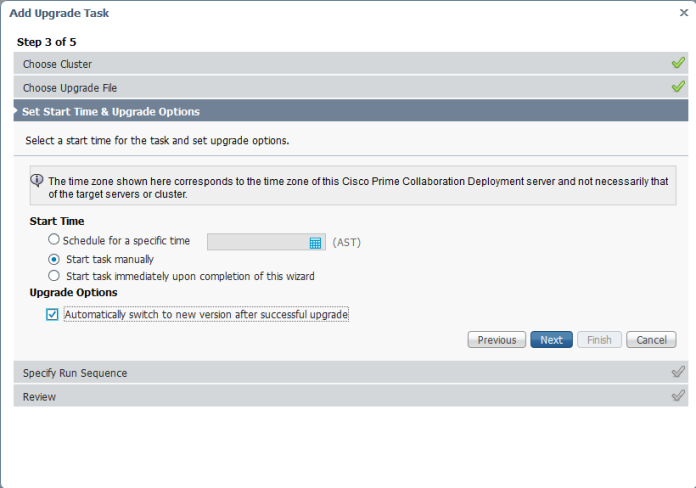
“Valid Files Only”7Choose to Start Task Manually or Schedule and Choose Automatically Switch to the new Version After Successful upgrade6
you can Also Specify the Sequence 7
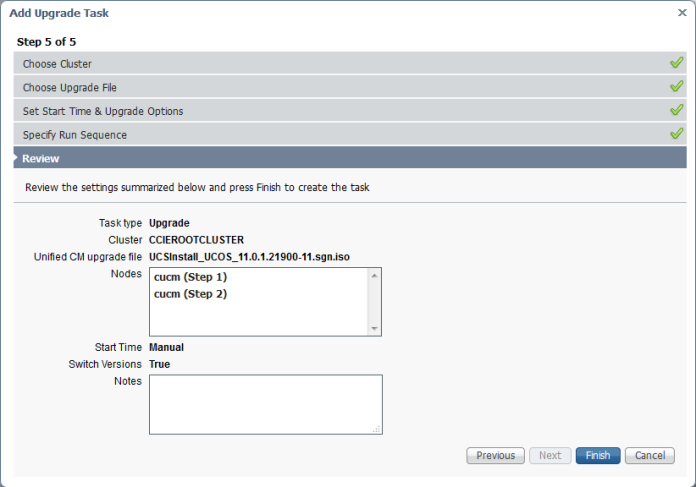
Review the Task Steps5.png
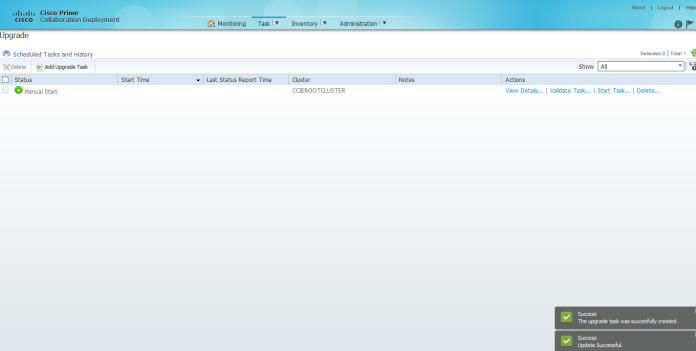
The Task been Added Successfully9
Now go to the right and click on Start Task Immediately 10
From Monitoring Tab you Can see your Task  8.png
or Press View Log and see what happening 12
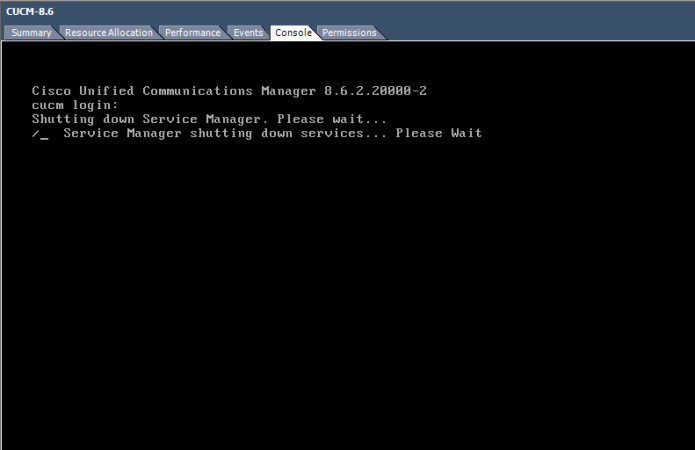
You can Watch the Installation through the CLI Page
the system shutting down
6
Then the Installation Process Start8

9
Now Finally it Finished and it Switched to the New Image 11.0.110.png
And in the monitoring Page it show the task finish successfully on the PCD Page
9.png
Now Login to the Web Page

11.png
and Here the new CUCM Page and it shows the System Version 11.0.1 and you only need to upload the new License
11.png

;D


Standard
CUCM, UCCX

MediaSense Call Recording

Call Center Recording helps organization reliably record and evaluate calls for best training and quality assurance.
Media Sense is a Rich software solution for Cisco IP telephony and Contact Center. It’s provide call recording and live monitoring for Active calls

The Installation is basic just like any Cisco product (CUCM, UCCX …etc)
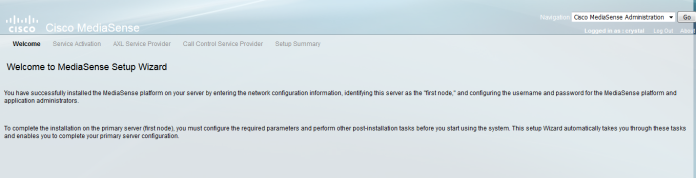
so i will start by the MediaSense Setup wizard and Requirement

First CUCM Part
create an AXL User I name it mediasense
User Management – Application User
1Second Create a record profile I give it Destination address2
and Assign this to the Agent Directory Number Whom you want to Record
7
now back the phone page & enable the Built in Bridge
Built in Bridge

Most Important Step is to Create a Transcoder and Assign it to the Device pool

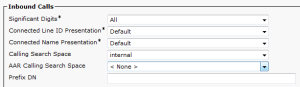
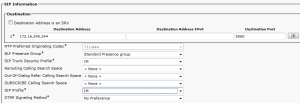
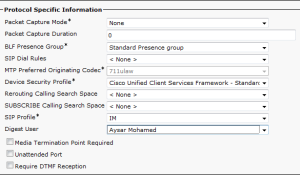
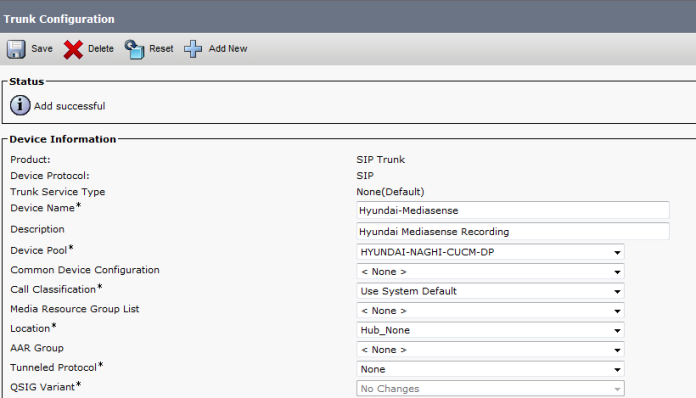
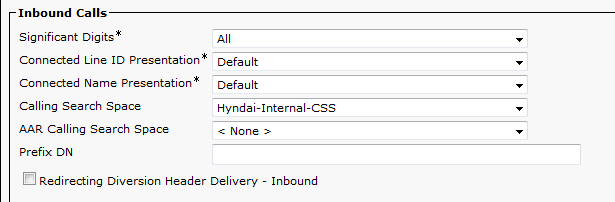
Then Create a SIP Trunk to the MediaSense Server
our MediaSense IP Address is 172.16.245.244345
Last create a Route Pattern to the 399 and Gateway is the MediaSense Trunk that you created earlier6Now Let’s start from the Media Sense Setup Wizard
1.png

2

3
Enter the IP Address of the CUCM and AXL username and Password
4
Select the CUCM
5

6
Now you finish and login again
7
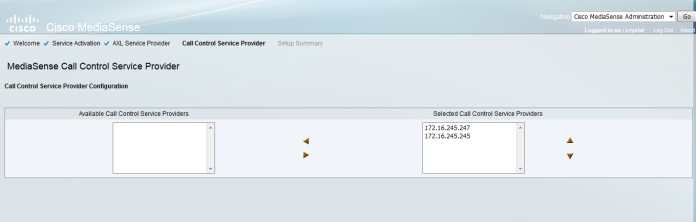
Make sure to select the servers that would work as AXL and Call Control Service Providers 8
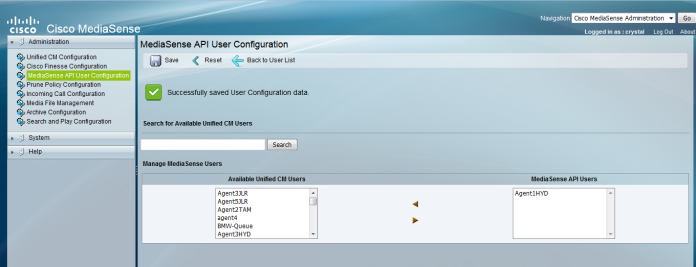
Select the user That would Listen to the recording
9
Choose the Prune policy Configuration
10
Type the Incoming Call rule which is your Destination Address in CUCM 399 and Choose the Action type
11
Most Important is the Archive were you will save your Recording Media12
Now logout and provide your Call Center Supervisor by the link
in our case
https://172.16.245.244:8440/mediasense/login.html

13
Now as you can see a call been recorded between extension 7156 and 306 under Active Call
111.png
Simple and Easy
MediaSense

;D


Standard
Prime Collaboration Deployment

Installation of Cisco Prime Collaboration Deployment

Cisco Prime Collaboration Deployment is an application designed to assist in the management of Unified Communications applications. It allows the administrator to deploy, upgrade, migrate and move from physical to virtual hardware.
i will show you the step of installation of PCD
i  have in my Folder the .Ova and .ISO
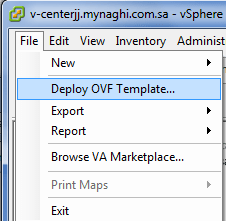
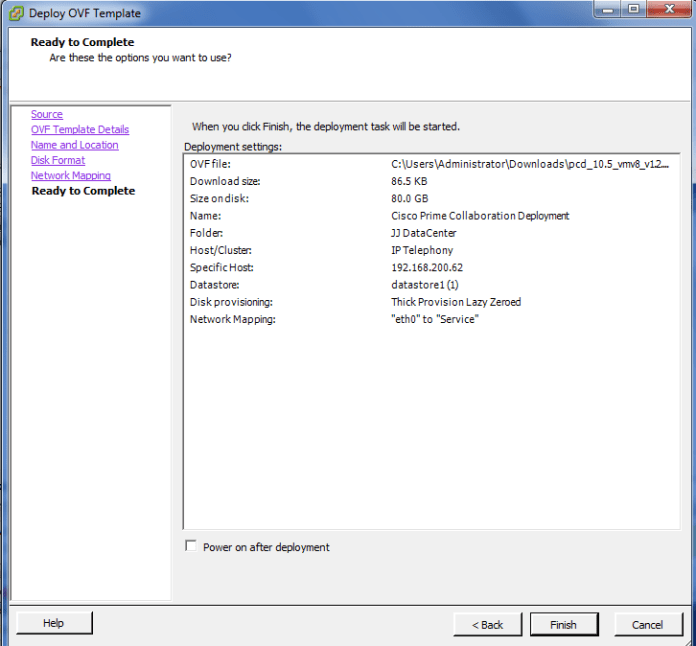
1
Browse the Location od the Ova
2

3

4

5Choose the Network Adapter
6

7

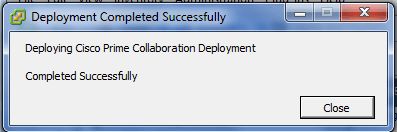
The Machine Created Succesfully
8

Now Power the Machine after Connect to the ISO9
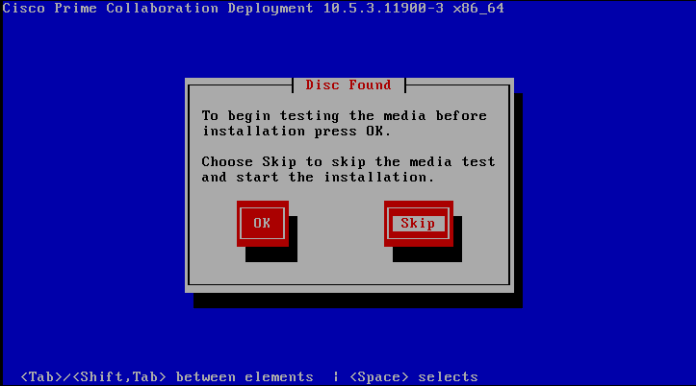
Skip the CD Checking
10

11

12

13

14
Choose the Correct Time Zone15

16

17

18
Fill the IP Address19

1
Choose a Username and a Password
21
Fill your Organization Information
22
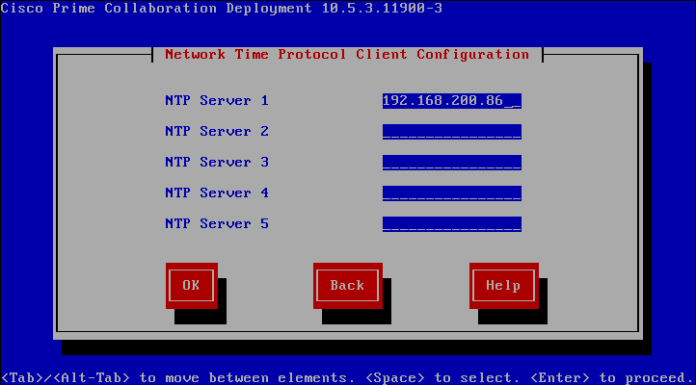
Fill the NTP Field23
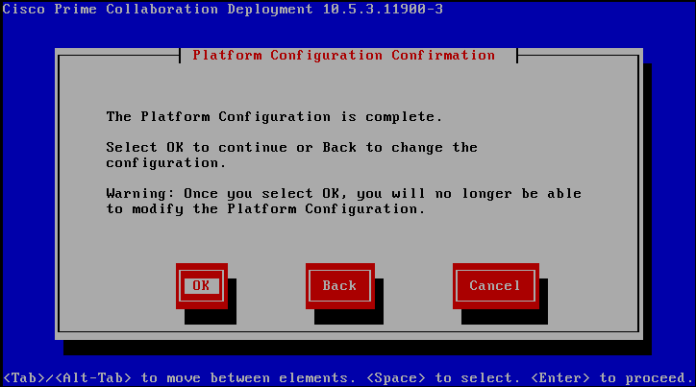
Choose your Security Password24Press Ok to start the Installation26and the Installation Complete Successfully22

and that is it my system is up and Running
23
24
25
;D
Standard
Upgrade CUCM

Upgrade CUCM 8.6 to CUCM 9

Drive to 9
everyone write about it
This document provides procedures for performing a direct upgrade to Cisco Unified Communications Manager Release 9.1.2 from Releases 8.6.2
i Have the Update ISO and i save it in My File and start my SFTP
UCSInstall_UCOS_UNRST_9.1.2.12900-11.sgn

0.png
you will follow the same step of Updating the Device Package which i show in earlier post https://ccieroot.com/2016/03/10/update-device-package-in-cucm/

1
Fill the Detail of the SFTP
2
Here i Choose the Upgrade Package
Screenshot 2016-03-10 20.54.59
And Now the Downloading StartScreenshot 2016-03-10 20.55.57
After Downloading it will ask to Install and give an option to Switch Direct to 9 and Reboot or not
Screenshot 2016-03-10 21.29.42.png
Now the Installation Start
Screenshot 2016-03-10 21.30.21.pngAfter it finish the system will Reboot and Walla your CUCM Reach the 9  ;DScreenshot 2016-03-10 22.37.06.png

9.1.2.png
9.1.2       ;D

Standard
Device Package

Update Device Package in CUCM

Ever face a Problem with Adding a new Model IP Phone to your Environment such as 8845, 8865 ?
will Luckily Cisco always care about her customer and support them with upgrading their device package always
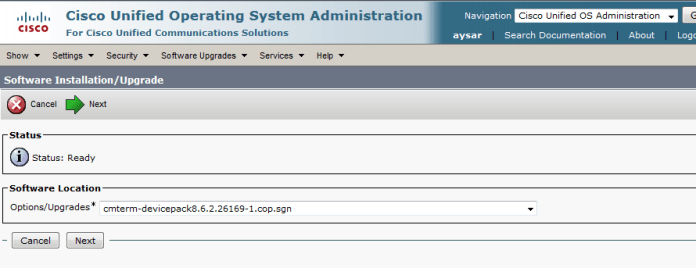
it’s available in the latest Device Package cmterm-devicepack8.6.2.26169-1.cop.sgn Which can be downloaded from Cisco Software download https://software.cisco.com/download/navigator.html?i=!mmd

I will show you the steps to Upgrade your Device Package
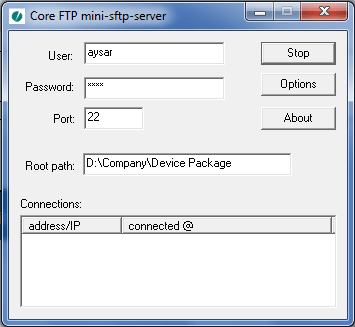
First Turn on your TFTP were you have your Device Package
3
Then Login to your CUCM OS Admin Page
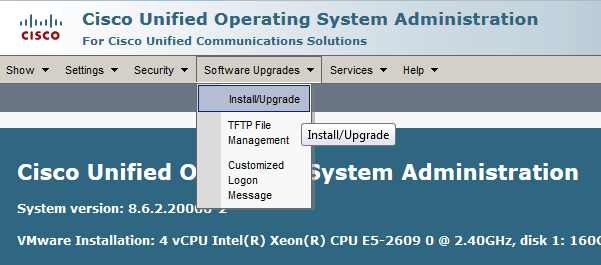
The Choose Software upgrades – Install/Upgrade
1
Then Fill the Detail of the SFTP in CUCM page
2
Press Next and choose the Device Package you want
4
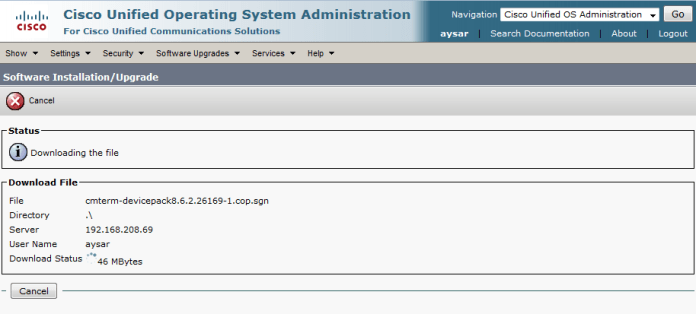
Press Next and the Downloading of the Device package Start5
After the Downloading is done it will ask to Install it
6

7
Now After it Finish you need to Restart the TFTP Service
go to Cisco unified Serviceability – Tools – Control Center  Feature Services and Restart the TFTP Service
in case of a big cluster you  need to add the Device Package to each server and Restart them starting by the Publisher
advice always do this after Duty  ;D

and Finally will find that you can add your new IP Phone Model 8845, 8865
8.png
;D

Standard
DHCP, IOS

Configure DHCP on IOS

this post will walk you through configuring a Cisco Router to serve as a DHCP server for client

I Define two pool one for Data and name it CCIEROOTDATA and second pool for IP Phone Name CCIEROOTVOIP

we define the dhcp pool by the command:
IP DHCP Pool “name”
then define the Network Subnet by Network command
third  Default router which is their Gateway and last is the DNS
for voice we add extra command “option 150” which is the IP Phone TFTP
in our case its also the Publisher IP Address 192.168.200.10
1
Then Configure Different VLAN for DATA and VOIP on our CORE Switch
2
Third we configure two Virtual interface for Each VLAN
4
Last Configure the Access Port that connect to the User PC & IP Phone
3

Now Confirm the PC took the Correct IP Address from the Correct VLAN 3000

10

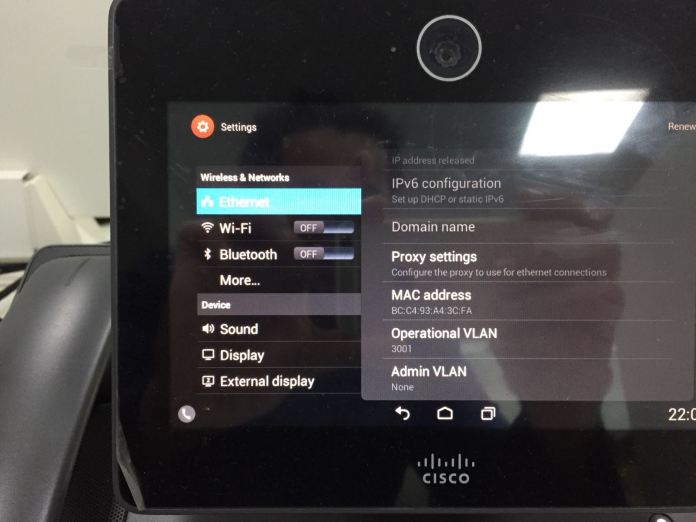
and IP Phone DX650 took the correct VLAN 3001
Photo Mar 10, 5 55 51 PM

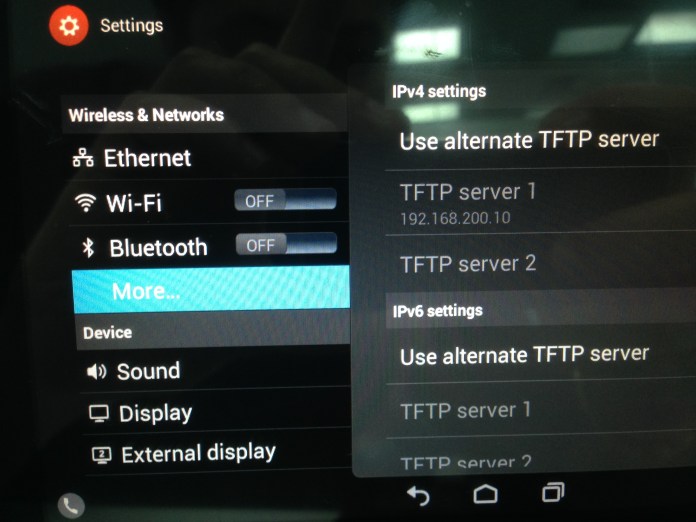
and the TFTP Configuration Showing Correctly
Photo Mar 10, 6 48 52 PM.jpg
The IP Phone Took the Correct IP Address Configuration
Photo Mar 10, 5 59 47 PM

and this is the steps to configure DHCP in IOS

Standard
UCCX

UCCX – Barge Features

Hi today I will show you a new feature of UCCX that I just implemented in Call Center of Hyundai.
In earlier blog I show you how to integrate the UCCX with CUCM

UCCX Integration with CUCM

today I will show you the Barge Features.
It allows the Supervisor to monitor Agents in their Team and Participate in the call and listen to the agent conversation with the customer.

From a Barge session, the agent see the call turn to a conference and the Supervisor can then intercept the call and drop the Agent from the call. and the Customer is now talking directly to the Supervisor.

First Enable in the phones for Built-in Bridge
1

Supervisor DN must have the Monitor CSS populated with a CSS that has access to the Agents DN Partition. it’s configured under the supervisor DN

2

now the supervisor should open the CAD Cisco Agent Desktop first then the CSD Cisco Supervisor Desk

3

4

Now Check the Agent That have a cal for example Agent7HYD have outgoing call to 7403
6

Select the Call and then go up you will see the button Barge-in Press it and suddenly the call turn to a conference
6

9

also you can intercept the call which result that the Agent7HYD will be Drop from the call and Supervisor Agent1HYD will be talking directly to the Customer 74037

The Same Configuration for CDA Cisco desktop Agent will go for the Cisco Finesse.


Standard
Cisco Jabber, Uncategorized

Installing and Configuring Cisco Jabber on IPhone

Long Time No See  ;D
i think by now everyone realize that cisco product Jabber Voice cant be downloaded in IPhone anymore which affect everyone as there EOL9796 – Amended
Cisco announces the end-of-sale and end-of-life dates for the Cisco Jabber Voice for iPhone. The last day to order the affected product(s) is January 31, 2015.

and i never cared after that till last week my manager Mr.Anas Aldeiri was in vacation and request to have his extension in his phone by any mean  and i start to keep looking and found out that there is another Cisco Jabber.
the New Cisco Jabber provide you by Chat, Phone Service, Conference and share photo

Last Post i show you how to Install & Configure IM and Presence 9.1 with CUCM 9.1 The Next step is to configure Jabber which can be done in a simple steps

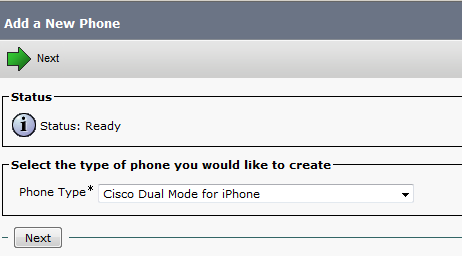
First Just like you Adding a Normal Phone
Device – Phone – Add New
Cisco Dual Mode for iPhone
Then for IPhone Name Always start with TCTname and you should choose the Owner and the Primary Phone and the Digest User
1
2
3

Also enable video cause it’s disable by default
8

Second Add the Directory Number and Associate the Phone with the User

4
5
After that go to the User Option and Add the phone to the User
6

Now your Device is Ready go in your IPhone and Download from APP Store the Application Called : Cisco Jabber
2016-01-23 13.54.22

Please Excuse My Phone i dont Look at Email or SMS Alot
the APP Store Icon in Left Corner Down
2016-01-23 13.54.43.png

Now i Open the Application and Enter the Advanced Setting to Configure my IM Presence Option. you also can configure Phone Service Only or Webex
in Our Case My IM Presence IP Address is 192.168.200.10 and CUCM is 192.168.200.6

2016-01-23 12.19.53

Then Save and Back to Login Option
Put the Username and then Continue for Password Input

2016-01-23 12.20.08

2016-01-23 12.20.15

Finally I’m Done and You Can See i’m Available

2016-01-23 12.20.29.png

Then Let me Choose Contact to add my College Coco Test1 and Add him to a Company Group, I can also add him to my Favorite

2016-01-23 12.20.402016-01-23 12.20.452016-01-23 12.20.522016-01-23 12.21.032016-01-23 12.21.142016-01-23 12.24.16
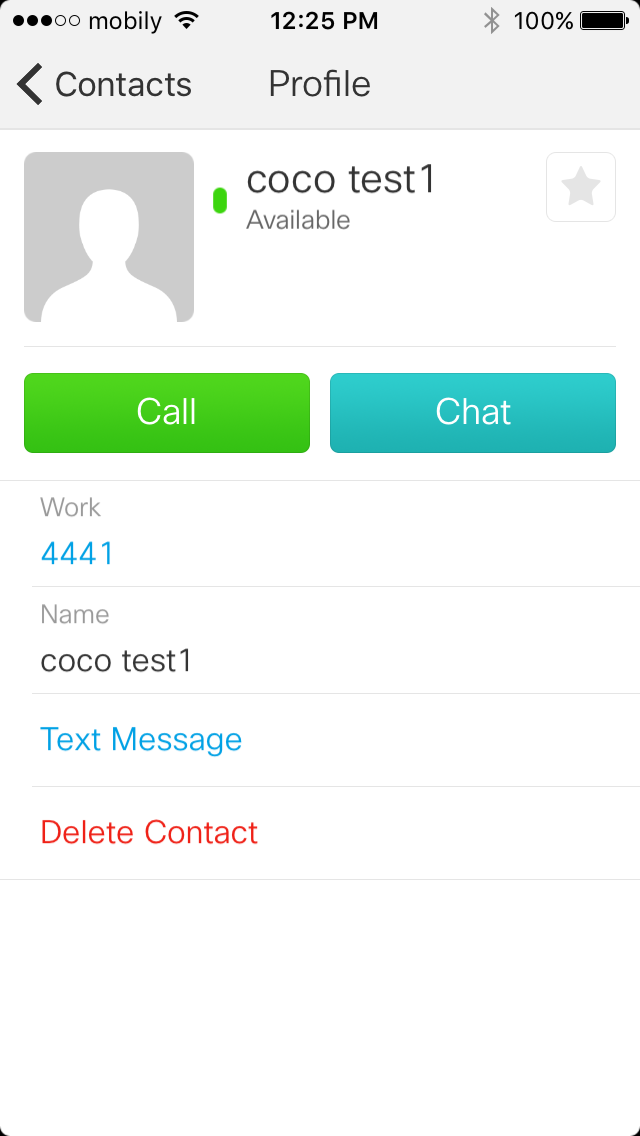
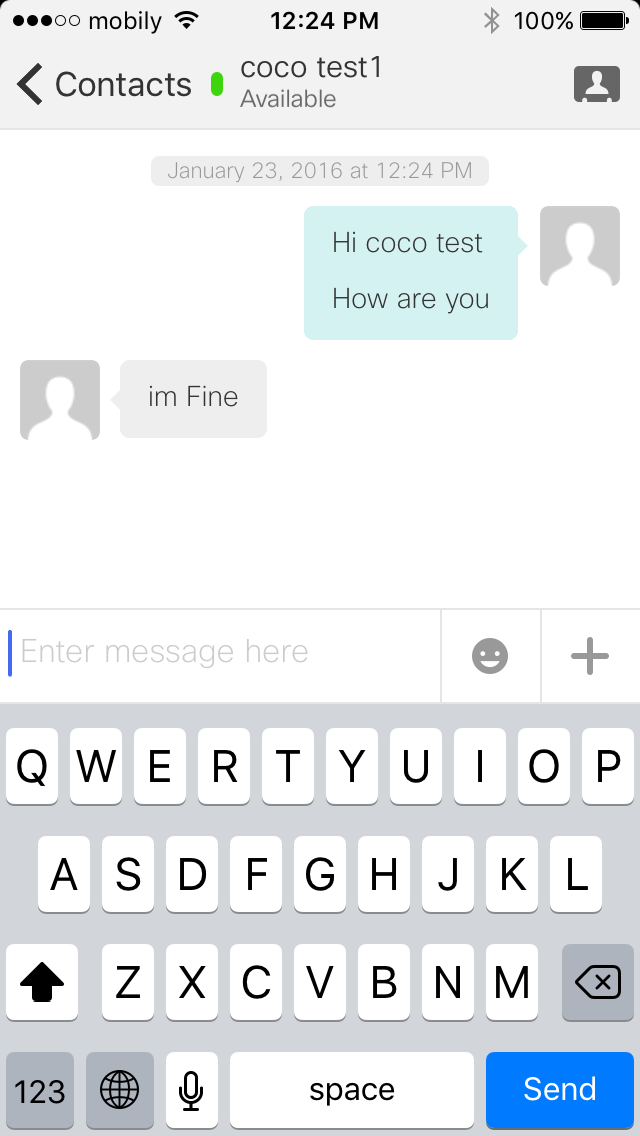
I Click in the Right Arrow i can Call and Chat with my College COCO Test1 which he have Jabber in his PC

2016-01-23 12.25.14
2016-01-23 12.24.502016-01-23 12.25.202016-01-23 12.25.46
I have the Ability to Hold, Transfer and make Conference

2016-01-23 12.25.34

Inside the Chat i have the option to Send a Picture too

2016-01-23 12.27.48

2016-01-23 12.27.56

2016-01-23 12.28.042016-01-23 12.28.33

You can also have video call
File Jan 24, 5 13 50 PM

Also show me My Recent Call 2016-01-23 12.29.13

and the Status of my Jabber

2016-01-23 12.29.40

And Just Like That I made my Manager Happy

Standard
Collaboration

IM and Presence Integration with CUCM

Cisco Unified Instant Messaging (IM) and Presence is now better known as Cisco Unified Communications Manager IM and Presence (Cisco Unified CM IM and Presence). This is due to the integration of Cisco Unified Presence technology with Cisco Unified Communications Manager for Release 9.0 and later.

I will guide you through the installation
List of Software:
Cisco Call Manager 9.1.2
Cisco IM and Presence 9.1.1

let start by CUCM Side
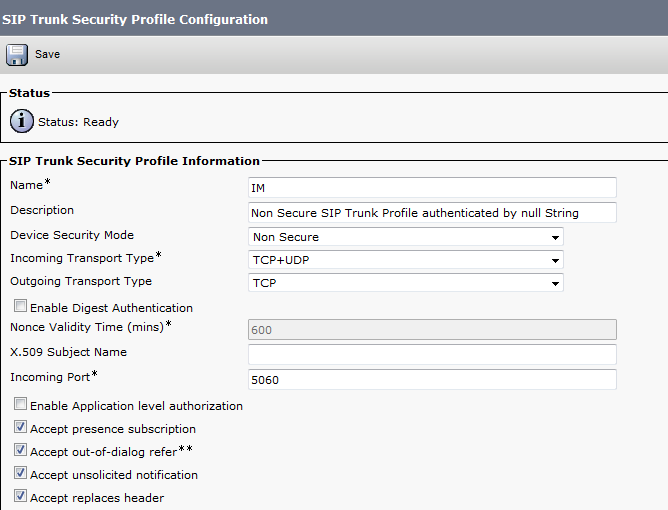
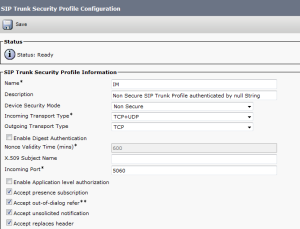
first configure the SIP Trunk Security Profile
System – Security – SIP Trunk Security Profile – Copy the Non Secure SIP Trunk Profile –
Accept presence subscription
Accept out-of-dialog refer
Accept unsolicited notification
Accept replaces header
1

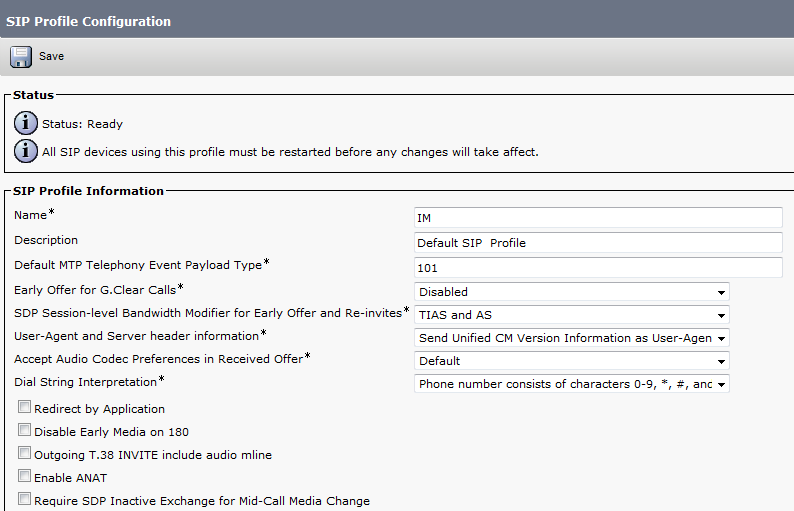
Then Configure SIP Profile
Device – Device Settings – SIP Profile – Copy the Standard SIP Profile
Allow Presentation Sharing using BFCP
3

4

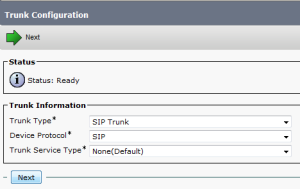
Now Create Trunk to IM and Presence Server
Device – Trunk
2

5

6

7

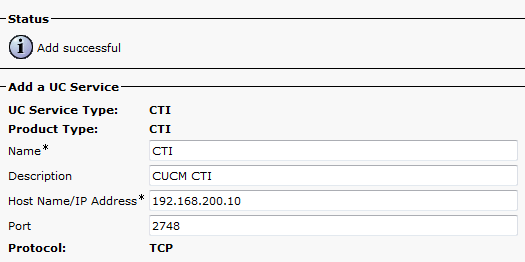
Configure User Service
User Management – User Settings – UC Service – Add Cti, Directory & Presence

When it comes to Directory Integration for user lookup there are two options, EDI and UDS.

EDI – Enhanced Directory Integration requires no configuration by default. If you install Cisco Jabber for Windows on a workstation that is registered to an Active Directory domain, Cisco Jabber for Windows automatically discovers the directory service and connects to a Global Catalog in the domain.

UDS – User Data Service is an interface in Cisco Unified Communications Manager that makes contact information available to Cisco Jabber for Windows.

No server configuration is required for UDS. You create your directory source in Cisco Unified Communications Manager and then synchronize the contact data to Cisco Unified Communications Manager. After the synchronization occurs, your contact data resides in Cisco Unified Communications Manager. Cisco Jabber for Windows then automatically connects to UDS and performs all contact resolution.
8

9

10

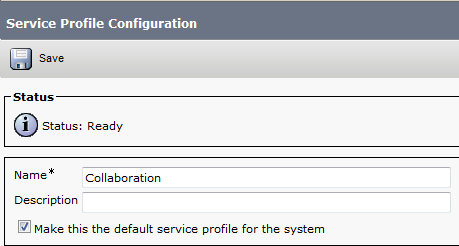
Configure Service Profile
User Management – User Settings -Service Profile
11
User data service is a service that provide access to user informatin stord in the CUCM backend storage. Check the check box if select to use the UDS service provided in CUCM for the directory lookup instead of external directory.
12

13

Create the jabber-config.xml global configuration file.
you can use Jabber Config File Generator to do that or use mine
The following config file enables screen capture, file transfer and video. Potentially malicious files are blocked for file transfer such as exe, msi etc.
UDS is specified to use the Call manager as user search database which I will use in my document.
you can use Jabber Config File Generator to do that
Cisco File Generator:
Available by one of Cisco Web Page member Szelenka
https://supportforums.cisco.com/document/106926/jabber-config-file-generator

14

15

16

17

Upload the file to all TFTP servers, be sure to restart the tftp service on Pub/Subs.

Now Create the User and Assign the Service Profile to it
1

2

Now Create the Jabber Client
Device – Phone
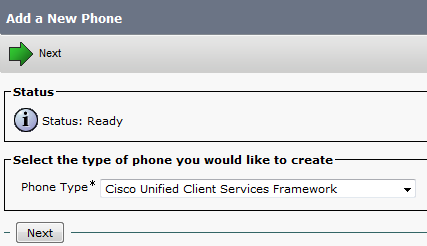
Create a Client Service Framework Device. This is the softphone/desktop sharing used in Jabber for Windows. name it CSFuserid.
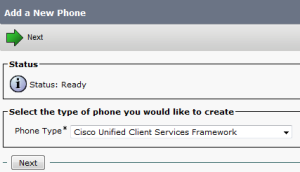
1

2

3

4

5

Goto the end user page. Add the CSF device and any desk phones to the end users device associations.
Add the Standard CTI Enable group.
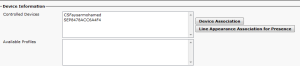
7

1

Last Part in CUCM Side is Service Parameter Configuration
System – Service Parameter – Choose the Server – Cisco Call Manager
Default Inter-Presence Group Subscription : Allow Subscription
IM and Presence Publish Trunk : IM (the trunk i configure earlier)
1

2

Now Let’s Move to CUPS Side
First start the initial Setup
login to Administrator Applications
1
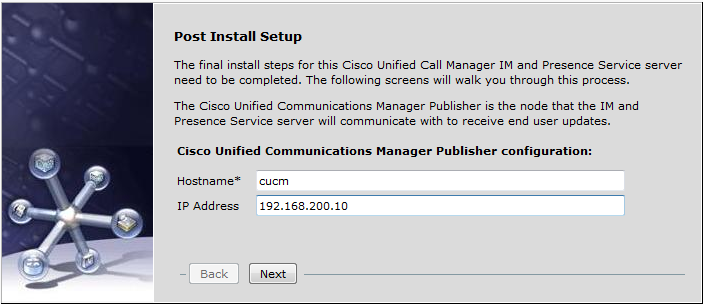
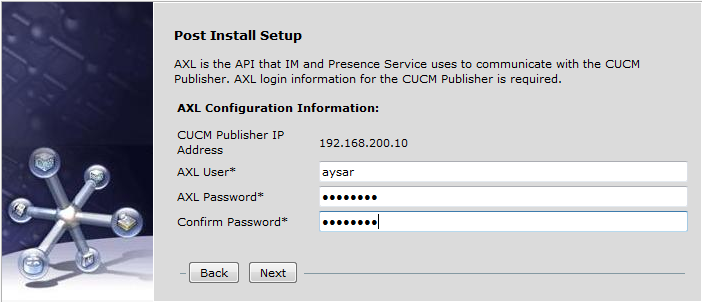
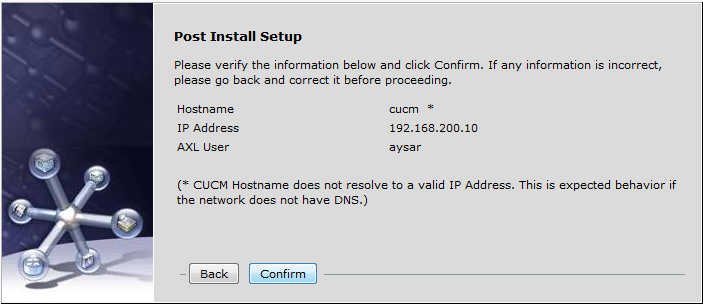
Put the CUCM name and IP Address and put the username and password for AXL Admin
2

3
Then put the security password for the CUCM Cluster dirung cucm installation
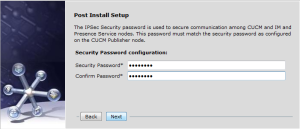
4

5

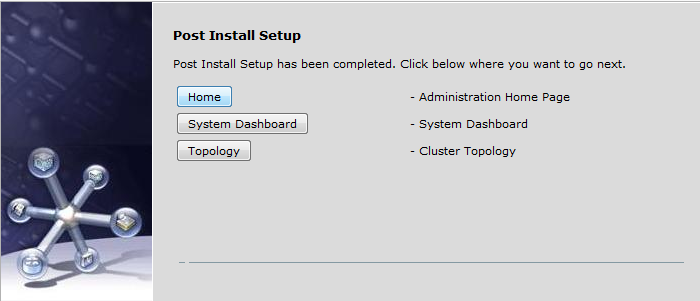
Now press the Home Button so you can go to the Home Page of the Server and like that the initial setup is done
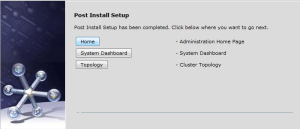
6

First Step to activate the service of the Server
go to Cisco Unified IM and Presence Serviceability in the right corner
Tools – Service Activation

7
Activate all services

Second we go back to the Administration Page
and we need to change the Name of the Server to an IP plus Change the Domain Name
we need to stop 3 Services Before changing the Domain Name
1- Cisco Presence Engine
2- Cisco SIP Proxy
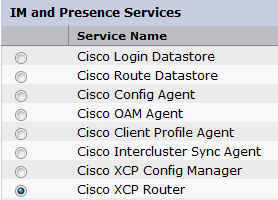
3- Cisco XCP Router
8

9

10
Now we Change the Domain NameSystem – Cluster Topology – Settings
Change the IM and Presence Domain
1

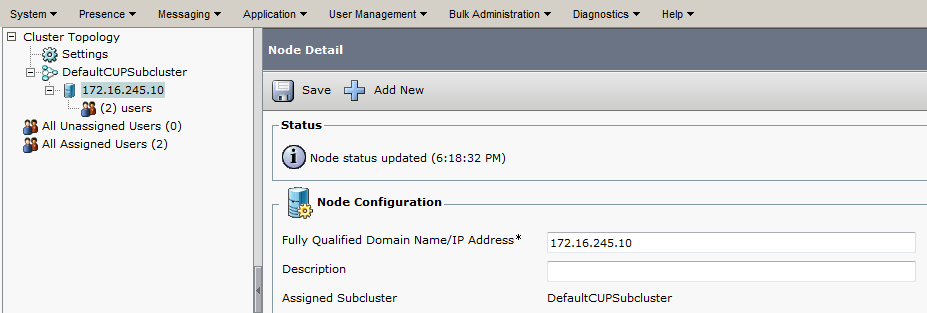
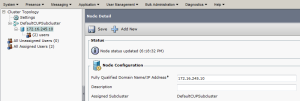
Now Change the IM Name to an IP Address
System – Cluster Topology – DefaultCUPSubcluster – im (which is the name)
Change the Fully Qualified Domain Name/IP Address Filed
2

Now Add A Gateway which is the CUCM Publisher
Presence – Gateway
3

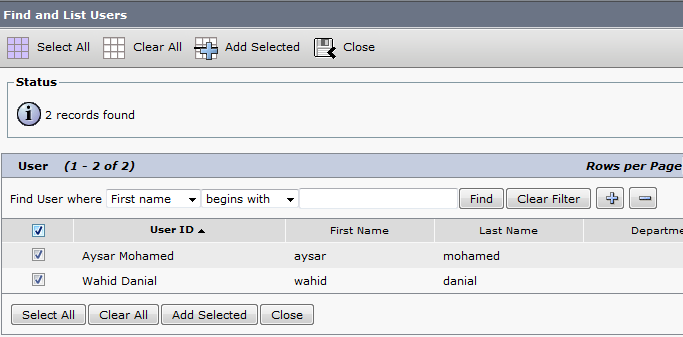
Now Create the CCMCIP Profile and Add User to it
Application – Legacy Client – CCMCIP Profile
4
5

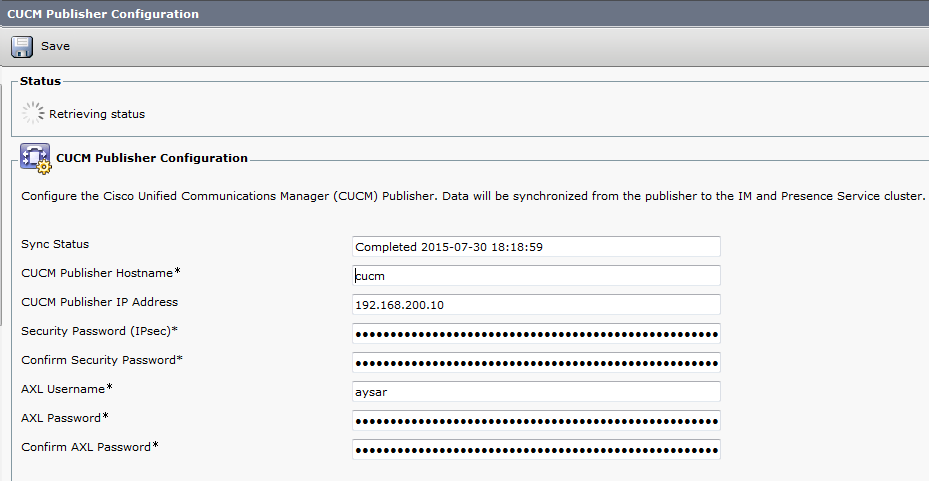
Make Sure the Connectivity Between CUCM & IM is working Fine
System – CUCM Publisher
1

2

To Check Everything Else also
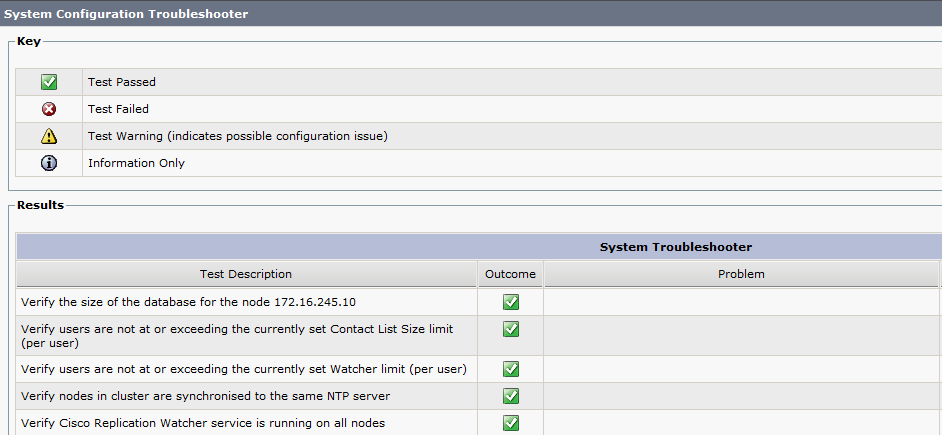
Diagnostics – System Troubleshooter
5
if you find any red or alarm it provide you by a solution too

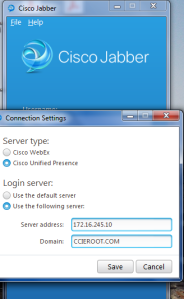
Now all this finish need to check by turn jabber on
Enter the IP Address of IM Server and the Domain Name
1

2

3

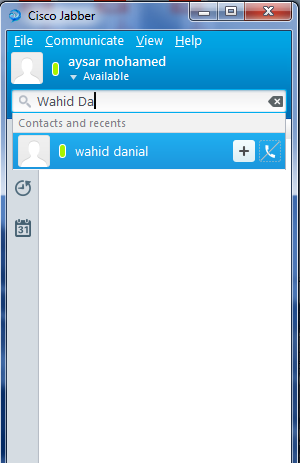
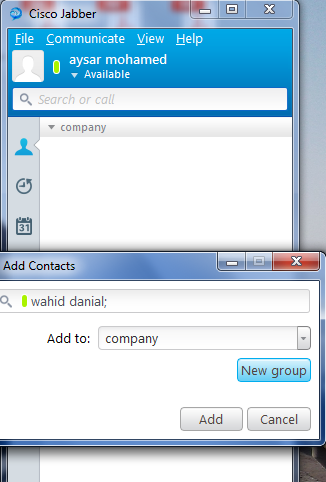
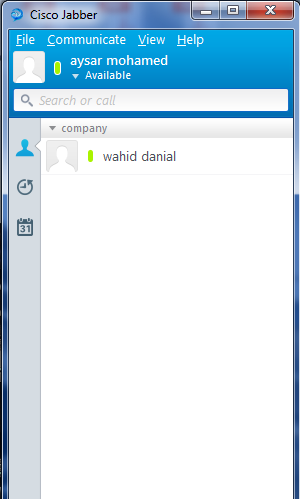
To Add Someone i need to type their names and Add them to a Group
4

5

6

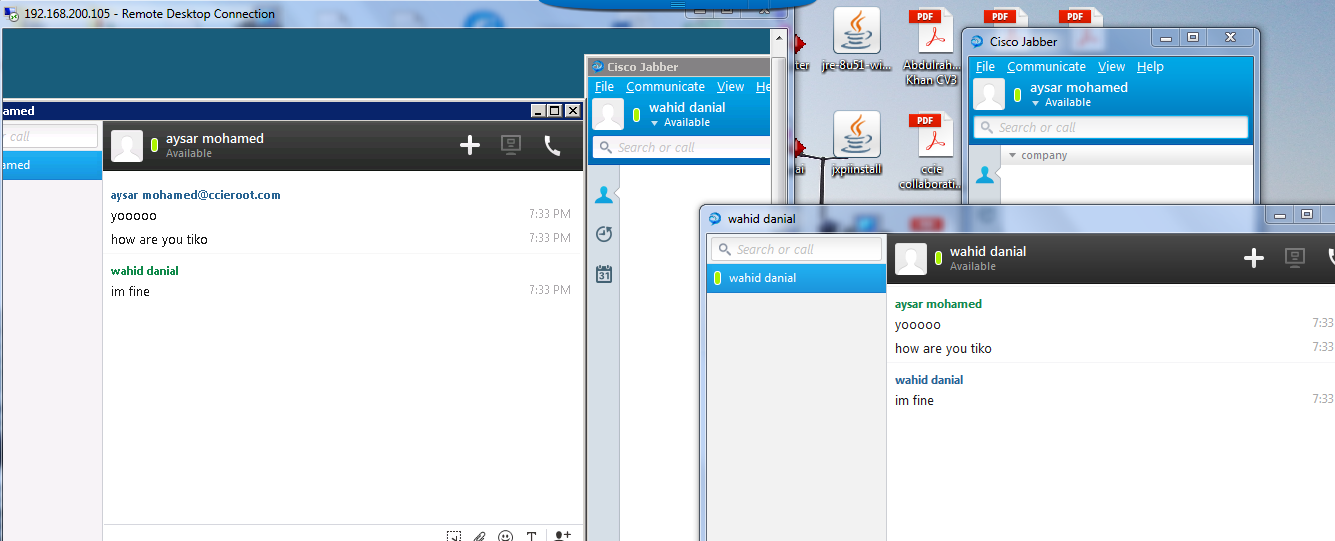
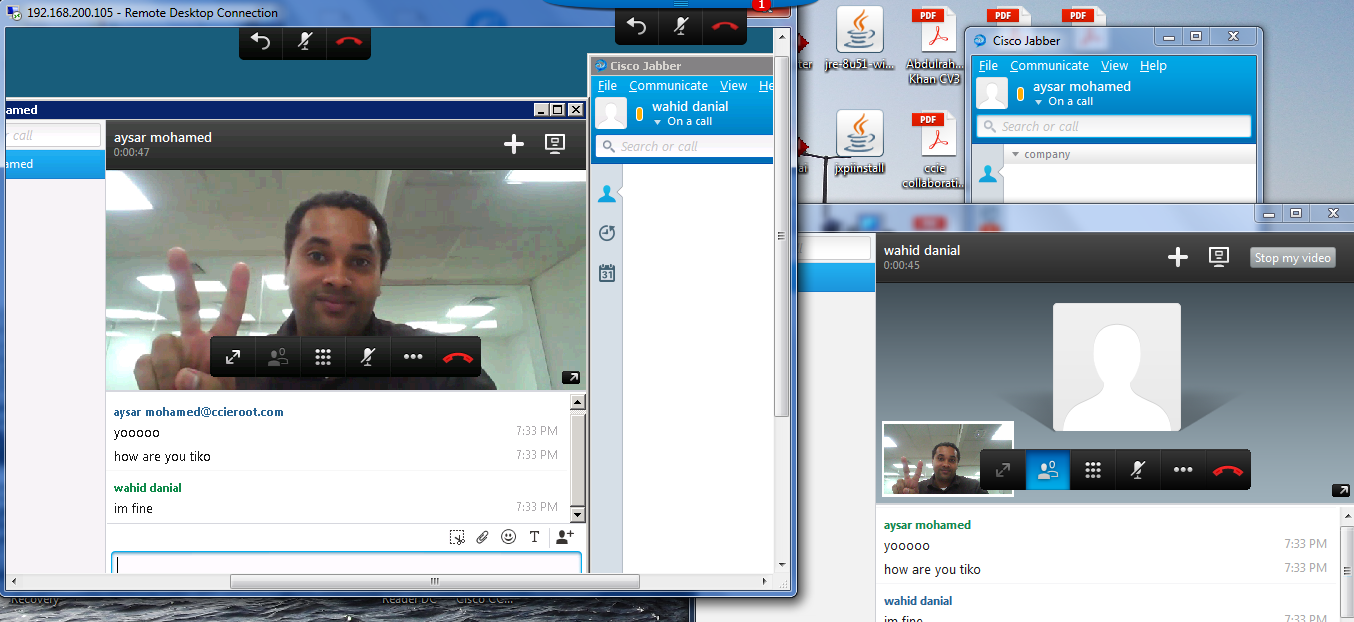
Now i Can Chat with my Friend Wahid Danial and Video Call him
7
8

Note. The Second Video is not working Because the second labtob has no Cam beside Wahid is a Shy Person ;D

Standard