UCCX

UCCX Crashed

“Crashed”
is one of the most word that scare any IT Admin
but don’t worry, any problem have a solution
there is many reason the system could crash, specially the boot order of the System

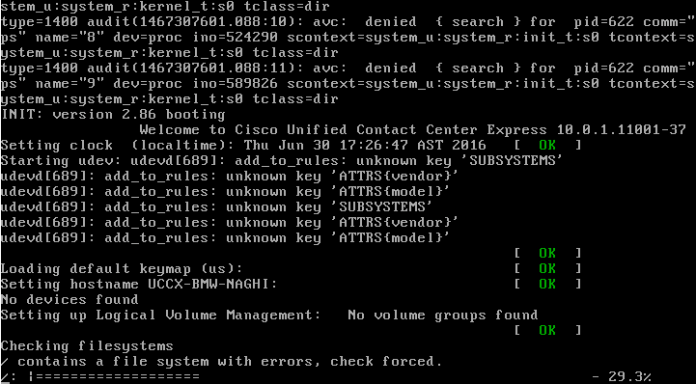
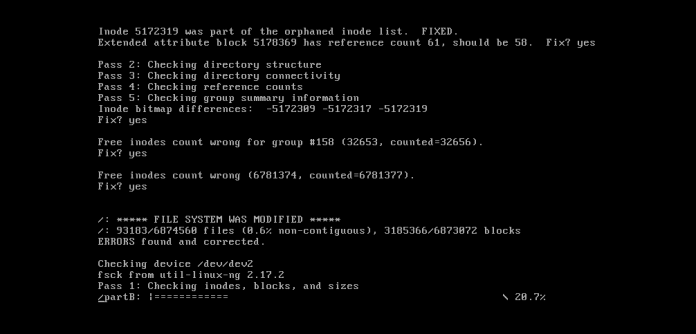
my case was that The Cisco Unified Contact Center Express server is unable to boot. When trying to reboot the server
1.pngthis error message appears regarding inconsistencies in the file system:
2.png
and it will ask you to insert the recovery disk
what you don’t know is the  UCCX has no recovery disk oops
so the solution is to Use the Unified Communications Manager Recovery CD to restore access to the file system. The Unified Communications Manager Recovery CD can be used on any server and application experiencing this issue. This process can be used to recover both Root and Common partition file systems that are affected. First, you need to download the ISO file for the recovery disk
go to cisco web site to download the ISO
Untitled13.png
Download it to your PC
Untitled14.png
Connect to your image in your diskUntitled15.png

Untitled16.png
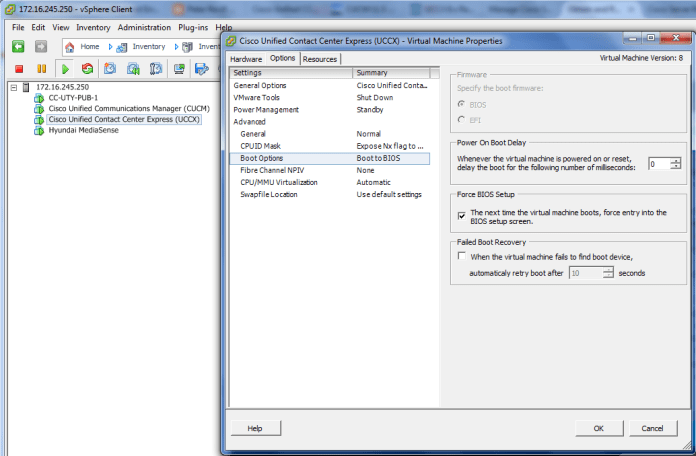
Now Configure your VM to boot from the CD
Untitled2.png
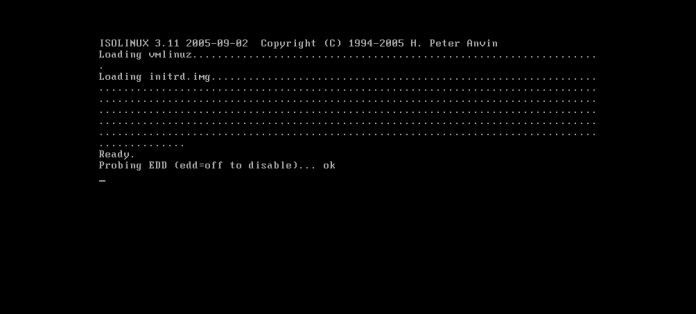
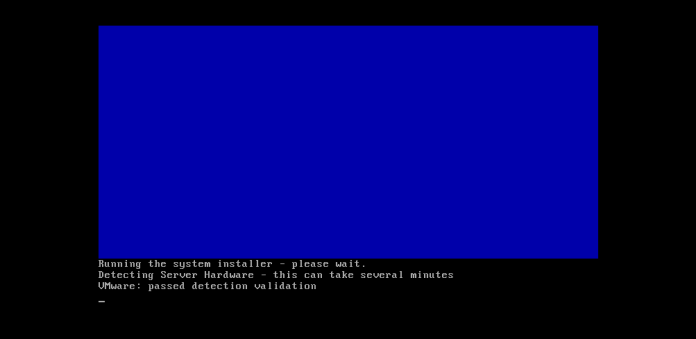
Now Start the Machine
Untitled3.png

Untitled4

Untitled5
Now This menu for the recovery disk appears:
Untitled6Choose option F, and respond YES. This will check and correct the file system automatically.Untitled7
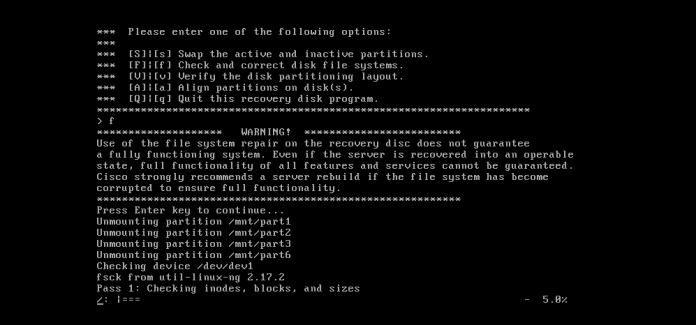
you can see in the last line it say
“ERRORS found and corrected.”Untitled8

Untitled9

Untitled10
Finally, choose option Q to exit the recovery disk program. and Remove the recovery disk and reboot the serverUntitled11
The system should boot normally.
Untitled12
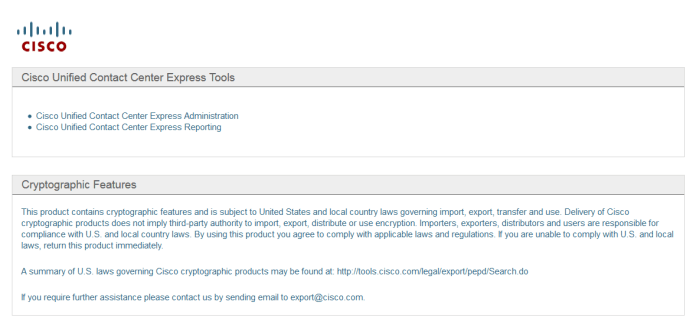
And The Magic Screen Came up Finally
111

Note:  It is highly recommended that you perform a full system backup weekly  ;D

Standard
Prime Collaboration Deployment, Uncategorized, Upgrade CUCM

Upgrade CUCM 8.6 to 11 Using PCD

Performing upgrades and migrations of CUCM has always been a long, manual process that required lots of staging and prepping as well as after-hours work.  With the release of version 10.X Collaboration Suite, a new product called Cisco Prime Collaboration Deployment (PCD) was released.
It allows the user to perform tasks such as migration of older software versions of clusters to new virtual machines, fresh installs, and upgrades on current clusters.In summary automates upgrade and migration task.
Once PCD is installed and configured, it can be used to perform a variety of tasks cutting down on the amount of time and frustration of a large manual migration.

Supported Releases for the Upgrade Task on PCD Version 10.5

These include releases for the upgrade task on the Upgrade Application Server or Install COP files:

  • Cisco Unified CM Releases Supported: 8.6(1-2), 9.0.(1), 9.1(1), 9.1(2), 10.x
  • Cisco Unified Presence (CUP) Releases Supported: 8.6(3), 8.6(4), 8.6(5)
  • Cisco Unified CM – IM and Presence Releases Supported: 9.0(1), 9.1(1), 10.x
  • Cisco Unified Contact Center Express Releases Supported: 9.0(2), 10.x
  • Cisco Unity Connection Releases Supported:
    • From 8.6(x) to 8.6(x)
    • From 8.6(x) to 9.x
    • From 9.x to 9.x
    • From 10.0(1) to 10.x

This document is focused on the upgrade task on PCD Release 10.5.I show in an Earlier post the steps for Installation of PDC https://ccieroot.com/2016/03/23/installation-of-cisco-prime-collaboration-deployment/

I spend the last couple of weeks searching in internet for a way to upgrade from 8.6 to 11 and there was no single resource i could catch to it so i made my OWN

Note.The test been Done on UCSC-C220

So let’s Start
First Download the RSA Keys from Cisco Web Site

RSA keys are used to sign Cisco Unified Communications Manager releases and other updates such as Phone Firmware, Locales, Dialplans, other cop files. This cop can be installed on any UCM or see README for versions needing this cop.
ciscocm.version3-keys.cop.sgn
and put it in your SFTP Folder and Upload to your CUCM 8.6
1
Fill the SFTP Information
2
Choose the RSA Key
3

4

56
Then i will upload the Image to PCD through Filezilla
1
First Create a Site Manager2
Add the IP of your PCD and use Admin username : adminsftp & Password:same one used for web  login in PCD3

4
Press Ok
5
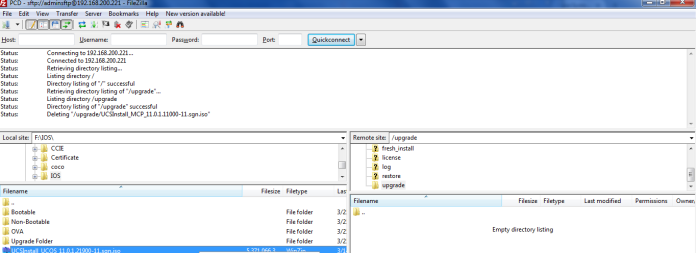
Now you are inside the PCD Directory if you need to upgrade an existing Cluster then copy the ISO to the Upgrade Folder if you want to create a new Cluster then copy the ISO to the Install Folder
In our Case i want to upgrade
1a

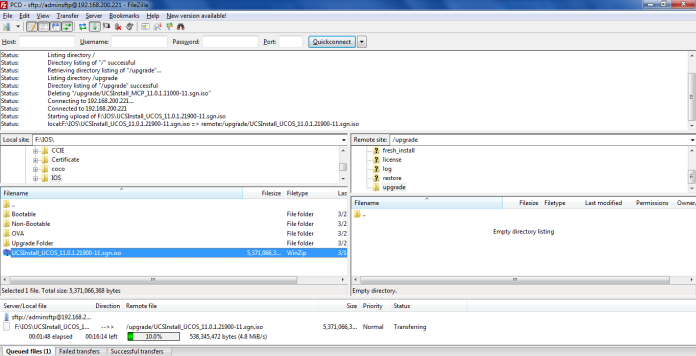
Select the ISO Image and Choose Upload4
Now the Upload Start
5
Now it’s Complete and the ISO Available Under your Upgrade Folder on the right and also you can check your Data store in the web page
4.png
Login to the PCD
232425
I can check my ISO Image from Administrator Tab – SFTP Datastore
6
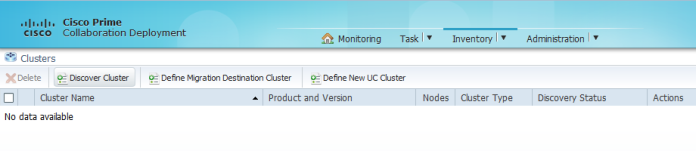
Now To Add a Cluster go to Inventory – Clusters – Discover Cluster1
Fill the Cluster Information2
3
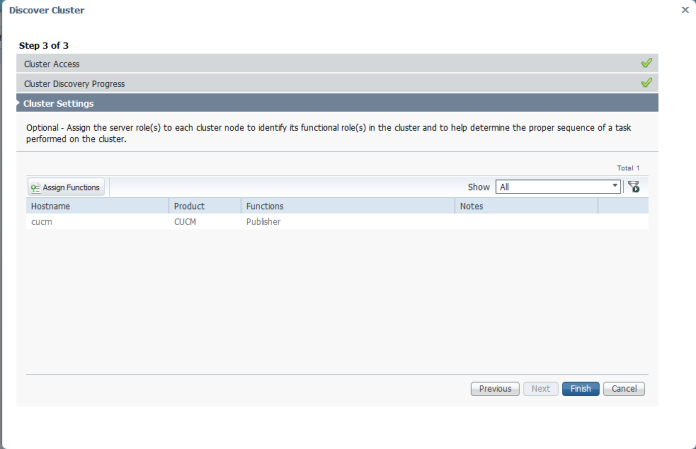
Then Choose to Assign Function to the Server4
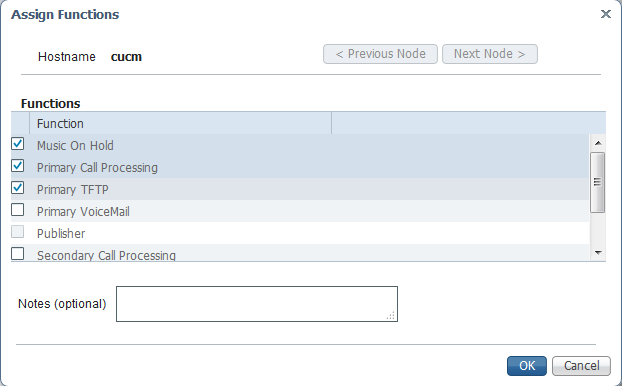
Choose the Function that this CUCM is Providing5
Now we add the Cluster Successfully
6
Next Task is to Upgrade
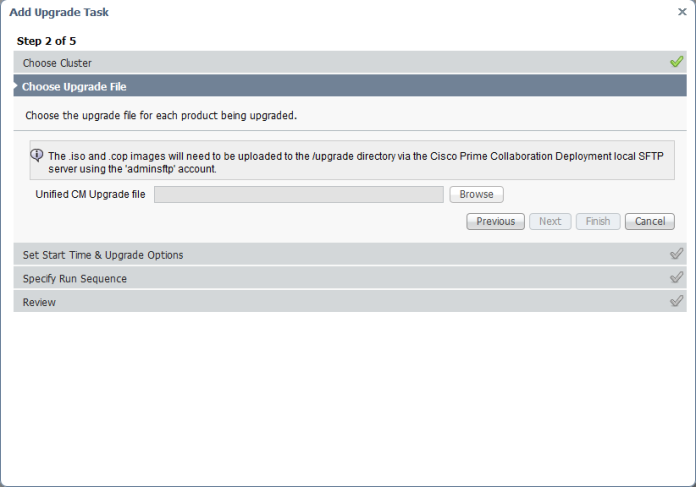
From Task Tab – Upgrade
Then Choose to Add a New Upgrade Task
1
Select from the Drop Down the Cluster and the Product2
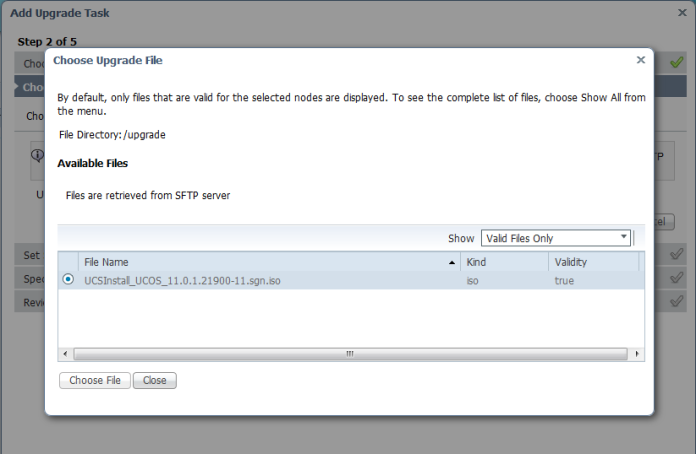
Browse From The SFTP The ISO Image
3
If the Image is not Valid or not Supported it will not Show when you select
“Valid Files Only”7Choose to Start Task Manually or Schedule and Choose Automatically Switch to the new Version After Successful upgrade6
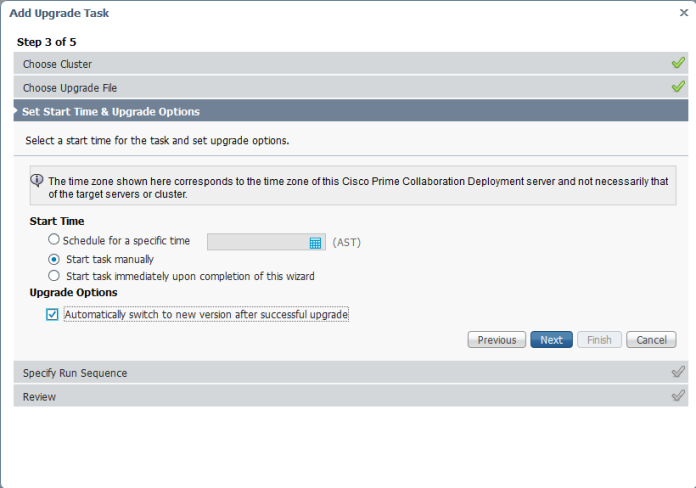
you can Also Specify the Sequence 7
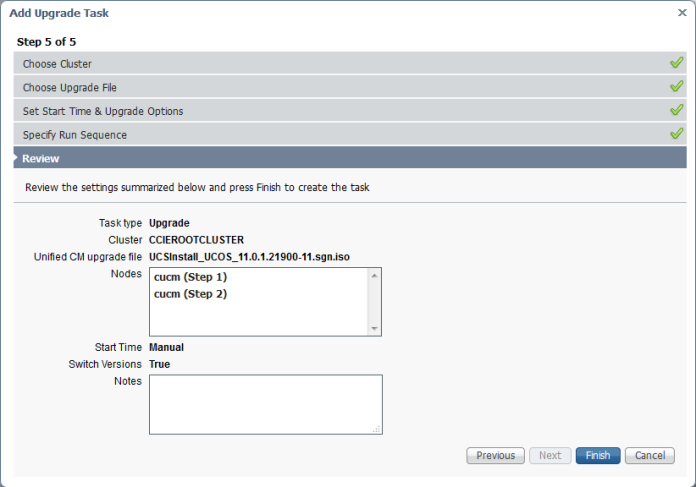
Review the Task Steps5.png
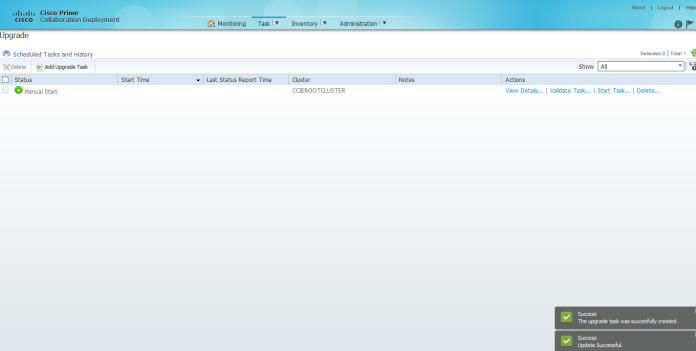
The Task been Added Successfully9
Now go to the right and click on Start Task Immediately 10
From Monitoring Tab you Can see your Task  8.png
or Press View Log and see what happening 12
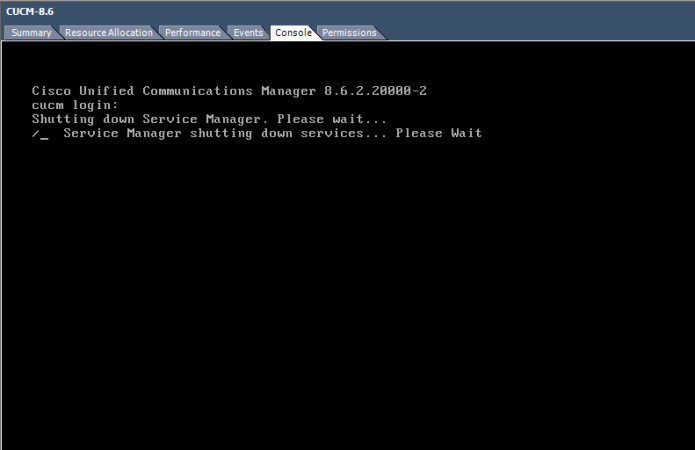
You can Watch the Installation through the CLI Page
the system shutting down
6
Then the Installation Process Start8

9
Now Finally it Finished and it Switched to the New Image 11.0.110.png
And in the monitoring Page it show the task finish successfully on the PCD Page
9.png
Now Login to the Web Page

11.png
and Here the new CUCM Page and it shows the System Version 11.0.1 and you only need to upload the new License
11.png

;D


Standard
CUCM, UCCX

MediaSense Call Recording

Call Center Recording helps organization reliably record and evaluate calls for best training and quality assurance.
Media Sense is a Rich software solution for Cisco IP telephony and Contact Center. It’s provide call recording and live monitoring for Active calls

The Installation is basic just like any Cisco product (CUCM, UCCX …etc)
so i will start by the MediaSense Setup wizard and Requirement

First CUCM Part
create an AXL User I name it mediasense
User Management – Application User
1Second Create a record profile I give it Destination address2
and Assign this to the Agent Directory Number Whom you want to Record
7
now back the phone page & enable the Built in Bridge
Built in Bridge

Most Important Step is to Create a Transcoder and Assign it to the Device pool

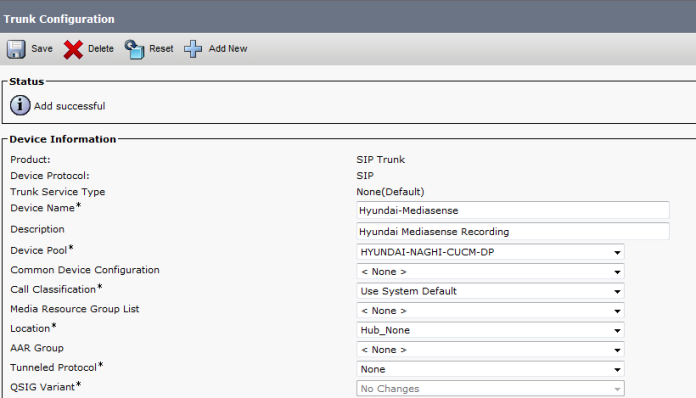
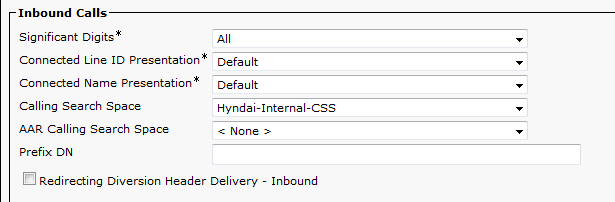
Then Create a SIP Trunk to the MediaSense Server
our MediaSense IP Address is 172.16.245.244345
Last create a Route Pattern to the 399 and Gateway is the MediaSense Trunk that you created earlier6Now Let’s start from the Media Sense Setup Wizard
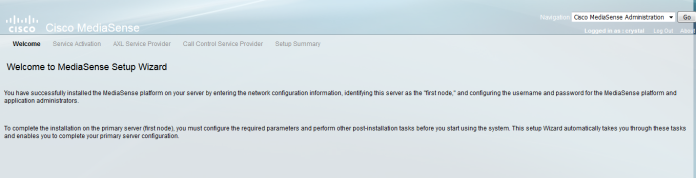
1.png

2

3
Enter the IP Address of the CUCM and AXL username and Password
4
Select the CUCM
5

6
Now you finish and login again
7
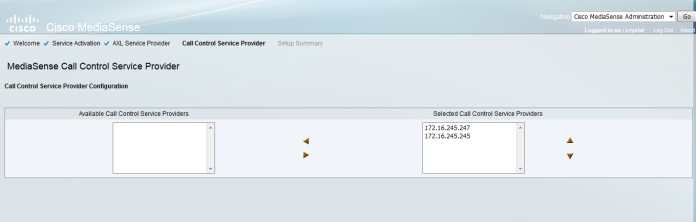
Make sure to select the servers that would work as AXL and Call Control Service Providers 8
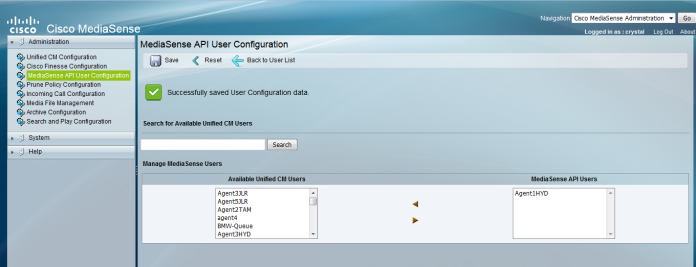
Select the user That would Listen to the recording
9
Choose the Prune policy Configuration
10
Type the Incoming Call rule which is your Destination Address in CUCM 399 and Choose the Action type
11
Most Important is the Archive were you will save your Recording Media12
Now logout and provide your Call Center Supervisor by the link
in our case
https://172.16.245.244:8440/mediasense/login.html

13
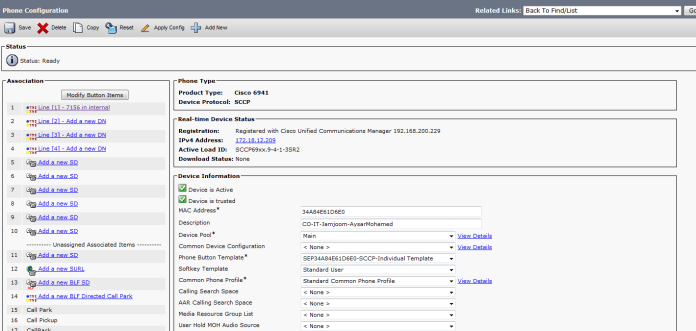
Now as you can see a call been recorded between extension 7156 and 306 under Active Call
111.png
Simple and Easy
MediaSense

;D


Standard
Prime Collaboration Deployment

Installation of Cisco Prime Collaboration Deployment

Cisco Prime Collaboration Deployment is an application designed to assist in the management of Unified Communications applications. It allows the administrator to deploy, upgrade, migrate and move from physical to virtual hardware.
i will show you the step of installation of PCD
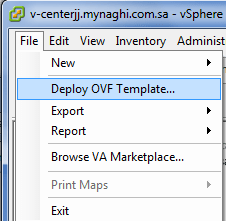
i  have in my Folder the .Ova and .ISO
1
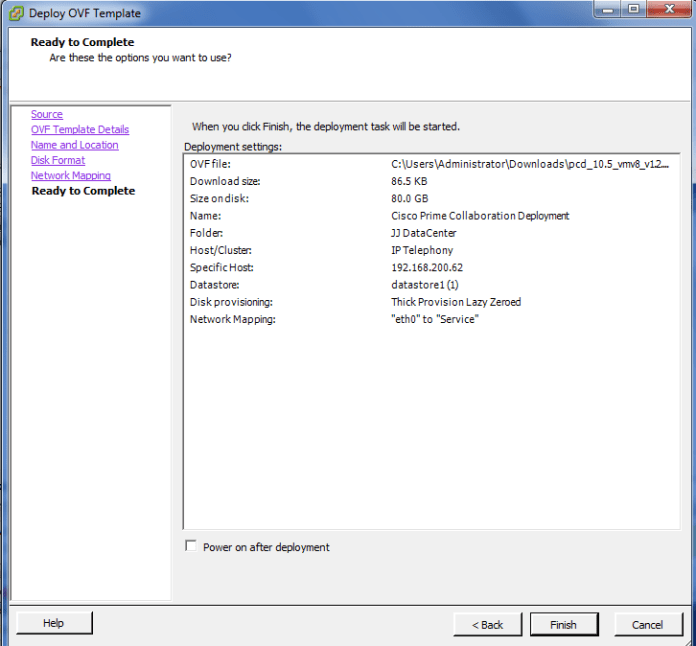
Browse the Location od the Ova
2

3

4

5Choose the Network Adapter
6

7

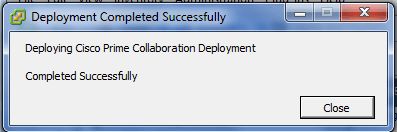
The Machine Created Succesfully
8

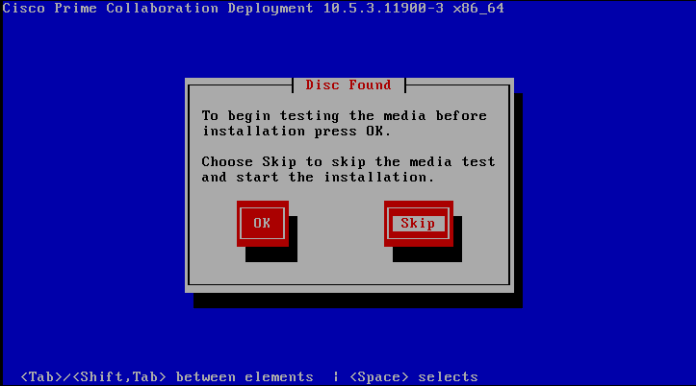
Now Power the Machine after Connect to the ISO9
Skip the CD Checking
10

11

12

13

14
Choose the Correct Time Zone15

16

17

18
Fill the IP Address19

1
Choose a Username and a Password
21
Fill your Organization Information
22
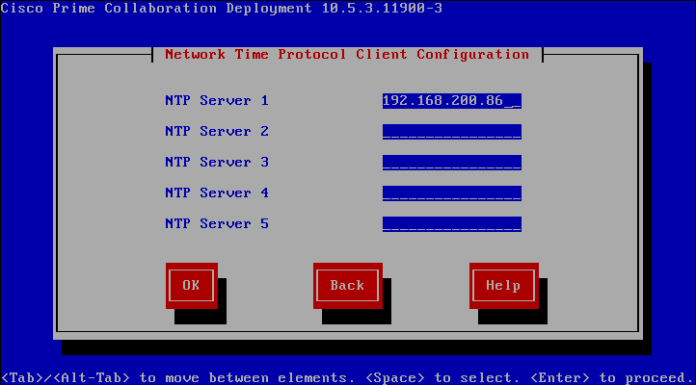
Fill the NTP Field23
Choose your Security Password24Press Ok to start the Installation26and the Installation Complete Successfully22

and that is it my system is up and Running
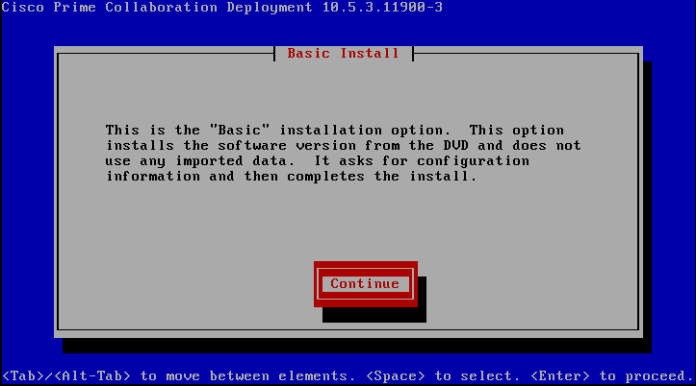
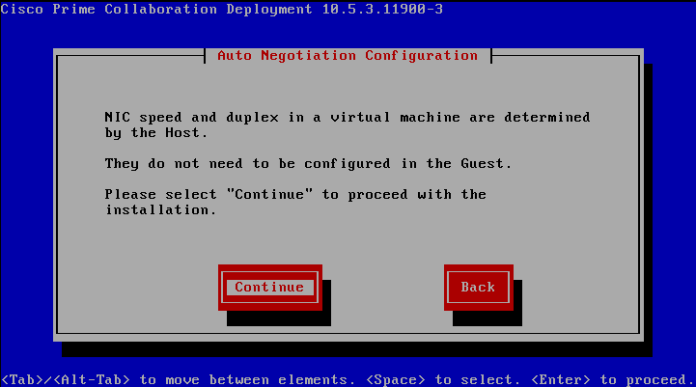
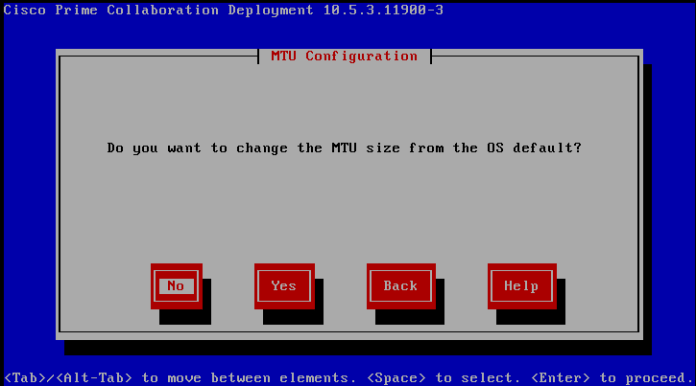
23
24
25
;D
Standard
Upgrade CUCM

Upgrade CUCM 8.6 to CUCM 9

Drive to 9
everyone write about it
This document provides procedures for performing a direct upgrade to Cisco Unified Communications Manager Release 9.1.2 from Releases 8.6.2
i Have the Update ISO and i save it in My File and start my SFTP
UCSInstall_UCOS_UNRST_9.1.2.12900-11.sgn

0.png
you will follow the same step of Updating the Device Package which i show in earlier post https://ccieroot.com/2016/03/10/update-device-package-in-cucm/

1
Fill the Detail of the SFTP
2
Here i Choose the Upgrade Package
Screenshot 2016-03-10 20.54.59
And Now the Downloading StartScreenshot 2016-03-10 20.55.57
After Downloading it will ask to Install and give an option to Switch Direct to 9 and Reboot or not
Screenshot 2016-03-10 21.29.42.png
Now the Installation Start
Screenshot 2016-03-10 21.30.21.pngAfter it finish the system will Reboot and Walla your CUCM Reach the 9  ;DScreenshot 2016-03-10 22.37.06.png

9.1.2.png
9.1.2       ;D

Standard
Device Package

Update Device Package in CUCM

Ever face a Problem with Adding a new Model IP Phone to your Environment such as 8845, 8865 ?
will Luckily Cisco always care about her customer and support them with upgrading their device package always
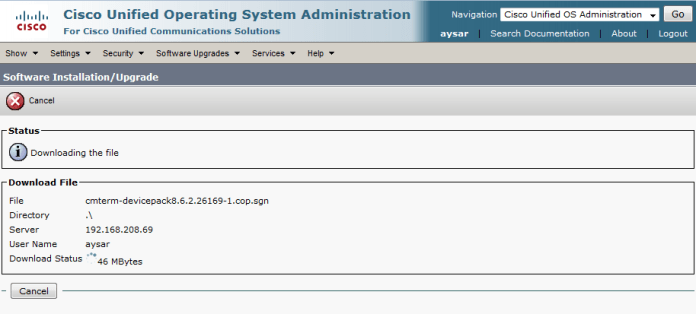
it’s available in the latest Device Package cmterm-devicepack8.6.2.26169-1.cop.sgn Which can be downloaded from Cisco Software download https://software.cisco.com/download/navigator.html?i=!mmd

I will show you the steps to Upgrade your Device Package
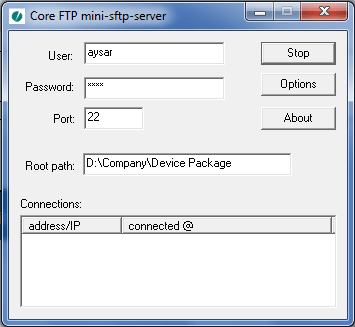
First Turn on your TFTP were you have your Device Package
3
Then Login to your CUCM OS Admin Page
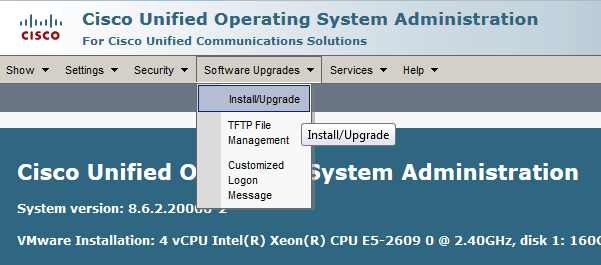
The Choose Software upgrades – Install/Upgrade
1
Then Fill the Detail of the SFTP in CUCM page
2
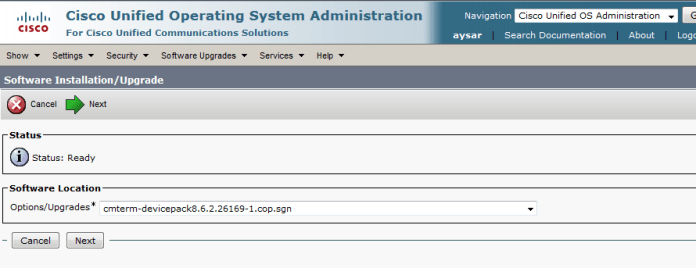
Press Next and choose the Device Package you want
4
Press Next and the Downloading of the Device package Start5
After the Downloading is done it will ask to Install it
6

7
Now After it Finish you need to Restart the TFTP Service
go to Cisco unified Serviceability – Tools – Control Center  Feature Services and Restart the TFTP Service
in case of a big cluster you  need to add the Device Package to each server and Restart them starting by the Publisher
advice always do this after Duty  ;D

and Finally will find that you can add your new IP Phone Model 8845, 8865
8.png
;D

Standard
Windows

Configure DHCP on Windows

In Earlier post i Show you how to add a DHCP on IOS Router with Option 150 to provide the TFTP IP Address for the IP Phone https://ccieroot.com/2016/03/10/configure-dhcp-on-ios/

Today i will show you how to configure a DHCP it in Windows Server 2008
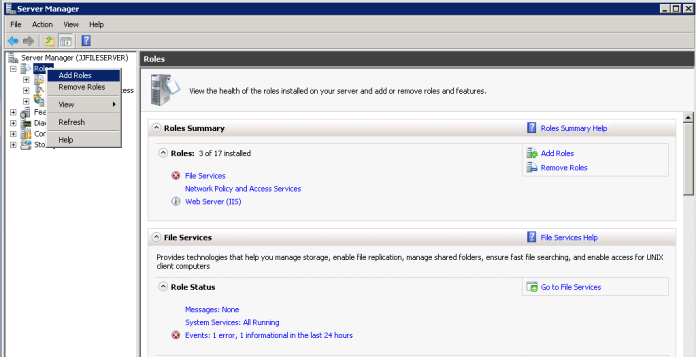
First in Server Manager i go to Roles and Add New Roles
1

2I Choose DHCP Server3

Define the DNS4
Define the DHCP Scope5
Define the Credentials for Authorize the DHCP6
Last is the Installation Confirmation7
Now when i start the DHCP it will show an Arrow Sign to Down
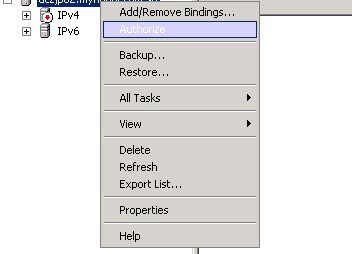
I Have to Authorize it
11
and Like that the DHCP is ready
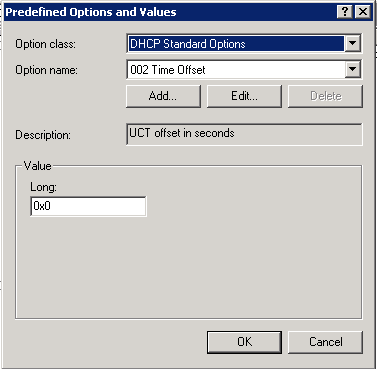
Since this Scope will support Both Data and VOIP i should add a new option 150 to support the phone and provide them  with their TFTP IP Address
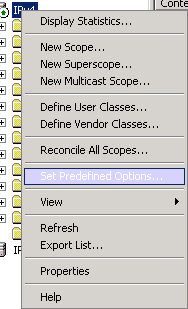
First go to IPv4 and Set Predefined Option
12
Add the New option
13
Name: Cisco
Data Type: IP Address
Check Mark on Array
Code:150
Description:Cisco IP Phone
14
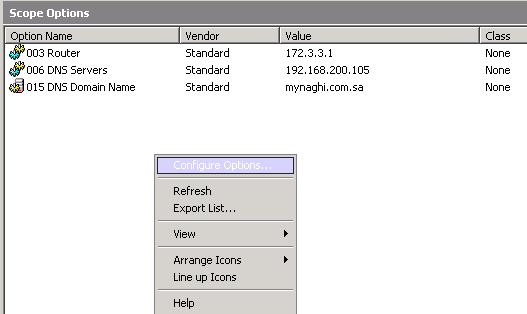
Now Right Click on your Scop and Choose Configure options15
Check Mark on the Option that you Add and Select the Write the IP Address of your TFTP
in out Case it’s 192.168.200.10 which is our Publisher
16
Now Define a VLAN in the Core Switch17
and configure a Veritual  Interface for the Same Vlan and Define the DHCP by the Command “IP Helper-Address”
18
Last Configure the Port were the User PC and IP Phone is Connected
19
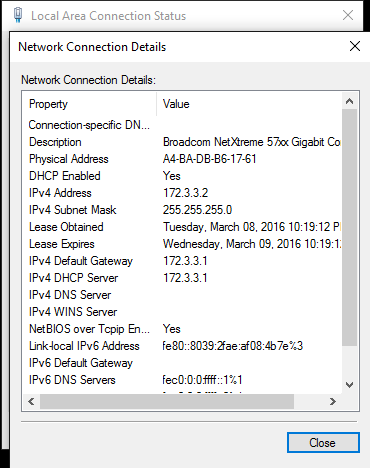
Now COnfirm the PC is taking the IP Address from the Same VLAN

10

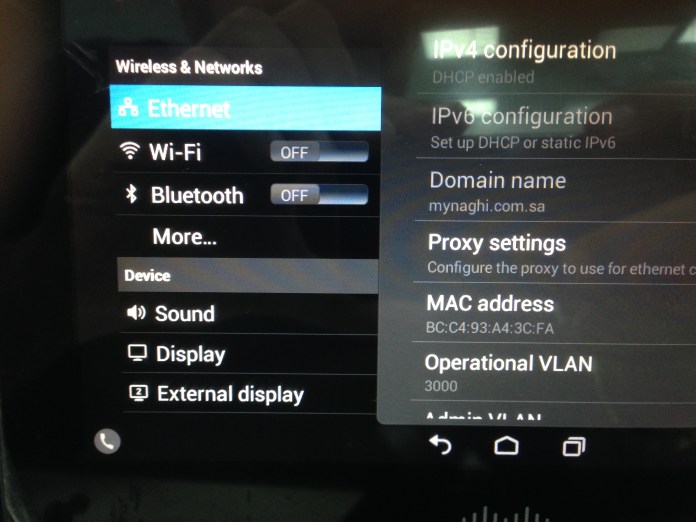
And Also the IP Phone is taking the Correct IP Address and VLAN and the TFTP ConfigurationPhoto Mar 10, 6 47 40 PMPhoto Mar 10, 6 48 52 PM

Photo Mar 10, 7 35 04 PM.jpg

Standard
DHCP, IOS

Configure DHCP on IOS

this post will walk you through configuring a Cisco Router to serve as a DHCP server for client

I Define two pool one for Data and name it CCIEROOTDATA and second pool for IP Phone Name CCIEROOTVOIP

we define the dhcp pool by the command:
IP DHCP Pool “name”
then define the Network Subnet by Network command
third  Default router which is their Gateway and last is the DNS
for voice we add extra command “option 150” which is the IP Phone TFTP
in our case its also the Publisher IP Address 192.168.200.10
1
Then Configure Different VLAN for DATA and VOIP on our CORE Switch
2
Third we configure two Virtual interface for Each VLAN
4
Last Configure the Access Port that connect to the User PC & IP Phone
3

Now Confirm the PC took the Correct IP Address from the Correct VLAN 3000

10

and IP Phone DX650 took the correct VLAN 3001
Photo Mar 10, 5 55 51 PM

and the TFTP Configuration Showing Correctly
Photo Mar 10, 6 48 52 PM.jpg
The IP Phone Took the Correct IP Address Configuration
Photo Mar 10, 5 59 47 PM

and this is the steps to configure DHCP in IOS

Standard
Troubleshooting, Upgrade Software

Troubleshoot Access Point Not Joining a Wireless LAN Controller

have you face a problem installing a new Access Point Model
A week ago i Receive a new Access Point Model 1702I and as always insert the join command to the controller and it reject to join the Team and after hour of debugging i found out that my WLC software 7.4.110.0 is not supported for this Model

900

you can check this link from Cisco to check which software could support your Access Point http://www.cisco.com/c/en/us/td/docs/wireless/controller/release/notes/crn80mr2.html

So i open a ticket with Cisco TAC and let me tell you i always enjoy working with such an Expert like Cisco TAC

I show in earlier blog how to install WLC

First i need to download the Image from Cisco Web Site https://software.cisco.com/download/navigator.html?i=!mmd

and Navigate to your WLC Model, we have 5508 but you should have a valid service contract 1i Choose the WLC Software
2

and i Choose the Firmware that Cisco Suggested Depend on Software quality, Stability and Longevity. i think this a new Cisco thing since i didn’t see this option last year were they suggest which one is better3

4
I Download it to my Laptop and Save it to a folder and used a TFTPD32 Open SOurce software which can be downloaded from http://tftpd32.jounin.net/
5
then in the WLC i go to Command Tab and choose Download
File Type: Code
Transfer Mode: TFTP
Server Detail
IP Address: My TFTP IP Address in my case (192.168.208.69)
File Path: /
File Name: My Software Name in my Case (AIR-CT5500-K9-8-0-121-0.aes)
Then Press Download
6
you can see the under the TFTP transfer procces start in the TFTD32 Software and also in the Command Download Page in WLC
78
it took almost over 40 minute then go to Commands Tab then CHoose Config Boot You will see that the Primary Image Change from 7.4.110.0 to 8.0.121.0
9
Now i need to Reboot the WLC to make the New Image act as the Active one
Save and Reboot
10
After the Reboot go to the Monitor Tab then look in the Controller Sumary and the Software Version Change also to 8.0.121.0
11
you can also go to Command Tab then Config Boot you will see that the New Image become Active
12
After that the wireless Start to download the new firmware and reboot13
Under Wireless Tab you can see the Operational Status for the Acess point is “Downloading”
14
and now All my Access Point is Okay15
and the new Primary SW Version is also 8.0.121.0
16
now to make sure my New Access point will Join the Team
first i configure the switch Port as normal
20
Then plug the Access Point and it start to take the new configurtion without any Debug Error
22
and i finally made another customer happy   ;D


Standard
Wireless, WLC

Installation of Virtual Wireless Controller (vWLC)

Iknow
I’m far away from Collaboration, but this what happen when you are an Infrastructure Engineering.
So The Virtual Wireless LAN Controller (vWLC) runs on Virtualization infrastructure. it’s ideal for small and mid−size deployments.

Today i will explain The Basic installation of vWLC on ESXi server
First need to download the OVA from Cisco web Site https://software.cisco.com/download/navigator.html?i=!mmd
Choose Virtual Wireless Controller
100
and Choose the Version that you need
101
i had old OVA in my PC so i didn’t download anything version 7.3.101
second we need to create two separate VSwitch
my ESXi server IP Address: 192.168.208.48
1
Select Virtual Machine
2
Choose the Network Card3
this is for Management Interface and for Vlan select ALL(4095) since this is connected to a switch trunk port
4

6
Do the Same for Service Port but choose None (0) for VLAN ID as the service port is typically an access port
6A
Now you can see both card
103
go to properties of the vSwitch1 were WLC is there and go to Security Tab and for Promiscuous Mode choose to Accept
104
Now start Deploy the OVA Template
7
Navigate to the Folder were i have my OVA
8
Next
9

10
Choose a Name for your Machine
11
Choose the Default Thick Provision Lazy Zeroed
111
Here Choose WLC were your NIC Card Configured for Management
13
Accept
14
Now the Machine is been created
15
for the first network Adapter just select the Service Port 15A
Now Power the Machine for the setup and monitor the Monitor till the vWLC has restarted Automatically16
then Start the Welcome Cisco Wizard
Choose you admin name
IP Address for Service & Management and DHCP
17
Also Choose the Virtual Gateway IP Address and Define your Mobility Group and NTP
if YES in Capital Letter you don’t need to write it cause its the default then you just need to Pres Enter18
Now it Ask you to Save
19
Now it will Reload
20
you can check your IP Configuration after login by using the Command
“Show Interface Summary”
20A
in the Web Page enter the IP Address that you Choose
HTTPS://192.168.200.25021
Press Login and it will ask you for Username and Password22
The First thing you will Notice that
0 Access Point Supported so we need to activate the Evaluation License23
Go to Management Tab and Choose Software Activation then License24
Open the base-ap-count and set the Priority to HIGH25
Accept the (EULA)
26
and Reboot so it will be Activated27
Now you can see the Different
200 Access point Supported28
Also you can check the Licenses base-ap-count status
28A
Now go to WLAN Tab and you can see the SSID Wireless that we Create in the Welcome Wizard but I will Create a New SSID from the option in the right corner
Create New Press the GO Button
29
Choose the Profile Name and SSID
30
Check Mark the Status box to enable
31
since this is a Lab we don’t need to put any Security so i choose None
32
Now lets Create an Interface
go to Controller Tab then Interfaces Create New
33
Choose Interface Name and Choose the VLAN ID
34
Now enter the full detail for the Vlan
VLAN Identifier
IP Addresses
and DHCP Address
35
Now I create Groups and assign the AP to a specific Group were it Broadcast specific wireless. we only have one and all SSID is under the Default Group but we will create a New one
Go Back to WLANs Tab then Advanced – AP Group – Create New
32A
Give it a Name and a Description
32B32C
Assign an SSID and Map it to an Interface and Save
32D
Now Start the Action with my Lab Access Point 1242AG
i know its old but old is gold so 36
I didn’t configure any DHCP Option for my WLC so i will use my magic Command to direct my AP to the controller
>lwapp ap controller ip address 192.168.200.250
and as you can see the Wireless start send request to the WLC and going to Download the firmware
37
Now under Wireless Tab i can see my Access Point i will change the AP Mode to FlexConnect since this is the mode supported by vWLC38
go to High Availability Tab and Enter the Controller name and IP Address
39
in Advanced Tab Choose the AP Group Name and change it to HQ group then Apply the wireless should reload and start to broadcast our SSID CCIEROOT40
AND HOLLA NOW I’M CONNECTED
41
i can go to Monitor tab in WLC and check the Client Summary
Click on Detail to See the Client42
and those my IPhone Mac Address and My Dell Laptop43
Done  ;D

Standard