Firewall, Palo Alto, Security

Palo Alto High Availability

Down Time is not Acceptable in Any Environment
And here were the term High Availability comes to play.

To Configure the high availability in Palo Alto you need to have Two Links in each device, one for the Control Link (HA1) and one for Data Link (HA2)
both Palo Alto Device Exchange a hello message and a Heartbeat through the Control Link (HA1). if any of that not receive the Backup Palo Alto Peer will Assume that the Active Peer is Down and Take Control
(Note. this Scenario is on Active/Passive Mode)
be Aware that Both Palo Alto Device should have the Prerequisite:
1- Same model
2- Same interfaces
3- Same PAN-OS
4- License

well i’m working here on PAN-OS 7.0.1
My Active Palo Alto IP Address: 192.158.208.222
My Passive Palo Alto IP Address: 192.168.208.111

So i Show you earlier how to configure Palo Alto from scratch in the earlier Blog
Now I add extra Network card for the (HA1) & (HA2)
So to Configure the Palo Alto interface
Go to Network – Interface – Select interface
Ethernet 1/3 will represent HA1
Ethernet 1/4 will represent HA2
1

2
Now to Peer Configuration
so i Give the Active Peer IP Address
192.168.209.140 (HA1)
192.168.209.142 (HA2)
and for the Passive Peer
192.168.209.141(HA1)
192.168.209.143 (HA2)
Go to Device – High Availability – General Tab – Setup settings
Enable HA and choose a Group ID and fill the Peer IP Address and choose the mode
3
Then go to Control link (HA1 Configuration) and Choose my Ethernet 1/3 as the HA1 and put the IP Address 192.168.209.140 and Netmask
4
After that i go to my Data Link (HA2) and Enable the Session for Synchronization and Put the IP Address i choose earlier 192.168.209.142 and Netmask and Gateway and for my Transport i select IP
5
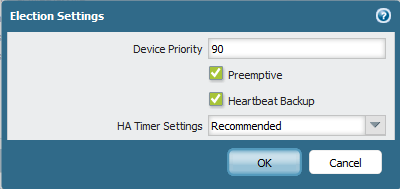
Now to Election setting and to make Sure that 192.168.208.222 is the Active one i have to Put a Lower Priority
The Default is 100 so i Configure it to 90 and select Preemptive and heartbeat Backup (Heartbeat backup use the management interface which protect against Split Brain)
6.png
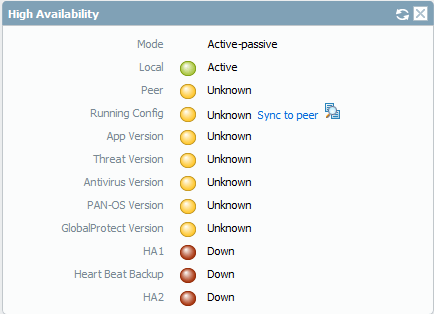
now go to Dashboard Tab – widgets – System – and Select HIGH Availability
so i can see the status in the Dashboard
7
and as you can see the status is so red
9
Now in the Other Peer i need to Configure the Same Interfaces for HA1 & HA2 and same configuration for HIGH Availability except the IP Addressing and for Election Setting i will just keep it the default
and then go Back to the Active Peer 192.168.208.222  and you will see the HA1 & HA2 turn to Green and now choose to Sync to Peer
10.png
It will Ask you to Overwrite Peer Configuration just Select yes
11
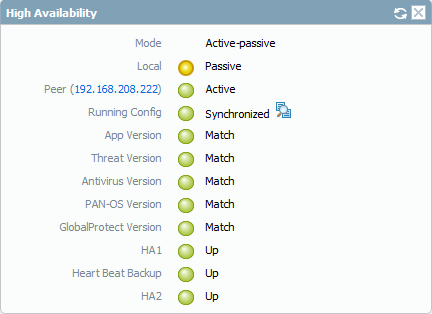
And now All our Configuration is Synchronized
13
Go to Passive Peer and you will See the Local Peer is the Passive
and the Active is 192.168.208.222
14
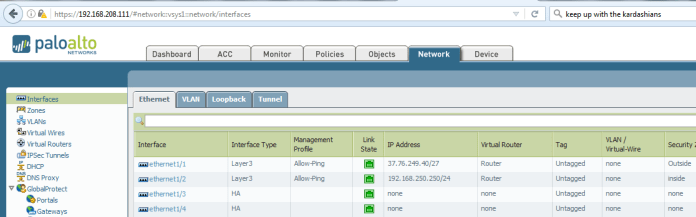
if you check the Passive Network interface you find it’s Red 15
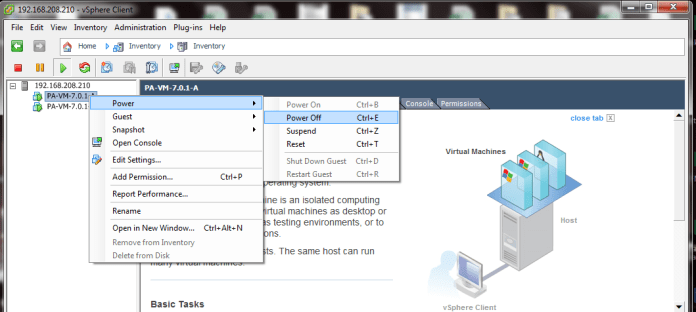
And now to Test it i will ping  8.8.8.8 Non Stop and power off the Active Peer16
and as you can see it just took only 3 request timeout which less than 6 second and user will not notice itqqq
and if you check the System log in Dashboard you will see your passive peer notice the HA1 Control Link Went Down and the Passive become the Active
20
And our Red Interfaces Become Green21

by default link monitor enable on all links but if you want to specify the important link like Trust, Untrust and DMZ then
Go to Device - High Availability - Link and Path Monitoring - Link Group
add those interface to it
;D
Standard
Palo Alto

Palo Alto LDAP Integration (Agentless User-ID)

Active Directory Integration
In earlier Blog Palo Alto to Internet we configure how to Allow users to go to the Internet. Now Active directory allow me to control who can have an access to internet Per User and also monitor exactly whom watching who and this is the configuration

Let’s start by Microsoft Side
lets start by creating a user in the Active Directory for the mapping integration
go to Tools – Active Directory Users and Computers
9
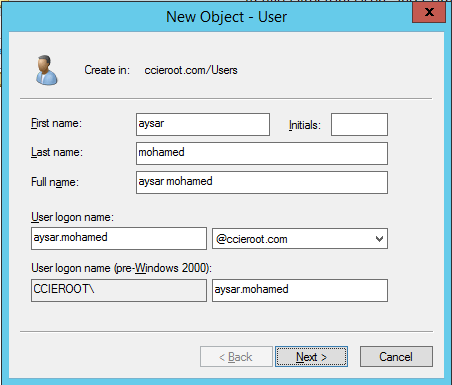
Go to the user container and right click New – User10
i created a user aysar.mohamed@ccieroot.com
11
put the password and since this is an integration user no need to change the password and to never expire
12
Click Finish
13
go to the user settings
14
go to the member tab
the user should be Member of :
(Distribute COM User, Event Log Readers, Server Operation)
15
In Windows 2003, the service account must be given the “Audit and manage security log” user right through a group policy. Making the account a member of the Domain Administrators group provides rights for all operations. The built-in group named “Event Log Readers” is not available in Windows 2003.
Add those Group
16
Press OK
17
Second we need to check if the Domain configure to log successful logon
Open Group Policy Management
3
Then select Domains – ccieroot.com – Default Domain Policy – edit
4
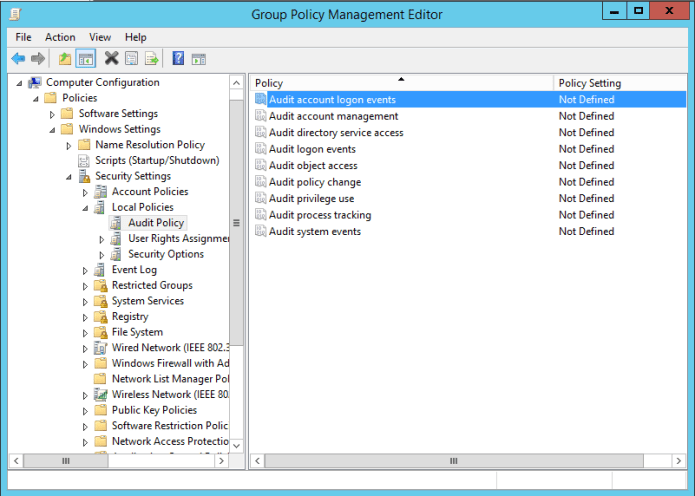
go to Computer Configuration – Windows Settings – Security Settings – Local Policies – Audit Policy
Select Audit Account logon events
5
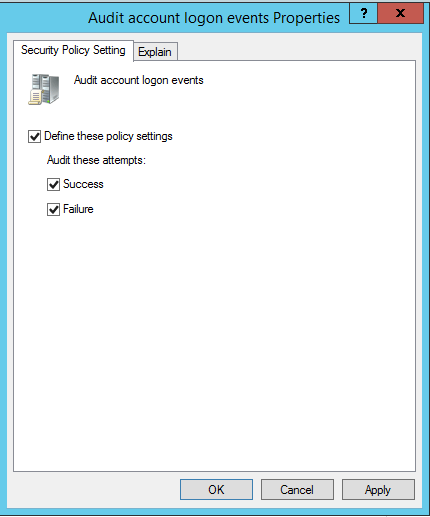
Check box Define these Policy settings
Success & Failure
6
Now it’s about time to update the policy
Go to cmd and update the policy using the command (gpupdate)7
then do the WMI Authentication part as The device uses WMI Authentication and the user must modify the CIMV2 security properties on the AD server that connects to the device.
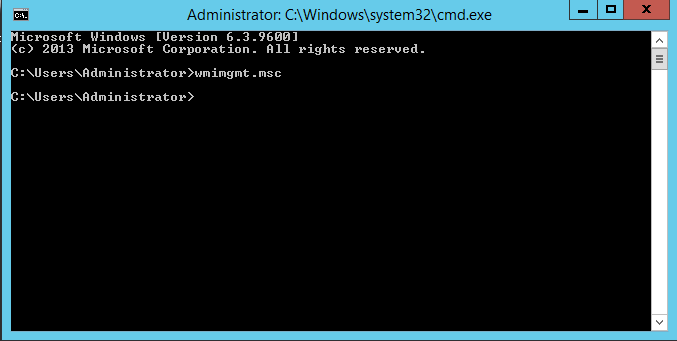
go to cmd and input the command (wmimgmt.msc)
18
Right Click and select properties
19
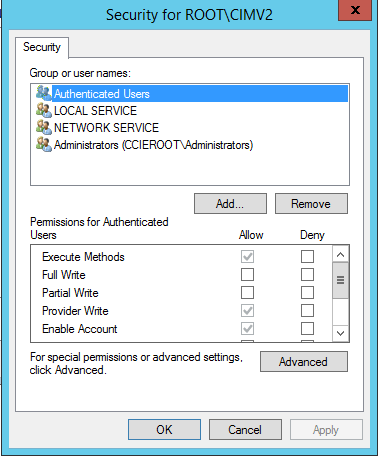
go to Security Tab – Root – CIMV2 and click on Security button
20
click on Add to add the user (aysar.mohamed) that i created earlier
21

22
and give him permission:
Enable Account
Remote Enable
23

Now The Palo Alto Side
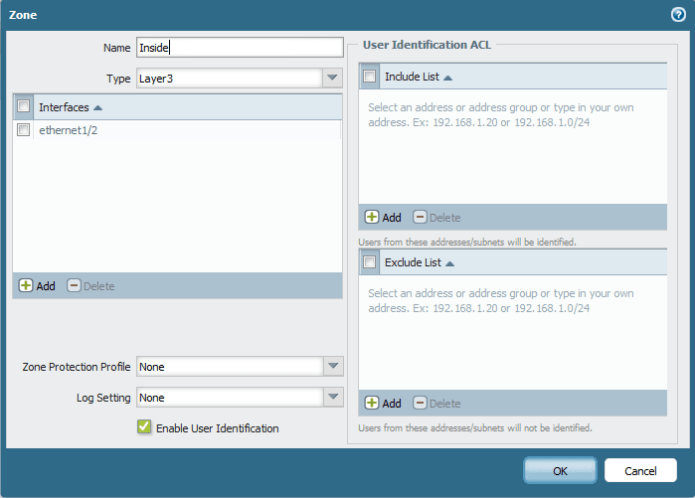
1st check the Internal Zone to have User-ID Enabled
90
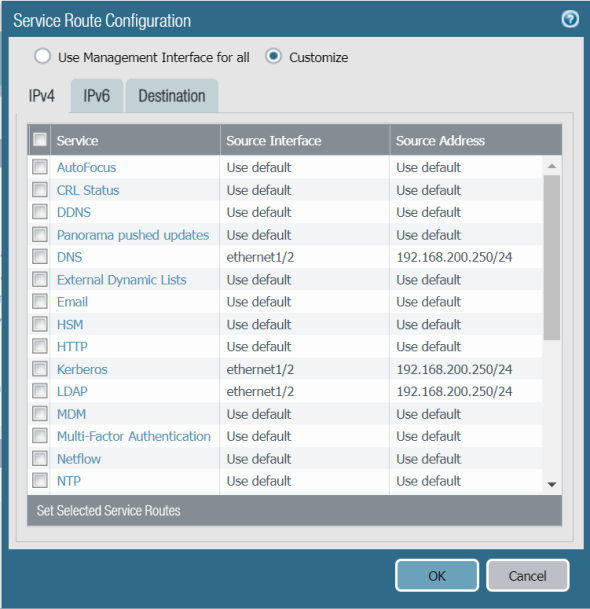
Second make sure the Service route is configure to use the Inside Network for (LDAP, DNS and Kerberos)
go to Device – Setup – Service Feature – Customize
000

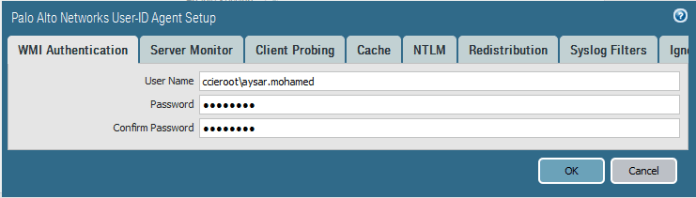
Next Go to Device > User Identification > Palo Alto Network user-ID Agent Setup > Click on settings button on the corner
in WMI Authentication i will use the username and password i created3
Then Enable the Server Monitoring
5
Optionally if you enable the NTLM is to discover domain you have to enable DNS configuration under
service – DNS – internal primary dns server
Also Enable the Client Probing and press ok
client probing is useful in huge environment because change will reflect on firewall immediately
every 20 minute
6
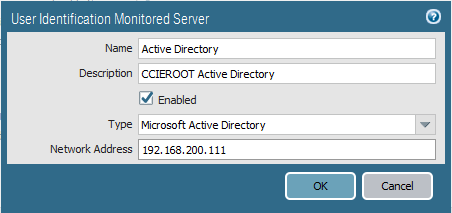
After That i will add my Active directory Under the server Monitoring
4
Then the Domain Controllers will show with a status of Connected.

First go to Device – Server Profiles – LDAP – add
Base DN: auto generate
Bind DN : (this account must be a member of the built-in Server Operators group in AD)
Also uncheck the box Require SSL/TLS secured connection
1
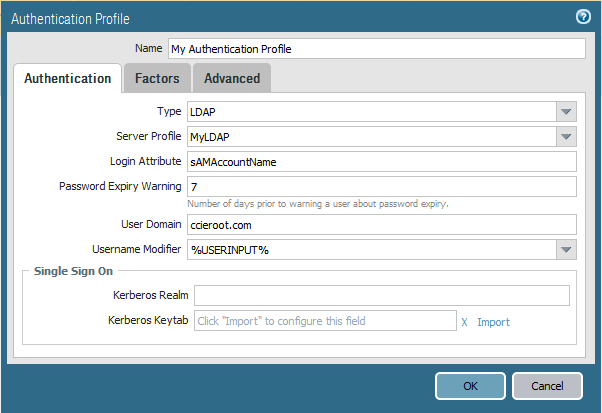
Then we need to create an Authentication Profile
Login Attribute: sAMAccountName
2
then Select Advanced tab and in the Allow list  select to add (All)3
Like that we done from Active Directory Integration

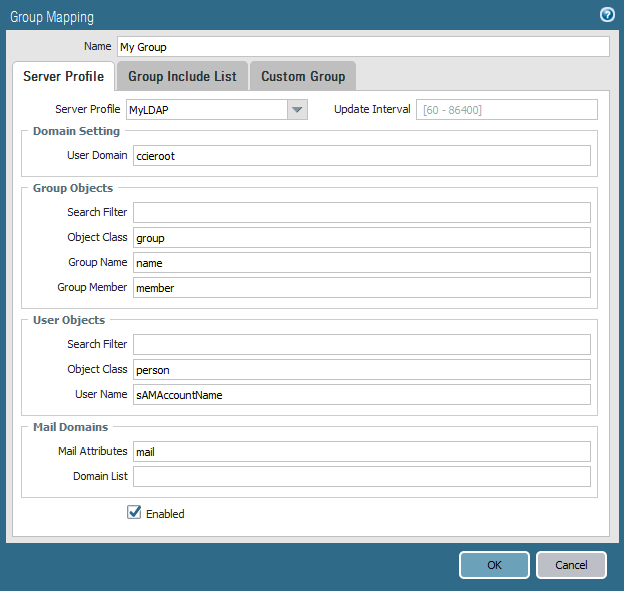
Now we create our group mappings so we can use these Active Directory groups in our security policies.
navigating to the Group Mapping Settings tab – Add new
5
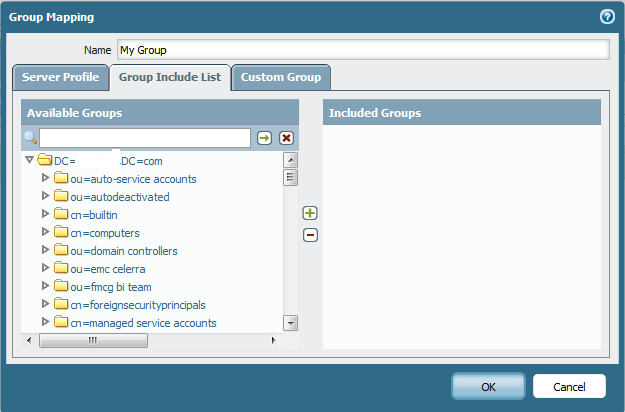
then go to the group include list tab at the top. as long you see the OU in your AD then it mean you can see everything correctly
6
Just for testing i Add the IT Staff
7
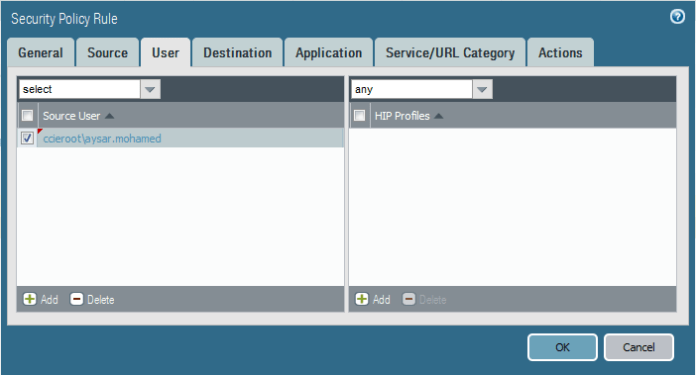
Now on our Internet Rule Select under User tab and Add my user or group8
now as you can see under the Monitoring Tab i see my Username when i Access any website9

;D

Note:
Because WMI probing trusts data that is reported back from an endpoint, Palo Alto Network recommends that you do not use this method to obtain User-ID mapping information in a high-security network. If you configure the User-ID agent to obtain mapping information by parsing Active Directory (AD) security event logs or syslog messages, or using the XML API, Palo Alto Networks recommends you disable WMI probing.
If you do use WMI probing, do not enable it on external, untrusted interfaces.

Standard
Firewall, Palo Alto

Configure Palo Alto to allow inside DMZ (FTP server)

So DMZ
In earlier Blog Palo Alto to Internet we configure how to Allow users to go to the Internet. so today i will show you how to allow your customer to come  inside to your FTP Server
first i Configure my Ethernet 1/1 with the Public IP Address 37.76.249.42
Go to Networks – Interface – Ethernet Edit
Change type to Layer 3, Configure Virtual Router and Zone (Outside)0
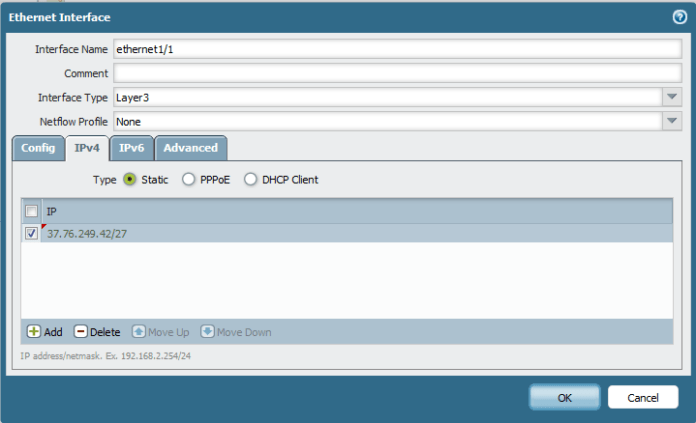
Then go to IPv4 and configure an IP Address of 37.76.249.42/270aThen Configure Ethernet 1/2 for DMZ gateway
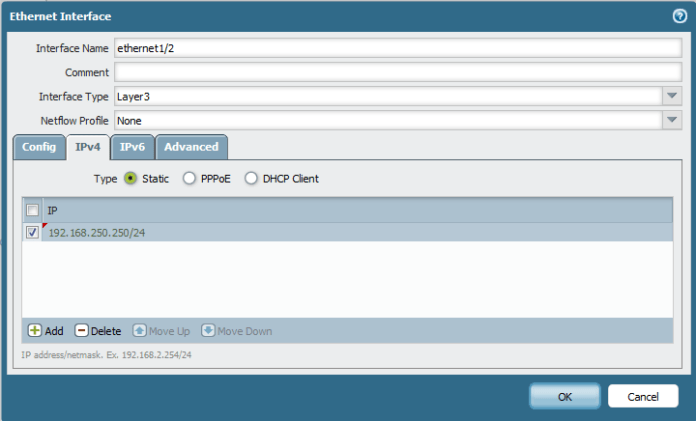
Change type to Layer 3, Configure Virtual Router and Zone (DMZ)1
Then go to IPv4 and configure an IP Address of 192.168.250.250/242
Now the most important step is to configure NAT Policy
Go to Policies – NAT – Add new
I choose name : NatMyFTPServer3
Choose your
Source Zone (DMZ)
Destination Zone (Outside)
Destination interface (Ethernet 1/1)
then i have to add my Source Address so Click on Address4
Choose a name (MyFTPServer)
Type : IP Netmask
Put the Local IP Address (192.168.250.16)5
And it’s added
and btw in case you have many Server that serve different services and only one Public IP you can adjust the services to be one for FTP, second for HTTPS and one for Remote access which consider as (Static Nat with Port Translation )
but in our case its only one server to one public ip
6
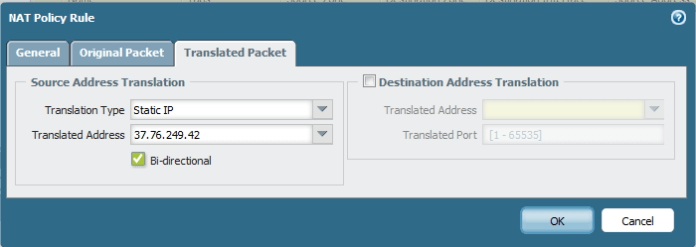
Now go to Translated Packet
Translated type: static IP
and Type the translated Address which is the public IP Address i Configure Earlier and to make sure translation go both way check  the box Bi-directional7
Now Finally let’s configure Security Policy Rule
Let me Educate you here (The Policy always is The destination Zone is Post-NAT and the Destination IP is Pre-NAT)
so you destination after the NAT is the DMZ
and your destination IP is the Pre-NAT which is your public IP Address
Confusing i know but it took me 2 years to understand it thanks to a friend of mine (Adel ;D)
Go to Policies – Security policy – Add new
Choose a Name and Rule Type as (interzone)8
Select the Source as Outside since the traffic coming from outside9
Configure the Destination as (DMZ) zone and Destination Address is your Public IP Address
10
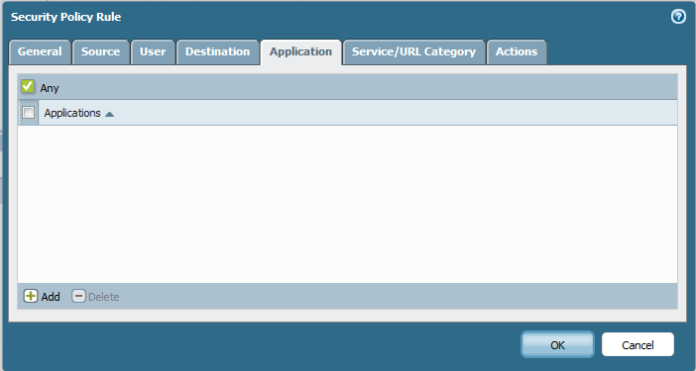
You can custom the Application and Service/URL Category to Allow FTP Service only but since this is a Lab just select any
Select Any in Application11
Also here in case you have many Server that serve different services and only one Public IP you can adjust the services to be one for FTP, second for HTTPS and one for Remote access which consider as (Static Nat with Port Translation )
but since we have one server select Any in Service/URL Category Tab12
Then select Allow as an action for this traffic13
Now in my laptop i install 3CDaemon which a great FTP server and Choose the Upload/Download Directory in my D:\IOS\ which contain my files.
I also configure a profile (Aysar) so i can use this as my login instead of anonymous13b
And now for the BIG Test
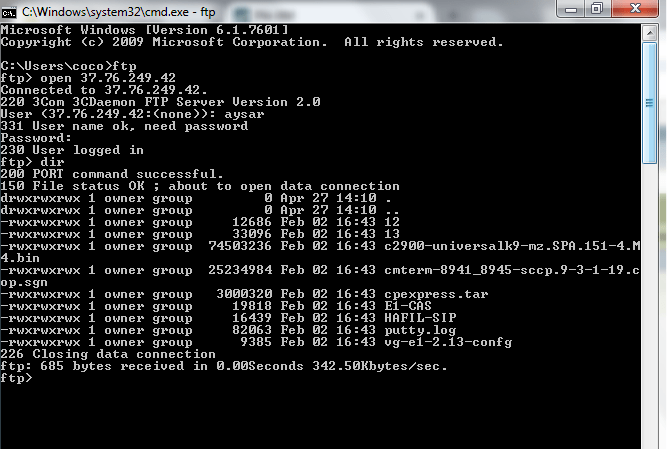
from any Customer PC i open cmd and go to ftp to the public IP Address of the FTP Server
and as you see Authentication went well14
Just type
dir
which list all the file under my D:\IOS\15

;D

Standard
Palo Alto

Palo Alto HA Sync Issue & APP and Threat Mismatch

Just when i think everything okay a Nice View Such as Below Appear
1
I Checked All my HA Configuration and it’s Fine SO
i Define this as Two Issue
Synchronize
App and Threat Mismatch

First lets Solve the Synchronized and it’s a simple Step
Just Next to Running Config Press (Sync to Peer) so it Push the Configuration to the Passive HA
2
It will Ask you to Overwrite Peer Configuration Just press yes
3
Now it Start as you See (Synchronization in Progress)4
And as you can see now it finished and now its Synchronized 5
and now here in the Passive HA and Also show the Same 6
Now Lets Move to Next step which is the APP & Threat Mismatch
Lets Check the Version of the Application First
Go to Device – Dynamic updates – and Check the Applications and threats
7
so Go to 654-3805 which is my Latest Update also you can See in the lower of screen (Check Update)
Then Press Install on Right Side of the Application8
Check to Synch to HA Peer
press Continue Installation
9
Now it will Progress
10
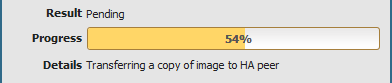
And Automatically will Transfer a copy to HA Peer11
As you See now a Copy Transferred and Installed in HA Peer12
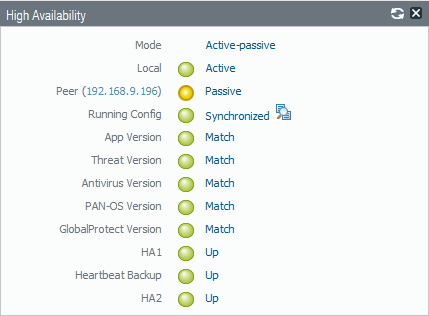
And Finally the all your HA Item in the Active Peer  is Green14

;D

Standard
Firewall, Palo Alto, Security

Palo Alto to Internet

TOP 10 Next Generation Firewalls
Palo Alto
After Spending Many Years in Cisco Security ASA and Worked with microsoft TMG the Company Decided to go to New technology
After Reading About it I realized that Gartner  agree that Palo Alto  Consider to be the leader when it comes to Next Generation Firewall appliances
So let me guide you with the First Step of Initial Setup and Configure it to Internet Access for users
and before you say anything it’s an old version 6.1.0

Well first Let start Login to the ESXI host
1
Then Choose to Deploy the OVA File
2
Browse to my Folder were i Save the OVA3
Press Next
4
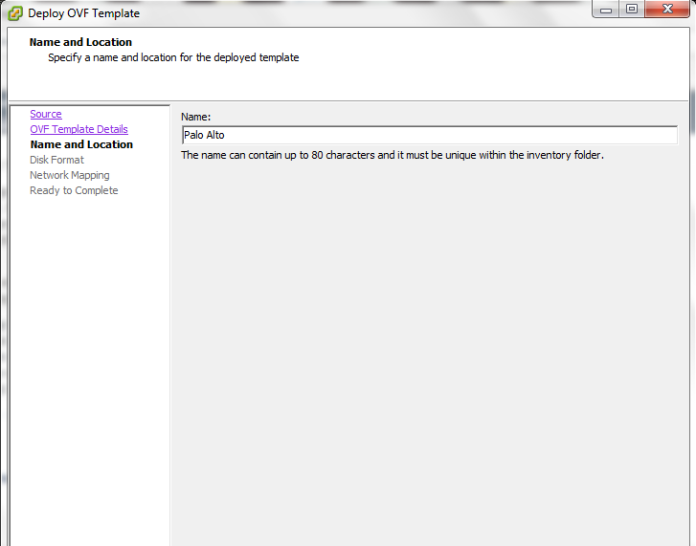
Type a Name of your Choice5
I Prefer to Select Thin Provision is i will not Reserve the Whole Size6
Select the Network7
Now Press Finish8
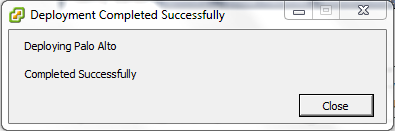
The Deploying Procedure Start9Now we Finished with The Installation of the OVA
10

Depend on your Scenario and how many Network Card you Need
in my Scenario i Need 4 (Management, WAN, LAN and DMZ)
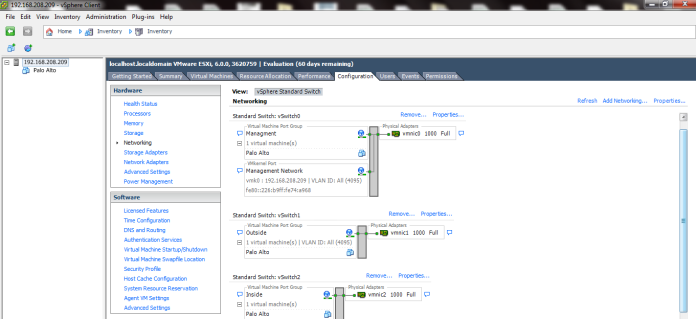
in my ESXI i have this Already Configured as you see in the Picture

a.png
Now i will Edit My Virtual Machine
Configure the Network Adapter 2 to be my Outside
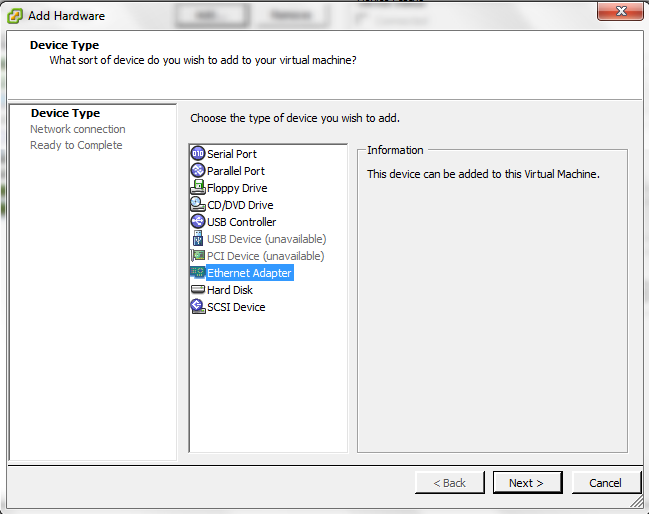
11
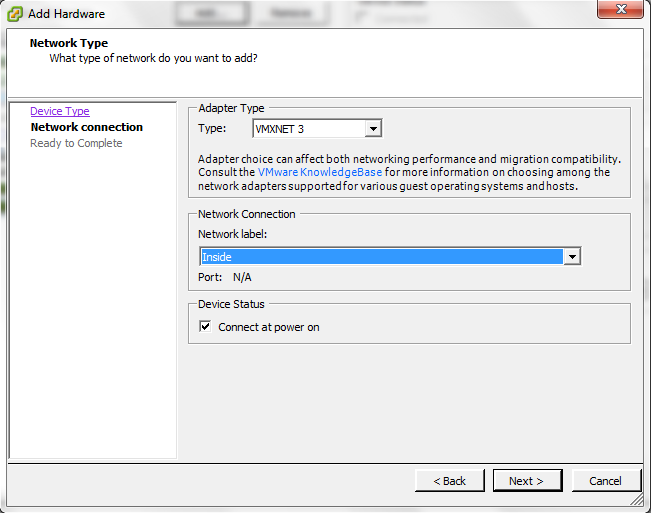
Click Add  and Select my Third Network Card for LAN12
Choose the Network Label (Inside) Which Represent the LAN Also DO the Same for Server Side which Represent by (DMZ)
13
Press Finish and Its Created14

15
Now Start the Machine16
Username: admin
Password:admin
and Set your IP Address for the Machine17
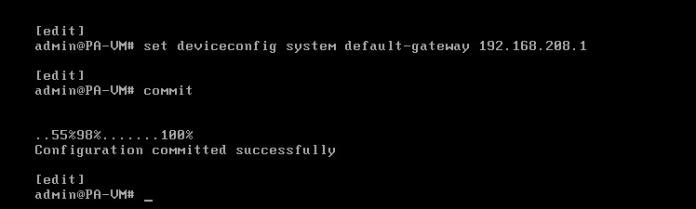
Now Set the Default Gateway and Save it (Commit)18
You can check your Management IP configuration by issuing the command
show interface management
Now Go to the Web Page Https://192.168.208.222
Enter the Default username and Password19
normal Warning Regard the Default username and Password20
Go to the Device – Setup – Management – Management Interface Settings and you Can Edit the Service or IP Address21
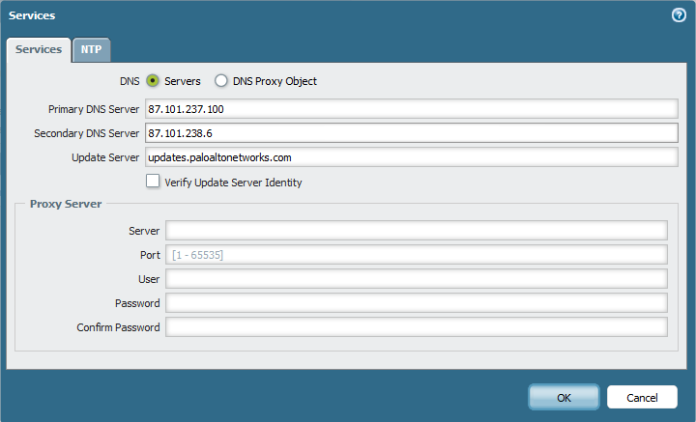
Second Go to Device – Setup – Service – Services and Configure the DNS and NTP22

23
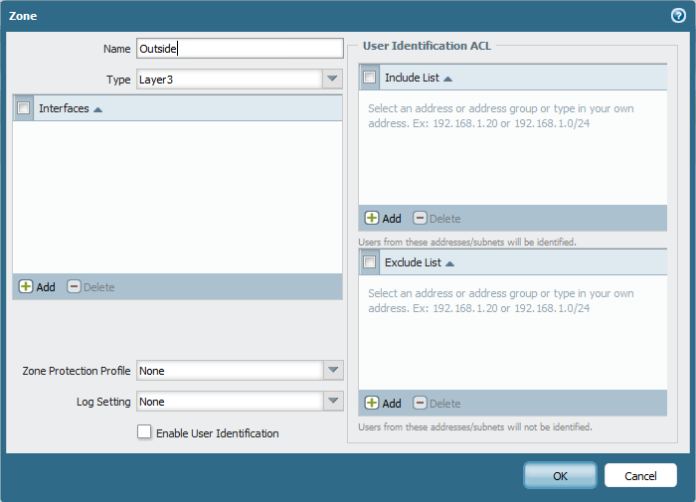
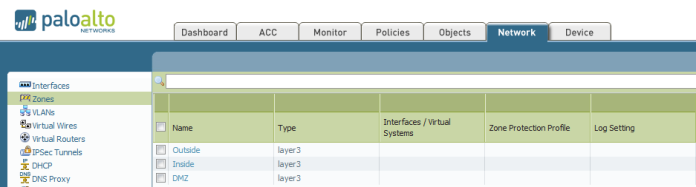
Second Go to Network – Zones and Add the Zones (Outside, Inside and DMZ) Repeat the Same Step Below to Create Each
25

26
Now Go to Network – Virtual Router and Create New One and Name it27
Second Go to Network – Interfaces – Edit Each interface (Ethernet 1/1, 1/2 and 1/3)
Outside, inside and DMZ
Type of Layer 3
Select the virtual Router and Security Zone28
then Go to IPv4 tab and Add the IP Address29
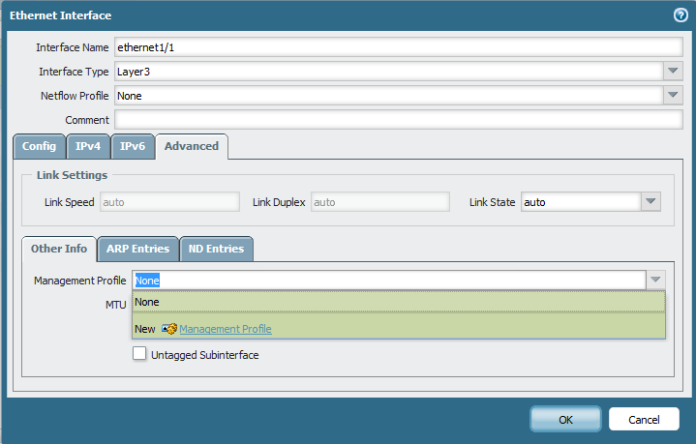
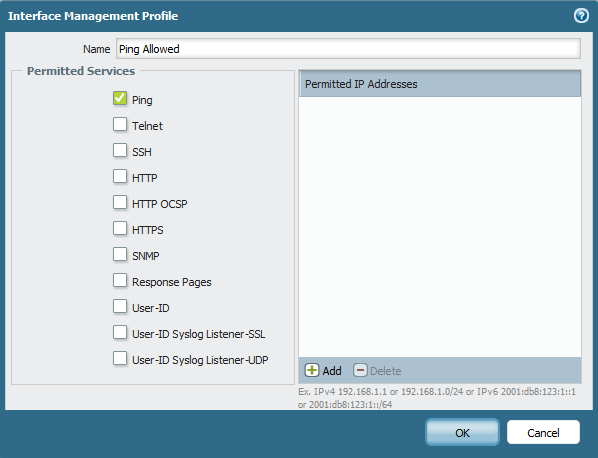
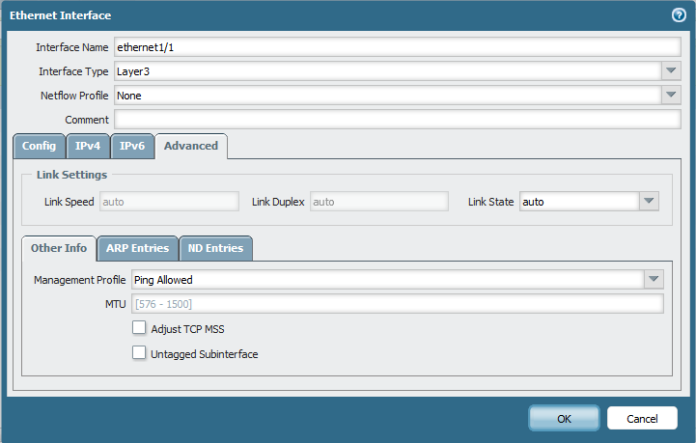
Second go to Advanced Tab – Other info – Management profile and press new 30
Select Name and Edit the Service Permitted31
And Then Select the Management profile32
Repeat the Same Step to Each Interface (LAN and DMZ)
here the Zone is Different for inside33
and Add the LAN IP Address : 192.168.250.250
34

35
Now  Go back to Virtual Router and Add a Static Routes to Default Route to your internet ISP Router in my Case : 37.76.249.9136
Now time to Configure your Security Rule
Go to Policies – Security and Add one
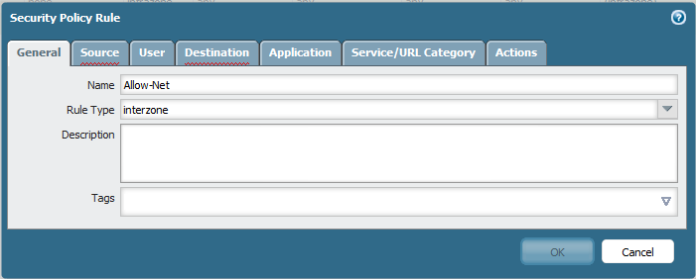
Name : Allow-Net
Type: Interzone
37
Choose the Source to be Inside38
Choose the Destination: Outside39
Select the Service/ URL category : Any40
Select the Action : Allow
Log Setting Enable Log at Session Start and END41
42
Now Go to to Configure the PAT (Port Address Translation)
Policies – NAT add new
Choose Name
43
Choose your Security Zone:Inside
Destination Zone: outside
Destination interface: Ethernet 1/1 (My WAN Network)
44
Then Select the Translated Packet and Configure it As below
Dynamic IP and Port for PAT
45
46
Now i go to my Client and I too IP from DHCP47
Test the PING and Now the ping is working perfectly to IP Address 8.8.8.848
and i Test the Web browsing and It’s Working Perfectly49

;D

Note. you can see the session in Palo Alto cmd
show session all
or
show session id

Standard
IOS

SSH (Secure Shell)

as a network administrator our job is to protect our network
well there is too many ways and telnet is  not one of them
using hacking software can show the Password in a clear text so now you fired

Secure Shell (SSH) is a cryptography network protocol provides a secure channel over an unsecured network
i will guide you in the way to configure it in Switch

First Configure the Hostname
1
Then Configure the Domain Name2.png
Then Generate Key and Choose your Encryption 3
Last thing Enable SSH Version
4
Finally under VTY Configure the Transport Input to Allow SSH only5
Now Configure the User 6
Now there is many tools you can use for SSH
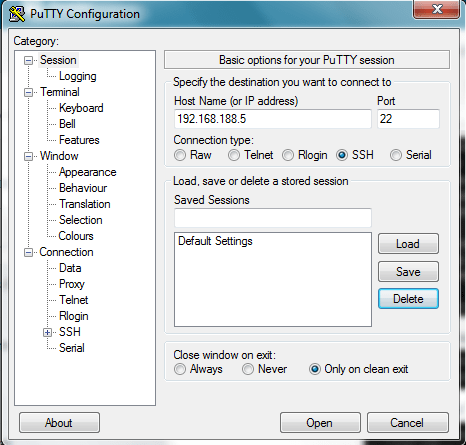
I Choose Putty
My Switch IP : 192.168.188.5
Connection Type: SSH
7
Accept the Security Alert
8
Login with my User that i created earlier
username:ccieroot
password:ccieroot9
That it  ;D

Standard
CUCM, Media Resource Group, Uncategorized

Media Resource Groups

The Most Important Element in CUCM World is the Media Resource. it’s used in order to allow an administrator to allocate media resources to particular devices.
There are five types of media resources available in Cisco:
Annunciator, Conference Bridges, Media Termination Point, Transcoder and Music On Hold
Annunciator is uses Cisco media streaming application service to play prerecorded announcements

Conference Bridges Without Saying it explain it self and can be either software or hardware applications

Media Termination Point or MTP can be used to transcode G.711 a-law audio packets to G.711 mu-law packets and vice versa. CUCM Software MTP can only work for G711 codec, however IOS MTP can have multiple codes

Transcoder when two Phones using different codecs would not be able to communicate so here were the Transcoder Job Come
Such Case Like conferencing, CUE use only G.711 so if another Coded used you need Transcoder, UCCX Support G.711 or G.729 so in case you need Both you need a Transcoder. Forward and transfer Call in case of Different Codec Also you need a Transcoder.

Music on Hold is the Boring Music that everyone hear when someone put us in hold ;D

So here i will guide you on how to configure my 4 Most Charming Feature (MTP, Transcoder, Conference and MOH)

First We start by Configure the IOS Side
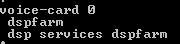
Allocating DSPs to a DSP Farm on Router
1

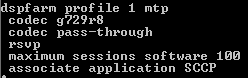
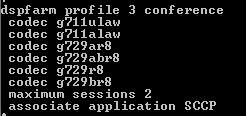
Then i Start to Configure the DSP-farm profiles for Each (MTP, Transcoder and Conference)
3

4

5
Note.Make Sure to Issue Command No Shut after Each Profile Configuration
After the profiles are set up i start by the SCCP Configuration
The routers use their Gigabit Ethernet 0/0 interface as the SCCP source interface, and the primary Cisco Unified Communication Manager should be 192.168.200.229 which my Publisher and for Better Practice it should be the Subscriber but i Only have one in  the Lap
2
Last thing in IOS I Configure the SCCP Group
associated the CUCM with priority
associated Each Media Profile and Register with a name that i will use later in the CUCM Registration

6

Now the CUCM Part first start with MTP
go to Media Resource – Media Termination point – Add New
Select Cisco IOS Enhanced Software Media termination point
put the Name in the IOS which (MAINMTP)
Select the Device pool
Save – Reset
7
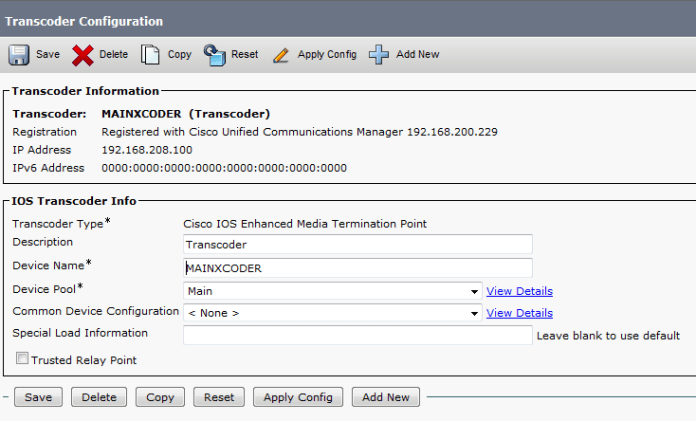
Now the Transcoder
go to Media Resource – Transcoder – Add New
Choose Cisco IOS Enhanced Media Termination point
Choose Device Name Configured in IOS Whcih (MAINXCODER)
Select the Device Pool
Save – Reset8
and Last the Conference
go to Media Resource – Conference Bridge – Add New
Choose Cisco IOS Enhanced Conference Bridge
Choose Device Name Configured in IOS Whcih (MAINCFB)
Select the Device Pool, Location and Device Security Mode as Non Secure
Save – Reset9

Last But Not Least to Configure MOH
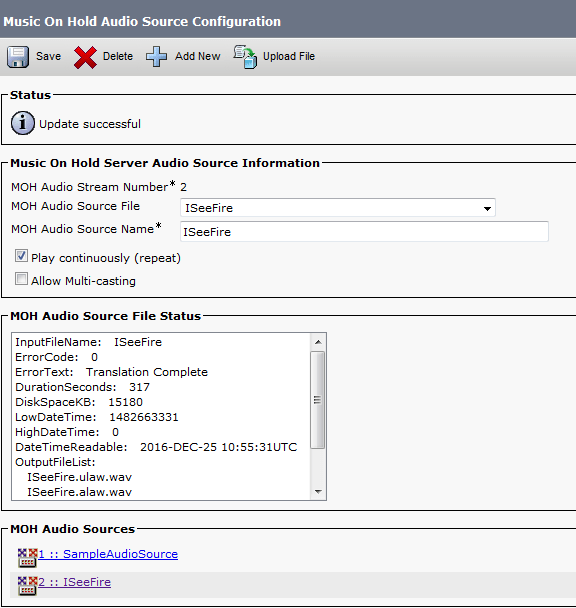
Add the Audio File
Media Resources – MOH Audio File Management – Upload File From Desktop
1
2
3Then Create an MOH Source
Go to Media Resources – Music On Hold Audio Sources – Add New
Choose Number and Select the Audio Source that you Just Upload
4
Last Thing is to Configure the MOH Server
Go to Media Resources – Music On Hold Server Audio Sources
Select the Device Pool, Location
Note.in Case of Multi Casting then you need to Check the Box for Enable Multi-cast Audio Sources on this MOH Server5
Now Assign the MOH to the Phones
7Finally we Done with the Resources, it’s Time to add them all Under one group
go to Media Resource – Media Resource Group – Add New
Name it in my Case i Name it (MainOffice)
Choose the Resource you Just Configured (MAINMTP, MAINXCODER, MAINCFB and MOH_2 (MOH))
Add them
Save
6
Note.Also be Aware in case of Multi casting you need to Check the Box Use Multi-cast for MOH Audio (If at least one multi-cast MOH resource is available)
Now Create an Media Resource List and add the Group to it
go to Media Resource – Media Resource Group List – Add New
Name it in my Case i Name it (MainOffice)
Choose the Media Resource Group I Just Configured
11
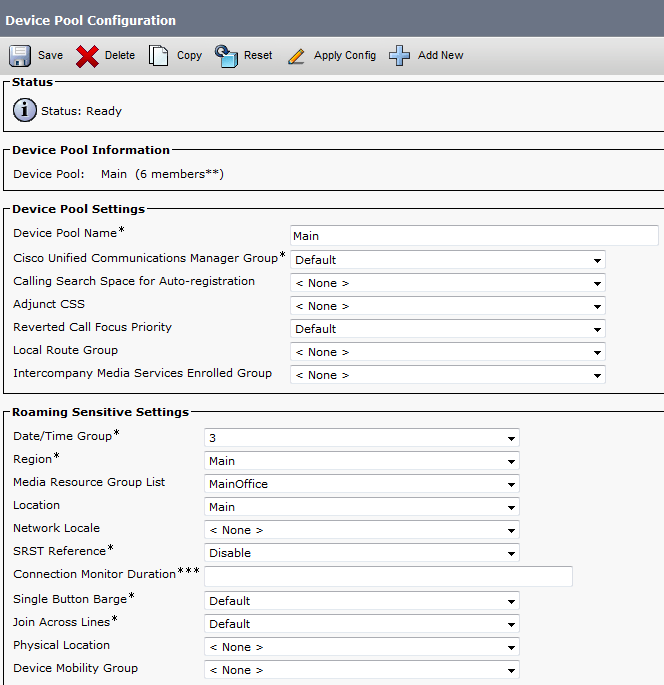
Finally Assign the Media Resource Group List to the Device pool 12
And Done
now you Allocated the Media Resource List i Configure for Each Member of this Device Pool

For Conference check this Link
For Music on Hold Video check this link

Standard
Troubleshooting, WLC

Flexconnect Issue in AIR-AP1852E

I am working in a new project were the vendor installed over 10 Access point model AIR-AP1852E on a WLC5508 with Software Version 8.2.100.0
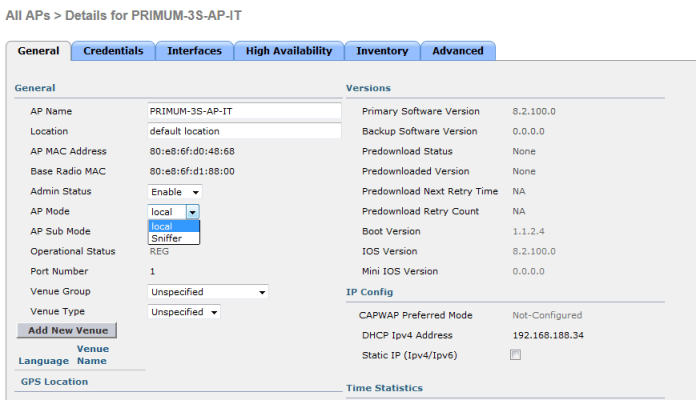
but i can’t configure those AP in Flexconnect Mode.
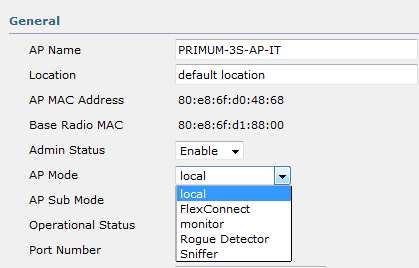
Cisco documentation Confirm that the available modes are “Centralized local”, “Standalone”, “Sniffer”, “Cisco FlexConnect”, “Monitor”, “OfficeExtent” and “Mesh”.

but it only show you the “Local” & “Sniffer” so i will guide you how to fix it
1

so i login to Cisco web site and downloaded the Newer image 8.2.130.0 and Save it to file
2
unless you have a service contract you will not be able to download it
then Login to WLC
3
now to upload to the WLC
go to Commands – Download File and Fill the Detail of your TFTP and WLC File Name and then press the Download Button4
you can see in your TFTP it Start to upload

After it finish the Upload it will ask you to Reboot6
I Choose Save and Reboot7
Now you see it change and show all Mode
8
Now go to Flex Connect and Check the Box of VLAN Support
and put the Native Vlan ID in your Branch – Apply
Then Press Button Vlan Mappings9
Then Configure your SSID with the Proper VLAN and
Note. even if you are Having this VLAN in another Site it doesn’t matter as long your Access Point is Flexconnect then it will take the branch IP Addressing  10

and Finally as you see i took my branch IP Address
11

;D

Standard
BAT, Uncategorized

Cisco Bulk Administration Tool (BAT)

I Call this : The Quick and dirty way

in earlier post i explain the Latest CUCM 10 feature SELF-Provisioning  were End user should input His Self-Service user ID to Provision a phone.
Today  I guide you through the most powerful tool of Cisco Unified Communications Manager mainly use to insert users, phones …etc.
BAT is an Old Feature for CUCM and usually use during big phone deployments.
please refer to Cisco Web for a complete guide on how to use bat.
i am here only to explain to you how to add Phones using BAT.

First Go to Bulk Administration – Upload/Download Files – Select bat.xlt and press Download Selected

1

Open the bat.xlt and Excel sheet will open then Choose to create File Format2

Adjust the File as you wish
MAC Address, Description, Directory Number, Line Description, Alerting Name …etc Then press bellow Magic Button (Create)3

it will ask you to overwrite the Excel file just press Yes4

Then Fill the Detail you need and Choose Export to BAT Format
and Save the File in your Desktop 5

Successfully Saved
6

Now Back to CUCM Bulk Administration – Upload/Download Files – and this time choose to Upload a new File
Choose  your BAT that you saved in Desktop and Select the transaction Type then Save.
it will be uploaded7

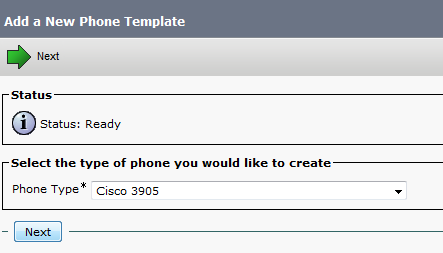
Now go to Bulk Administration – Phones – Phone Template -Create New one for the Specific Phone Model
8
Configure your Device pool, Phone button template …etc9

10
Then Configure the Directory line, Partition and Calling Search Space11
After That we need to Validate our BAT File with the Phone Template
go to Bulk Administration – Phones – Validate Phones
Select the  BAT and Phone Template
12
After that to check everything gone correctly go to Bulk Administration – Job Scheduler
it successfully Validate13
you can also check the text Report14
Now time to insert the Phones
go to Bulk Administration – Phones – Insert phones
Choose the BAT File and Phone template & Run Immediately15

Again you need to check everything gone Smoothly so
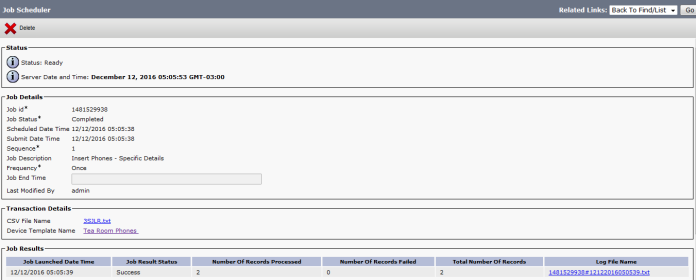
go to Bulk Administration – Job Scheduler
it Successfully Passed16
Also Check the Text To for any Error
17

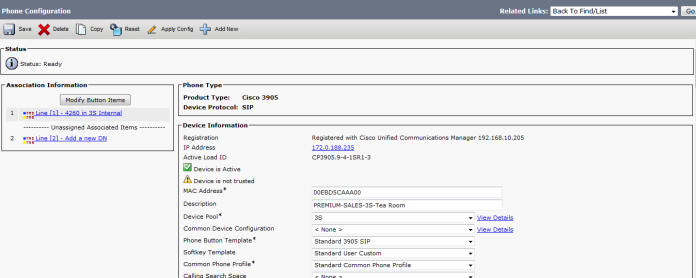
Here is the Best part when i see My Phone Registered Just Fine ;D18

Standard
CUCM, Self-Provisioning

SELF-Provisioning For End User Phones

Okay

I saw many post from people complain about self-provisioning they cant get it to work  or they hear  IVR keeps saying “This device could not be associated with your account…”I decide to make my own and try the service my self

The Self-Provisioning feature been introduced in CUCM version 10 it allows an end user to plug a new phone out of the box into the network and follow a few prompts to identify the user and Walla it’s working with minimal administrative effort.

It’s been released to make the lives of the administrators easier.  So Smile ;D
Lets start

go to User Management – User/Phone Add – Universal line Template – Add New
Name the Template
and choose to fill the line Description and Alerting Name as you wish i did first name and last name plus my description Also the Route Partition and CSS
1
Also you have option to fill the Call forwarding if you want
2
Second go to User Management – User/Phone Add – Universal Device Template – Add New
Fill the Name and Device Description as you Wish and Choose Device pool and Security Profile and Also the SIP Profile and Phone button template just to make sure your phone get all the detail instead of going back and Edit
3
go to User Management – User Settings – User Profile – Add New
Name it and from Drop Down Select the Device Template you create fir your Desk Phone and Mobile and Remote if you have and Also Choose the Line Template and Make Sure to Check the Box to Allow End User to Provision Their Own Phones
4
Now time for LDAP Configuration i Already Blog before about it Earlier Here
so Go to System – LDAP – LDAP System and Check the box and Choose your LDAP Sevrer Type
5
First make Sure to Edit the user in Active Directory to have their Extension in the IP Phone Filed
Then Go to System – LDAP – LDAP Directory and click Add New
now this is CUCM 10 and you can see there is New Field so
after filling the Required Data go to Access Control Group and add Standard CCM End Users
and Check the Box to Apply Mask to Synced Telephone Number to Create A new line for inserted user and Mask of XXXX
if this Box not checked your end User will not have a Self -Service user ID or Primary Extension which Both Required to Provision a Phone
After Save Press the Button: Perform Full Sync Now
67
Now go to User Management – End User and Check it Auto take the Self-Service user ID and Primary Extension
8
9
Now go to Device – CTI Route Point – Add New
Giv it a Name, Device Pool and a  Location Then Save   10
Now Add the Directory Number Which will be Use by the End User to get the Prompt 11
Now Create and Application user and Associate the CTI with it and Give Standard CTI Enable  Permission
1213
Now go to Server and Enable Auto Registration
Select the Device Template, line template and Starting and Ending Directory that Phone will take Temporarily 14
Finally Now Activate the Service under CUCM Serviceability
15

now Redirect the user to enter the CTI Number in the Phone and Press the Number it will Ask the User to Enter the Self-user ID
after press the ID which in my Case 7156
it will ask to confirm by pressing Pound and then Phone will Restart
you can see the Video in my Youtube Channel
and Finally the Phone Registered by my name and Extension  ;D
last
Smile life Is Beautiful

Standard